To set up multiple monitors in Windows 11, connect the second monitor and turn it on. Then go to Settings > System > Display. Choose Extend these displays from the list next to Identify, and drag the numbered screens to match how your monitors sit on your desk.
The fastest shortcut is Windows + P > Extend.
Applies to: Windows 11 desktops and laptops. Checked against Microsoft Support on September 24, 2026.
What you need
- A free video port for each extra monitor: HDMI, DisplayPort, or USB-C with video support. Look for a DisplayPort or Thunderbolt symbol next to a USB-C port.
- The right cable or adapter for each monitor.
- On a desktop with a graphics card, plug every monitor into the graphics card, not the motherboard ports.
- For three or more monitors, check how many displays your graphics card or laptop supports. A docking station can add ports.
Step 1: Connect and extend your displays
- Connect the monitor to your PC and turn it on.
- Press Windows + I and select System > Display.
- If only one screen appears, open Multiple displays and select Detect.
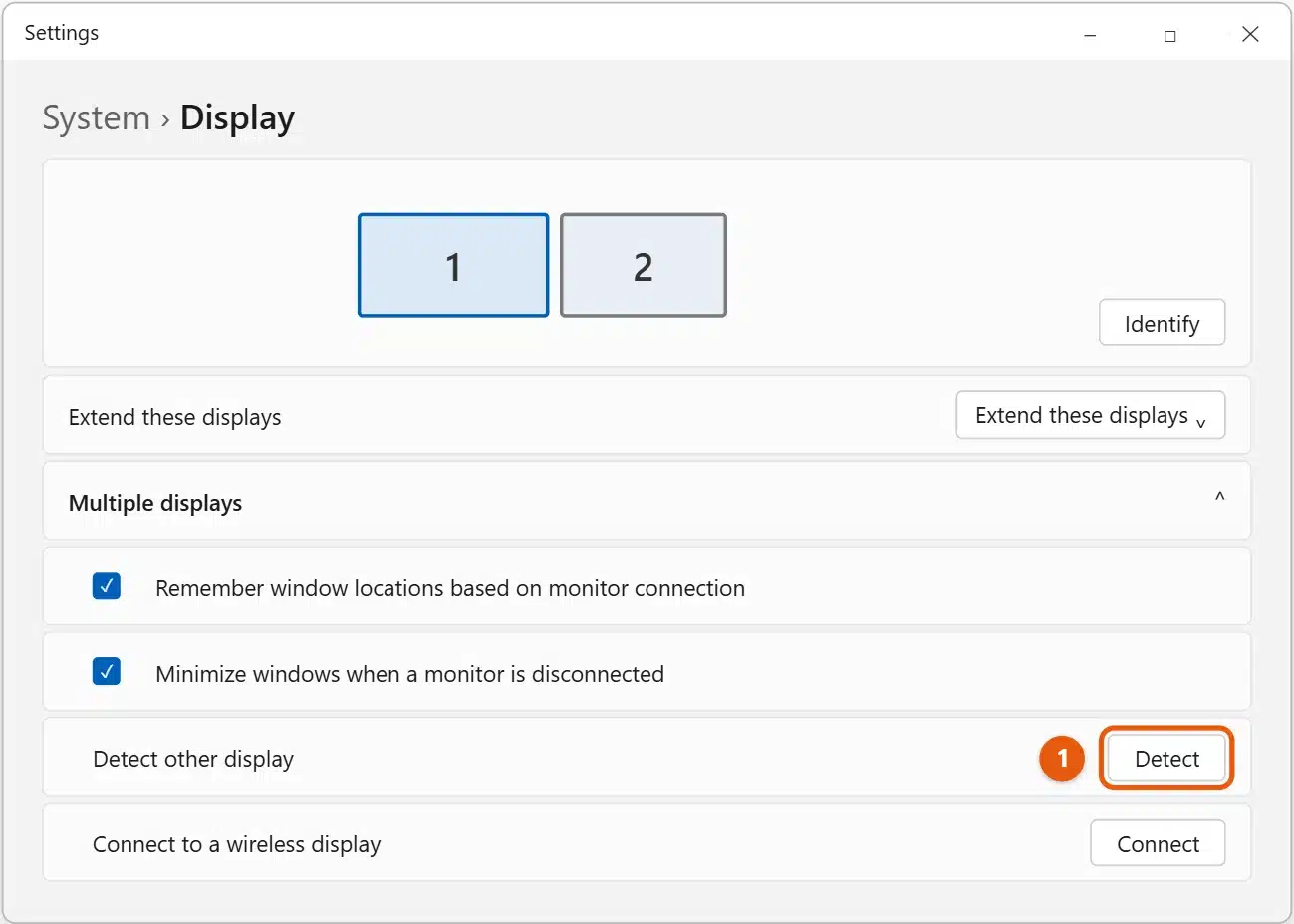
- Choose Extend these displays from the list next to Identify.
- Select Keep changes if Windows asks.

Other modes in that list are Duplicate these displays (the same picture on both) and Show only on 1 or Show only on 2. Press Windows + P to switch modes quickly.
Step 2: Arrange your monitors
- Select Identify. A large number appears on each screen.
- Drag the boxes on the Display page so they match where the monitors really are. For example, drag 2 to the left of 1 if that monitor is on your left. If one monitor sits higher, move its box up. If the pointer still crosses the wrong way, or the wheel scrolls backwards, see mouse direction and scrolling on dual monitors.
- Select Apply.
Your mouse now moves between screens along the edges where the boxes touch. If it goes the wrong way or gets stuck, see how to move the mouse between two monitors in Windows 11.
Step 3: Choose your main display
Select the monitor you want at the top of the Display page, open Multiple displays, and check Make this my main display. Most apps and new windows open there first, and our guide on how to set the primary monitor in Windows 11 covers what to do if the option is greyed out. To swap the numbers, see how to change monitor 1 and 2 in Windows 11.
Step 4: Fix size, resolution, and refresh rate
Select each monitor at the top of the Display page, then:
- Scale: pick a percentage so text looks about the same size on every screen.
- Display resolution: choose the option marked (Recommended).
- Display orientation: choose Portrait for a rotated monitor.
- Refresh rate: select Advanced display and choose a higher rate, such as 144 Hz, if the monitor supports it.
See how to adjust screen size on a second monitor in Windows 11.
Step 5: Set up the taskbar on every monitor
- Go to Settings > Personalization > Taskbar > Taskbar behaviors.
- Turn on Show my taskbar on all displays.
- Choose where app buttons appear under When using multiple displays, show my taskbar apps on.
Handy Windows 11 features for multiple monitors
- Move a window to another monitor: press Windows + Shift + Left arrow or Right arrow.
- Snap layouts: point at a window’s maximize button to arrange windows on the current monitor.
- Remember window locations: under Multiple displays, keep Remember window locations based on monitor connection checked, so windows go back when you reconnect a laptop.
- Different wallpapers: go to Settings > Personalization > Background, right-click a picture, and choose which monitor to set it for. See how to set different wallpapers on dual monitors in Windows 11.
If the second monitor isn’t detected
- Check the monitor’s input. Use its buttons to choose the port you plugged into, such as HDMI 1. For a TV, see how to switch to HDMI on Windows 11.
- Select Detect under Multiple displays, or press Windows + P and choose Extend.
- Try another cable or port. Some USB-C ports and cheap adapters don’t carry video.
- Restart the PC with the monitor connected and turned on.
- Update the graphics driver in Settings > Windows Update > Advanced options > Optional updates, or from your PC or graphics card maker’s website.
- Wake the graphics driver: press Windows + Ctrl + Shift + B. The screen flashes as the driver restarts.
Frequently asked questions
How many monitors can Windows 11 use?
There’s no small built-in limit. The number depends on your graphics card, laptop, or dock.
Can I use a TV or a wireless display?
Yes. Connect a TV with HDMI, or press Windows + K to connect to a Miracast display. See how to cast Windows 11 to a TV.
How do I turn off a second monitor without unplugging it?
Press Windows + P and choose PC screen only. See how to disable a second monitor in Windows 11.
On Windows 10, see how to set up dual monitors in Windows 10. Microsoft’s guide is How to use multiple monitors in Windows. More help is on our Windows 11 Help & Guides page.
To move the taskbar icons or show the taskbar on every screen, see how to move the taskbar in Windows 11.
To make a video of one of your screens, see how to record your screen in Windows 11.
To fit two or more apps on one screen, see how to split screen in Windows 11.
Each screen can have its own refresh rate. See how to change the refresh rate in Windows 11.
To turn a monitor on its side, see how to rotate the screen in Windows 11.
To show the same picture on both screens, see how to duplicate your screen in Windows 11.
If a window ends up on a screen you can’t see, see how to move a window that’s off screen in Windows 11.
To use your monitor with the laptop lid shut, see how to close your laptop and keep using a monitor in Windows 11.

Matt Jacobs has been working as an IT consultant for small businesses since receiving his Master’s degree in 2003. While he still does some consulting work, his primary focus now is on creating technology support content for SupportYourTech.com.
His work can be found on many websites and focuses on topics such as Microsoft Office, Apple devices, Android devices, Photoshop, and more.