To restore Windows 10 to a previous date, type restore point in the search box on the taskbar and open Create a restore point. On the System Protection tab, select System Restore > Next. Choose a restore point from before the problem started, then select Next > Finish. Windows restarts and undoes recent changes to apps, drivers, and settings. Your personal files aren’t changed.
A quicker way in is to press Windows + R, type rstrui, and press Enter, which opens System Restore directly.
Applies to: Windows 10. Checked against Microsoft Support on September 24, 2026.
Before you start
- You need a restore point from before the problem. Windows makes them automatically before updates and driver installs, but only when System Protection is turned on.
- Apps, drivers, and updates installed after the restore point will be removed. You can reinstall them afterward.
- Your documents, photos, and other personal files stay as they are. Back up anything important anyway.
- If the PC uses BitLocker or device encryption, have your recovery key ready in case Windows asks for it.
Restore to an earlier date
- In the search box on the taskbar, type
restore pointand select Create a restore point. - On the System Protection tab, select System Restore, then Next. If Windows shows Recommended restore, select Choose a different restore point to pick one yourself.
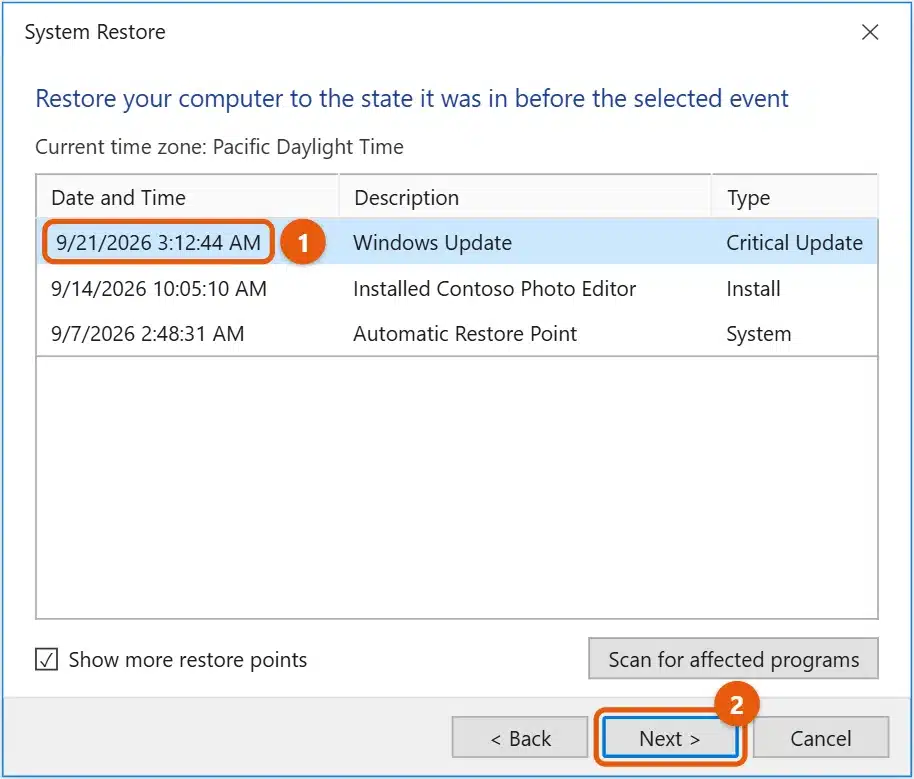
- Check Show more restore points to see older ones.
- Select a restore point dated before the problem began. Select Scan for affected programs to see what will be removed.
- Select Next, then Finish, and confirm with Yes. The PC restarts, and the restore can take several minutes. Don’t turn it off while it runs.
When Windows starts again, it shows whether the restore worked. If it says System Restore didn’t complete successfully, try an older restore point, or try again from Safe Mode or the recovery screen as shown below.
If Windows 10 won’t start normally
Use the recovery screen:
- Go to Settings > Update & Security > Recovery, and under Advanced startup, select Restart now. You can also hold Shift while you select Restart on the sign-in screen. If Windows can’t start at all, it usually shows the recovery screen by itself after it fails to start twice.
- Select Troubleshoot > Advanced options > System Restore.
- Choose your account, enter its password if asked, and pick a restore point the same way.
If System Restore fails from normal Windows, try it in Safe Mode instead. From the recovery screen, select Troubleshoot > Advanced options > Startup Settings > Restart, press 4 for Safe Mode, then run rstrui from the Run box.
If there are no restore points
If System Restore is grayed out, System Protection is off. To make sure you have restore points next time:
- Open Create a restore point.
- Select the C: drive and select Configure.
- Select Turn on system protection, set Max Usage to around 5% to 10%, and select OK.
- Select Create to make a restore point now. See how to create a restore point in Windows 10.
Without a restore point, you can still:
- Uninstall a recent update: go to Settings > Update & Security > Windows Update > View update history > Uninstall updates.
- Roll back a driver: in Device Manager, open the device’s Properties, and on the Driver tab, select Roll Back Driver.
- Reset the PC: go to Settings > Update & Security > Recovery > Reset this PC, and choose Keep my files. This reinstalls Windows and removes your apps, so use it as a last resort.
Undo a restore
Open System Restore again and select Undo System Restore, then follow the prompts. This isn’t available if you ran the restore from Safe Mode or the recovery screen.
Frequently asked questions
How far back can I restore Windows 10?
As far as your oldest restore point. Windows deletes old points when System Protection runs out of the space you gave it, and some big updates clear them, so there may only be a few weeks.
Will System Restore bring back deleted files?
No. It doesn’t restore personal files. See how to find recently deleted files on Windows 10.
Will System Restore remove a virus?
Not reliably. Run a full scan in Windows Security instead.
Is Windows 10 still supported?
Windows 10 support ended on October 14, 2025. See how to enroll in Windows 10 Extended Security Updates if you plan to keep using it.
If Windows won’t start normally, you can run System Restore from Safe Mode. See how to start Windows 10 in Safe Mode.
To stop a problem update from coming back right away, see how to turn off automatic updates in Windows 10.
If Windows won’t start, try Startup Repair in Windows 10 first.
To keep copies of your files as well, see how to back up Windows 10.
For other ways to fix Windows, see how to repair Windows 10 without losing files.
Using Windows 11? See how to restore Windows 11 to a previous date. Microsoft’s guide is Recovery options in Windows. More help is on our Windows Help & Guides page.

Matt Jacobs has been working as an IT consultant for small businesses since receiving his Master’s degree in 2003. While he still does some consulting work, his primary focus now is on creating technology support content for SupportYourTech.com.
His work can be found on many websites and focuses on topics such as Microsoft Office, Apple devices, Android devices, Photoshop, and more.