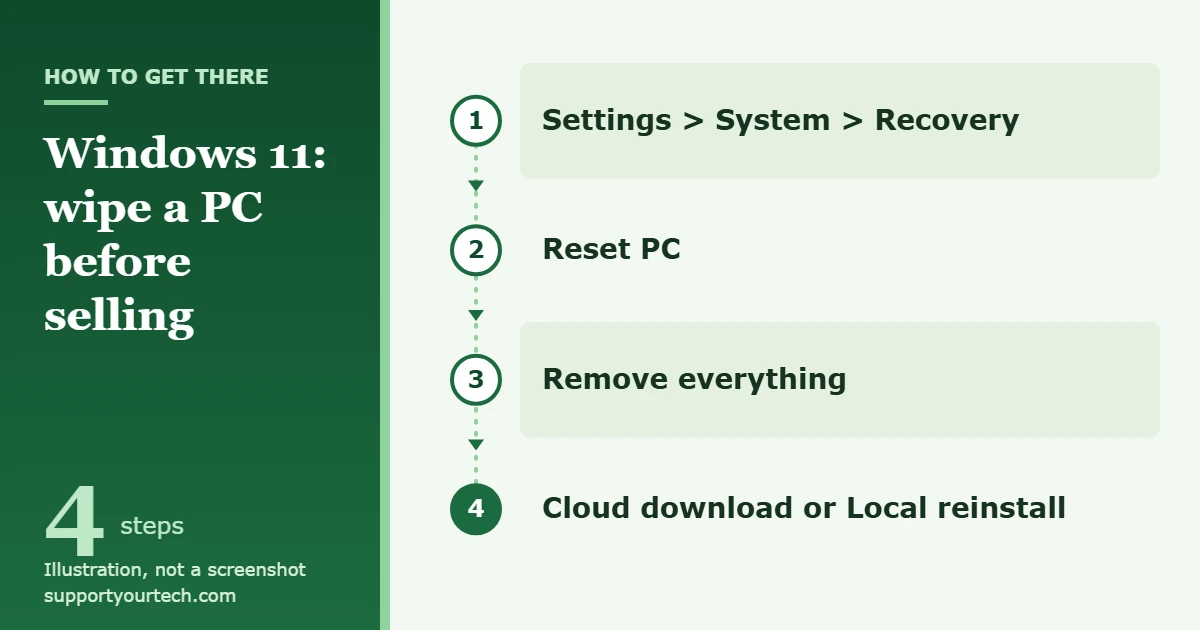
To wipe a Windows 11 PC before selling it, back up your files, then open Settings > System > Recovery, select Reset PC, choose Remove everything, and turn on the data-erasure option before you start the reset. Afterward, remove the PC from your Microsoft account so it is no longer tied to you.
Applies to: Windows 11 Home and Pro on a personal PC or laptop. Checked against Microsoft Support on October 6, 2026.
What a proper wipe involves
Deleting folders or removing your user account does not prepare a PC for a new owner. Windows has a built-in tool for this job called a reset. Microsoft describes the Remove everything reset as the option that reinstalls Windows and removes all your personal files, apps, and settings, and says it is the one to use when you are giving away or selling your PC.
A reset has two levels. By default it simply deletes your files. You can also ask it to perform data erasure on the drive, which Microsoft says makes recovery of the data by someone else much more difficult. For a PC that is leaving your hands, the second level is the one you want.
The whole job has three parts: save what you need, reset the PC with data erasure turned on, and then unlink the PC from your Microsoft account.
Before you reset: save your files and keys
A reset with Remove everything cannot be undone, so finish this checklist first.
- Back up your files. Select Start, type backup, and open Windows Backup. It can save your Desktop, Documents, Pictures, Videos, and Music folders, along with your installed-app list and settings, to OneDrive. It needs a personal Microsoft account, and a free account includes 5 GB of OneDrive storage, so large photo or video collections may not fit.
- Or copy files to an external drive. Connect the drive, open File Explorer, select the folders you want, right-click them, and choose Show more options > Send to, then pick the drive. Repeat for every location where you keep files, including Downloads. Browse the external drive afterward to confirm the files are there, then select Eject before unplugging it.
- Open a few backed-up files on another device. A backup you have not checked is not a backup. Do this before the reset, not after.
- Find your BitLocker recovery key. Microsoft warns that if the device is encrypted, you need the BitLocker recovery key to complete a reset. The key is a 48-digit number. For a personal Microsoft account, sign in at aka.ms/myrecoverykey to see it. To check whether your PC is encrypted, go to Settings > Privacy & security > Device encryption. If that entry is missing, device encryption is not available on your PC or you are not signed in as an administrator.
- Let OneDrive finish syncing, then unlink it. Select the OneDrive cloud icon on the taskbar, choose Help & Settings > Settings, and on the Account tab select Unlink this PC, then Unlink account. Microsoft confirms no data is lost by unlinking; the local folders are only disconnected from the cloud.
- Sign out of paid apps and services. Programs that limit how many computers you can use them on should be signed out or deactivated from inside the app while it still runs. Check each software maker’s own instructions.
- Plug in the charger. A reset with data erasure can run for a long time and should not be interrupted.
How to wipe a Windows 11 PC from Settings
Use this method when the PC starts normally and you can sign in.
- Open Settings and select System > Recovery. The Recovery page lists several repair tools.
- Under Recovery options, find Reset this PC and select Reset PC next to it. A window opens and asks you to choose an option.
- Select Remove everything. Do not pick Keep my files; that choice leaves your documents and photos on the drive.
- Choose how Windows is reinstalled. Cloud download fetches a fresh copy of Windows from Microsoft, which helps if files on the PC are damaged, and it needs an internet connection. Local reinstall uses the files already on the PC, which suits a slow connection but may not include the latest updates. Either choice removes your data.
- On the screen that summarizes your choices, open the option to change the settings and switch on data erasure, so the drive is cleaned and not just emptied. Microsoft’s Surface instructions describe this as choosing to fully clean the drive. If the PC has more than one drive, you are also asked whether to remove data from all drives or only the drive where Windows is installed; choose all drives if the others are being sold with the PC.
- Read the final summary of what the reset will do, then confirm to start it. The PC restarts on its own, possibly several times.
- Leave the PC alone until it finishes. Microsoft notes the screen might go black for a long period, occasionally more than 15 minutes, and that the device might restart itself. Do not hold the power button during this time.
- When the first-time Windows setup screen appears, stop. Turn the PC off without completing setup so the buyer can create their own account.
How long the wipe takes
Microsoft says the time needed for data erasure depends on the speed of the drive, the size of the partition, and whether the drive is encrypted with BitLocker. Its Surface guidance says a reset that fully cleans the drive might take an hour or two. A large, older hard disk can take longer than a small solid-state drive. Start the reset when you will not need the PC for the rest of the day, and do not schedule the handover for the same hour.
Wipe a PC you cannot sign in to
If you forgot the password or Windows will not load to the desktop, you can run the same reset from the Windows Recovery Environment, a repair menu that loads outside of Windows.
- Get to the sign-in screen. If you are signed in, press Windows logo key + L.
- Hold the Shift key while you select Power > Restart. The PC restarts into the recovery menu.
- Select Troubleshoot > Reset this PC.
- Choose Remove everything, then pick the same options described in the Settings method, including data erasure.
If you can still open Settings, there is another way in: go to System > Recovery and select Restart now next to Advanced startup. Windows also opens the recovery menu by itself after it fails to start correctly several times.
On an encrypted PC, some recovery tools ask for the BitLocker recovery key before they continue. Have the 48-digit key ready before you begin.
Clean install from a USB drive
A clean install deletes every partition on the Windows drive and installs a new copy from a USB stick. Use it when the reset fails, when the recovery menu is damaged, or when you want the drive laid out from scratch. It takes more steps than a reset and needs a second, working PC.
- On a working PC, plug in a blank USB flash drive with at least 8 GB of space. Everything on it will be deleted.
- Go to Microsoft’s Download Windows 11 site. Under Create Windows 11 Installation Media, select Download Now, then run MediaCreationTool.exe and follow its prompts to build the USB drive.
- Plug the USB drive into the PC you are selling and start the PC from it. The key that opens the startup device menu varies by manufacturer, so check the PC maker’s support page.
- Choose your language, select Next, choose your keyboard, and select Next again.
- Select Install Windows 11, check I agree everything will be deleted including files, apps, and settings, and select Next.
- If a product key window appears, select I don’t have a product key, then choose the edition of Windows that the PC was licensed for and accept the license terms.
- On the screen that asks where to install Windows, select each partition on Disk 0 in turn and select Delete Partition until only Unallocated Space is left. Microsoft warns not to modify or delete partitions on any other disk.
- With the Disk 0 unallocated space selected, select Next, then Install. The PC restarts several times.
- Stop at the first setup screen and turn the PC off, as with a reset.
Microsoft’s full procedure is in Reinstall Windows with the installation media. Our guide on how to reinstall Windows 11 walks through the same process at a slower pace.
If you made a recovery drive for this PC in the past, it offers a third route. Start the PC from that drive, select Recover from a drive, choose Fully clean the drive instead of Just remove my files, and select Recover.
Which method should you use?
| Your situation | Method | What you need |
|---|---|---|
| PC works and you can sign in | Reset from Settings with data erasure | Your sign-in, charger |
| Forgotten password, or Windows will not load | Reset from the recovery menu | BitLocker recovery key if the drive is encrypted |
| Reset fails or will not start | Clean install from USB | Second PC, blank 8 GB USB drive |
| You already have a recovery drive | Recover from a drive, fully clean | The recovery drive made on this PC |
| Work, school, or legally sensitive data | Follow your organization’s disposal process | IT department sign-off |
How thorough is the Windows wipe?
For an ordinary home sale, a Remove everything reset with data erasure is the method Microsoft provides and recommends. It has a stated limit, though. Microsoft’s own note reads that the data erasure functionality is targeted at consumers and does not meet government and industry data erasure standards.
That matters in a few cases. If the PC held client records, medical or financial files, or anything covered by a contract or regulation, a consumer reset may not satisfy the rules you are bound by. Ask whoever sets those rules what method they require. Some people in this position remove the drive and keep or destroy it, then sell the PC without storage.
One detail explains how the built-in tool behaves. Microsoft’s technical documentation says the Windows drive is never formatted during a reset, because the files needed to rebuild Windows are stored on it; your files there are deleted individually. Extra data drives are formatted if you choose to remove data from all drives.
Windows also includes a command for erasing a whole secondary disk. In the DiskPart tool, clean all sets every sector on the selected disk to zero, which Microsoft says completely deletes all data on that disk. It acts on whichever disk is selected, with no undo, so one wrong selection erases the wrong drive. Read Microsoft’s DiskPart clean reference before considering it, and skip it if you are not sure which disk is which.
After the wipe: remove the PC from your Microsoft account
Resetting the PC does not take it off your account’s device list. Microsoft says to remove it yourself once the reset is done. Use another computer or your phone.
- Go to account.microsoft.com/devices and sign in. Find the PC you reset.
- Select Show details to open that device’s page.
- Under the device’s name, select More actions > Remove.
- Check the box for I’m ready to remove this device, then select Remove.
If the same page shows an Unlink option for the PC, select it and confirm. That stops the old PC from counting toward your Microsoft Store device limit. Microsoft covers both actions in Before you recycle, sell, or gift your Xbox or Windows PC.
Removing a device from your account does not erase anything on it. It is the last step, not a replacement for the reset.
How to confirm the wipe worked
- Turn the PC on once. It should open the first-time Windows setup screen, not a sign-in screen with your name on it.
- Do not sign in with your own Microsoft account to look around. Signing in sets the PC up as yours again, and you would need to repeat the reset.
- Check that the PC no longer appears at account.microsoft.com/devices.
- Look over the hardware for anything of yours that a reset cannot touch: a memory card in the card reader, a USB receiver for a mouse, a disc in the drive, or a note with a password on it.
Troubleshooting
The reset asks for a BitLocker recovery key
The drive is encrypted. Sign in at aka.ms/myrecoverykey with the Microsoft account used on the PC and match the key ID shown on screen. Keys can also be on a printout or a USB flash drive you saved when encryption was turned on. Microsoft Support cannot retrieve or recreate a lost key. If you cannot find it, Microsoft says you may need to reset the device with Windows recovery options; the clean install from USB, which deletes every partition on Disk 0, is the route that does not depend on the old installation.
The PC belongs to, or is managed by, a job or school
Do not reset it for sale on your own. The organization decides how its devices are wiped and released, so ask the IT department to handle it. For a personal PC that only has a work or school account added, go to Settings > Accounts > Access work or school, open the dropdown next to the account, select Disconnect, and select Yes to confirm before you reset.
The screen is black and nothing seems to happen
This is expected during a reset. Microsoft says the screen can stay black for more than 15 minutes. Leave the charger connected and wait. Do not restart it by hand while the reset is running.
The reset stops with an error or undoes itself
Run it again and pick the other reinstall source. If Local reinstall failed, the Windows files on the PC may be damaged, and Cloud download fetches a fresh copy. If both fail, use the clean install from USB.
Reset PC is missing or you are not allowed to use it
On a PC managed by a job or school, the organization may have restricted it; ask the IT department. On a personal PC, start the reset from the recovery menu instead: hold Shift while you select Power > Restart, then select Troubleshoot > Reset this PC.
Cloud download will not start
It needs a working internet connection for the download. Connect to a reliable network, or choose Local reinstall.
Frequently asked questions
Does resetting Windows 11 delete everything?
The Remove everything reset removes your personal files, apps, settings, and user accounts and reinstalls Windows. Turn on data erasure as well so the removed files are much harder to recover. Keep my files does not remove your documents and should never be used before a sale.
Can files be recovered after a reset?
If you only delete the files, recovery is more likely. Microsoft says the data erasure option makes recovery by someone else much more difficult, while also stating that it does not meet government and industry erasure standards. For typical personal data, that level is appropriate. For regulated data, use the method your organization requires.
Will the buyer need a product key?
Usually not. Microsoft notes that on modern devices the product key is often stored in the device firmware and does not need to be typed in.
Should I choose Cloud download or Local reinstall?
Both remove your data in the same way. Pick Cloud download if you have a fast, reliable connection or the PC has been misbehaving. Pick Local reinstall if your connection is slow or metered.
Do I need to turn off BitLocker or device encryption first?
Microsoft’s reset instructions do not ask you to turn encryption off. They ask you to have the recovery key available. Find the key first, then reset.
Does removing the PC from my Microsoft account wipe it?
No. Removing or unlinking a device only changes your account’s device list. The files stay on the PC until you reset it.
Can I reset Windows 11 with a command instead?
The reset can also be started from a command line. See our steps for a factory reset of Windows 11 from Command Prompt, and make the same choices described above once the window opens.
Is this the same on Windows 10?
The options are the same, but the path is different. On Windows 10, go to Settings > Update & Security > Recovery, and under Reset this PC select Get started.
Once the PC shows the first-time setup screen and is gone from your Microsoft account’s device list, it is ready to hand over. Give the buyer the charger and tell them to run Windows Update after they finish setup.
Related: how to wipe a hard drive in Windows 11.

Matt Jacobs has been working as an IT consultant for small businesses since receiving his Master’s degree in 2003. While he still does some consulting work, his primary focus now is on creating technology support content for SupportYourTech.com.
His work can be found on many websites and focuses on topics such as Microsoft Office, Apple devices, Android devices, Photoshop, and more.