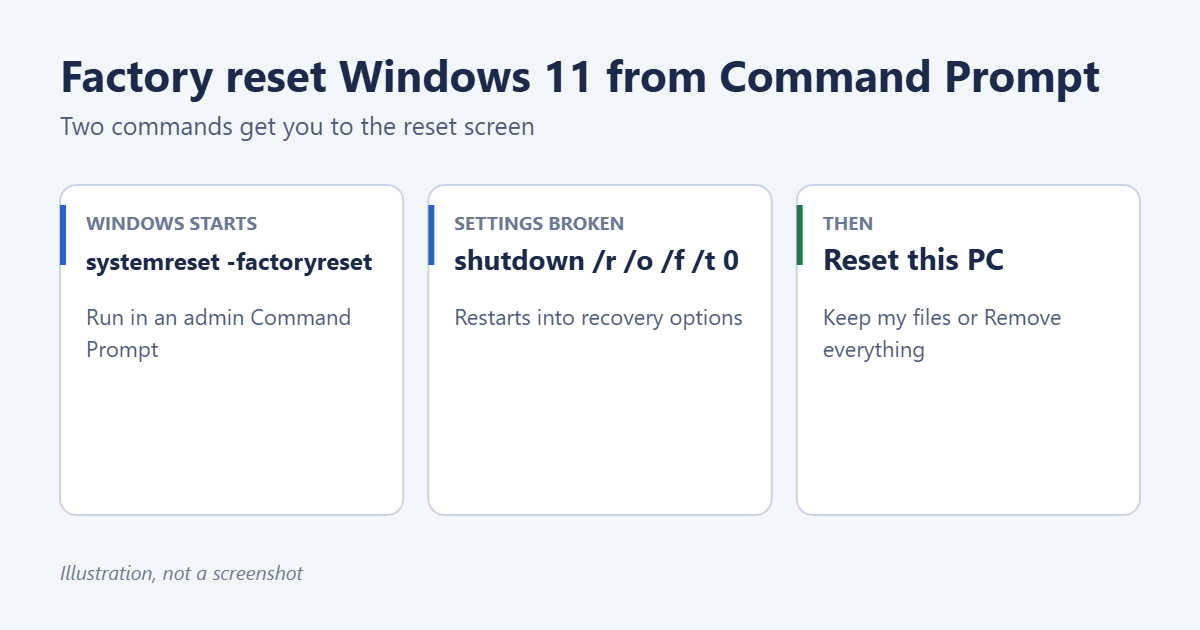
To factory reset Windows 11 from Command Prompt, open Command Prompt as an administrator, type systemreset -factoryreset, and press Enter. The Reset this PC window opens, where you choose Keep my files or Remove everything and follow the prompts. If that doesn’t work, run shutdown /r /o /f /t 0 instead: the PC restarts into the recovery menu, where you select Troubleshoot > Reset this PC.
Applies to: Windows 11 Home and Pro. The commands also work in Windows 10. Last reviewed October 7, 2026.
Before you reset
- Back up your files. Remove everything deletes all personal files, and even Keep my files removes your apps and settings.
- Find your BitLocker recovery key at account.microsoft.com/devices/recoverykey in case Windows asks for it.
- Plug in your laptop. A reset can take an hour or more.
- Sign out of accounts and deauthorize software that’s tied to the PC, such as iTunes or Adobe apps, if you’re selling or giving it away.
Method 1: Use the systemreset command
- Select Start, type cmd, right-click Command Prompt, and select Run as administrator. Select Yes when asked.
- Type
systemreset -factoryresetand press Enter. - In the Choose an option window, select Keep my files or Remove everything.
- Choose Cloud download to download a fresh copy of Windows, or Local reinstall to use the files on your PC.
- Review the settings on Additional settings. If you chose Remove everything and you’re giving the PC away, select Change settings and turn on Clean data to wipe the drive more thoroughly.
- Select Next, then Reset.
You can also type just systemreset, which opens the same options on most PCs. PowerShell works too: open Terminal (Admin) and run the same command.
Method 2: Restart into recovery from Command Prompt
Use this when Settings won’t open, the reset window shows an error, or you want to reset from the Windows Recovery Environment.
- Open Command Prompt as an administrator.
- Type
shutdown /r /o /f /t 0and press Enter. The PC restarts immediately, so save your work first. - On the blue Choose an option screen, select Troubleshoot > Reset this PC.
- Choose Keep my files or Remove everything, then Cloud download or Local reinstall, and follow the prompts.
In the command, /r restarts, /o opens the advanced startup options, /f closes running apps, and /t 0 means no delay.
If Windows won’t start at all
You don’t need Command Prompt. When Windows fails to start twice in a row, it opens the recovery environment automatically. You can also force it: turn the PC on, and when the Windows logo appears, hold the power button to turn it off. Do this twice; on the third start, Windows shows Preparing Automatic Repair. Select Advanced options > Troubleshoot > Reset this PC.
The Command Prompt option in the recovery environment can’t run a reset itself, but it’s useful for copying files off the drive before you reset.
Keep my files vs. Remove everything
- Keep my files: reinstalls Windows and removes apps and settings, but keeps documents, photos and other files in your user folders. Good for fixing problems. See how to do a Fresh Start in Windows 11.
- Remove everything: deletes all accounts, apps and files. Use this before selling, recycling or giving away the PC. See how to wipe a Windows 11 PC before selling it.
What happens during the reset
- Preparing: Windows checks the drive and, with Cloud download, downloads about 4 GB or more of setup files. This can take a while on slow connections.
- Resetting: the PC restarts and shows a progress percentage. It may restart several times.
- Installing Windows: Windows reinstalls itself and its built-in apps.
- Setup: with Remove everything, you go through first-time setup, choosing your region, keyboard and account. With Keep my files, you sign in to your existing account.
- Afterwards: run Windows Update to install the latest updates and drivers, then reinstall your apps. A list of removed apps is saved on the desktop when you keep your files.
On a modern PC with an SSD, the whole process usually takes 30 minutes to 2 hours. Clean data adds more time because it overwrites the drive.
Troubleshooting
“‘systemreset’ is not recognized”
Command Prompt isn’t running as an administrator, or system files are damaged. Close it and reopen with Run as administrator. If it still fails, use Method 2.
“There was a problem resetting your PC”
Try the other reinstall option (Cloud download instead of Local reinstall, or vice versa). Running sfc /scannow and then DISM /Online /Cleanup-Image /RestoreHealth in an admin Command Prompt can repair the files the reset needs.
The reset asks for a BitLocker recovery key
Enter the 48-digit key from your Microsoft account’s recovery key page. Without it, you can’t access the drive’s contents.
The reset is stuck at a percentage
Some stages take a long time. Wait at least two hours before turning the PC off, because interrupting a reset can leave Windows unusable.
Frequently asked questions
What does systemreset -cleanpc do?
On older Windows 10 versions it started Fresh Start. On Windows 11 it’s no longer needed, because Fresh Start is part of Keep my files in Reset this PC, and the switch may do nothing.
Will a factory reset remove Windows activation?
No. Windows reactivates automatically with your PC’s digital license after the reset.
Can I reset Windows 11 without a password?
Yes. From the sign-in screen, hold Shift, select Power > Restart, and choose Troubleshoot > Reset this PC > Remove everything. This deletes all accounts and files.
Is there a way to reset from Settings instead?
Yes. Go to Settings > System > Recovery > Reset PC. See how to reset Windows 11.
Related: How to Set Up a New Windows 11 Laptop.

Matt Jacobs has been working as an IT consultant for small businesses since receiving his Master’s degree in 2003. While he still does some consulting work, his primary focus now is on creating technology support content for SupportYourTech.com.
His work can be found on many websites and focuses on topics such as Microsoft Office, Apple devices, Android devices, Photoshop, and more.