Go to Start > Settings > Network & internet > Advanced network settings > Hardware and connection properties. Your MAC address is listed as Physical address (MAC) for each network adapter, such as Wi-Fi or Ethernet.
Applies to: Windows 11. Checked against Microsoft Support on September 29, 2026.
Find it in Settings
- Select Start > Settings > Network & internet.
- Select Advanced network settings, then Hardware and connection properties.
- Find the adapter you use and look at Physical address (MAC).
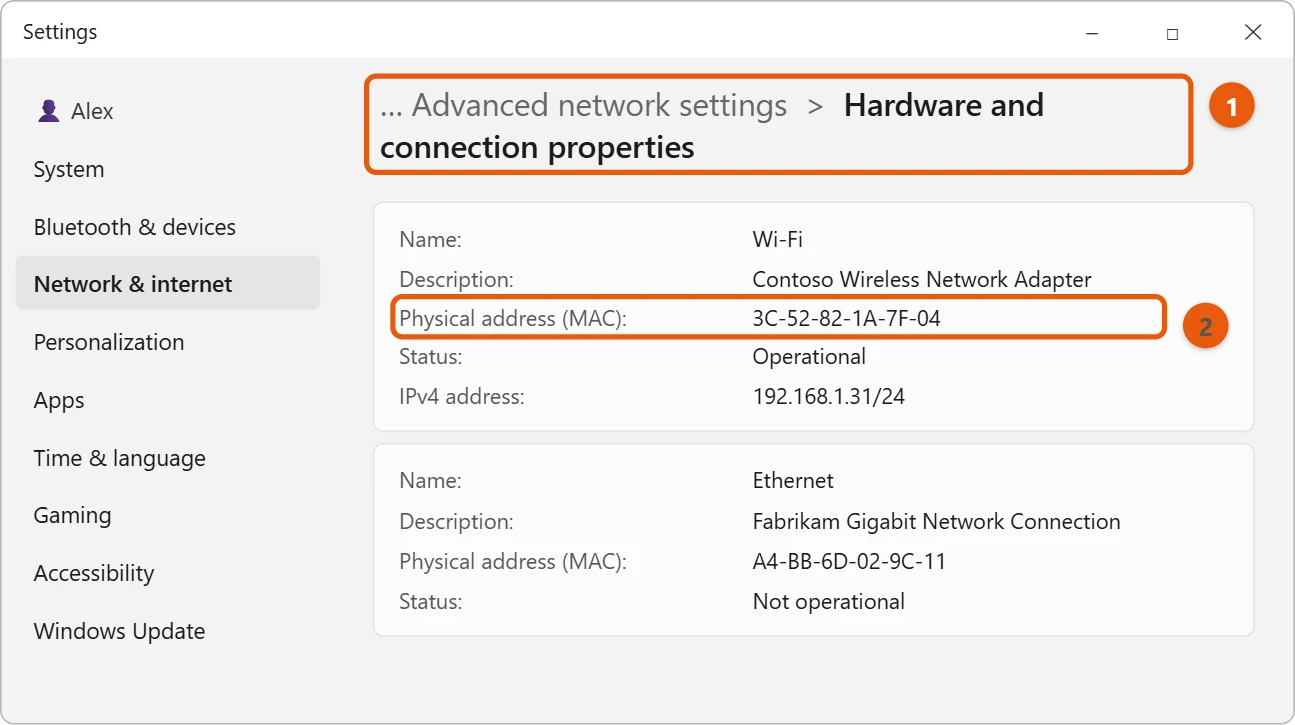
Each adapter has its own MAC address, so Wi-Fi and Ethernet show different ones. The one in use says Operational.
You can also select Wi-Fi or Ethernet on the Network & internet page and look under the connection’s properties.
Find it with a command
- Select Start, type cmd, and open Command Prompt.
- Type
getmac /vand press Enter. - Read the Physical Address next to the connection name.
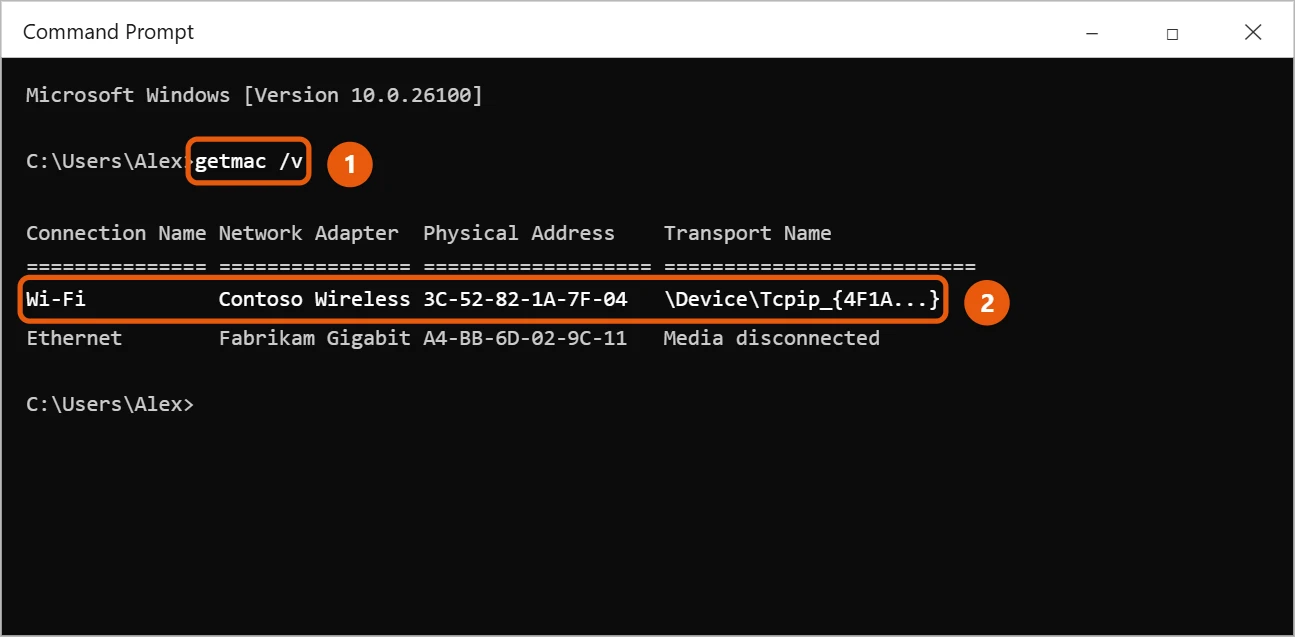
ipconfig /all also shows it, as Physical Address under each adapter.
Find it with PowerShell
Open Terminal or PowerShell and run Get-NetAdapter | Select-Object Name, MacAddress, Status. You get a short table with each adapter’s name, its MAC address and whether it’s Up or Disconnected. This is the tidiest view if you have several adapters.
Find it in System Information
Press Windows key + R, type msinfo32 and press Enter. Go to Components > Network > Adapter. Scroll to your Wi-Fi or Ethernet adapter and read the MAC Address line. This view also shows the adapter’s full name and driver, which helps if you’re asking IT support for help.
Find it from your router
If you need the MAC address of a PC that won’t start, sign in to your router’s app or web page and open the list of connected or recent devices. Each entry shows a name and MAC address. Look for your PC’s name, which you can check in Settings > System > About.
Turn random hardware addresses on or off
Windows 11 can use a made-up MAC address on Wi-Fi to make you harder to track on public networks. To control it:
- Select Start > Settings > Network & internet > Wi-Fi.
- Turn Random hardware addresses on or off for all networks.
- For one network, open Manage known networks, select it, and set Random hardware addresses to Off, On, or Change daily.
Leave it off on your home network if your router uses MAC filtering or reserves an address for your PC. Turn it on for café and hotel Wi-Fi.
Troubleshooting
- You see many adapters and don’t know which is yours. Ignore entries with names like Hyper-V, VirtualBox, VPN or Bluetooth. Use the Wi-Fi or Ethernet adapter that shows Operational or Up.
- getmac says “Media disconnected”. That adapter isn’t connected right now. The address is still listed in ipconfig /all.
- Your router shows a different MAC than Windows. Random hardware addresses is on for that network. Compare the address in the network’s own properties page.
Frequently asked questions
Is the MAC address the same as the IP address?
No. The MAC address belongs to the network adapter. The IP address is given out by your network. See how to set up an Ethernet connection in Windows 11 for where the IPv4 address appears.
Why does my Wi-Fi MAC address change?
If Random hardware addresses is on for a Wi-Fi network, Windows uses a different address on that network. Turn it off in that network’s Wi-Fi properties if your router needs the real one.
Is it the same in Windows 10?
It’s similar. See how to find your MAC address in Windows 10.
Microsoft’s reference is Essential network settings and tasks in Windows. More help is on our Windows Help & Guides page.
Is it safe to share my MAC address?
It’s generally low risk, since it’s only visible on your local network. Still, share it only when needed, such as for a school or work network sign-up or your router’s settings.
Can I change my MAC address?
Yes, on many adapters. In Device Manager, open the adapter’s Properties, select the Advanced tab, and look for Network Address or Locally Administered Address. Not every driver offers it.
Related: change the MAC address on Windows 11.

Matt Jacobs has been working as an IT consultant for small businesses since receiving his Master’s degree in 2003. While he still does some consulting work, his primary focus now is on creating technology support content for SupportYourTech.com.
His work can be found on many websites and focuses on topics such as Microsoft Office, Apple devices, Android devices, Photoshop, and more.