To fix a microphone that isn’t working in Windows 10, first check that it’s plugged in and not muted. Then go to Settings > Privacy > Microphone and turn on access. Next, choose your microphone under Settings > System > Sound > Input and run Troubleshoot. If Windows still doesn’t see it, reinstall the audio driver.
Applies to: Windows 10. Keep in mind that Windows 10 support ended on October 14, 2025. Security updates now come only through the Extended Security Updates program, which stops on October 12, 2027.
Test your microphone after each fix below and stop once it works.
1. Check the basics
- Make sure the microphone or headset is plugged in all the way. Try another USB port or audio jack.
- If your headset has a Mute button or switch, make sure it’s off.
- For a Bluetooth headset, make sure it’s paired and connected.
- Try the microphone on another device, if you can, to rule out a broken microphone.
2. Allow apps to use the microphone
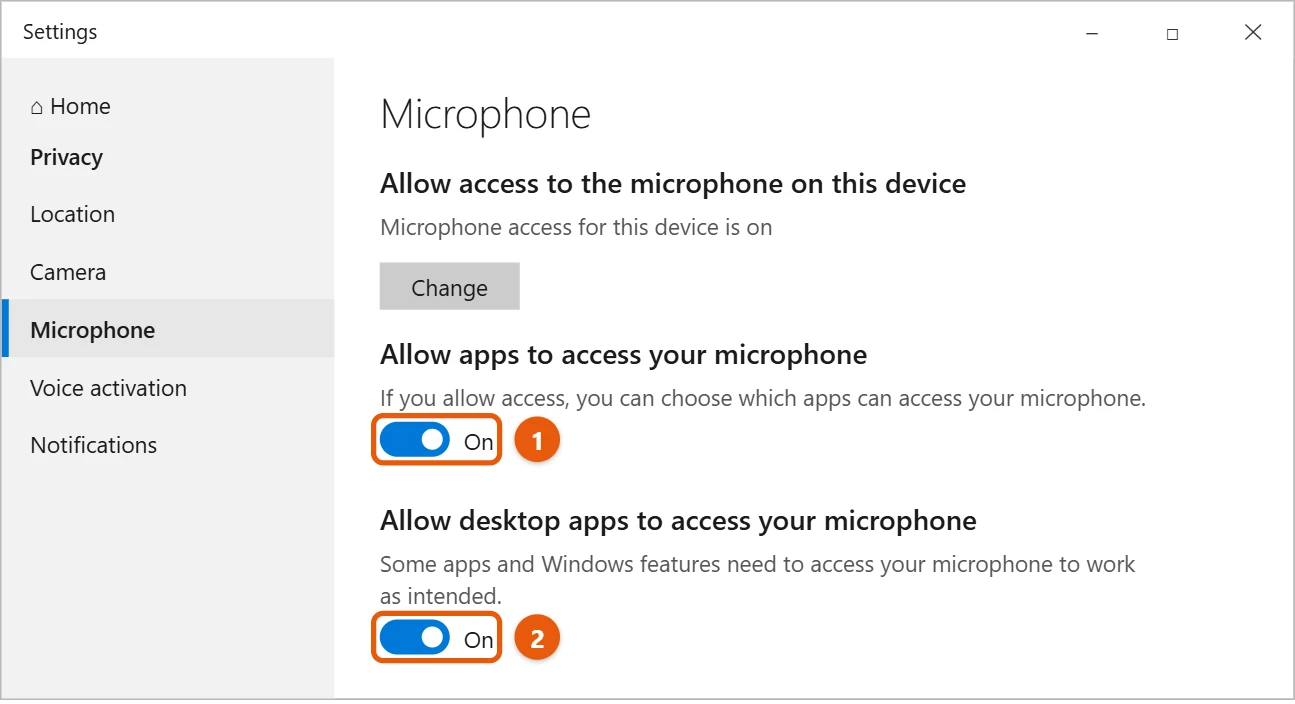
- Select Start > Settings > Privacy > Microphone.
- Under Allow access to the microphone on this device, select Change and make sure it’s On.
- Turn on Allow apps to access your microphone, then check that the app you’re using is turned on in the list.
- Turn on Allow desktop apps to access your microphone. This covers apps you installed from a website, such as most video call apps.
3. Choose the right microphone and test it
- Select Start > Settings > System > Sound.
- Under Input, open Choose your input device and pick your microphone.
- Speak into it. The bar under Test your microphone should move.

If the bar barely moves, select Device properties and turn up the mic volume.
4. Run the troubleshooter
In Settings > System > Sound, select Troubleshoot under Input. Follow the steps. Windows checks for common problems and fixes what it can.
5. Make sure the microphone isn’t disabled
- In Settings > System > Sound, select Sound Control Panel (under Related Settings).
- Select the Recording tab.
- Right-click an empty spot and make sure Show Disabled Devices is checked.
- If your microphone shows Disabled, right-click it and select Enable. Then right-click it again and select Set as Default Device.
6. Reinstall or update the driver
Try this if Windows doesn’t detect the microphone at all.
- Right-click Start and select Device Manager.
- Expand Sound, video and game controllers.
- Right-click your audio device and select Uninstall device. If you see a box to delete the driver software, check it. Then select Uninstall.
- Restart your PC. Windows reinstalls the device and driver.
- If it doesn’t come back, open Device Manager again, select Action > Scan for hardware changes.
If you would rather install a newer driver, follow the steps for updating audio drivers in Windows 10.
7. Turn up the microphone level
If people can hear you but only faintly, the level may be too low.
- Open Sound Control Panel as in step 5 and select the Recording tab.
- Double-click your microphone and select the Levels tab.
- Set Microphone to around 80 to 100. If you see Microphone Boost, raise it a little at a time, because too much adds hiss.
- Select OK, then test the microphone again.
8. Turn off exclusive control and enhancements
Some apps take over the microphone so others can’t use it, and some audio enhancements cause problems.
- In the microphone’s Properties, select the Advanced tab and uncheck Allow applications to take exclusive control of this device.
- If there’s an Enhancements tab, which depends on your audio driver, turn the enhancements off.
9. Fix a Bluetooth headset microphone
A Bluetooth headset shows up as two devices. Its microphone only works through the Hands-Free one. In Settings > System > Sound, under Input, choose the entry with Hands-Free in its name.
If it still doesn’t work, remove the headset in Settings > Devices > Bluetooth & other devices and pair it again.
10. Check the jack and cable
- Many laptops have one combined headset jack. A headset with separate microphone and headphone plugs needs a splitter adapter to work there.
- On a desktop, plug the microphone into the jack marked with a microphone icon, usually pink.
- Try the microphone on another PC or phone. If it doesn’t work there either, the microphone or cable is faulty.
11. Restart the Windows Audio service
Press Windows + R, type services.msc, and press Enter. Right-click Windows Audio and select Restart. This can fix a microphone that stopped working after the PC woke from sleep.
Frequently asked questions
The microphone works, but not in one app. Why?
Most call and recording apps have their own audio settings. Open the app’s settings and pick the same microphone there. Also check the app is allowed in step 2. Browser calls use the same microphone, including when you join a FaceTime call from a Windows PC.
How do I turn the microphone on in the first place?
Start with turning on and testing your microphone in Windows 10.
Why does my Bluetooth headset sound bad when I’m on a call?
When the microphone is on, Bluetooth switches to a mode that carries both sound and voice, with lower quality. Sound goes back to normal when the call ends. A wired or USB headset avoids this.
Why did my microphone stop working after an update?
An update can change privacy settings or replace your audio driver. Check step 2 first. If that’s fine, open Device Manager, double-click your audio device, and on the Driver tab select Roll Back Driver if it’s available.
Can I hear sound but no one can hear me?
Yes, that’s a microphone problem, not a speaker problem. If you can’t hear anything either, fix the no sound problem as well.
Once the mic works, you can reduce the background noise it picks up, or on Windows 11 hear yourself on your mic to check how you sound.
Microsoft has its own troubleshooting article, Fix microphone problems.

Matt Jacobs has been working as an IT consultant for small businesses since receiving his Master’s degree in 2003. While he still does some consulting work, his primary focus now is on creating technology support content for SupportYourTech.com.
His work can be found on many websites and focuses on topics such as Microsoft Office, Apple devices, Android devices, Photoshop, and more.