To get Word to show one page at a time, go to the View tab and select One Page in the Zoom group. If pages still appear next to each other, select Vertical in the Page Movement group instead of Side to Side, or zoom in to 100% or Page Width. Word places pages side by side whenever the window is wide enough and the zoom is low enough to fit two.
Applies to: Word for Microsoft 365, Word 2024, 2021, 2019 and 2016 on Windows, and Word for Mac. Last reviewed October 8, 2026.
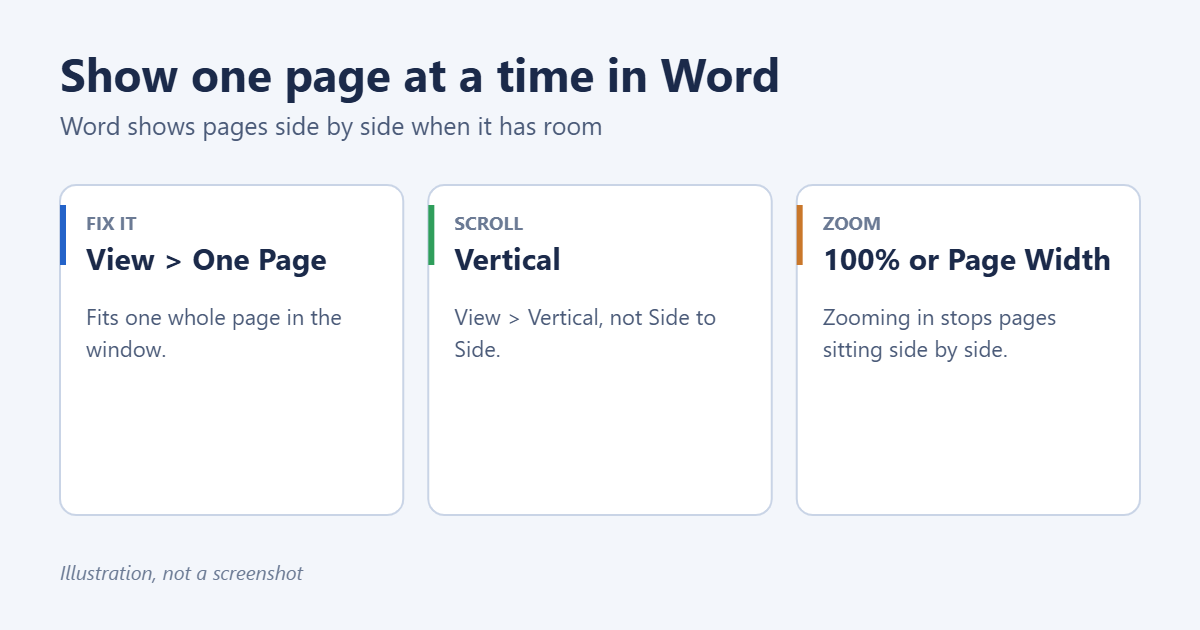
Method 1: View > One Page
- Go to the View tab.
- In the Zoom group, select One Page.
Word zooms so a whole page fits in the window. The zoom level changes with your window size.
Method 2: Switch from Side to Side to Vertical
If pages flip horizontally like a book, Side to Side page movement is on.
- Go to View.
- In the Page Movement group, select Vertical.
Pages now scroll up and down, one after another.
Method 3: Zoom in
- Drag the zoom slider at the bottom right toward the plus sign until only one page fits across.
- Or go to View > 100% or Page Width.
- Or hold Ctrl and scroll the mouse wheel up.
At around 60% and below on a wide monitor, Word automatically shows two or more pages per row. Zooming above that keeps it to one.
Method 4: Make sure you’re in Print Layout
Go to View > Print Layout. Other views behave differently:
- Read Mode shows pages in columns across the screen. In Read Mode, select View > Layout > Paper Layout, or press Esc to leave Read Mode.
- Web Layout has no page breaks at all.
- Draft shows text without page edges.
Method 5: Make the window narrower
If you keep Word maximized on a wide or ultrawide monitor, it has room for two pages. Snapping Word to half the screen (Windows + Left arrow) gives you one page at a time and leaves room for another app.
Word for Mac
Go to View > Print Layout, then use the zoom slider or View > Zoom > Whole page. If pages flip sideways, select View > Vertical under Page Movement.
Why Word shows two pages in the first place
In Print Layout, Word fills the window with as many whole pages as fit at the current zoom. On a laptop at 100% that’s one page, but on a 24-inch or wider monitor, or after zooming out with Ctrl and the mouse wheel, two or three pages fit, so Word lines them up. Side to Side page movement, added in Word 2019, also places pages next to each other and moves through them horizontally like a book, which is handy on a tablet but confusing with a mouse.
Word for the web
Word for the web shows one page width at a time while you edit, so this rarely comes up. If pages look small, use the zoom control at the bottom right. View > Immersive Reader shows text in a single column for easy reading; select the back arrow to return.
On a touchscreen or tablet
On a Surface or other 2-in-1, rotating the screen to portrait gives you one tall page. In landscape, Side to Side lets you swipe through pages; switch to Vertical if you prefer scrolling.
Want the opposite?
To compare pages next to each other, use View > Multiple Pages. See how to view multiple pages in Word.
Troubleshooting
Word goes back to two pages every time
Word remembers the zoom for each document. Set the zoom you want, make a small change, and save. For new documents, set the zoom in your Normal template.
One page shows, but it’s tiny
One Page fits the whole page height in the window. Use Page Width instead to fill the width and scroll down.
There’s a big gap between pages
Double-click the gap to hide white space between pages; double-click the line again to show it.
Margins or page edges are hard to see
Turn on text boundaries; see how to show margins in Word.
Frequently asked questions
Does this change how the document prints?
No. View settings only affect the screen. To change how pages print, see how to scale a document in Word or how to fit a document on one page.
Why does a coworker see two pages and I see one?
Their window is wider or their zoom lower. The file is the same.
Related: how to remove margins in Word.

Matt Jacobs has been working as an IT consultant for small businesses since receiving his Master’s degree in 2003. While he still does some consulting work, his primary focus now is on creating technology support content for SupportYourTech.com.
His work can be found on many websites and focuses on topics such as Microsoft Office, Apple devices, Android devices, Photoshop, and more.