Start with the quick wins: restart your PC, install updates in Settings > Windows Update, turn off apps you don’t need at startup in Task Manager, and free up space in Settings > System > Storage. Then try the other tips below.
Applies to: Windows 11. Checked against Microsoft Support on September 29, 2026.
1. Restart your PC
A restart closes apps and clears memory. If you usually close the lid or use sleep, restart at least once a week.
2. Install updates
Select Start > Settings > Windows Update > Check for updates. Also check Advanced options > Optional updates for driver updates.
3. Turn off startup apps
- Press Ctrl + Shift + Esc to open Task Manager.
- Select Startup apps.
- Right-click an app you don’t need right away and select Disable.
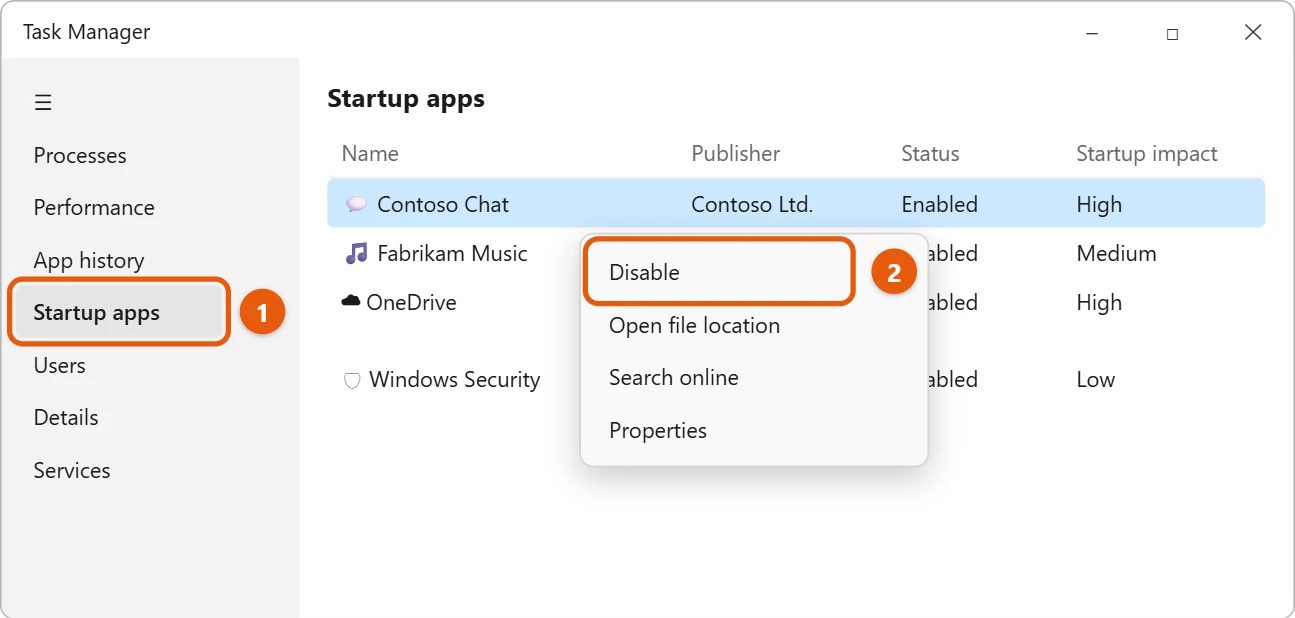
The app still works when you open it. It just won’t start by itself.
4. Free up disk space
- Select Start > Settings > System > Storage.
- Select Temporary files, check what you want to remove, and select Remove files.
- Turn on Storage Sense to clean up automatically.
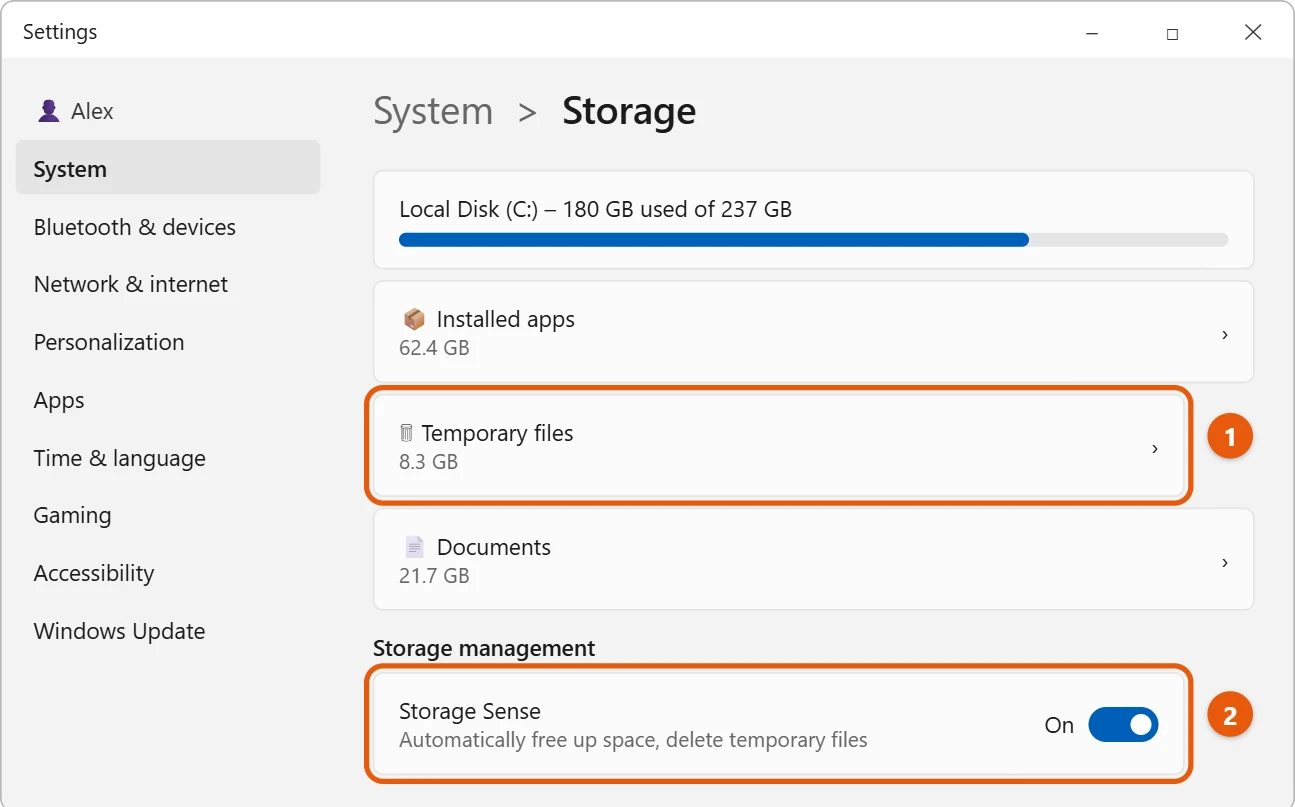
To see how much space is left, see how to check hard drive space in Windows 11.
5. Uninstall apps you don’t use
Select Start > Settings > Apps > Installed apps, select More options (…) next to an app, and select Uninstall.
6. Turn off background apps
Stop apps from running when you’re not using them. See how to turn off background apps in Windows 11.
7. Adjust visual effects
Select Start, type Adjust the appearance and performance of Windows, and open it. Select Adjust for best performance, then OK.
8. Change the power mode
Select Start > Settings > System > Power & battery, and set Power mode to Best performance. On a laptop this uses more battery.
9. Scan for malware
Select Start > Settings > Privacy & security > Windows Security > Virus & threat protection > Quick scan.
10. Optimize your drives
Select Start, type Defragment and Optimize Drives, open it, select your drive, and select Optimize.
Frequently asked questions
How do I see what’s slowing my PC down?
Open Task Manager and look at the Processes tab. See how to open Task Manager in Windows 11.
Will these tips help an old PC?
They help, but older hardware has limits. More memory (RAM) or a solid-state drive (SSD) can make a bigger difference.
If your PC slows down after a while, you may be low on RAM. See how to clear memory (RAM) on Windows 11.
Chat apps are common startup apps. For an example, see how to stop Discord from opening on startup in Windows 11.
Microsoft’s reference is Tips to improve PC performance in Windows. More help is on our Windows Help & Guides page.

Matt Jacobs has been working as an IT consultant for small businesses since receiving his Master’s degree in 2003. While he still does some consulting work, his primary focus now is on creating technology support content for SupportYourTech.com.
His work can be found on many websites and focuses on topics such as Microsoft Office, Apple devices, Android devices, Photoshop, and more.