How to Merge Partitions in Windows 10: A Step-by-Step Guide

Ever feel like your computer’s storage space is playing hide-and-seek with you? You might have a drive, but it’s split into a bunch of smaller sections, called partitions, and some of them are probably way too small while others are just chilling with tons of empty space. Merging partitions on Windows 10 is like tidying up your digital closet, combining those little, awkward compartments into bigger, more useful ones. It gives you more flexible space to work with, whether you want to store more games, videos, or just consolidate your files. This quick guide will show you how to do it using Windows’ built-in tools, so you can reclaim that lost space and make your storage work better for you.

Tutorial – How to Merge Partitions in Windows 10

Alright, let’s get down to business. We’re going to walk through the process of combining those partitions using Windows’ Disk Management tool. This isn’t rocket science, but it does require a bit of attention to detail, especially since we’ll be dealing with your precious data. By the end of these steps, you’ll have a beautifully merged, larger partition ready for action.

Step 1: Back up your important data.

This step is super important, like checking your parachute before a skydive. Before you do anything with your partitions, please, please, please make sure you’ve backed up all the files you care about from the partition you plan to delete.

Think of it this way: when you delete a partition, everything on it vanishes into the digital ether. It’s gone for good. You can back up to an external hard drive, a USB stick, or even a cloud service like OneDrive or Google Drive. Just make sure those precious photos, documents, and videos are safe and sound somewhere else.

Step 2: Open Disk Management.

Now that your data is secure, let’s open the tool we’ll be using. The easiest way to get to Disk Management is to right-click on the Start button, you know, that little Windows icon in the bottom-left corner of your screen.

A menu will pop up, and you’ll see “Disk Management” listed there. Click on it, and a new window will open showing you all the drives and partitions currently on your computer. It’s like a map of your storage.

Step 3: Locate the partitions you want to merge.

Once Disk Management is open, you’ll see a graphical representation of your hard drives and their partitions. Take a moment to look at the layout and identify the two partitions you want to combine.

Here’s the catch: for this method to work, the partition you want to expand must be immediately adjacent to the unallocated space created when you delete the other partition. Imagine trying to push two boxes together; they have to be side by side.

Step 4: Delete the partition you want to merge into the other.

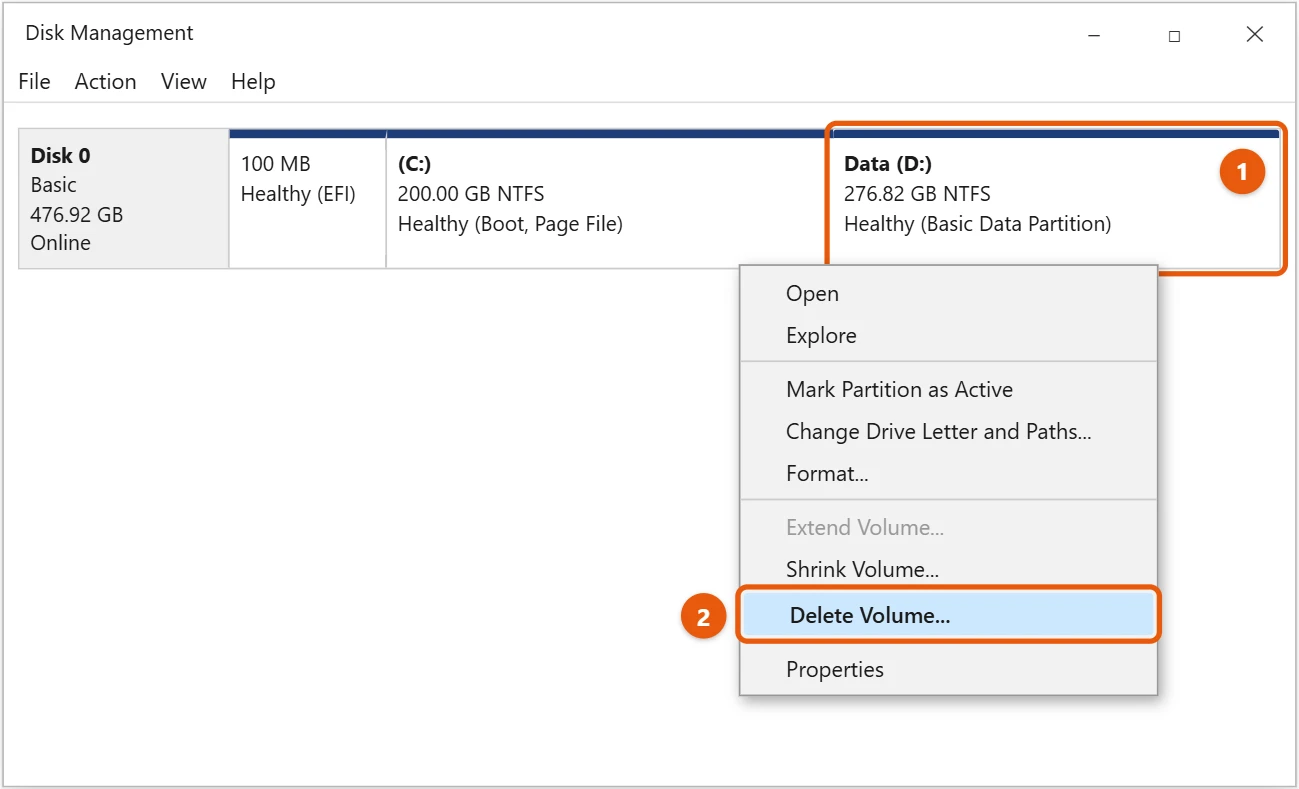
You’ve identified the partitions, and you’ve backed up your data, right? Good. Now, right-click on the partition you want to get rid of, the one whose space you want to add to another.

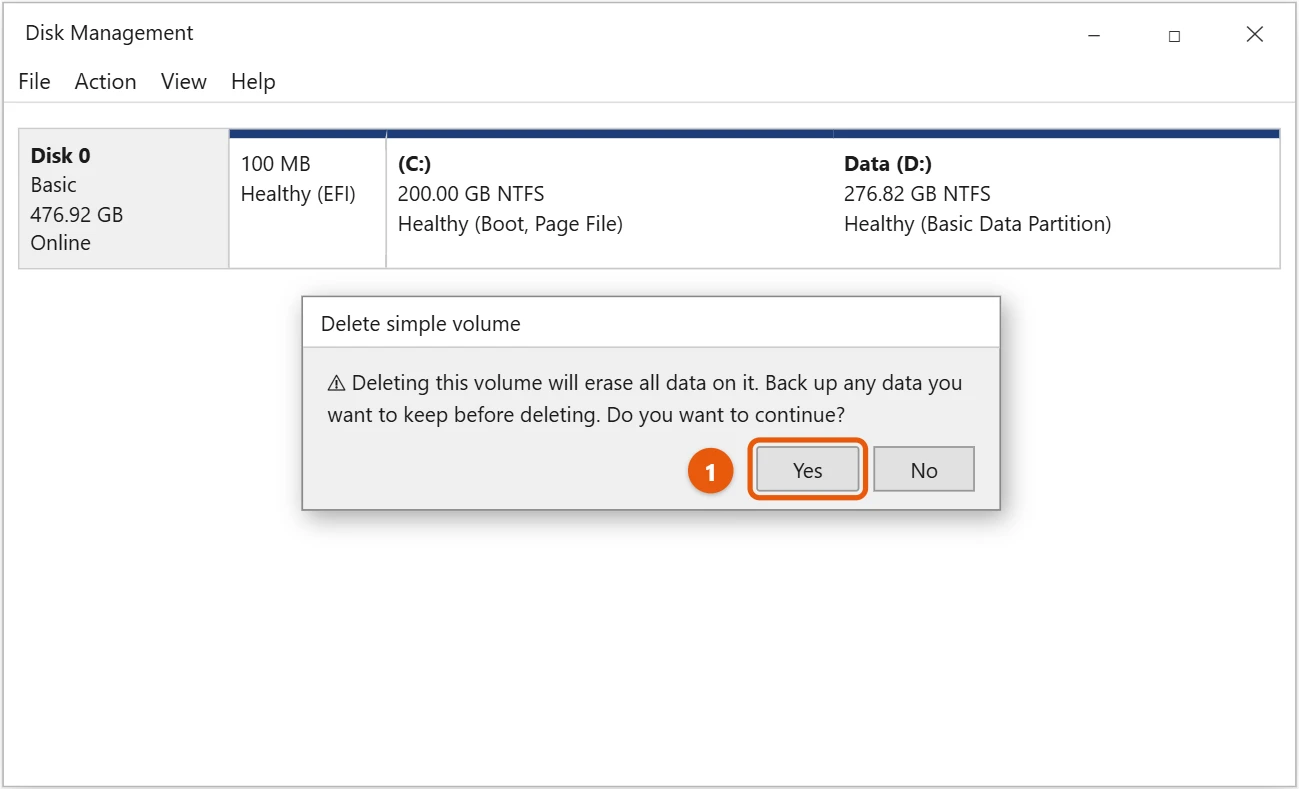
From the menu that appears, select “Delete Volume.” Windows will give you a warning that all data on this partition will be erased. Since you backed up, you can confidently click “Yes.” After this, the partition will become “Unallocated Space,” which is exactly what we need.

Step 5: Extend the adjacent partition.

With unallocated space now available, right-click the partition next to it that you want to expand. This is the partition you want to make bigger.

You should now see an option called “Extend Volume.” Click on it, and the Extend Volume Wizard will pop up. Just follow the on-screen prompts, which are usually pretty straightforward: click “Next” a few times, then “Finish.” This wizard will guide you through adding that unallocated space to your chosen partition.

Once you complete the Extend Volume Wizard, Windows will combine the unallocated space with the chosen partition. You’ll instantly see that your target partition has grown in size, now including the space from the deleted partition. It’s like magic, but it’s just good old disk management doing its job, giving you more contiguous storage space.

Tips for Merging Partitions in Windows 10

Here are some extra nuggets of wisdom to help you navigate the world of partition merging smoothly:

  • Always, always back up your data before starting any partition operation. Losing your files is no fun, and an ounce of prevention is worth a pound of cure.
  • Remember that Disk Management in Windows 10 generally only allows you to extend a partition into unallocated space immediately to its right. If your unallocated space is somewhere else, you might need to get creative or use third-party software.
  • You typically cannot merge system-reserved partitions, recovery partitions, or your main C: drive directly if the unallocated space isn’t right next to them. Messing with these vital partitions can make your computer unbootable, so tread carefully.
  • If you find “Extend Volume” is greyed out, it’s usually because there’s no unallocated space right next to the partition you’re trying to grow, or the partition type isn’t compatible with the unallocated space.
  • Before you even think about merging, consider if you truly need to. Sometimes, having separate partitions for different types of files (like one for programs and one for documents) can be a good way to stay organized. Just make sure the sizes make sense for your needs.

Frequently Asked Questions About Merging Partitions

Can I merge two non-adjacent partitions using Windows Disk Management?

Unfortunately, no, you cannot. Windows Disk Management is pretty strict about this; you can only extend a partition into unallocated space directly to its right. If your partitions aren’t adjacent, you’d need to either move the partitions around (which can be complex and risky) or use a more advanced third-party partition management tool.

Will I lose data when I merge partitions?

Yes, you will lose data from the partition that you delete to create unallocated space. This is why we stressed the importance of backing up your files from that specific partition in the first step. The data on the partition you are extending should remain safe; however, a backup is always a smart move for any disk operation.

Can I merge my C: drive with another partition?

You can, but with extreme caution. If you want to expand your C: drive, you would need to delete the partition immediately to its right to create unallocated space, then extend the C: drive into that space. Since the C: drive contains your operating system, any mistakes here could prevent your computer from starting up. Always have a recovery plan or system image backup if you’re messing with your main drive.

Why is the “Extend Volume” option greyed out for me?

This is a common issue. The “Extend Volume” option will be greyed out if there is no unallocated space directly to the right of the partition you are trying to extend. Another reason could be that the partition you’re trying to extend is a logical drive within an extended partition, and the unallocated space is primary, or vice-versa, causing compatibility issues.

Are there any risks involved in merging partitions?

Absolutely. The primary risk is data loss if you forget to back up the partition you’re deleting. There’s also a smaller risk of system instability or even rendering your operating system unbootable if you accidentally delete or corrupt a critical system partition, especially if you’re working with your C: drive. Always proceed with care and double-check your selections.

Quick Summary of Merging Partitions

  1. Back up all critical data from the partition to be deleted.
  2. Open Disk Management by right-clicking the Start button.
  3. Locate and identify the partitions you intend to merge.
  4. Delete the partition whose space you want to add to another.
  5. Extend the adjacent partition into the newly created unallocated space.

Final Thoughts on Partition Merging

So, there you have it, the ins and outs of how to merge partitions Windows 10. It might seem like a big, technical task at first glance, but with the right steps and a healthy dose of caution, you can easily reclaim and reorganize your disk space. Think of your hard drive as a closet, and those partitions as shelves. Sometimes you need to knock down a wall between two small shelves to create one big, glorious space for all your favorite things, whether that’s a growing collection of games, a massive video library, or just a more organized place for your work files.

The key takeaway here, if you remember nothing else, is to always, always back up your data. Seriously, it’s like wearing a seatbelt; you hope you never need it, but you’ll be incredibly glad it’s there if things go sideways. Disk Management is a powerful tool, a bit like a precision scalpel for your storage, and with power comes responsibility. Using it wisely means you get to enjoy a more streamlined and efficient computer experience. You’ll no longer be stuck with a tiny partition for your downloads and a huge, mostly empty one sitting idly by.

While Windows’ built-in Disk Management is fantastic for basic tasks like this, remember its limitations. If you’re dealing with non-adjacent partitions or more complex scenarios, you might need to explore third-party software solutions. But for merging adjacent partitions, the native tool is usually all you need. Don’t be afraid to take control of your storage. Understanding how to manage your partitions empowers you to make your computer work better for you, rather than the other way around. So, go forth, organize your digital space, and enjoy the freedom of having your storage exactly how you want it.

Get Our Free Newsletter

How-to guides and tech deals

You may opt out at any time.
Read our Privacy Policy