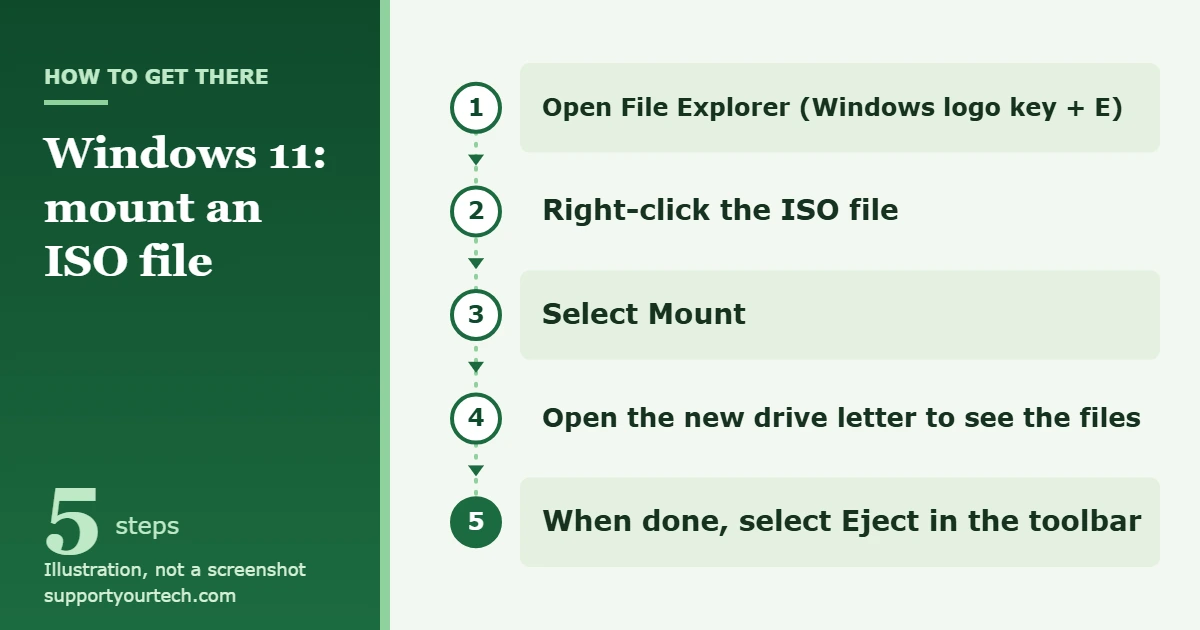
To mount an ISO file in Windows 11, open File Explorer, right-click the ISO file, and select Mount. Windows opens the ISO as a new drive letter so you can browse, copy, or run the files inside it. No extra software is needed.
Applies to: Windows 11. Checked against Microsoft Support and Microsoft Learn on October 6, 2026.
What mounting an ISO file does
An ISO file is a single file that holds the full contents of a disc, such as a software installer or a Windows setup disc. Mounting it tells Windows to treat that file like a disc sitting in a drive. The contents show up under a new drive letter, and you can open them the same way you open any folder.
Mounting does not change the ISO file, does not burn it to a disc, and does not turn a USB drive into a bootable installer. Windows mounts ISO files as read-only, so you can open and copy the files but you cannot save changes back into the ISO.
Before you start
- Know where the ISO file is saved. Browser downloads usually land in the Downloads folder.
- Only mount ISO files from a source you trust. An ISO can contain programs, and running a setup file from an unknown image carries the same risk as running any unknown program.
- You do not need an administrator account to mount an ISO. Microsoft’s documentation says administrator rights are required to mount a virtual hard disk (VHD) file, but not an ISO file on a Windows PC. Running a setup program from inside the ISO may still ask for administrator approval.
How to mount an ISO file in File Explorer
- Open File Explorer. You can press the Windows logo key + E. A File Explorer window opens.
- Go to the folder that holds the ISO file. Look for the file name that ends in .iso.
- Right-click the ISO file (or select and hold it on a touchscreen). A short menu opens.
- Select Mount. If you do not see it in the short menu, select Show more options first, then select Mount.
- Wait a moment. Windows mounts the ISO as a new drive letter and opens it in a new File Explorer window, where you see the files and folders stored in the image.
The mounted image also appears with your other drives under This PC in File Explorer, so you can get back to it after you close the window.
Mount an ISO by opening it
There is an even shorter route. Double-click the ISO file in File Explorer. Microsoft’s instructions describe opening the ISO file this way as letting Windows mount the image. The result is the same as the Mount command: a new drive letter with the ISO contents.
This only works when ISO files are set to open with Windows Explorer. If double-clicking opens a different app, such as a file compression or disc burning program, use the right-click method above or fix the file association in the troubleshooting section below.
What to do with a mounted ISO
- Install a program. Open the mounted drive and double-click setup.exe, or the file named in the program’s instructions.
- Copy files out. Select the files or folders you need, copy them, and paste them into a normal folder on your PC. This is the way to get an editable copy, since the mounted image is read-only.
- Upgrade or reinstall Windows 11 from inside Windows. With an official Windows 11 ISO mounted, run setup.exe. Microsoft’s instructions say to choose Keep Windows settings, personal files, and apps during setup for an in-place upgrade.
Be careful with Windows setup. If you select Change what to keep and then Nothing, setup performs a clean install that erases your files, settings, and apps. Back up anything important before you run Windows setup from an ISO.
A mounted ISO works only inside the copy of Windows that is already running. To install Windows on a different PC, or on a PC that will not start, you need bootable media instead. Our guide on how to download Windows 11 to a USB drive covers that.
How to unmount (eject) the ISO
- Open File Explorer and go to the drive letter that Windows gave the mounted ISO.
- In the toolbar at the top of the window, select Eject.
- Check that the drive letter is gone from This PC. That confirms the ISO is no longer mounted.
Ejecting only removes the temporary drive. The ISO file stays in its original folder, and you can mount it again any time. Close any open files or setup windows from the mounted drive before you eject it.
Mount an ISO with PowerShell
PowerShell is useful when the Mount command is missing, or when you want to mount an image from a script. The commands below come from Microsoft’s Storage module documentation.
- Open the Start menu, type Windows PowerShell, select Windows PowerShell, and then select Open.
- Type the mount command with the full path to your ISO file in quotation marks, then press Enter. Example: Mount-DiskImage -ImagePath “C:\Users\YourName\Downloads\example.iso”
- To see which drive letter the ISO received, run: Get-DiskImage -ImagePath “C:\Users\YourName\Downloads\example.iso” | Get-Volume
- When you are finished, unmount it with: Dismount-DiskImage -ImagePath “C:\Users\YourName\Downloads\example.iso”
Replace the example path with the real location of your file. The command needs the full path, not just the file name.
| Command or option | What it does |
|---|---|
| Mount-DiskImage -ImagePath | Mounts the ISO at the path you give so it appears as a normal disk. |
| -NoDriveLetter | Mounts the image without assigning it a drive letter. |
| -PassThru | Returns an object that represents the mounted disk image, which is handy in scripts. |
| Get-DiskImage | Reports whether the ISO at that path is currently attached. |
| Dismount-DiskImage -ImagePath | Unmounts the ISO so it can no longer be opened as a disk. |
Microsoft’s reference pages for Mount-DiskImage and Dismount-DiskImage list every parameter.
Which method should you use?
| Method | Best for | Keep in mind |
|---|---|---|
| Right-click and select Mount | Most people, most of the time | May sit behind Show more options |
| Double-click the ISO | The fastest route | Works only when ISO files open with Windows Explorer |
| PowerShell | Scripts, or when Mount is missing | Needs the full file path |
Troubleshooting
The Mount option is missing
First select Show more options in the right-click menu and look again. If Mount is still not there, another app has probably taken over ISO files. Microsoft’s Windows 11 download page gives this fix:
- Right-click the ISO file and select Properties.
- On the General tab, find the line that says Opens with: and select Change….
- Select Windows Explorer as the program for ISO files, then select Apply.
- Right-click the ISO file again. Mount should now be listed.
If you would rather not change the default app, the PowerShell method above mounts the file without touching the file association.
Double-clicking opens another program
This has the same cause: ISO files are assigned to a different app. Use the right-click Mount command for a one-time fix, or follow the Properties steps above to hand ISO files back to Windows Explorer.
PowerShell says the file is being used by another process
Microsoft documents this exact message for Mount-DiskImage: “The process cannot access the file because it is being used by another process.” It means the ISO is already mounted. Look for its drive letter under This PC, or eject it and mount it again.
The file will not mount or reports that it is damaged
A download that was interrupted can leave you with an incomplete ISO. Download the file again from the original source. If the publisher lists a hash value for the file, you can compare it. In PowerShell, run Get-FileHash followed by the path to the ISO. The command uses the SHA256 algorithm by default, and Microsoft says a matching value confirms the file has not been corrupted.
Also confirm the file is really an ISO. Mount-DiskImage is documented for ISO files and for VHD and VHDX virtual disks. A compressed archive, such as a .zip file, has to be extracted in Windows 11 instead.
The ISO mounted but has no drive letter
This can happen if the image was mounted with the -NoDriveLetter option in a script. Dismount it and mount it again without that option. Windows also has a general tool for this: in Disk Management, you can right-click a volume, select Change Drive Letter and Paths, select Add, and choose a letter under Assign the following drive letter. Microsoft notes that this requires an account in the Administrators or Backup Operators group.
You are on a work or school PC
Organizations can restrict what you are allowed to open or install. If mounting is blocked, or a setup file inside the ISO will not run, contact your IT administrator rather than looking for a workaround.
Frequently asked questions
Do I need extra software to mount an ISO in Windows 11?
No. Mounting is built into File Explorer. Right-click the ISO file and select Mount, or double-click the file.
Does ejecting a mounted ISO delete the file?
No. Eject removes only the temporary drive letter. The ISO file stays where you saved it.
Can I edit or add files inside a mounted ISO?
No. Windows always mounts ISO files as read-only. Copy the files to a folder on your PC if you need to change them.
Is mounting the same as burning an ISO?
No. Mounting opens the image on your PC without a disc. Burning writes it to a blank disc. When ISO files open with Windows Explorer, the right-click menu also offers Burn disc image for that job. Microsoft says a Windows 11 ISO needs a blank DVD with at least 8 GB of capacity.
Can I install Windows 11 from a mounted ISO?
Yes, on a PC that is already running Windows. Mount the ISO and run setup.exe. Microsoft documents this in its guide to using ISOs. For a PC with no working copy of Windows, create a bootable USB drive instead.
Does this work the same way in Windows 10?
Windows 10 can mount ISO files too, but the menus look a little different. See our separate guide on how to mount an ISO file in Windows 10.
Once the ISO is mounted, open the new drive letter and run or copy what you need, then select Eject when you are finished. If you plan to install Windows on another computer, make a bootable USB drive rather than relying on a mounted image.

Matt Jacobs has been working as an IT consultant for small businesses since receiving his Master’s degree in 2003. While he still does some consulting work, his primary focus now is on creating technology support content for SupportYourTech.com.
His work can be found on many websites and focuses on topics such as Microsoft Office, Apple devices, Android devices, Photoshop, and more.