How to Play CD on Windows 10: Your Complete Guide

Listening to your favorite music CDs on your Windows 10 computer is often straightforward, even if it feels a little old-school these days. Generally, you just need to pop your CD into your computer’s disc drive, and Windows 10 will usually recognize it automatically. From there, you can choose a media player, like the built-in Windows Media Player, to start enjoying your tunes almost instantly. It really is that simple to bring your physical music collection back to life on your digital device.

Tutorial – How to Play CD on Windows 10

Ready to dive into your music collection and bring those physical discs back to life on your Windows 10 machine? This step-by-step guide will walk you through everything you need to know to enjoy your audio CDs without a hitch. We’ll cover inserting the disc, choosing the right software, and getting your music playing in no time.

Step 1: Insert Your Audio CD into the Drive

The very first thing you need to do is gently push your music CD into your computer’s optical drive. Most desktop computers and some older laptops have a built-in CD or DVD drive, which usually pops out when you press a small button on the drive itself.

Make sure the shiny side of the CD faces down or the label side faces up as you slide it into the tray. Push the tray back in until it clicks. If your computer does not have a built-in drive, you will need to connect an external USB CD/DVD drive first.

Step 2: Wait for AutoPlay or Open File Explorer

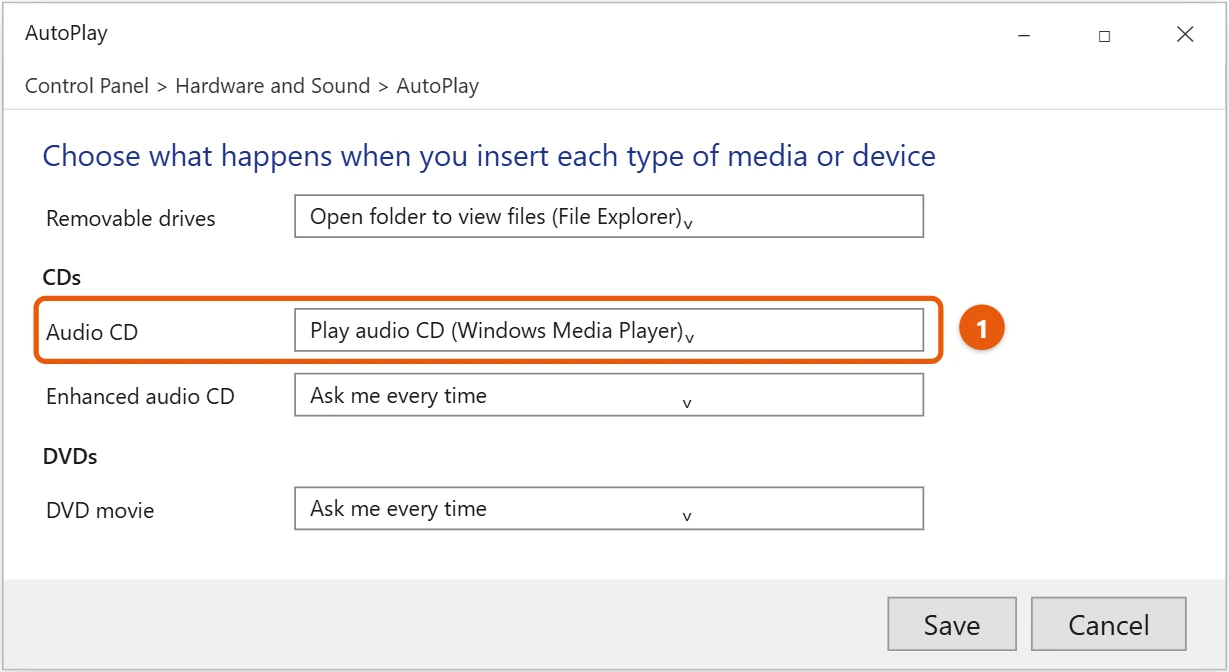
Once the CD is in, Windows 10 typically tries to be helpful by displaying an “AutoPlay” pop-up on your screen. This little box usually asks you what you want to do with the disc, giving you options like “Play Audio CD” or “Open folder to view files.”

If you don’t see the AutoPlay pop-up, don’t worry, it’s not a big deal. You can simply open File Explorer, the yellow folder icon often found on your taskbar. Then, look for your CD/DVD drive listed under “This PC” and double-click it to see the contents of your CD.

Step 3: Choose Your Preferred Media Player

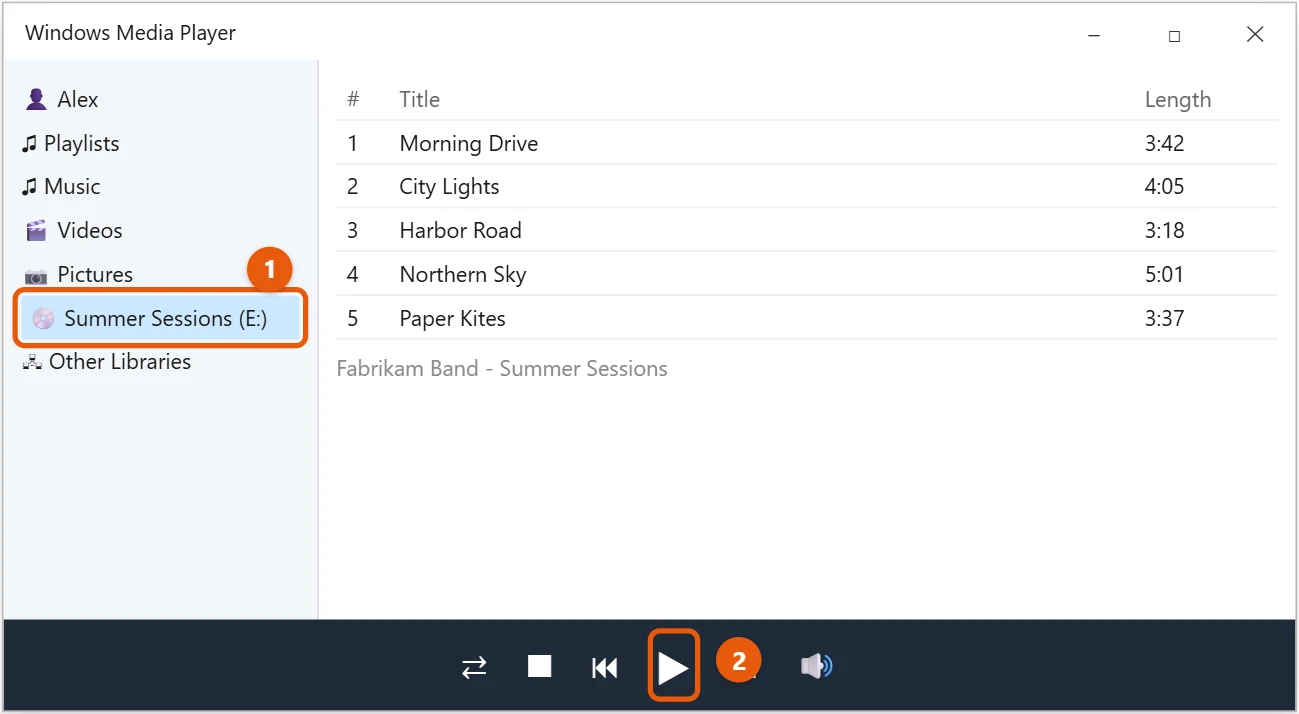
If AutoPlay popped up, you’ll likely see “Play Audio CD using Windows Media Player” as a recommended option. This is usually the easiest way to go. If you’re in File Explorer, you might see a list of tracks, and double-clicking any of them should open them in your default media player.

While Windows Media Player is built right into Windows 10 and works perfectly for audio CDs, you’re not stuck with it. Many people prefer other free players like VLC Media Player, which can handle almost any type of media you throw at it. Just make sure your chosen player is set as the default or open it manually and navigate to your CD drive.

Step 4: Start Enjoying Your Music

With your media player open and the CD recognized, you should see a list of the tracks on your album. Most players will automatically start playing the first track, or you can click on any song to begin listening. You’ll find familiar controls for play, pause, skip, and volume within the player’s interface.

Now you’re all set to kick back and enjoy your favorite tunes, just like the good old days. Adjust the volume, create a playlist, or just let the album play through from start to finish. It’s a great way to revisit classic albums or enjoy new music you’ve bought on disc.

Once you have the CD playing, you’re all set to enjoy your favorite tunes. You can navigate through the tracks, adjust the volume, and even minimize the player to work on other things while your music plays in the background. It’s truly that simple to bring your physical music collection into your digital world.

Tips for Playing CD on Windows 10

  • Keep your CDs clean: Dust, fingerprints, and scratches can cause skipping or playback issues. Gently wipe your CDs from the center outwards with a soft, lint-free cloth before inserting them.
  • Check your CD drive regularly: Ensure the disc tray opens and closes smoothly. If it’s sticky or making unusual noises, it might need cleaning or maintenance.
  • Update your drivers: Sometimes, outdated drivers for your optical drive can cause problems. You can check for updates in Device Manager, which you can access by right-clicking the Start button.
  • Try different media players: While Windows Media Player works well, if you encounter issues, try a different player like VLC Media Player, which is known for its versatility and robust codec support.
  • Consider ripping your CDs: For long-term convenience and to protect your physical discs, you can “rip” your CDs, which means converting the audio tracks into digital files like MP3s. Windows Media Player can do this for you.
  • Invest in an external drive: If your computer doesn’t have an internal CD drive, a relatively inexpensive USB external CD/DVD drive is a must-have accessory. They are plug-and-play and work seamlessly with Windows 10.

Frequently Asked Questions About Playing CDs on Windows 10

What if Windows doesn’t recognize my CD?

If Windows 10 isn’t recognizing your CD, first make sure the disc is clean and inserted correctly. Then, check “This PC” in File Explorer to see if the drive appears. If it does, try opening it manually. If the drive itself isn’t showing up, there might be a driver issue or a problem with the drive hardware. Try restarting your computer or checking Device Manager for any warnings next to your optical drive.

Do I need special software to play CDs?

No, you typically don’t need special software. Windows 10 comes with Windows Media Player built-in, which is perfectly capable of playing audio CDs. However, you can certainly download and use third-party media players like VLC Media Player if you prefer, as they often offer more features and compatibility with various file types.

Can I play DVDs on my Windows 10 computer using the same drive?

Yes, if your optical drive is a DVD drive (most modern ones are), you can also play DVDs. However, playing DVDs usually requires a specific DVD playback software, as the necessary codecs are not always included with Windows Media Player in Windows 10. VLC Media Player is a popular free option that handles DVD playback without extra hassle.

My CD drive isn’t working, what gives?

There could be a few reasons why your CD drive isn’t working. It might be a physical issue with the drive itself, especially if it’s older. Sometimes, it’s a driver problem, meaning the software that helps your computer communicate with the drive is outdated or corrupted. You can try updating drivers in Device Manager or restarting the system. If it’s an external drive, ensure it’s properly connected via USB.

How do I make a playlist from my CD?

Most media players, including Windows Media Player, allow you to create playlists. Once your CD is playing, you can usually drag and drop tracks from the CD into a “Now Playing” or “Playlist” section within the player’s interface. You can then save this playlist for future listening, even after you remove the CD, provided you’ve ripped the songs to your computer.

Summary of Playing CDs on Windows 10

  1. Insert your audio CD into the drive.
  2. Wait for AutoPlay pop-up or open File Explorer.
  3. Choose your preferred media player, like Windows Media Player.
  4. Start enjoying your music.

Conclusion

Bringing your beloved music CDs to life on your Windows 10 computer is a wonderful way to reconnect with your physical music collection, whether it’s a nostalgic journey through albums from your past or a chance to enjoy new music purchased on disc. While streaming services dominate the soundscape today, there’s a unique charm and often superior audio quality to playing a physical CD. It’s a tangible connection to the music, offering a different kind of listening experience than simply hitting play on a digital file.

We’ve walked through the simple steps needed to get your discs spinning, from the satisfying click of the CD tray to the moment your favorite tracks fill your room. It really boils down to inserting the disc, letting Windows 10 recognize it, and then choosing a media player that suits your style, whether that’s the familiar Windows Media Player or a versatile alternative like VLC. Don’t forget those helpful tips, like keeping your discs clean and ensuring your drivers are up to date, which can save you a lot of frustration down the line. And for those moments when technology seems to have a mind of its own, our FAQ section should clear up most common snags.

In an age where everything is becoming digital and sometimes feels a bit ephemeral, the act of playing a CD can be a grounding experience. It reminds us of the artistry involved in album creation, from the music itself to the album art and liner notes. So, dust off those old jewel cases, rediscover forgotten gems, and let your Windows 10 PC become a gateway to your cherished audio memories. You now have all the knowledge you need on how to play CD on Windows 10, ensuring your soundtrack is always within reach. Happy listening!

Get Our Free Newsletter

How-to guides and tech deals

You may opt out at any time.
Read our Privacy Policy