To recreate a corrupted profile in Windows 10, back up your files, sign in with a different administrator account, rename the old folder in C:\Users, and delete that account’s entry under the ProfileList registry key. The next time you sign in to your account, Windows builds a brand-new profile, and you copy your files back into it. If you’d rather not touch the registry, create a new account and move your files to it instead, which is the route in Microsoft’s Fix a corrupted user profile page.
Applies to: Windows 10 version 22H2, Home and Pro, with a local account or a Microsoft account. The same steps work on Windows 11, where the Settings page is called Other users instead of Family & other users. Windows 10 support ended on October 14, 2025, and PCs enrolled in Extended Security Updates get security fixes through October 12, 2027.
What recreating a profile actually does
Your account is your sign-in. Your profile is the folder Windows keeps for it, such as C:\Users\Alex: your Desktop and Documents plus hidden data like NTUSER.DAT (your personal registry settings) and AppData (app settings). When the profile is damaged, the account still exists but Windows can’t load it properly. Typical signs:
- A message that says you’ve been signed in with a temporary profile, or “The User Profile Service failed the sign-in.”
- The Start menu, search or taskbar stops working for you, but works for other users on the same PC.
- Your desktop is empty, settings reset every time you sign out, or apps crash only in your account.
Recreating the profile replaces that hidden data with a clean copy, and you carry your personal files over by hand. Programs installed for all users stay installed, but their settings and sign-ins start fresh, and apps installed only for your account (including some Microsoft Store apps) may need reinstalling.
Which method to use
- Method 1, same account: keeps your user name, password, Microsoft account link and app permissions. It needs a registry edit. Choose it if you want everything to look the same at the sign-in screen.
- Method 2, new account: no registry editing, and the old profile stays untouched until you remove it. Your new account needs a different name until the old one is deleted. Choose it if you’re not comfortable with Registry Editor or Method 1 didn’t help.
If your problem is only a temporary profile and your files are still there, try fixing the temporary profile in Windows 10 first. That repairs the existing profile and is less work than rebuilding it.
Before you start
- Back up your files. Copy Desktop, Documents, Pictures and other personal folders to an external drive. Steps for File History and OneDrive are in backing up Windows 10.
- Check OneDrive. If OneDrive backs up your Desktop, Documents or Pictures, those files are already in the cloud. Signing in to OneDrive in the new profile brings them back, and files that are only stored online won’t be in the old folder anyway.
- Find your Outlook data files. If you use classic Outlook with .pst files, note where they are so you can add them again later.
- Work or school PC? If the PC is joined to a domain or managed by your organization, ask your IT department first. Profiles on managed PCs can be restored from the server or reset by policy.
Get a second administrator account
You can’t rebuild a profile while it’s in use, so both methods start from another account with administrator rights. If the PC already has one, skip ahead.
- Open Settings > Accounts > Family & other users and select Add someone else to this PC.
- Select I don’t have this person’s sign-in information, then Add a user without a Microsoft account. Enter a name such as Helper, a password and security questions. Each screen is shown in creating a local account on Windows 10.
- Back on Family & other users, select the new account, choose Change account type, pick Administrator, and select OK. The account now shows “Administrator” under its name.
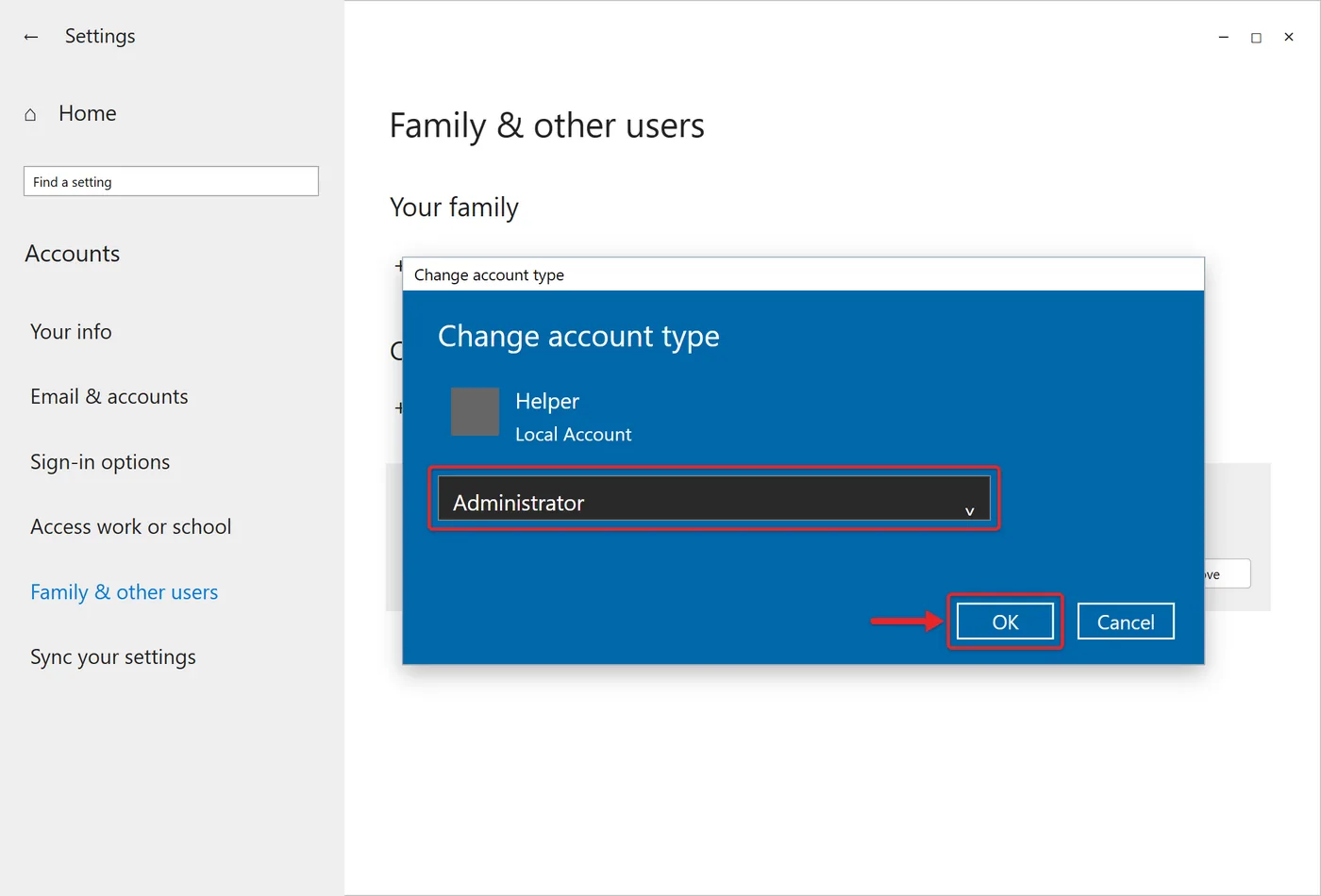
If your own account is the only administrator and you can’t open Settings, start the PC in Safe Mode or turn on the hidden built-in Administrator with net user administrator /active:yes, as described in enabling the Administrator account with CMD. Turn it off again with /active:no when you’re done.
Method 1: Recreate the profile for the same account
In these steps the damaged account is called Alex. Use your own folder name.
- Note your SID (optional). If you can still sign in as Alex, open Command Prompt, type whoami /user and press Enter. The long value starting with S-1-5-21 is the security identifier (SID) that Windows uses for this account. Write it down, then sign out.
- Restart and sign in as Helper. Restarting makes sure Alex’s profile isn’t still loaded in the background, which would block the next step.
- Rename the old profile folder. Open File Explorer, go to C:\Users, right-click Alex, choose Rename and type Alex.old. Approve the administrator prompt. Nothing inside the folder is deleted.
- Open the ProfileList key. Press Windows + R, type regedit, press Enter and select Yes. Go to
HKEY_LOCAL_MACHINE\SOFTWARE\Microsoft\Windows NT\CurrentVersion\ProfileList. - Find Alex’s key. Click each key that starts with S-1-5-21 and look at ProfileImagePath in the right pane. The right key shows C:\Users\Alex (or matches the SID you noted). Leave S-1-5-18, S-1-5-19 and S-1-5-20 alone; those belong to Windows itself.
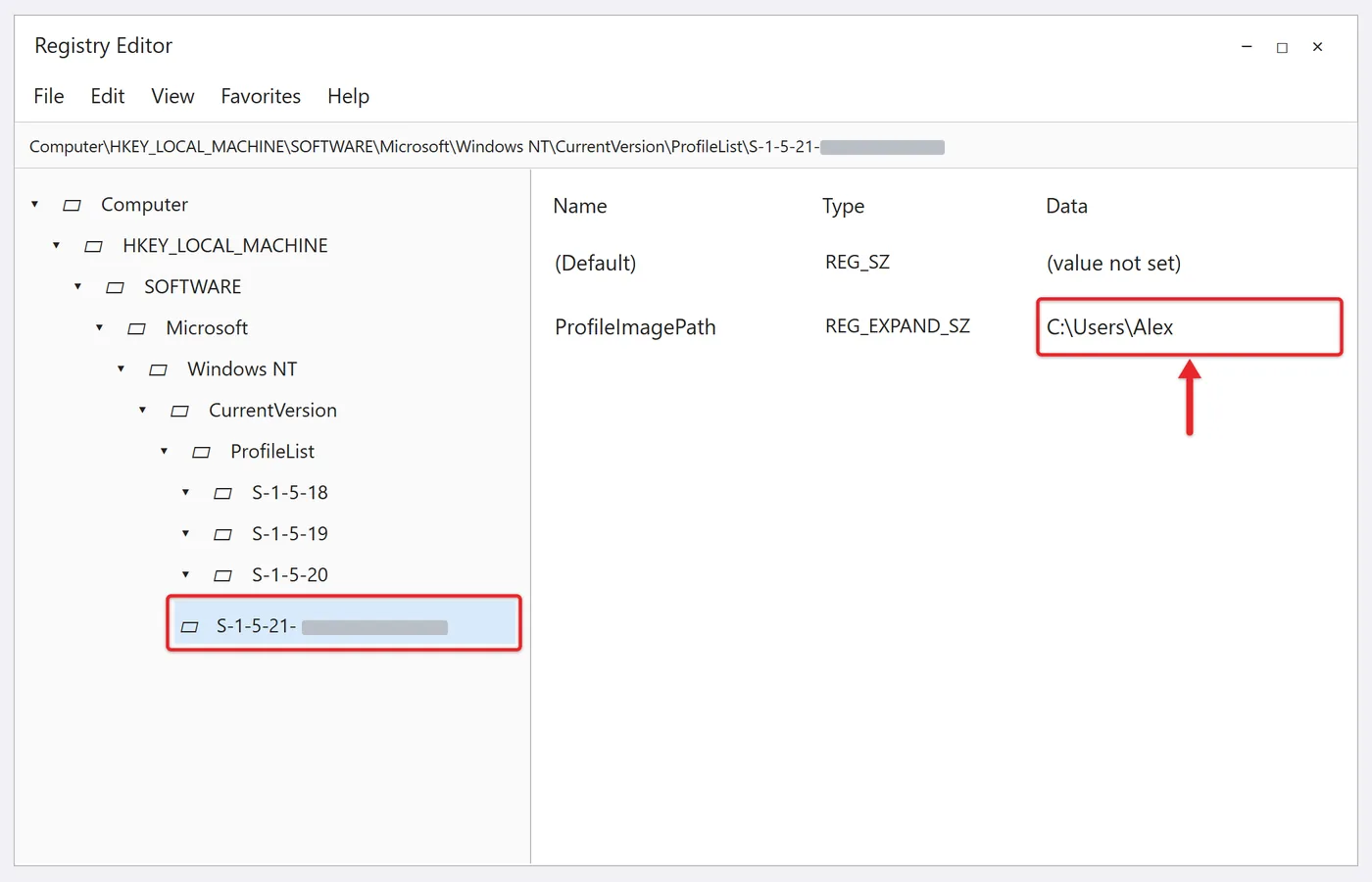
- Export, then delete the key. Right-click Alex’s key, choose Export and save the .reg file to the desktop of the Helper account. Then right-click the key again and choose Delete. If a second key with the same SID plus .bak on the end exists, export and delete that one too.
- Sign in as Alex. Close Registry Editor, restart, and sign in to Alex with the usual password or PIN. Windows shows “Hi” and “Getting things ready” for a minute or two, may ask privacy questions, and then opens a clean desktop. A new C:\Users\Alex folder now sits next to Alex.old.
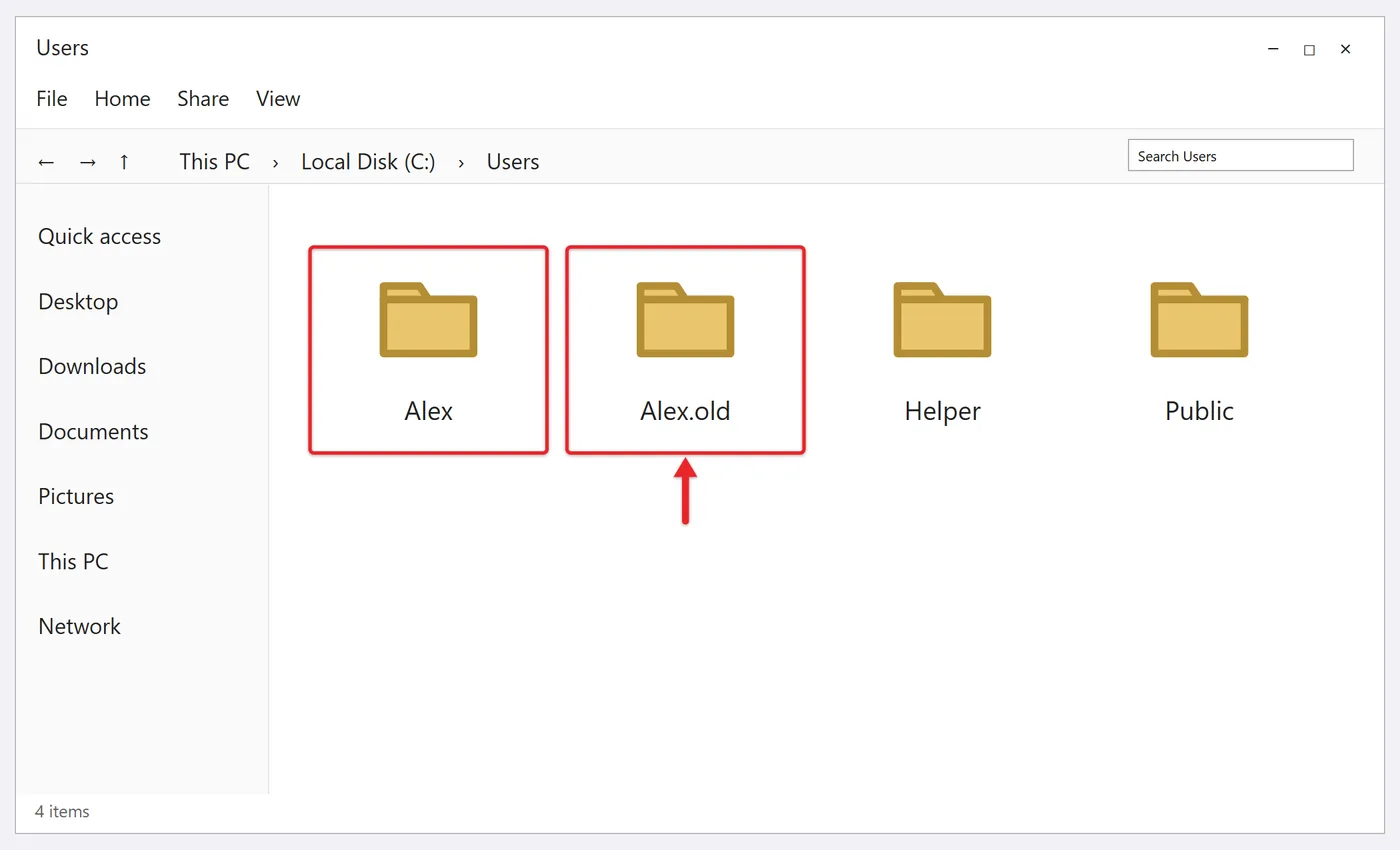
- Copy your files back. Follow the next section to move your personal files from Alex.old into the new folder.
If you’d prefer a dialog to the registry, the User Profiles window in System Properties can also remove a profile, but it deletes the folder along with the entry. Only use it after your backup is complete; deleting a user profile in Windows 10 covers that dialog and the cleanup afterward.
Method 2: Move to a new account
- Create a new administrator account with a different name, such as Alex2, using the steps in Get a second administrator account.
- Sign in to Alex2, wait for first-time setup to finish, and copy your files from C:\Users\Alex to C:\Users\Alex2 as shown in the next section.
- If you used a Microsoft account, go to Settings > Accounts > Your info and select Sign in with a Microsoft account instead. If Windows won’t let you link the same Microsoft account while the old account still uses it, remove the old account first (step 4), then try again.
- When you’re sure nothing is missing, open Settings > Accounts > Family & other users, select the old account and choose Remove, then Delete account and data. This erases the old profile folder, so check your backup first.
Copy your files into the new profile
Microsoft’s guidance is to leave File Explorer’s hidden-file options turned off while you copy. That way you don’t bring over NTUSER.DAT, AppData and other hidden items that may contain the damage you’re trying to get rid of.
- Signed in to the new profile, open File Explorer and go to the old folder (C:\Users\Alex.old or C:\Users\Alex).
- Open Desktop, press Ctrl + A, then Ctrl + C. Open your new Desktop folder and press Ctrl + V.
- Repeat for Documents, Downloads, Pictures, Music, Videos and Favorites. Copy rather than move, so the old folder stays complete until you’re finished.
- Sign in to OneDrive, your browser and your other apps. Browsers that sync bookmarks and passwords restore them once you sign in.
- In classic Outlook, add your account again and reconnect any .pst files with File > Open & Export > Open Outlook Data File.
Confirm it worked, and how to undo
Restart and sign in to the rebuilt account. The fix worked if there’s no temporary-profile message, Start and search open normally, and a setting you change (the wallpaper, for example) is still there after another restart.
To undo Method 1 before you delete anything, sign in as Helper, delete the new Alex key in ProfileList, rename the new Alex folder to something like Alex.new, rename Alex.old back to Alex, and double-click the .reg file you exported to restore the old entry. Then restart.
Keep Alex.old for a week or two, then delete it to free up space.
Troubleshooting
Windows says the folder is in use when you rename it
The profile is still loaded. Restart the PC, sign in only as Helper (don’t switch users), and try again.
You still get a temporary profile
A leftover key, usually one ending in .bak, is still pointing at the old folder. Check ProfileList again for keys with the same SID and remove them, or follow the temporary-profile fix linked above.
Access denied while copying
Right-click the old folder, choose Properties > Security > Advanced, select Change next to Owner, enter your new account name, check Replace owner on subcontainers and objects, and apply.
The same problem shows up in the new profile
Then the profile wasn’t the cause. Run DISM and SFC from an administrator Command Prompt, as explained in running an SFC scan in Windows 10, and install any pending Windows updates.
Frequently asked questions
Will other people’s accounts on the PC change?
No. Each account has its own profile folder and ProfileList entry, so only the account you rebuild is affected.
Is recreating a profile the same as changing my user folder name?
No. Rebuilding gives you new profile data under the same name. If you only want a different folder name, see changing C:/Users/Username in Windows 10.
Can I just reset Windows instead?
You can, but a reset affects every account and reinstalls Windows. Rebuilding one profile takes far less time and leaves your apps in place, so try it first.
Once your files are back, set up File History or OneDrive backup in the new profile so a future profile problem costs you nothing but a sign-in.

Matt Jacobs has been working as an IT consultant for small businesses since receiving his Master’s degree in 2003. While he still does some consulting work, his primary focus now is on creating technology support content for SupportYourTech.com.
His work can be found on many websites and focuses on topics such as Microsoft Office, Apple devices, Android devices, Photoshop, and more.