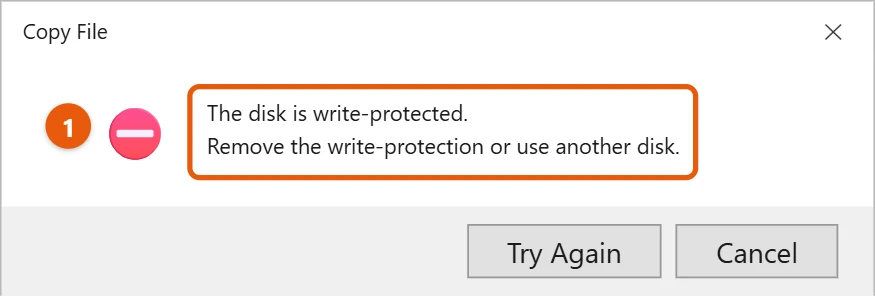
Removing write protection from a USB drive in Windows 10 is like unlocking a stubborn door. It’s simple once you know the steps. This guide will walk you through various methods, ensuring you can easily write or delete files on your USB drive. Let’s dive in and get that USB drive working properly again!
How to Remove Write Protection from USB Drive in Windows 10
This section will guide you step-by-step through different methods to remove the pesky write protection from your USB drive. Whether you’re dealing with a physical lock or a software glitch, we’ve got you covered.
Step 1: Check for a Physical Lock
Some USB drives have a physical switch that enables write protection.
Locate your USB drive and examine it for a tiny switch. If you find one, toggle it to the off position.
This switch is typically on the side of the USB drive and is easy to miss. If your drive has this option, it can be a quick fix.
Step 2: Use Diskpart Command
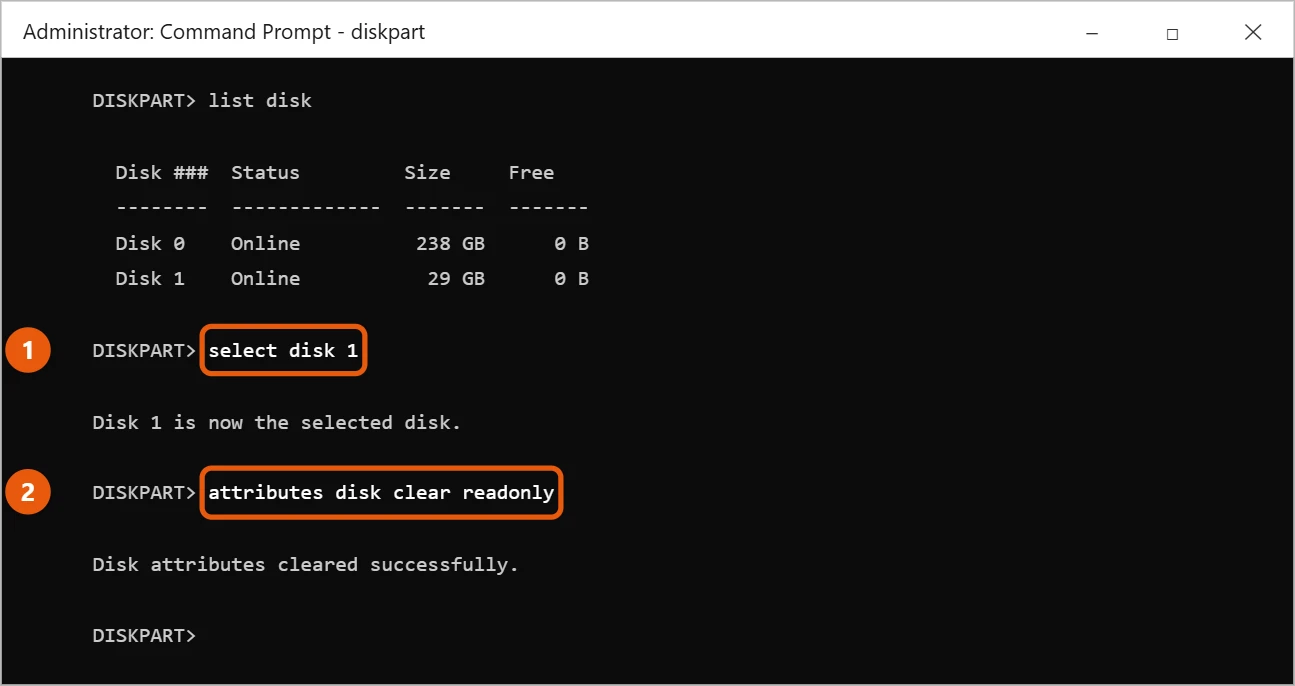
Diskpart is a powerful Windows command-line tool that can help remove write protection.
Open Command Prompt as an administrator. Type diskpart and press Enter. Then type list disk to display all drives. Identify your USB drive and type select disk X (replace X with your disk number). Finally, type attributes disk clear readonly and press Enter.
Diskpart can feel a bit intimidating, but it’s a potent tool. Be cautious and ensure you’ve selected the correct disk to avoid any mishaps.
Step 3: Modify the Registry
Sometimes, a registry tweak can disable write protection.
Press Win + R, type regedit, and hit Enter. Navigate to HKEY_LOCAL_MACHINESYSTEMCurrentControlSetControlStorageDevicePolicies. If you don’t see StorageDevicePolicies, create it. Right-click, choose New > Key, and name it StorageDevicePolicies. Then, right-click, choose New > DWORD (32-bit) Value, and name it WriteProtect. Set its value to 0.
Editing the registry might sound complicated, but it’s just like following a treasure map. Take your time and double-check your steps.
Step 4: Check Group Policy Settings
Group policy settings can sometimes enforce write protection.
Press Win + R, type gpedit.msc, and press Enter. Navigate to Computer Configuration > Administrative Templates > System > Removable Storage Access. Double-click on Removable Disks: Deny write access and set it to Disabled or Not Configured.
Group Policy Editor is a powerful tool, mainly used in corporate environments. It might not be available in all versions of Windows 10, like Home Edition.
Step 5: Reformat the Drive
If all else fails, reformatting the USB drive can remove write protection.
Right-click the USB drive in File Explorer and select Format. Choose the desired file system (NTFS or FAT32) and click Start. This will erase all data on the drive.
Reformatting is the nuclear option—it will wipe your data, so back up anything important before you proceed.
After completing these steps, your USB drive should be free from write protection. You’ll now be able to read, write, and modify files on the drive as needed.
Tips for Removing Write Protection from USB Drive in Windows 10
- Always back up your data before attempting any fixes.
- Verify whether a physical lock switch is present before diving into software solutions.
- Use Diskpart with caution; selecting the wrong disk can cause data loss.
- Keep your Windows updated to avoid compatibility issues.
- If the issue persists, try using the USB drive on a different computer to rule out hardware problems.
Frequently Asked Questions
Why is my USB drive write-protected?
There could be multiple reasons: a physical lock switch, software settings, or corruption.
Can I remove write protection without losing data?
Yes, methods like toggling a physical switch or using Diskpart won’t affect your data. Reformatting, however, will erase all data.
What if Diskpart doesn’t recognize my USB drive?
Ensure the USB drive is properly connected and try using a different port or computer.
Can a virus cause write protection?
Yes, some malware can alter device settings. Run a full antivirus scan to rule this out.
Is it safe to edit the registry to remove write protection?
Yes, but proceed with caution. Incorrect edits can affect system stability. Always back up the registry first.
Summary
- Check for a physical lock.
- Use Diskpart command.
- Modify the registry.
- Check Group Policy settings.
- Reformat the drive.
Conclusion
Dealing with a write-protected USB drive can be frustrating, but as you’ve seen, removing write protection from a USB drive in Windows 10 is manageable with the right steps. From checking for physical locks to using powerful tools like Diskpart, you now have a toolkit to tackle this issue from multiple angles.
Each method has its pros and cons, so start with the least invasive and work your way down. Always remember to back up your data before making significant changes, especially if reformatting the drive becomes necessary.
We hope this guide has demystified the process for you. Feel free to share your success stories or any further questions you might have. For more detailed tech guides and tips, stay tuned and keep exploring!

Matt Jacobs has been working as an IT consultant for small businesses since receiving his Master’s degree in 2003. While he still does some consulting work, his primary focus now is on creating technology support content for SupportYourTech.com.
His work can be found on many websites and focuses on topics such as Microsoft Office, Apple devices, Android devices, Photoshop, and more.