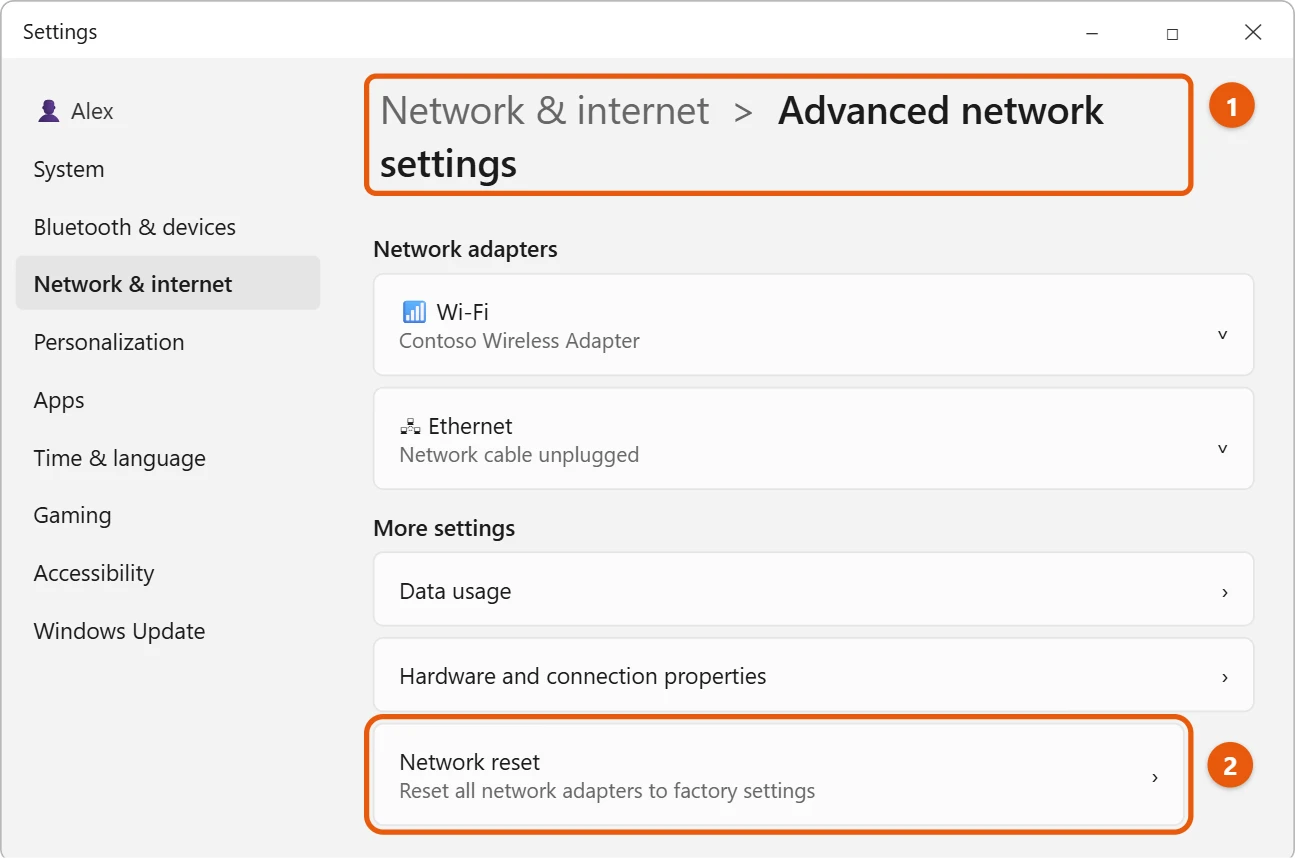
Select Start > Settings > Network & internet > Advanced network settings > Network reset. Select Reset now, then Yes. Your PC restarts, and Windows reinstalls your network adapters with their default settings.
Use network reset as the last step, after simpler fixes haven’t worked.
Applies to: Windows 11.
What a network reset changes
- Removes your network adapters, such as Wi-Fi and Ethernet, and reinstalls them with default settings after a restart.
- Forgets saved Wi-Fi networks and may set known networks to Public.
- Can remove VPN adapters and Hyper-V virtual switches, so that software may need to be set up again.
- Leaves your files, apps and router settings alone.
Before you reset
Try these first. They fix most connection problems (for the full list, see how to fix Wi-Fi not working in Windows 11):
- Turn Wi-Fi off and on in quick settings, and turn off Airplane mode.
- Restart your PC and your router.
- Forget the Wi-Fi network and join it again.
- Install updates in Settings > Windows Update.
- If you use a VPN, try turning it off. Here’s how to turn off a VPN in Windows 11.
Back up your Wi-Fi passwords (optional)
A network reset makes Windows forget saved Wi-Fi networks. If you won’t remember the passwords, export them first. To check a single network instead, you can look up any saved Wi-Fi password in Windows 11 in Settings and write down the ones you need.
- Right-click Start and select Terminal (Admin).
- Make a folder, for example
mkdir C:\WiFi. - Type
netsh wlan export profile key=clear folder=C:\WiFiand press Enter. Each network is saved as an XML file. - After the reset, add one back with
netsh wlan add profile filename="C:\WiFi\file-name.xml".
The files contain your passwords in plain text, so delete the folder when you’re done.
Reset your network settings
- Select Start > Settings > Network & internet.
- Select Advanced network settings, then Network reset.
- Select Reset now, then select Yes to confirm.
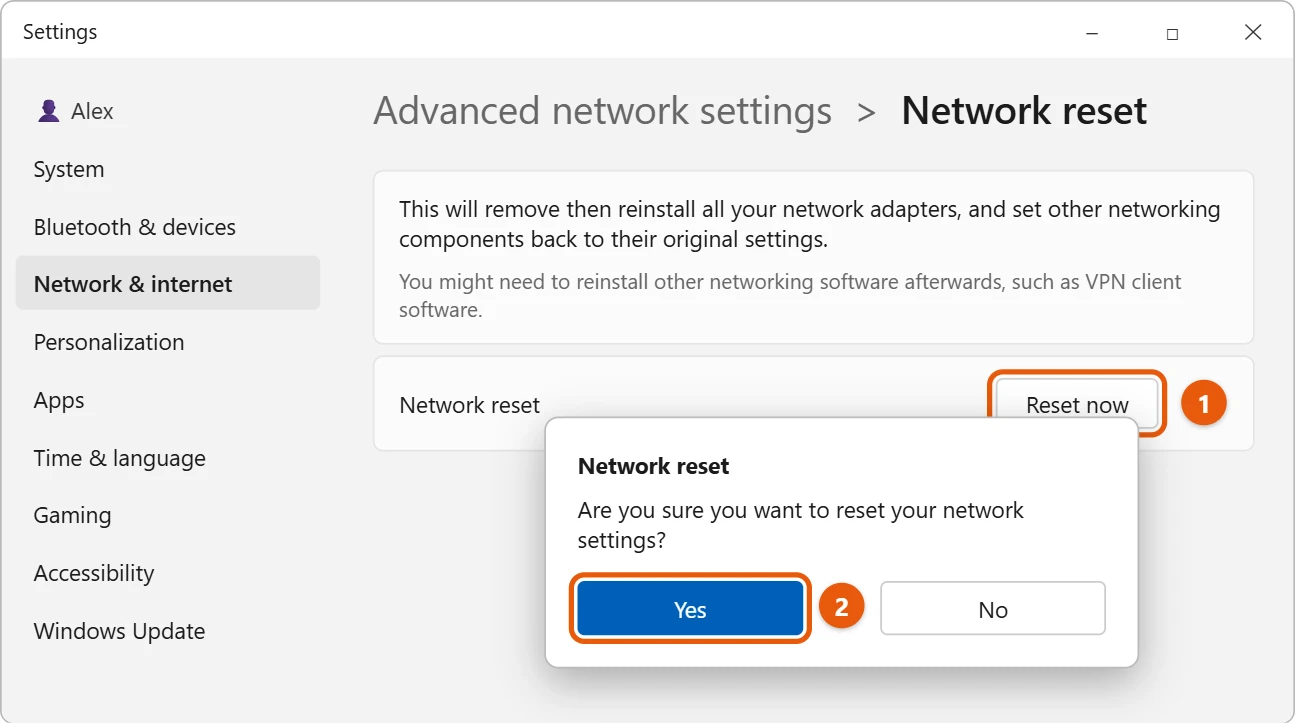
- Save your work. Windows restarts your PC within a few minutes.
After the reset
- Join Wi-Fi again. Select the Network icon, pick your network and enter its security key.
- Reinstall VPN apps or other network software if they stop working.
- Check the network type. Networks may be set to Public, which hides your PC from other devices. To share files or printers at home, change it to Private in the network’s properties.
Reset network parts with commands
If you’d rather not remove your adapters, these commands reset the network stack and clear cached addresses. Run them in Terminal (Admin), one at a time, then restart your PC. Before you reset the network, you may want to note your current address, which you can find your IP address in Windows 11.
netsh winsock resetresets the Winsock catalog.netsh int ip resetresets TCP/IP settings.ipconfig /releaseandipconfig /renewget a new IP address from your router.ipconfig /flushdnsclears the DNS cache.
If something isn’t working after the reset
- No Wi-Fi option at all: open Device Manager, select Action > Scan for hardware changes, and restart. If the adapter still doesn’t appear, install the latest driver from your PC maker.
- Can’t see other PCs or printers: the network is probably set to Public. Change it to Private in the network’s properties.
- VPN or virtual machines can’t connect: reinstall the VPN app, and recreate any Hyper-V virtual switches.
- Ethernet works but Wi-Fi doesn’t: check that Airplane mode is off and that Wi-Fi is turned on in quick settings.
Frequently asked questions
Will network reset delete my files?
No. It only resets network adapters and their settings. Your files and apps stay.
What if the internet still doesn’t work?
If only websites fail, try flushing the DNS cache. If nothing connects, contact your internet provider to check the line.
Is this the same as resetting my router?
No. Network reset only changes settings on your PC. Your router, its Wi-Fi name and its password stay the same.
How long does a network reset take?
The reset itself is quick. Windows tells you it will restart shortly, and the adapters are reinstalled when the PC starts up again.
Using a cable instead of Wi-Fi? You can set up an Ethernet connection in Windows 11 in a few steps.
More Wi-Fi fixes are on Microsoft’s Fix Wi-Fi connection issues in Windows page.

Matt Jacobs writes and maintains the guides on Support Your Tech, which he started in 2017. He spent most of his career keeping small-business PCs running and still takes the occasional consulting job, so the steps here come from fixing the same problems on other people’s computers. Every guide is checked on his own Windows 11, Windows 10, Mac, iPhone and iPad before it goes up.