To make only one page landscape in Word, select everything on that page. Then go to Layout and select the small arrow in the corner of the Page Setup group. On the Margins tab, choose Landscape, set Apply to to Selected text, and select OK. Word turns just that content into a landscape page and keeps the pages before and after it in portrait.
This works because Word puts the landscape page in its own section. If you’d rather control the sections yourself, use the section break method further down.
Applies to: Word for Microsoft 365, Word 2024, 2021, and 2019 on Windows. Mac and Word for the web notes are below. Checked against Microsoft Support on September 24, 2026.
Make one page landscape
- Select all the text, tables, or pictures you want on the landscape page.
- Select the Layout tab.
- Select the small arrow in the bottom-right corner of the Page Setup group to open the Page Setup dialog.
- On the Margins tab, under Orientation, select Landscape.
- Next to Apply to, choose Selected text.
- Select OK.
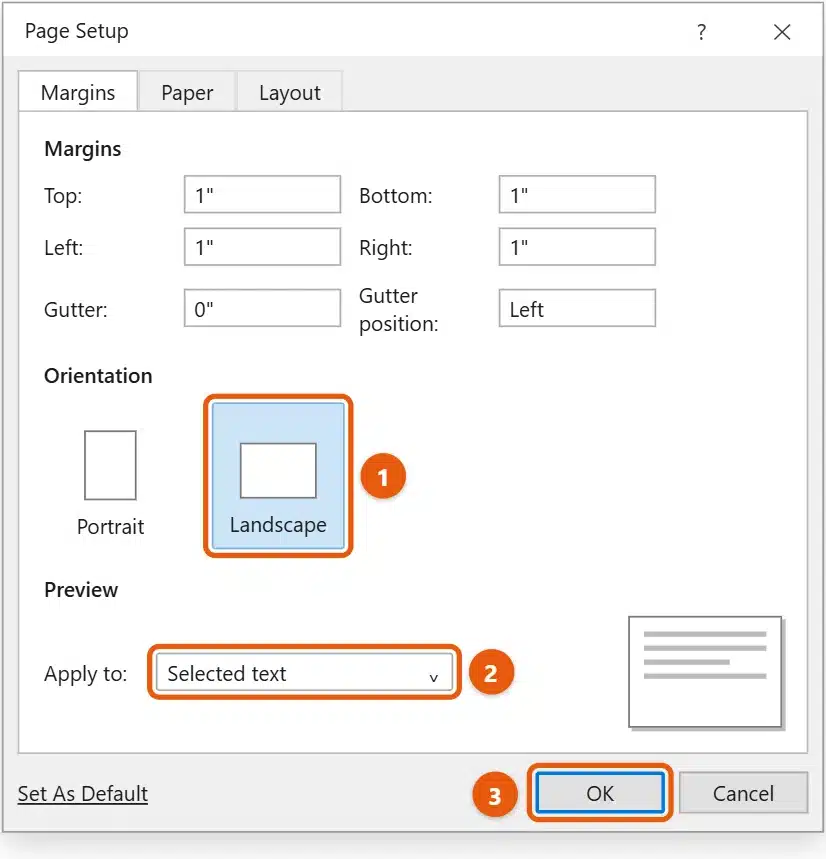
Word adds a section break before and after your selection automatically. To see the breaks, select Home > Show/Hide ¶. They appear as Section Break (Next Page).
If a wide table or chart doesn’t fit on the new page, select it and use Layout > AutoFit > AutoFit Window for tables, or drag a picture’s corner handle to resize it.
Use section breaks yourself
Use this method if you want several pages in a row in landscape, or you’re adding the landscape page before the content exists.
- Click at the very start of the page you want in landscape.
- Select Layout > Breaks > Next Page.
- Click at the start of the page after it and add another Next Page break.
- Click anywhere on the page between the breaks, then select Layout > Orientation > Landscape.
Every page between the two breaks turns landscape. The pages before and after stay portrait. For more on breaks, see how to add a section break in Word.
If more pages than expected turn landscape
- Every page in the same section shares one orientation. Check that there’s a Next Page section break both before and after your landscape page.
- If you only added one break, everything after it changes. Add the second break, click on the page after it, and select Layout > Orientation > Portrait.
- If a blank landscape page appears, there’s an empty paragraph after your content. Turn on Show/Hide ¶ and delete the extra paragraph marks before the section break.
- To undo it, press Ctrl + Z, or delete the section breaks so the content goes back into one section. See how to remove a section break in Word.
Fix headers and page numbers on the landscape page
Headers, footers, and page numbers carry on across section breaks, but they sit along the long edge of a landscape page, so they may look out of place.
- Check the result in File > Print before you print or share the document.
- To use a different header on the landscape page, double-click its header, then in Header & Footer turn off Link to Previous. Do the same on the first portrait page after it. Now you can change the landscape page’s header without affecting the others.
- Page numbers keep counting across sections unless you change it in Page Number > Format Page Numbers.
Printing a document with mixed orientations
Most printers handle mixed pages automatically, because Word sends each section with its own orientation. If the landscape page prints cut off, check the preview in File > Print, then update your printer driver or save the document as a PDF and print that.
On a Mac or in Word for the web
- Word for Mac: use the section break method. Select Layout > Breaks > Next Page before and after the page, click on it, then select Layout > Orientation > Landscape.
- Word for the web: you can’t make a single page landscape, because it can’t add section breaks. Open the document in the desktop app with Editing > Open in Desktop App, make the change, and save. The mixed orientation then shows correctly online.
Frequently asked questions
Can I make a page landscape without section breaks?
No. Word stores orientation per section, so a single landscape page always needs a section of its own. The Selected text option just adds the breaks for you.
How do I make every page landscape?
Select Layout > Orientation > Landscape with no text selected. The whole document changes if it has only one section.
Why can’t I choose Selected text in Apply to?
You didn’t select anything first. Close the dialog, select the content, and open Page Setup again.
Microsoft’s guide is Change page orientation to landscape or portrait. More help is on our Word Help & Guides page.
Related: how to scale a document in Word.
Related: how to make Google Docs landscape.

Matt Jacobs has been working as an IT consultant for small businesses since receiving his Master’s degree in 2003. While he still does some consulting work, his primary focus now is on creating technology support content for SupportYourTech.com.
His work can be found on many websites and focuses on topics such as Microsoft Office, Apple devices, Android devices, Photoshop, and more.