To set up dual monitors in Windows 10, connect the second monitor and turn it on. Then right-click the desktop, select Display settings, and under Multiple displays choose Extend these displays. Drag the numbered boxes at the top of the page so they match where your monitors sit on your desk, and select Apply.
The fastest shortcut is Windows + P > Extend.
Applies to: Windows 10 desktops and laptops. Checked on September 24, 2026.
What you need
- A free video port on your PC that matches the monitor: HDMI, DisplayPort, or USB-C with video support. Laptops usually have one HDMI or USB-C port for this. These ports send video out, so they can’t display HDMI input from another device.
- The right cable or adapter, such as HDMI to HDMI or USB-C to HDMI. Not every USB-C port carries video. Look for a DisplayPort or Thunderbolt symbol next to the port.
- On a desktop PC with a graphics card, plug both monitors into the graphics card, not the ports on the motherboard.
Step 1: Connect the monitor and extend the display
- Connect the second monitor to your PC and to power, then turn it on.
- Right-click an empty area of the desktop and select Display settings. Or go to Start > Settings > System > Display.
- If only one box appears at the top, select Detect.
- Scroll to Multiple displays and choose Extend these displays.
- Select Keep changes when Windows asks.
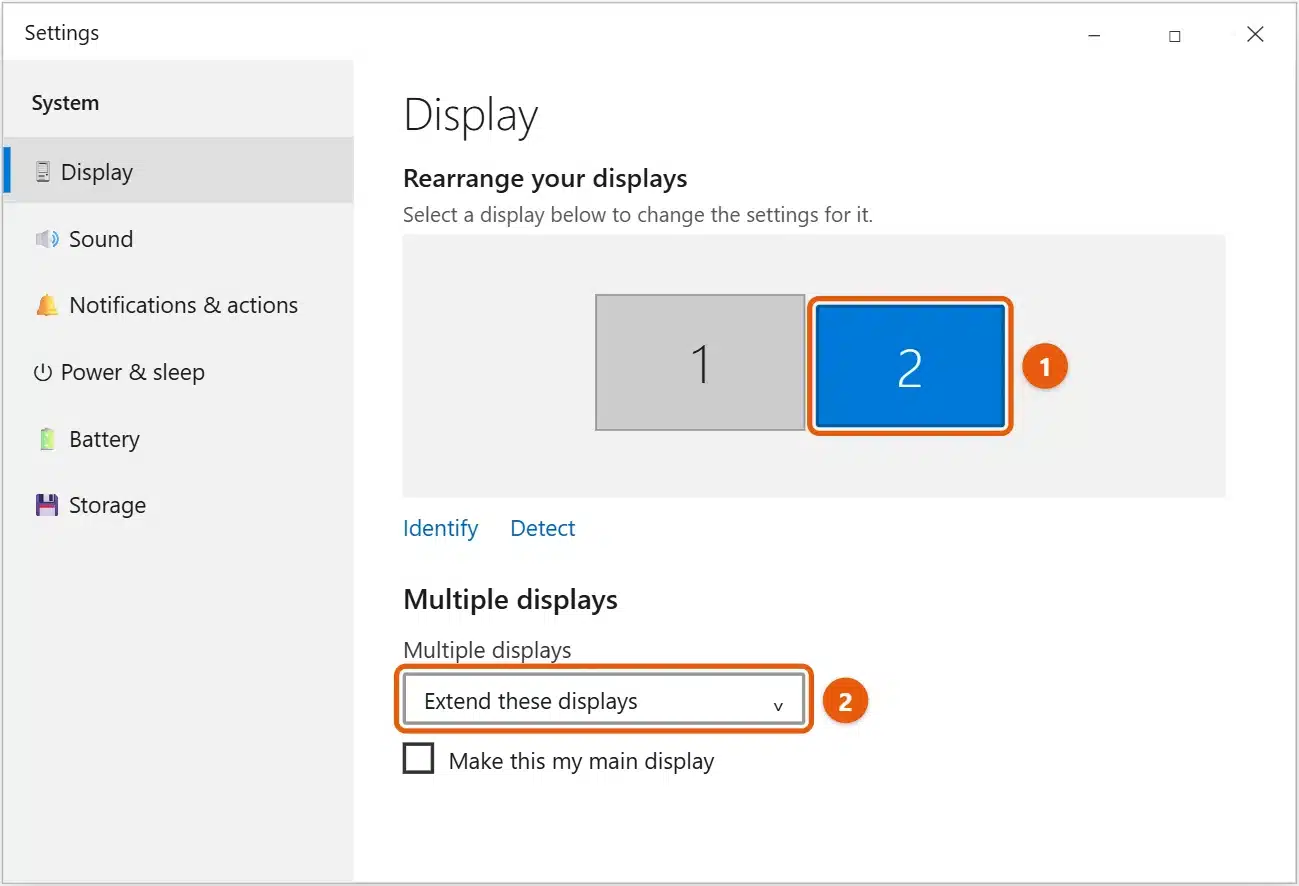
The other options in that list are Duplicate these displays (both screens show the same thing, which is handy for presenting), Show only on 1, and Show only on 2.
Use the Windows + P shortcut
Press Windows + P to open the Project panel, then choose a mode:
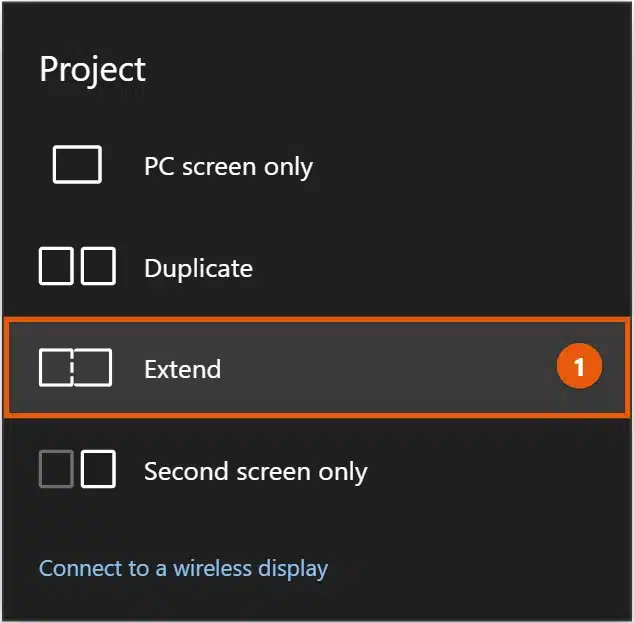
- PC screen only: only your main screen is used. On a newer PC, the same option is how you disable a second monitor in Windows 11.
- Duplicate: both screens show the same thing.
- Extend: your desktop spreads across both screens.
- Second screen only: only the second monitor is used, which is useful for a laptop with its lid closed.
Step 2: Arrange your monitors
- In Display settings, select Identify. A large number appears on each screen for a few seconds.
- Drag the boxes under Rearrange your displays so they match your desk. For example, put 2 to the left of 1 if that monitor sits on your left. If one monitor is higher, move its box up a little. If the pointer still crosses the wrong way afterward, our guide to changing mouse direction on dual monitors explains the fix.
- Select Apply.
Your mouse now moves from one screen to the other along the edges where the boxes touch. If it gets stuck, the boxes probably don’t line up with your desk. On Windows 11, follow our guide on moving the mouse between two monitors.
Step 3: Choose your main display
- Select the monitor you want at the top of Display settings.
- Under Multiple displays, check Make this my main display.
The main display is where the clock, notification area, and most new windows appear. For more ways to switch it, see how to change the primary display in Windows 10.
Step 4: Fix size, resolution, and orientation
Each monitor has its own settings. Select a monitor at the top of Display settings, then:
- Resolution: under Display resolution, pick the option marked (Recommended).
- Text size: under Change the size of text, apps, and other items, pick a scale so text looks about the same size on both screens.
- Portrait monitor: under Display orientation, choose Portrait.
- Refresh rate: select Advanced display settings to change it, for example to 144 Hz on a gaming monitor.
If windows look too big or small on one screen, see how to adjust screen size on a second monitor in Windows 10.
Step 5: Set up the taskbar on both monitors
- Go to Settings > Personalization > Taskbar.
- Under Multiple displays, turn on Show taskbar on all displays.
- Under Show taskbar buttons on, choose whether app buttons appear on every taskbar or only on the screen where the window is open.
Handy tips for two screens
- Move a window to the other monitor: press Windows + Shift + Left arrow or Right arrow.
- Snap windows: press Windows + Left arrow or Right arrow to fill half of the current screen.
- Different wallpaper on each screen: go to Settings > Personalization > Background, right-click a picture, and choose Set for monitor 1 or Set for monitor 2. See how to have two different wallpapers on dual monitors.
- Laptop with the lid closed: set the lid to Do nothing when plugged in. See how to use 2 monitors with the laptop closed.
If the second monitor isn’t detected
- Check the monitor’s input. Use its buttons to choose the port you plugged into, such as HDMI 1 or DisplayPort.
- Select Detect in Display settings, or press Windows + P and choose Extend.
- Reseat or swap the cable, and try a different port. Some USB-C ports and cheap adapters don’t carry video.
- Restart the PC with the monitor connected and turned on.
- Update the graphics driver: right-click Start, select Device Manager, expand Display adapters, right-click your graphics card, and select Update driver. You can also get the latest driver from your PC or graphics card maker’s website.
- Both screens show the same thing: you’re in duplicate mode. Choose Extend these displays, or see how to stop dual monitors from mirroring.
Frequently asked questions
Can I use a TV as a second monitor?
Yes. Connect it with HDMI and set it up the same way. Set the TV to its HDMI input and pick the recommended resolution. On a Windows 11 PC, our guide to adjusting the screen size on a second monitor covers what to do if the picture does not fit the TV.
How many monitors can Windows 10 use?
Windows 10 has no small fixed limit. The number depends on your graphics card and its ports. Many laptops support one or two extra screens.
Can I connect a second monitor wirelessly?
Yes, if the monitor or TV supports Miracast. Press Windows + K and choose it from the list.
To use a TV as your second screen, see how to connect a laptop to a TV with HDMI in Windows 10.
To keep the taskbar out of the way on both screens, see how to hide the taskbar in Windows 10.
To use a different wallpaper on each screen, see how to change the wallpaper in Windows 10.
To turn a monitor on its side, see how to rotate the screen in Windows 10.
To show two apps side by side on one screen, see how to split screen in Windows 10.
To set each monitor’s resolution, see how to change screen resolution in Windows 10.
To switch sets of windows on one screen instead, see how to use virtual desktops in Windows 10.
Each monitor can use its own refresh rate. See how to change the refresh rate in Windows 10.
On Windows 11, see how to set up multiple monitors in Windows 11. Microsoft’s guide is How to use multiple monitors in Windows. More help is on our Windows Help & Guides page.
To show your screen on a TV or projector, see how to share your screen in Windows 10.
On Windows 11, see how to duplicate your screen in Windows 11.
On a Windows 11 laptop, see how to close your laptop and keep using a monitor.

Matt Jacobs has been working as an IT consultant for small businesses since receiving his Master’s degree in 2003. While he still does some consulting work, his primary focus now is on creating technology support content for SupportYourTech.com.
His work can be found on many websites and focuses on topics such as Microsoft Office, Apple devices, Android devices, Photoshop, and more.