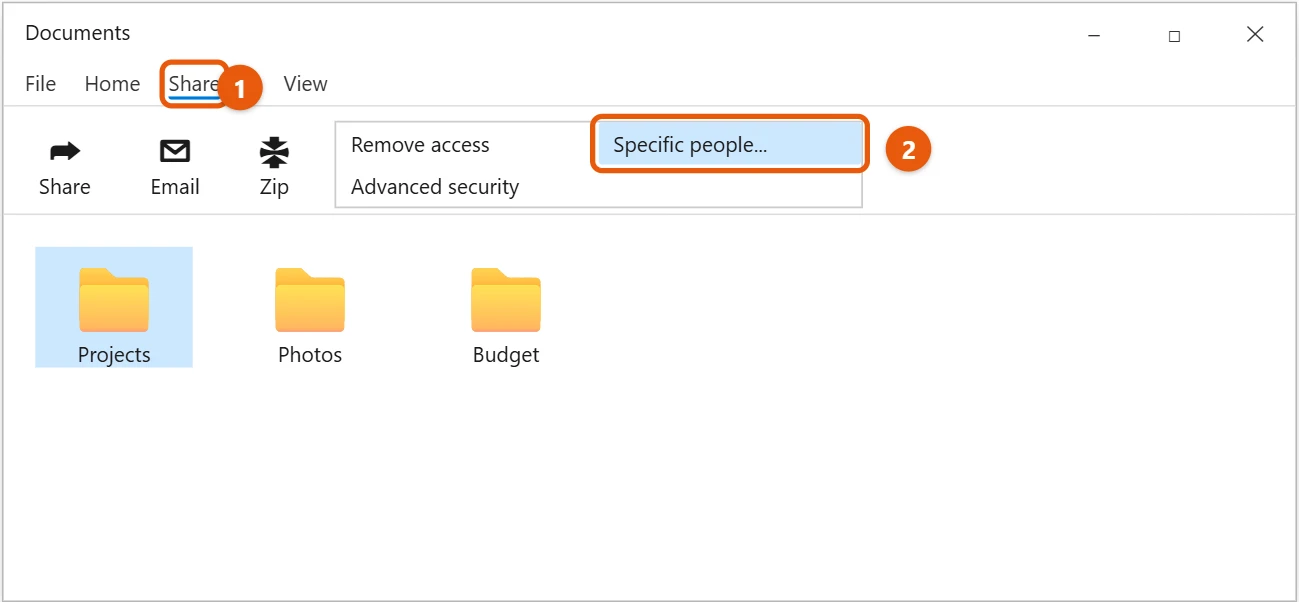
Sharing files and folders with others on your network doesn’t have to be a headache. It is actually quite simple once you know the right steps. You will need to locate the folder you want to share, right-click it to access its properties, and then use the sharing tab to grant network access. This involves setting permissions for who can see and edit the contents, and then confirming those settings. With just a few clicks, your selected folder can be accessible to other devices on your home or office network, making collaboration or data access much easier.
Learning to share folders in Windows 10 is a foundational skill for anyone looking to easily transfer files between computers on the same network. These steps will walk you through the process of making your chosen folder available to others, whether it is for family photos, work documents, or anything in between. We will cover everything from finding the right settings to understanding who can access what.
Step 1: Locate the folder you want to share
The first thing you need to do is find the specific folder you wish to share with others. Open File Explorer, the yellow folder icon usually found on your taskbar, and navigate to the folder’s location.
It is crucial to pick the correct folder here, as anything inside it will also become accessible to others on your network. Take a moment to ensure it is the right one, maybe even create a new folder just for sharing if you are unsure. This way, you keep your personal stuff separate from what you are making available.
Step 2: Access the folder’s sharing options
Once you have found your target folder, right-click on it. A menu will pop up, and near the bottom, you will see an option called “Properties.” Click on “Properties” to open a new window with various settings for that folder.
Think of “Properties” as the control panel for your folder, giving you access to all its nitty-gritty details. This is where we will find the specific settings needed to allow network access, so it is an important step to get right.
Step 3: Navigate to the Sharing tab
In the Properties window, you will see several tabs across the top, such as “General,” “Security,” and “Customise.” Your goal is to click on the “Sharing” tab. This tab is specifically designed for managing how your folder interacts with other devices on your network.
The “Sharing” tab is your gateway to making the folder visible and accessible to other computers. It neatly organises all the relevant options for network sharing, making it straightforward to find what you need.
Step 4: Use the “Share…” button for quick setup
Within the Sharing tab, you will see a section titled “Network File and Folder Sharing.” Below that is a button labeled “Share…”. Go ahead and click this button. This action launches a simple wizard to help you quickly set up basic sharing.
This “Share…” button is fantastic for basic, common sharing needs, especially if you just want to let everyone on your network see or edit the folder. It streamlines the process by guiding you through adding users and setting permissions.
Step 5: Add users and set their permission levels
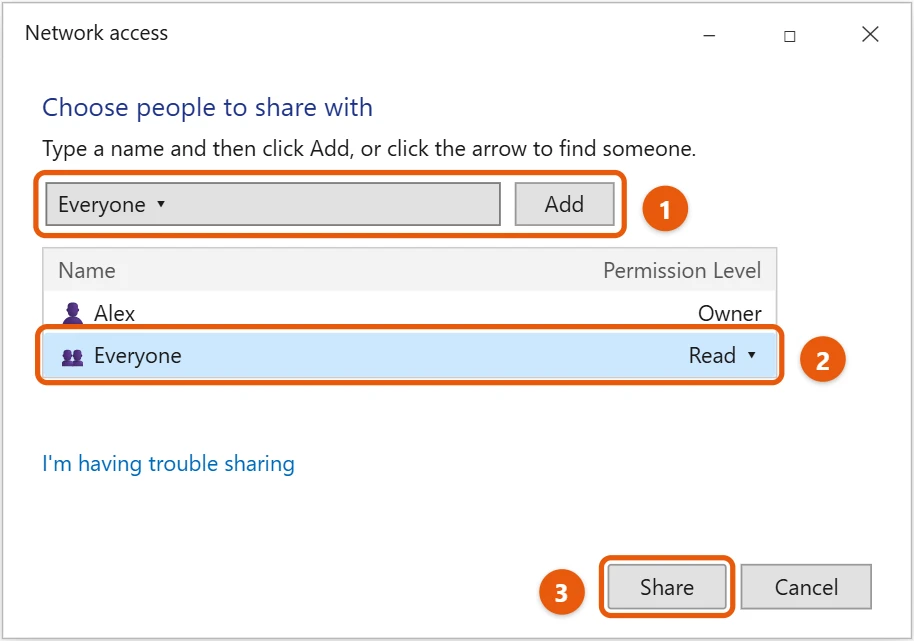
A new window will appear, asking you who you want to share with. You can type in specific user names if you know them, or for broader access, select “Everyone” from the dropdown menu. After adding a user or “Everyone,” you will need to choose their permission level.
You typically have two main permission options: “Read” and “Read/Write.” “Read” means others can open and view files, but they cannot make any changes or delete anything. “Read/Write” means they can view, edit, create new files, and delete existing ones, so be careful with this option.
Step 6: Click “Share” and then “Done”
Once you have added the desired users or “Everyone” and set their permission levels, click the “Share” button at the bottom of the window. After that, another window will confirm that your folder is now shared; click “Done” to close it.
These final clicks are like hitting the “save” button for your sharing settings. Until you click “Share” and then “Done,” your changes will not take effect, so make sure you complete these steps to finalise the process.
Step 7: Enable Advanced Sharing (Optional, but often necessary)
Back in the main Properties window, still on the Sharing tab, you might also see an “Advanced Sharing…” button. Click this, then check the box labeled “Share this folder.” Here, you can click “Permissions” to set more detailed access rules if needed.
Advanced Sharing gives you even finer control over who can do what with your shared folder. Sometimes the basic “Share…” button isn’t enough, and this is where you can specify exact permissions for different user groups, like full control or just read access.
Step 8: Configure Network and Sharing Center settings
Finally, to ensure everything works smoothly, open the Control Panel, go to “Network and Sharing Center,” and then click “Change advanced sharing settings” on the left. Make sure “Turn on network discovery” and “Turn on file and printer sharing” are selected for your current network profile (usually “Private”). You might also consider “Turn off password protected sharing” for easier access, but do so with caution.
These global network settings are like the master switch for sharing on your computer. If network discovery is off, other computers might not even see your device, let alone your shared folders. Turning off password protection can simplify access, but it also means anyone on your network can get to your shared stuff without a username and password.
After completing these steps, your chosen folder will now be shared on your local network. Other computers on the same network will be able to browse to your computer and access the folder according to the permissions you set. This means your colleagues can open that report, or your family can view those holiday photos, all without needing to copy files onto a USB drive.
Tips for Sharing Folders in Windows 10
- Be mindful of permissions: Always double-check if you are giving “Read” or “Read/Write” access. Giving “Read/Write” access to “Everyone” means anyone on your network can delete or change your files, which can be risky.
- Use strong passwords for your user accounts: If you keep password-protected sharing enabled, having strong passwords adds an extra layer of security to your shared files.
- Understand your network profile: Windows 10 has “Public” and “Private” network profiles. “Private” is for trusted networks like your home, where sharing is usually enabled. “Public” is for untrusted networks, such as a coffee shop, where sharing is typically disabled for security reasons. Make sure you are on a “Private” network if you want to share.
- Consider mapped network drives: For frequently accessed shared folders, you can “map” them as a network drive on other computers. This makes the shared folder appear like a local drive (e.g., “Z: drive”) in File Explorer, making it incredibly easy to access.
- Firewall settings can interfere: If you are having trouble, your firewall might be blocking network access. Ensure that file and printer sharing are allowed through your Windows Firewall, or any third-party firewall you might be using.
- Always know what you are sharing: Before you make a folder available, take a quick peek inside. You do not want to accidentally share personal or sensitive information with others on your network.
- Regularly review shared folders: It is a good practice to periodically check which folders you are sharing. You might have shared something temporarily and forgotten about it, posing an unnecessary security risk.
Frequently Asked Questions
Why can’t I see the shared folder on another computer?
There are a few common reasons why a shared folder might not appear. First, ensure that both “Network discovery” and “File and printer sharing” are turned on in the “Advanced sharing settings” on the computer hosting the shared folder. Also, check that both computers are on the same network (Wi-Fi or Ethernet) and have the same network profile (Private). Sometimes, firewall settings can block access, so temporarily disabling the firewall on both machines can help diagnose the issue.
Is sharing folders safe?
Sharing folders can be safe, but it depends entirely on how you configure it and who is on your network. If you are on a secure home network and only share with “Read” permissions, it is generally low risk. However, sharing with “Read/Write” permissions to “Everyone” on a less secure network, such as a public Wi-Fi network, is very risky and can expose your files to misuse. Always be cautious and only share what is necessary with trusted individuals.
What is the difference between “Share” and “Advanced Sharing”?
The “Share…” button offers a simpler, wizard-based approach to quickly share a folder with specific users or “Everyone” and set basic “Read” or “Read/Write” permissions. It is great for most everyday sharing needs. “Advanced Sharing…”, on the other hand, provides more granular control. It lets you limit the number of simultaneous users, configure cache settings, and define more detailed permissions for various user groups or system accounts, giving you greater control over who accesses your folder and how.
How do I stop sharing a folder?
To stop sharing a folder, right-click the folder, go to “Properties,” and click the “Sharing” tab. If you used the “Share…” button, you might need to go into “Advanced Sharing…” and uncheck the “Share this folder” box. Alternatively, you can remove “Everyone” or any specific users you added in the “Share…” wizard. Apply the changes, and the folder will no longer be accessible over the network.
Can I share a folder over the internet?
Directly sharing a folder using the Windows 10 built-in sharing features is primarily designed for local networks (LAN). While it is technically possible to configure your router and firewall to allow internet access to a shared folder, it is generally not recommended due to significant security risks. It is far safer to use cloud storage services like OneDrive, Google Drive, or Dropbox, or set up a dedicated FTP server or VPN for secure internet file sharing.
What if my folder permissions conflict with NTFS permissions?
This is a great question, and it is a common point of confusion! When you share a folder, two sets of permissions come into play: Share Permissions and NTFS Permissions. Windows applies the most restrictive of the two. For example, if your Share Permissions allow “Everyone” full control, but the NTFS Permissions allow only “Read” access for a specific user, that user will have only “Read” access. Always check both sets of permissions if someone cannot access a shared folder as expected.
Summary of Sharing Folders
- Locate the folder.
- Right-click, select “Properties.”
- Click “Sharing” tab.
- Click “Share…” button.
- Add users, set permissions.
- Click “Share” then “Done.”
- (Optional) Use “Advanced Sharing.”
- Configure Network and Sharing Center.
Conclusion
Mastering how to share folder in Windows 10 is a truly valuable skill that can save you a lot of time and hassle. Think about it, no more fumbling with USB drives or uploading files to cloud services just to get a document from one computer to another in your own home or office. It is like setting up your very own, mini-network hub right from your desktop, allowing for seamless collaboration and easy access to your digital treasures. We have walked through the process step by step, from finding the right folder to understanding the nuances of permissions, and even touched on some crucial security considerations.
Remember, the power of sharing comes with a responsibility to understand who you are sharing with and what level of access you are granting. Just like you would not leave your front door wide open for anyone to walk in, you should think carefully about whether “Read” or “Read/Write” access is appropriate for “Everyone” on your network. Always lean towards the most restrictive option that still allows people to do what they need to do. If you are sharing sensitive information, consider creating dedicated user accounts with strong passwords and enabling password-protected sharing. It is all about finding that sweet spot between convenience and security.
Now that you have got the hang of it, why not give it a try? Pick a non-sensitive folder, perhaps some old photos or a practice document, and share it with another device on your network. See how easily you can access it. Once you are comfortable, you can start leveraging this feature for more productive tasks, whether it is sharing work projects with colleagues or making family movie nights a breeze by centralising your media. If you run into any snags, revisit the tips and FAQs we covered; chances are, your answer is there. This skill empowers you to take control of your local network, making your digital life a little bit smoother and more connected. Go ahead, make your folders work for you.

Matt Jacobs has been working as an IT consultant for small businesses since receiving his Master’s degree in 2003. While he still does some consulting work, his primary focus now is on creating technology support content for SupportYourTech.com.
His work can be found on many websites and focuses on topics such as Microsoft Office, Apple devices, Android devices, Photoshop, and more.