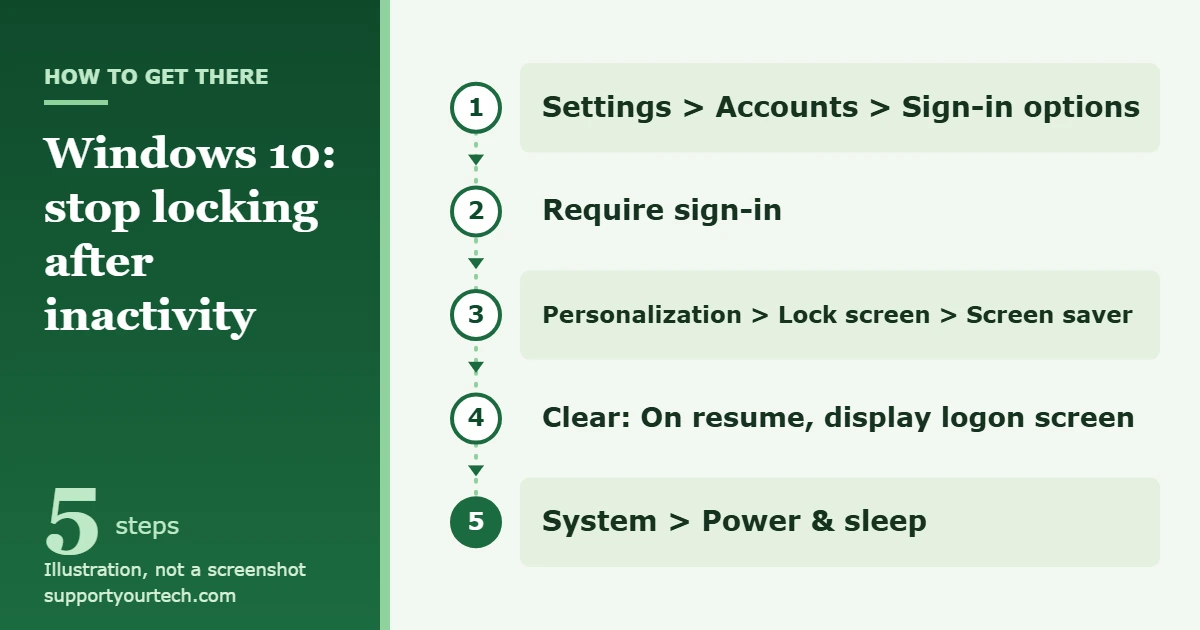
To stop Windows 10 from locking after inactivity, press Windows logo key + I, select Accounts > Sign-in options, and under Require sign-in change when Windows asks you to sign in again. Then open Personalization > Lock screen > Screen saver and clear On resume, display logon screen. If the PC still locks, lengthen the timers in System > Power & sleep.
Applies to: Windows 10 desktops and laptops.
Before you start
Automatic locking can come from several different places in Windows 10: the sign-in rule that applies when the PC wakes, a screen saver that shows the logon screen, the sleep timer, Dynamic lock, or a policy set by an organization. You may need to change more than one of them, so work through the sections below in order and test after each change.
Locking protects your files, email, and saved browser sessions when you step away. Turn it off only on a PC that stays in a place you control, such as a home desktop. On a laptop or a shared computer, a longer delay is a safer choice than no lock at all. Letting a device lock itself after a period of inactivity is one of the protections recommended in Securing your device.
Windows 10 also reached end of support on October 14, 2025, according to the Microsoft lifecycle page, so it no longer receives regular security updates. That is one more reason to keep some form of locking on a PC that other people can reach.
Change the sign-in and screen saver settings
- Press Windows logo key + I to open Settings, then select Accounts.
- Select Sign-in options and find the Require sign-in section. It asks, If you’ve been away, when should Windows require you to sign in again?
- Open the list under that question and pick the choice that does not ask you to sign in when the PC wakes.
- Go back to the main Settings page and select Personalization > Lock screen.
- Under Related settings, select Screen saver. The Screen Saver Settings window opens.
- Clear the On resume, display logon screen checkbox. With it cleared, moving the mouse or pressing a key ends the screen saver and returns you to your desktop without a sign-in prompt.
- If you want the screen saver to start later, raise the number in the Wait box, which is measured in minutes. Save the change and close the window.
Every screen saver option is described in Configure a screen saver in Windows.
Make the PC wait longer before the screen turns off or it sleeps
The Require sign-in setting applies when the PC wakes from sleep. If you would rather keep that protection, make the PC stay awake longer instead, so it reaches the sign-in screen less often.
- Select Start > Settings > System > Power & sleep.
- Choose a longer time for the screen timer. This only controls how long Windows waits before it turns off the display.
- Choose a longer time for the sleep timer. This controls how long Windows waits before the whole PC goes to sleep.
- On a laptop, set the times for battery power and for when it is plugged in. They are separate settings.
Each timer has its own walkthrough: changing the screen timeout and turning off sleep mode. Longer timers use more power, and a laptop battery drains faster.
If it locks when you close the laptop lid
Closing the lid can put a laptop to sleep, and it then asks you to sign in when you open it. To change that, select Start > Settings > System > Power & sleep > Additional power settings, then select Choose what closing the lid does. Pick an action next to When I close the lid and select Save changes. The other power options are explained in Shut down, sleep, or hibernate your PC.
Turn off Dynamic lock
Dynamic lock uses Bluetooth to pair the PC with your phone. When you carry the phone out of Bluetooth range, Windows locks the PC within about a minute. If your PC locks soon after you walk away with your phone, this feature is the likely cause.
- Press Windows logo key + I and select Accounts > Sign-in options.
- Find Dynamic lock.
- Clear the Allow Windows to lock your device automatically when you’re away checkbox.
Dynamic lock only locks the PC when the phone’s signal drops and the PC is idle, so turning it off does not change the other settings in this article.
How to confirm it worked, and how to undo it
Save any open work, then leave the PC untouched for a little longer than your old lock time. When you come back, move the mouse or press a key. If you return to the desktop without a sign-in screen, the change worked.
To undo the changes, go back to the same settings: choose the sign-in option that asks for your password or PIN when the PC wakes, check On resume, display logon screen again, and pick shorter times in Power & sleep. For a PC that should lock on its own, Microsoft’s suggested screen or sleep time is about 10 to 15 minutes.
You can still lock the PC yourself at any time by pressing Windows logo key + L. That shortcut works no matter how these settings are set, and it is a good habit if you turn automatic locking off.
Troubleshooting
The Require sign-in list is grayed out
This list may be disabled because of the security policy on your device. That usually means the PC is managed by a workplace or school, or a policy has been applied to it. You cannot change the setting from the Settings app while the policy is in place.
The screen saver options are grayed out or the window will not open
Windows has policies named Password protect the screen saver, Screen saver timeout, Enable screen saver, and Prevent changing screen saver. When an administrator turns on the first one, every screen saver is password protected and the checkbox in the Screen Saver Settings window can no longer be changed. The last one stops the window from opening at all. These are set by whoever manages the PC.
The PC locks after a fixed time no matter what you change
A security policy called Interactive logon: Machine inactivity limit locks the session once nobody has used the keyboard or mouse for a set number of seconds. Its range is 0 to 599,940 seconds, and a value of 0 turns it off. It is not turned on by default on a standalone PC, so if it is active, an administrator or a management tool set it. Managed devices can also have a maximum inactivity time, in which case Settings only offers times shorter than that maximum.
The policy lives under Computer Configuration > Windows Settings > Security Settings > Local Policies > Security Options, and a restart is needed before a change to it takes effect. The full reference is Interactive logon: Machine inactivity limit.
It is a work or school PC
If the PC belongs to your employer or school, the lock time is a security requirement. Contact your IT support team and ask whether a longer time is allowed. Do not try to get around the policy with Registry edits, scripts, or apps that fake mouse movement. Those can break the organization’s rules, and the policy is normally reapplied anyway.
The lock never happens after you turn it back on
An app can keep the PC awake. Open Command Prompt, type powercfg /requests, and press Enter. It lists the app and driver requests that prevent the computer from turning off the display or going to sleep. Close whatever it lists and test again.
Frequently asked questions
Why does Windows 10 still lock when sleep is turned off?
Sleep is only one cause. A screen saver with On resume, display logon screen checked, Dynamic lock, or an inactivity policy can each lock the PC while it is fully awake. Check all three.
Does the screen turning off mean the PC is locked?
No. The screen timer only turns off the display, and everything keeps running. Whether you see a sign-in screen afterward depends on the sign-in, screen saver, and sleep settings above.
Is it safe to stop Windows 10 from locking?
It depends on where the PC is. Anyone who walks up to an unlocked PC can open your files and any accounts you are signed in to. On a desktop at home that only you use, the risk is small. On a laptop you carry around, keep automatic locking on.
Can I make the lock wait longer instead of turning it off?
Yes. Raise the Wait time in the Screen Saver Settings window and choose longer screen and sleep times in Power & sleep. This keeps the protection but interrupts you less often.
Are the steps the same in Windows 11?
The ideas are the same, but the power settings have different names. Windows 11 users can follow changing the screen lock time on Windows 11.
A PC that asks for a password after sleep and then is slow to respond may need help waking up from sleep.

Matt Jacobs has been working as an IT consultant for small businesses since receiving his Master’s degree in 2003. While he still does some consulting work, his primary focus now is on creating technology support content for SupportYourTech.com.
His work can be found on many websites and focuses on topics such as Microsoft Office, Apple devices, Android devices, Photoshop, and more.