Last updated on November 17th, 2026 at 03:05 pm
Smart charging keeps a Windows 11 laptop or tablet battery below full, often at about 80 percent, so the battery lasts longer. Windows has no single switch for it, because each PC maker sets it up differently. To turn it off, open your PC maker’s battery app or BIOS settings and choose the option to charge to 100 percent. On a Surface, open the Surface app, select Battery & charging, and select Charge to 100%.
Check whether smart charging is on
- Press Windows + I and select System > Power & battery.
- Look at the battery icon at the top of the page. A heart symbol on the icon means smart charging is limiting the charge.
- You can also point to the battery icon on the taskbar. Fully Smart charged means the battery has reached its limit and isn’t charging, even though it’s plugged in.
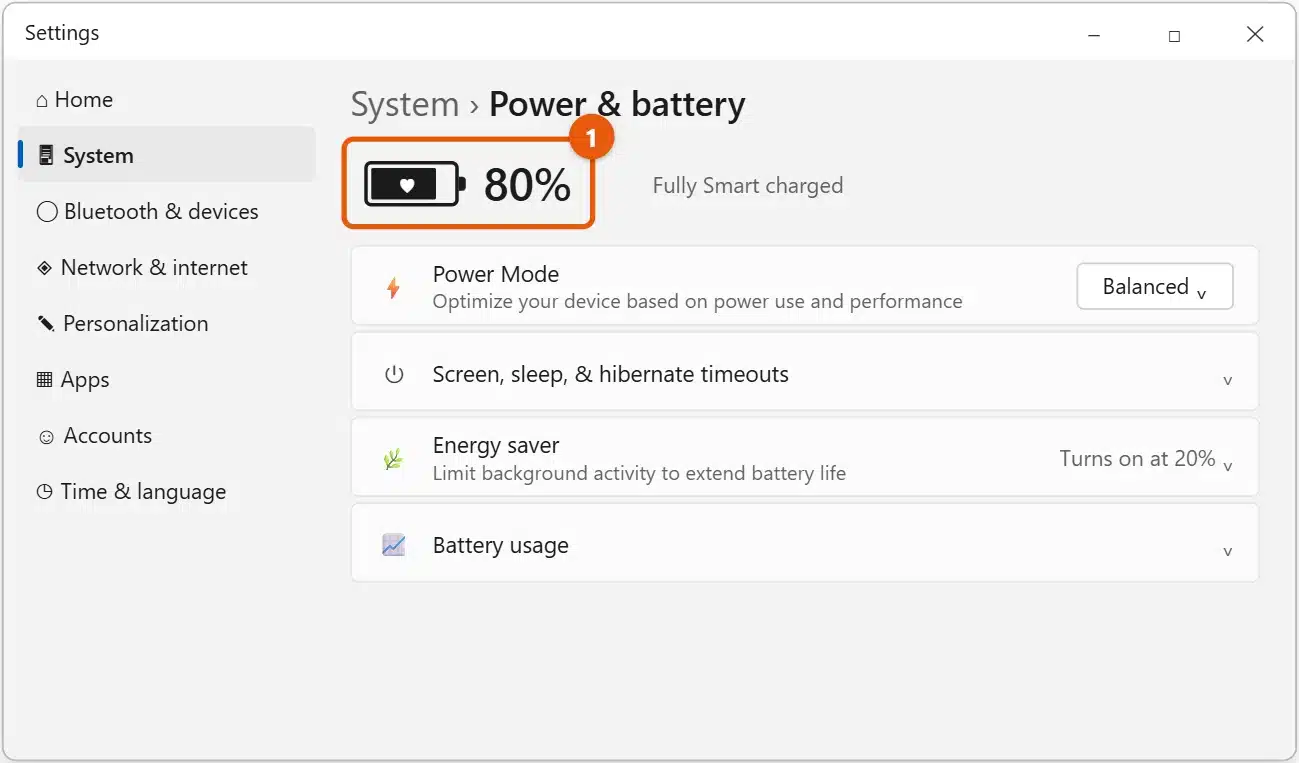
If there’s no heart, smart charging isn’t limiting your battery, and a charge that stops early has another cause. The checks at the end of this article cover those.
Turn it off on a Surface
- Select Start and open the Surface app.
- Select Battery & charging.
- Under Smart charging, select Charge to 100%.

Charge to 100% pauses smart charging so the battery can fill up. Smart charging turns back on later. To turn it back on sooner, set Charging mode to Adaptive.
Use Charging mode instead
Some Surface models also have a Charging mode section:
- Adaptive lets Surface decide when to hold the charge lower. This is the usual setting.
- Limit to 80% keeps the battery at 80 percent until you change it. If you picked this, switch back to Adaptive or select Charge to 100%.
Not every Surface model has these options. The full details are on Microsoft’s Surface smart charging page.
Turn it off on other laptops
Each PC maker sets up smart charging in its own way, so the switch is in the maker’s tools, not in Windows Settings.
- Open the app your PC maker installed for battery, power, or device settings. Search Start for your PC maker’s name if you aren’t sure what it’s called.
- Look for a setting such as Battery health, Charge limit, Charge threshold, Battery care, or Conservation mode.
- Choose the full-capacity or 100 percent option, or turn the limit off.
If you can’t find it in an app, the setting may be in the BIOS or UEFI setup. Go to Settings > System > Recovery, select Restart now next to Advanced startup, then choose Troubleshoot > Advanced options > UEFI Firmware Settings. Look for battery or power options. Check your PC maker’s support site for your model before changing BIOS settings.
Does Windows have its own smart charging switch?
Not a general one. Windows 11 shows the heart icon when the maker’s smart charging is active, but the setting itself lives in the maker’s app, the Surface app, or the BIOS.
How do I set an 80 percent limit on purpose?
Use your PC maker’s charge limit setting, as described in limiting battery charge to 80% on Windows 11.
To keep an eye on the exact charge, show the battery percentage on Windows 11. How Windows displays smart charging is also covered in Microsoft’s smart charging overview.
Where the setting is on popular brands
Names change between app versions, but these are the usual places:
- Lenovo: open Lenovo Vantage > Device > Power. On IdeaPad and Yoga models, turn off Conservation Mode, which holds the battery at about 55 to 60 percent on older models and about 75 to 80 percent on newer ones. On ThinkPads, turn off Battery Charge Threshold.
- Dell: open Dell Power Manager or Dell Optimizer and go to the battery settings. Choose Standard instead of Adaptive, Primarily AC Use, or a custom limit.
- HP: many models control this in the BIOS. Look for Battery Health Manager or Adaptive Battery Optimizer under the power management options, and choose the option that maximizes battery duration rather than health.
- ASUS: open MyASUS and find Battery Health Charging. Select Full Capacity Mode to charge to 100 percent. Balanced Mode stops at 80 percent and Maximum Lifespan Mode at 60 percent.
- Acer: open Acer Care Center or AcerSense and turn off Battery charge limit, which stops at 80 percent.
- Samsung: open Samsung Settings and turn off Battery Life Extender or Protect battery.
If your PC was set up by a school or employer, these options may be locked. Ask the IT team.
Should you turn it off?
Keeping a battery at 100 percent all the time wears it out faster, which is why smart charging exists. It makes sense to turn it off when you need a full battery, such as before a trip or a long day away from a power outlet.
- Turn it off for the day, then turn it back on, or switch back to Adaptive, when you’re done.
- Leave it on if your laptop stays plugged in at a desk most of the time.
Does smart charging harm my battery?
No. It’s meant to protect it, because a battery kept full for long periods wears out faster.
Check your battery’s health first
Before you switch smart charging off, it helps to know how worn the battery already is. Windows can create a battery report:
- Right-click Start and select Terminal.
- Type powercfg /batteryreport and press Enter.
- Open the battery-report.html file from the folder shown in the message.
Compare Design capacity with Full charge capacity. If the full charge capacity is well below the design capacity, the battery has already lost some of its life, and keeping smart charging on will help slow further wear. There is more on reading the report in checking battery health in Windows 11.
If your battery still won’t charge to 100 percent
- Check for a heart on the battery icon. If there isn’t one, smart charging isn’t the cause.
- Check the charger. A low-power charger or USB-C charger may charge slowly or only hold the level.
- Let the laptop cool down. Many laptops pause charging when the battery is warm.
- Check battery health. An older battery may report a lower full charge, which a battery health check will show.

Matt Jacobs writes and maintains the guides on Support Your Tech, which he started in 2017. He spent most of his career keeping small-business PCs running and still takes the occasional consulting job, so the steps here come from fixing the same problems on other people’s computers. Every guide is checked on his own Windows 11, Windows 10, Mac, iPhone and iPad before it goes up.