To check battery health in Windows 10, open Command Prompt, type powercfg /batteryreport, and press Enter. Windows saves a battery report to your user folder. Open it and compare Design capacity with Full charge capacity under Installed batteries. The closer they are, the healthier the battery.
Applies to: Windows 10 laptops and tablets. Checked on September 24, 2026.
Create a battery report
- Select Start, type
cmd, and open Command Prompt. - Type
powercfg /batteryreportand press Enter.
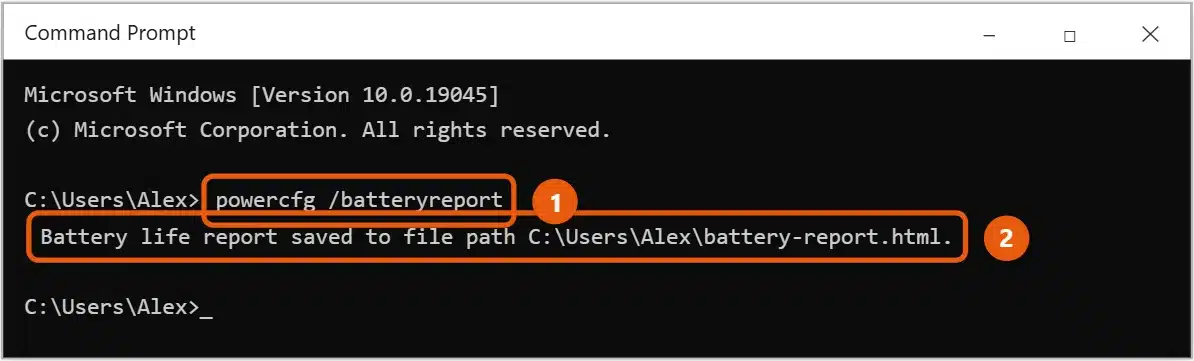
- Windows saves
battery-report.htmlin your user folder, such asC:\Users\Alex. - Press Windows + R, type
%userprofile%\battery-report.html, and press Enter to open it in your browser.
To save it somewhere else, add a path: powercfg /batteryreport /output "C:\Reports\battery.html".
Read the battery report
Scroll to Installed batteries.
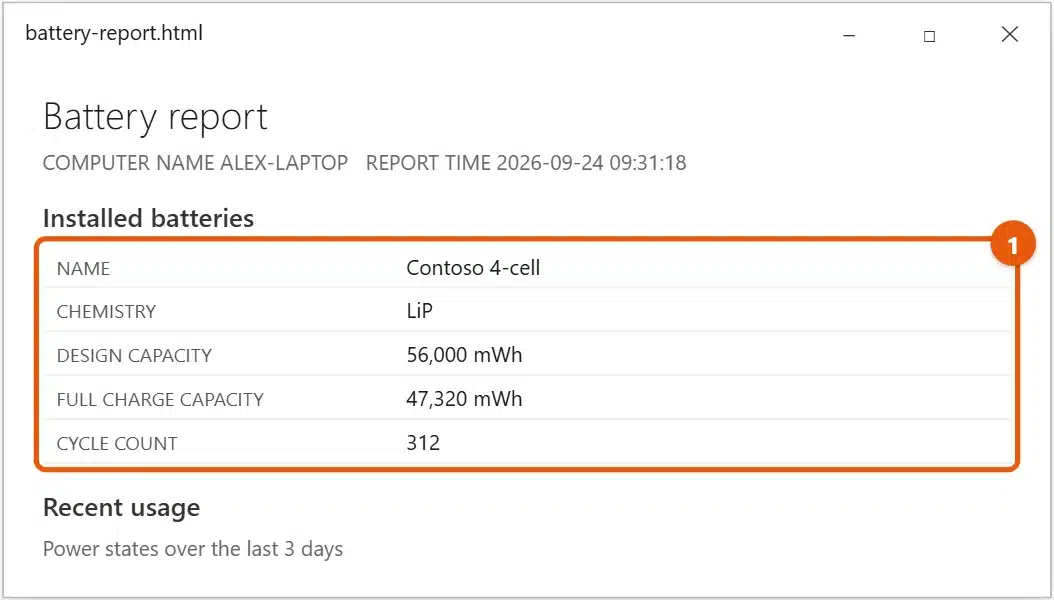
- Design capacity is how much the battery held when new.
- Full charge capacity is how much it holds now.
- Cycle count is how many full charge cycles it has been through. Not every laptop reports it.
To estimate health, divide full charge capacity by design capacity. In the example, 47,320 ÷ 56,000 is about 0.85, or 85 percent of its original capacity.
Other useful sections:
- Battery capacity history shows how capacity dropped over time.
- Battery life estimates show how long a charge lasts now compared with when the battery was new.
When to replace the battery
Batteries wear out with use. As a rough guide:
- Above 80 percent of design capacity: healthy.
- 60 to 80 percent: noticeably shorter battery life, but usable.
- Below 60 percent, or the laptop shuts off suddenly or won’t hold a charge: consider a replacement.
Check your PC maker’s warranty first. Some replace batteries that wear out early.
Other ways to check
- Your PC maker’s app often shows battery health and may offer charge limits that slow wear.
- The BIOS or UEFI setup on some laptops shows battery status.
Help your battery last longer
- Avoid keeping the laptop hot, such as on a bed or in a car.
- If your PC maker’s app offers a charge limit, such as 80 percent, use it when you’re mostly plugged in.
- Lower screen brightness and close apps you aren’t using.
Find what drains the battery
A healthy battery can still run down fast if something is working hard in the background.
- Open Settings > System > Battery and select See which apps are affecting your battery life. Apps at the top of the list used the most power.
- For a deeper check, open Command Prompt as an administrator and run
powercfg /energy. It watches the PC for 60 seconds and saves an energy report listing errors and warnings, such as devices that won’t sleep. - The Recent usage section of the battery report shows when the laptop was on battery and how fast the charge dropped.
Troubleshooting the battery report
- Design capacity or full charge capacity is blank or 0. The laptop’s firmware isn’t reporting it. Install BIOS and chipset updates from your PC maker, or use the maker’s battery app.
- Health shows over 100 percent. New batteries sometimes report more than their design capacity. That’s normal and settles over time.
- The battery isn’t charging at all. In Device Manager, open Batteries, right-click Microsoft ACPI-Compliant Control Method Battery, select Uninstall device, and restart. Windows reinstalls it.
- The laptop shuts off at 20 or 30 percent. The battery’s charge reading is off. Let it run down fully once, then charge to 100 percent without interruption.
Frequently asked questions
Why doesn’t the battery report open?
Make sure you typed the command exactly and look in the folder the command showed. If powercfg says no battery is installed, you’re on a desktop PC or the battery isn’t detected.
Does the battery icon show battery health?
No. It shows the current charge, not wear. Use the battery report.
Is the battery report the same in Windows 11?
Yes. See how to check battery health in Windows 11.
To see how much charge is left, see how to show battery percentage in Windows 10.
To make each charge last longer, see how to change power settings in Windows 10. More help is on our Windows Help & Guides page.
How many charge cycles does a laptop battery last?
Many laptop batteries are rated for roughly 300 to 1,000 full cycles before they drop to about 80 percent capacity. Your PC maker lists the exact rating.

Matt Jacobs has been working as an IT consultant for small businesses since receiving his Master’s degree in 2003. While he still does some consulting work, his primary focus now is on creating technology support content for SupportYourTech.com.
His work can be found on many websites and focuses on topics such as Microsoft Office, Apple devices, Android devices, Photoshop, and more.