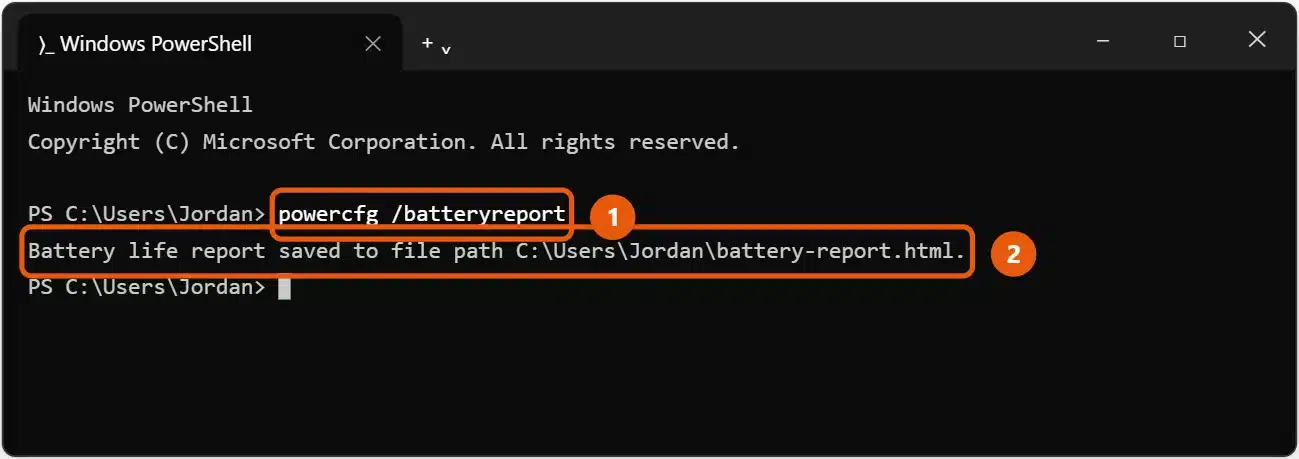
To check battery health in Windows 11, create a battery report. Right-click Start, select Terminal, type powercfg /batteryreport, and press Enter. Open the battery-report.html file it creates and compare FULL CHARGE CAPACITY with DESIGN CAPACITY. The closer the two numbers are, the healthier the battery.
The report is built into Windows, so you don’t need to install anything. It works on any Windows 11 laptop or tablet with a battery.
Applies to: Windows 11 laptops and tablets. Checked against Microsoft Support on September 24, 2026.
Create the battery report
- Right-click Start (or press Windows + X) and select Terminal. You don’t need to run it as administrator.
- Type
powercfg /batteryreportand press Enter. - Windows shows where it saved the report. It’s saved in the folder Terminal is using, usually
C:\Users\<your user name>\battery-report.html. - Open File Explorer, go to that folder, and double-click battery-report to open it in your browser.
Can’t find the file? In File Explorer, type battery-report in the search box of your user folder.
Read your battery health
Scroll to Installed batteries near the top of the report.
- DESIGN CAPACITY: how much charge the battery held when it was new.
- FULL CHARGE CAPACITY: how much it holds now when fully charged.
- CYCLE COUNT: how many full charge cycles the battery has been through. Some laptops leave this blank.
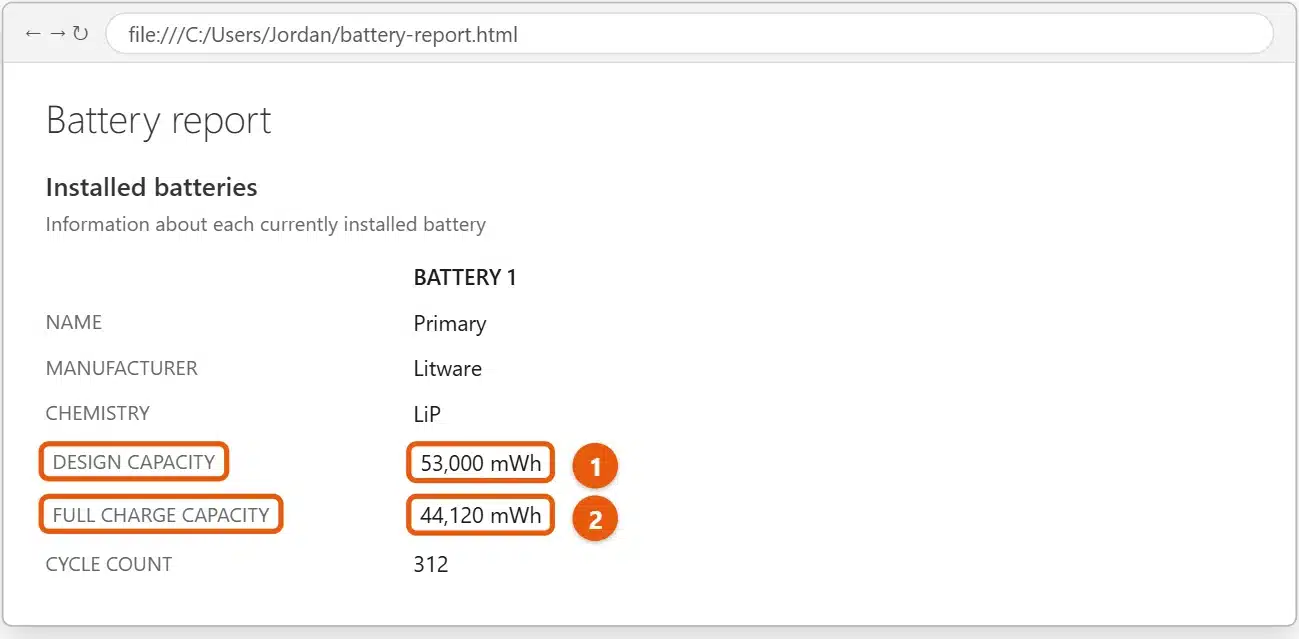
To work out battery health as a percentage, divide full charge capacity by design capacity and multiply by 100. In the example above, 44,120 ÷ 53,000 × 100 = about 83%.
What the number means
- Above 80%: healthy. This is normal for a battery that’s a year or two old.
- 60% to 80%: worn. You’ll notice shorter battery life, but the battery is still fine to use.
- Below 60%: consider a replacement, especially if the laptop shuts down suddenly at a charge level that should be fine.
Stop using the laptop and contact the maker if the battery swells, the case bulges, or the touchpad lifts. A swollen battery is a safety risk.
Other parts of the report worth checking
- Recent usage and Battery usage: when the laptop was on battery or plugged in over the last few days, and how fast the charge dropped.
- Battery capacity history: full charge capacity over time. A sudden drop can mean a fault rather than normal wear.
- Battery life estimates: how long a full charge lasted at full charge capacity compared with when the battery was new.
Check it in your laptop maker’s app
Many laptop makers include a battery health check in their own app, such as Lenovo Vantage, MyASUS, HP Support Assistant, or Dell SupportAssist. Some also have a diagnostic you can run from the BIOS or UEFI settings. These can show whether the battery is still under warranty, which the Windows report can’t.
If the report shows no battery
- The laptop is plugged in without a battery, or it’s a desktop PC. The report needs a battery installed.
- The battery isn’t detected. Right-click Start, select Device Manager, and expand Batteries. If Microsoft ACPI-Compliant Control Method Battery is missing or shows a warning, restart the laptop. If it’s still missing, contact the maker.
Make your battery last longer
To change when your PC goes to sleep, see how to stop your computer from sleeping in Windows 11.
To see the rest of your laptop’s hardware, see how to check your PC specs in Windows 11.
Turning down the screen brightness helps the battery last longer. See how to change the brightness in Windows 11.
To stop apps from using battery when you’re not using them, see how to turn off background apps in Windows 11.
To keep the battery level on the taskbar, see how to show battery percentage on Windows 11.
To see which apps use the most battery, see how to check PC power consumption in Windows 11.
Microsoft’s battery care advice:
- Keep the charge between about 20% and 80% when you can. Turn on Smart charging or your maker’s charge limit if your laptop has one. See how to turn smart charging on or off in Windows 11.
- Avoid heat. Don’t use or charge the laptop somewhere hot, such as in a car or on a soft surface that blocks the vents.
- Store it half charged. If you won’t use it for a while, leave the battery at about 40% to 60%.
- Use Energy saver in Settings > System > Power & battery when you need more time on a charge.
For more ways to save power, see how to increase battery life on a Windows 11 laptop.
Frequently asked questions
Why is my full charge capacity higher than the design capacity?
New batteries can hold slightly more than their rated capacity at first. It’s nothing to worry about.
Does leaving my laptop plugged in damage the battery?
Keeping it at 100% all the time wears it faster, especially when warm. A charge limit or Smart charging reduces this.
Can I fix a worn battery?
No. Wear is permanent. Calibrating or fully draining the battery won’t bring capacity back. When health gets too low, replace the battery through the laptop maker or an authorized repair shop.
Using Windows 10? See how to check battery health in Windows 10. Microsoft’s guide is Caring for your battery in Windows. More help is on our Windows 11 Help & Guides page.
Related: How to turn on the keyboard light on an Acer laptop.
Related: How to limit battery charge to 80% on Windows 11.

Matt Jacobs has been working as an IT consultant for small businesses since receiving his Master’s degree in 2003. While he still does some consulting work, his primary focus now is on creating technology support content for SupportYourTech.com.
His work can be found on many websites and focuses on topics such as Microsoft Office, Apple devices, Android devices, Photoshop, and more.