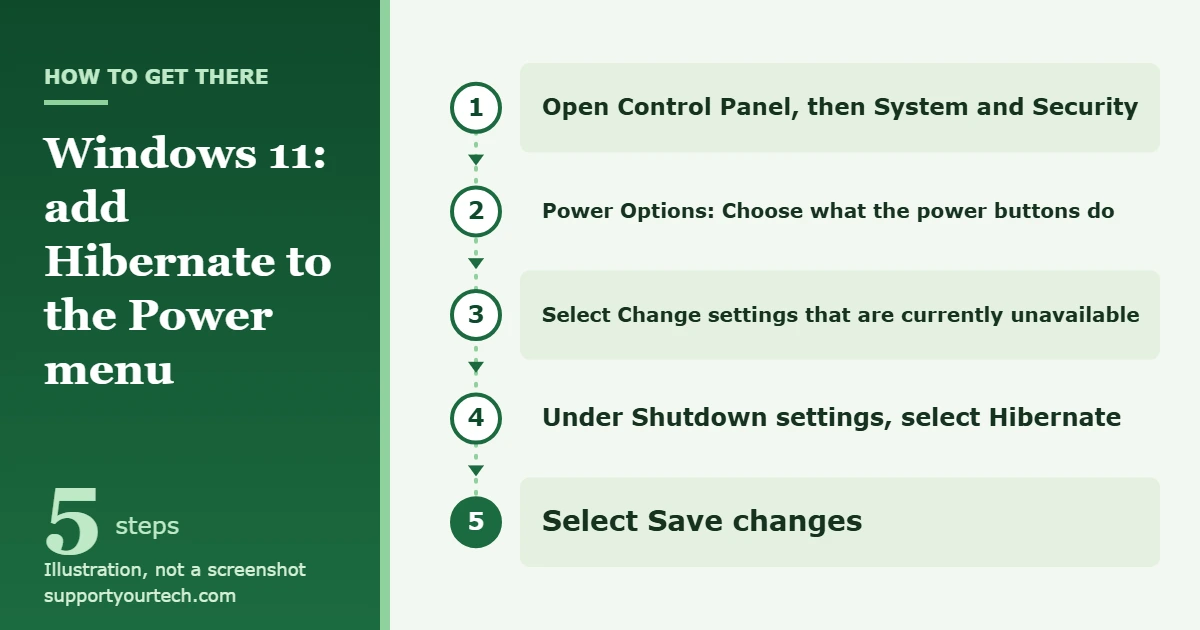
To enable Hibernate in Windows 11, open Control Panel, select System and Security, then under Power Options select Choose what the power buttons do. Select Change settings that are currently unavailable, tick Hibernate under Shutdown settings, and select Save changes. After that, you can hibernate the PC from Start > Power > Hibernate. If the Hibernate box isn’t there, turn hibernation on first with the powercfg.exe /hibernate on command, as shown below.
Applies to: Windows 11. Checked against Microsoft Support on October 7, 2026.
What Hibernate does, and how it differs from Sleep and Shut down
When a PC hibernates, Windows writes everything in memory, including your open apps and documents, to a hidden file on the system drive called the hibernation file (Hiberfil.sys). Then the PC powers down. When you turn it back on, Windows reads that file and puts your session back the way you left it.
Microsoft describes Hibernate’s power use as the lowest of the sleep states, almost the same as being switched off, because memory no longer needs power once its contents are saved to the drive. The trade-off is speed: resuming from Hibernate starts with the normal power-on checks, so it takes longer than waking from Sleep.
| Option | Keeps your open apps? | Power used while off | Best for |
|---|---|---|---|
| Sleep | Yes, in memory | A small amount | Short breaks; wakes fastest |
| Hibernate | Yes, saved to the drive | Almost none | Leaving a laptop unplugged for hours or overnight |
| Shut down | No | None | Ending the day, or when you want everything closed |
A simple rule: use Sleep when you’ll be back soon, and Hibernate when you’ll be away long enough that a sleeping laptop could drain its battery, but you still want to pick up exactly where you stopped.
Before you start
- Not every PC has Hibernate. Microsoft says the option was designed for laptops and might not be available on all PCs. For example, PCs with InstantGo (a fast, always-connected standby design) don’t have the Hibernate option.
- You may need administrator rights. Changing the shutdown settings and running the powercfg commands below both ask for an administrator’s approval through a User Account Control prompt.
- Save your work. Hibernate is meant to preserve your session, but it doesn’t replace saving files.
This is the main method, and it follows Microsoft’s guide to shutting down, sleeping or hibernating your PC. It adds Hibernate next to Sleep, Shut down and Restart.
- Open Control Panel. Select the search box on the taskbar, type control panel, and select Control Panel in the results. The Control Panel window opens.
- Open the power button settings. Select System and Security. Under Power Options, select Choose what the power buttons do. The page that opens shows the power button settings and a Shutdown settings section.
- Unlock the shutdown settings. Select Change settings that are currently unavailable near the top of the page. Approve the User Account Control prompt if one appears. The check boxes under Shutdown settings become clickable.
- Tick Hibernate. Under Shutdown settings, select the Hibernate check box. If you don’t see a Hibernate check box at all, hibernation is turned off on this PC; use the Command Prompt method in the next section, then come back to this step.
- Save the change. Select Save changes. Your choice is saved.
- Check the Power menu. Select Start, then Power. You should now see Hibernate in the list.
Turn hibernation on with Command Prompt
If the Hibernate check box is missing, the hibernation feature itself is turned off. Microsoft’s article on disabling and re-enabling hibernation turns it back on with a single command:
- Press the Windows key to open Start and type cmd.
- In the results, right-click Command Prompt and select Run as administrator. Approve the User Account Control prompt.
- Type powercfg.exe /hibernate on and press Enter.
- To check the result, type powercfg /availablesleepstates (or the short form powercfg /a) and press Enter. Hibernate should appear in the list of available states. If it is listed as unavailable, Windows tries to show the reason underneath; see the troubleshooting section below.
- Type exit and press Enter to close the window, then go back to the Control Panel steps above and tick Hibernate.
The powercfg command only makes hibernation available. Adding the Hibernate entry to the Start menu’s Power button is still done with the Control Panel check box.
How to hibernate your PC
Once Hibernate is enabled, you have several ways to use it.
From the Start menu
Select Start > Power > Hibernate. The screen goes dark while Windows saves your session, and then the PC turns off.
With a keyboard shortcut
Press the Windows logo key + X, then select Shut down or sign out > Hibernate. This is handy when the Start menu is slow to open.
With the power button or by closing the lid
You can make the physical power button, or closing a laptop lid, hibernate the PC:
- Go back to Control Panel > System and Security > Choose what the power buttons do.
- Next to When I press the power button, choose Hibernate in the On battery column, and in the Plugged in column if you want the same behavior on charge.
- On a laptop, do the same next to When I close the lid if you want the lid to hibernate the PC.
- Select Save changes.
A common setup is to leave the lid on Sleep for quick breaks and set the power button to Hibernate for longer ones. Before you slip a laptop into a bag, make sure it has actually finished hibernating and turned off.
From a command or shortcut
The shutdown /h command puts the PC into hibernation if hibernation is enabled. You can type it in Command Prompt, or create a desktop shortcut that runs it so you can hibernate with a double-click.
Automatically after a period of inactivity
Windows can also hibernate on its own after the PC sits idle. Go to Start > Settings > System > Power & battery and expand Screen, sleep, & hibernate timeouts to choose when the PC hibernates. If you’d rather your PC stayed awake, our guide on how to stop your computer from sleeping in Windows 11 covers those timers, and you can adjust the display separately with the Windows 11 screen timeout setting.
Waking the PC from Hibernate
Press the power button, just as you would to start a PC that is off. Windows goes through its normal startup checks and then restores your apps and windows, which takes a little longer than waking from Sleep.
How to confirm Hibernate is working
- Hibernate appears under Start > Power.
- powercfg /a in an administrator Command Prompt lists Hibernate as available.
- After you hibernate and press the power button, your open apps and windows come back as you left them.
The hibernation file and disk space
Microsoft’s documentation on system power states explains that the hibernation file, Hiberfil.sys, is a hidden system file in the root of the drive where Windows is installed, usually C:. Without it the PC cannot hibernate. Its size depends on how much memory (RAM) the PC has and which file type is set:
- Full (default about 40% of RAM): supports Hibernate, hybrid sleep and fast startup.
- Reduced (default about 20% of RAM): supports only fast startup. With a reduced file, powercfg /a reports that hibernation is not supported.
So a PC with 16 GB of memory would, by default, set aside roughly 6.4 GB for a full hibernation file. If you need Hibernate, the file must be the full type. To switch it, run powercfg /hibernate /type full in an administrator Command Prompt. Don’t delete Hiberfil.sys by hand; manage it with the powercfg commands instead.
How to turn Hibernate off or hide it again
There are two levels of “off,” and they do different things:
- Hide it from the Power menu only: repeat the Control Panel steps, clear the Hibernate check box under Shutdown settings, and select Save changes.
- Turn hibernation off completely: in an administrator Command Prompt, run powercfg.exe /hibernate off.
Before you use the second option, know what else depends on the hibernation file. Microsoft notes that hybrid sleep, fast startup and standard hibernation all use it, and it warns that hybrid sleep stops working when hibernation is made unavailable, so you could lose data if the power fails while hybrid sleep would otherwise have protected you. Fast startup, the feature that makes a normal shutdown partly a hibernation, also relies on the same file; see how to disable fast startup in Windows 11 if you only want that feature off. To undo either change, run powercfg.exe /hibernate on and tick the check box again.
Troubleshooting Hibernate in Windows 11
The Hibernate check box isn’t in Shutdown settings
Hibernation is turned off. Run powercfg.exe /hibernate on as administrator, then reopen Choose what the power buttons do. If the page was already open, close it and open it again.
The check boxes are greyed out
Select Change settings that are currently unavailable first. If a User Account Control prompt asks for an administrator, you’ll need someone with an administrator account to approve it.
powercfg /a says Hibernate isn’t available
Read the reason Windows lists under the unavailable state; Microsoft’s powercfg command reference explains this report. Common situations:
- Hibernation hasn’t been turned on: run powercfg.exe /hibernate on.
- The hibernation file is the reduced type: run powercfg /hibernate /type full, then check again.
- The hardware or firmware doesn’t support it: some PCs, such as those with InstantGo, don’t offer Hibernate. Check your PC maker’s support site for firmware and driver updates, but on these designs the option may simply not exist.
The command says access is denied or does nothing
Close the window and open Command Prompt again by right-clicking it and selecting Run as administrator, as Microsoft’s steps describe, then rerun the command.
Hibernate is missing on a work or school PC
Organizations can manage power settings on the PCs they control. If the option is missing or changes back after you set it, ask your IT department; don’t try to override their policy.
Devices don’t work after the PC resumes
Microsoft suggests that if a monitor, printer or other connected device misbehaves after Sleep or Hibernate, you disconnect and reconnect it or restart the PC, and make sure your device drivers are up to date.
Hibernate disappeared after an update
Check both settings again: run powercfg /a to see whether hibernation is still available, and reopen the Control Panel page to see whether the Hibernate check box is still ticked.
Frequently asked questions
Is Hibernate turned on by default in Windows 11?
It depends on the PC. On many computers the Hibernate entry isn’t shown in the Power menu until you tick it in Control Panel, and some PCs don’t support Hibernate at all.
Does Hibernate use battery power?
Almost none. Microsoft describes hibernation’s power use as very low, nearly the same as being turned off, because memory is no longer powered. Sleep keeps memory powered and slowly uses battery.
Is Hibernate better than Sleep?
Neither is better in every case. Sleep resumes faster and suits short breaks. Hibernate uses less power and suits longer gaps, such as overnight or a flight, when you still want your apps open afterward.
Will I lose unsaved work if I hibernate?
Normally no, because your session is written to the drive before the PC turns off. Save important files anyway, in case the PC fails to resume or you need to restart for updates.
Is fast startup the same as Hibernate?
No. Fast startup signs you out and closes your apps, then saves only the core of Windows to the hibernation file so the next boot is quicker. Hibernate saves your whole session, including open apps.
How much disk space does Hibernate need?
By default, a full hibernation file is about 40% of your installed RAM, and a reduced one about 20%. If you don’t use Hibernate, hybrid sleep or fast startup, you can turn hibernation off with powercfg.exe /hibernate off.
Can I hibernate a desktop PC?
Often yes, if powercfg /a lists Hibernate as available, but Microsoft designed the option mainly for laptops and it isn’t available on every PC.
Next, open Start > Power to confirm Hibernate is listed, and try it once before you rely on it while traveling.

Matt Jacobs has been working as an IT consultant for small businesses since receiving his Master’s degree in 2003. While he still does some consulting work, his primary focus now is on creating technology support content for SupportYourTech.com.
His work can be found on many websites and focuses on topics such as Microsoft Office, Apple devices, Android devices, Photoshop, and more.