To change power settings in Windows 10, go to Settings > System > Power & sleep. Choose how long the PC waits before it turns off the screen and before it goes to sleep. For more options, such as power plans and what the power button does, select Additional power settings on the same page.
Applies to: Windows 10. Checked against Microsoft Support on September 24, 2026.
Change screen and sleep times
- Select Start > Settings, or press Windows + I.
- Select System > Power & sleep.
- Under Screen, choose when the screen turns off. Laptops show two lists: On battery power and When plugged in.
- Under Sleep, choose when the PC goes to sleep. Pick Never if you don’t want it to sleep on its own.
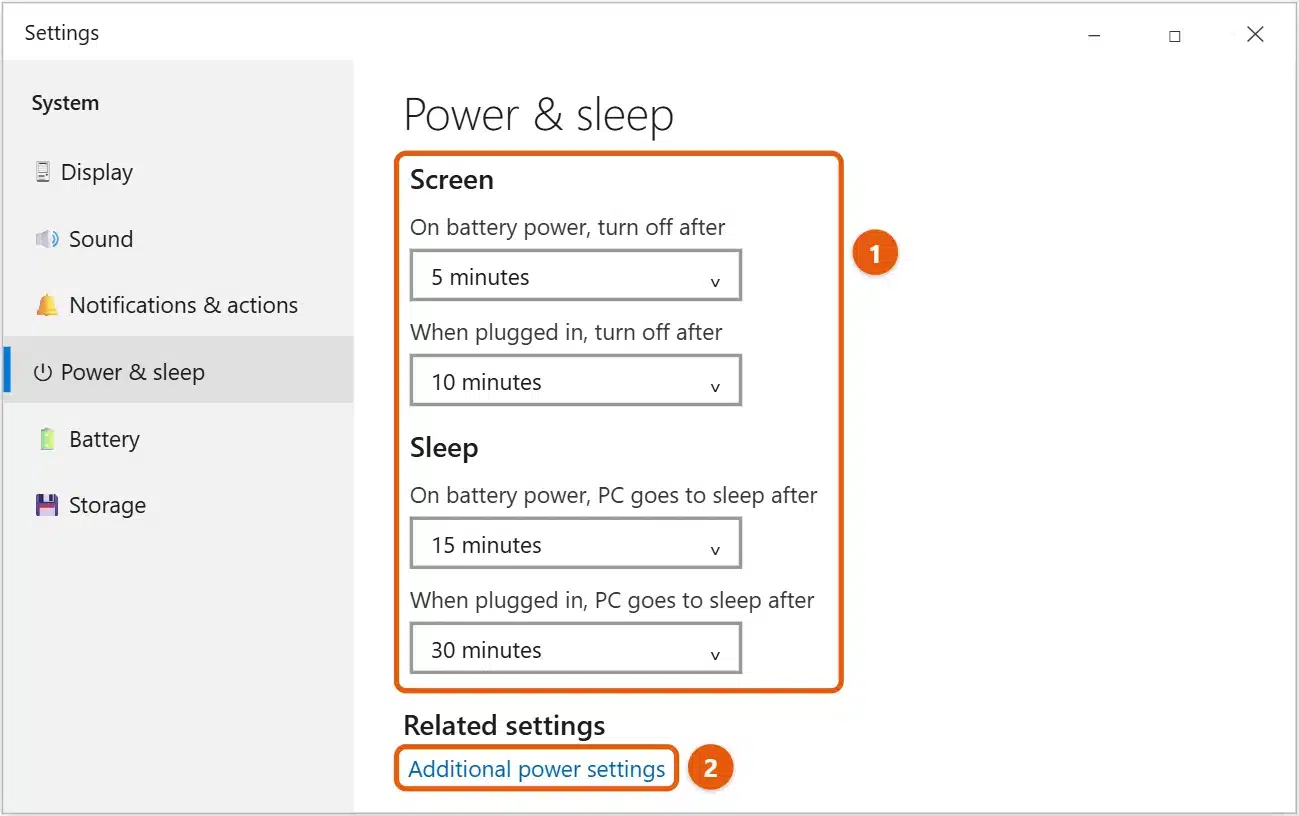
Changes save straight away. There’s no OK button to select.
Choose a power plan
A power plan is a saved set of power settings. Windows 10 includes Balanced, which suits most people, and some PCs also show Power saver or High performance.
- On the Power & sleep page, select Additional power settings. This opens Power Options in Control Panel.
- Select the plan you want. If you only see Balanced, select Show additional plans.
- To change a plan’s timings, select Change plan settings next to it.
Many laptops only show Balanced. That’s normal, because the PC maker has tuned it for that hardware.
Change the power mode on a laptop
On many laptops, you can trade battery life for speed without changing plans.
- Select the battery icon on the taskbar.
- Drag the slider toward Best battery life or Best performance.
The slider only appears on some PCs running Windows 10 version 1703 or later. If it’s grayed out, go to Power Options and select the Balanced plan.
- In Power Options, select Choose what the power buttons do (or Choose what closing the lid does on a laptop).
- For each button, and for closing the lid, pick Do nothing, Sleep, Hibernate, or Shut down. Laptops have separate choices for battery and plugged in.
- Select Save changes.
If Hibernate isn’t in the list, it may be turned off on your PC. See how to disable or enable hibernation in Windows 10.
Change advanced power settings
- In Power Options, select Change plan settings next to your plan.
- Select Change advanced power settings.
- Expand a setting, such as Hard disk, USB settings, or Processor power management, and change the value.
- Select OK.
To undo your changes, select Restore plan defaults in the same window. USB devices that keep disconnecting are often caused by USB selective suspend setting here. See how to change USB power settings in Windows 10.
Change power settings from Command Prompt
If you’re comfortable with commands, powercfg changes the same timeouts. Values are in minutes, and 0 means never.
- Select Start, type
cmd, and open Command Prompt. - Type one of these commands and press Enter:
powercfg /change monitor-timeout-ac 15turns the screen off after 15 minutes when plugged in.powercfg /change standby-timeout-dc 20puts the PC to sleep after 20 minutes on battery.powercfg /listshows your power plans. The active one has an asterisk.
If your power settings don’t stick
- The PC still won’t sleep: an app, a download, or a connected device may be keeping it awake. Open Command Prompt as administrator and type
powercfg /requeststo see what’s blocking sleep. - Settings are grayed out or keep changing: on a work or school PC, your organization may manage power settings. Ask your IT support team.
- The PC wakes up by itself: in Device Manager, open your mouse or network adapter’s Properties, and on the Power Management tab, clear Allow this device to wake the computer.
Frequently asked questions
Which power plan should I use?
Balanced is the best choice for most PCs. It speeds up when you need it and saves power when you don’t. High performance uses more power and makes little difference for everyday tasks.
Is it bad to set sleep to Never?
No, but the PC uses more electricity, and a laptop’s battery drains if you leave it unplugged. Letting the screen turn off after a few minutes still saves power.
What’s the difference between sleep and hibernate?
Sleep keeps your work in memory, so the PC wakes up in seconds but uses a little power. Hibernate saves your work to the drive and turns the PC off, so it uses no power but takes longer to start.
For more ways to make your PC faster, see how to speed up a Windows 10 computer.
If your battery runs down quickly even on a power-saving plan, see how to check battery health in Windows 10.
To stop the PC sleeping at all, see how to stop sleep mode in Windows 10. To lock your PC when you step away, see how to lock your screen in Windows 10. On Windows 11, see how to change the power plan in Windows 11. To add Hibernate to the power menu, see how to hibernate Windows 10. Microsoft’s guide is Change the power mode for your Windows PC. More help is on our Windows Help & Guides page.
For the highest-power plan, see how to turn on Ultimate Performance in Windows 10.
On Windows 11, you can also check which apps use the most power.
On a Windows 11 laptop, see how to change what happens when you close your laptop lid.

Matt Jacobs has been working as an IT consultant for small businesses since receiving his Master’s degree in 2003. While he still does some consulting work, his primary focus now is on creating technology support content for SupportYourTech.com.
His work can be found on many websites and focuses on topics such as Microsoft Office, Apple devices, Android devices, Photoshop, and more.