To change printer settings in Windows 10, select Start > Settings > Devices > Printers & scanners, select the printer, and select Manage. Select Printing preferences to change defaults like color, paper size, and two-sided printing, then select OK. These defaults apply to everything you print on that printer.
Applies to: Windows 10. Checked against Microsoft Support on September 26, 2026.
The options you see depend on the printer’s driver, so tab and setting names vary.
Change the default print settings
- Select Start > Settings > Devices > Printers & scanners.
- Select the printer, then Manage.
- Select Printing preferences.
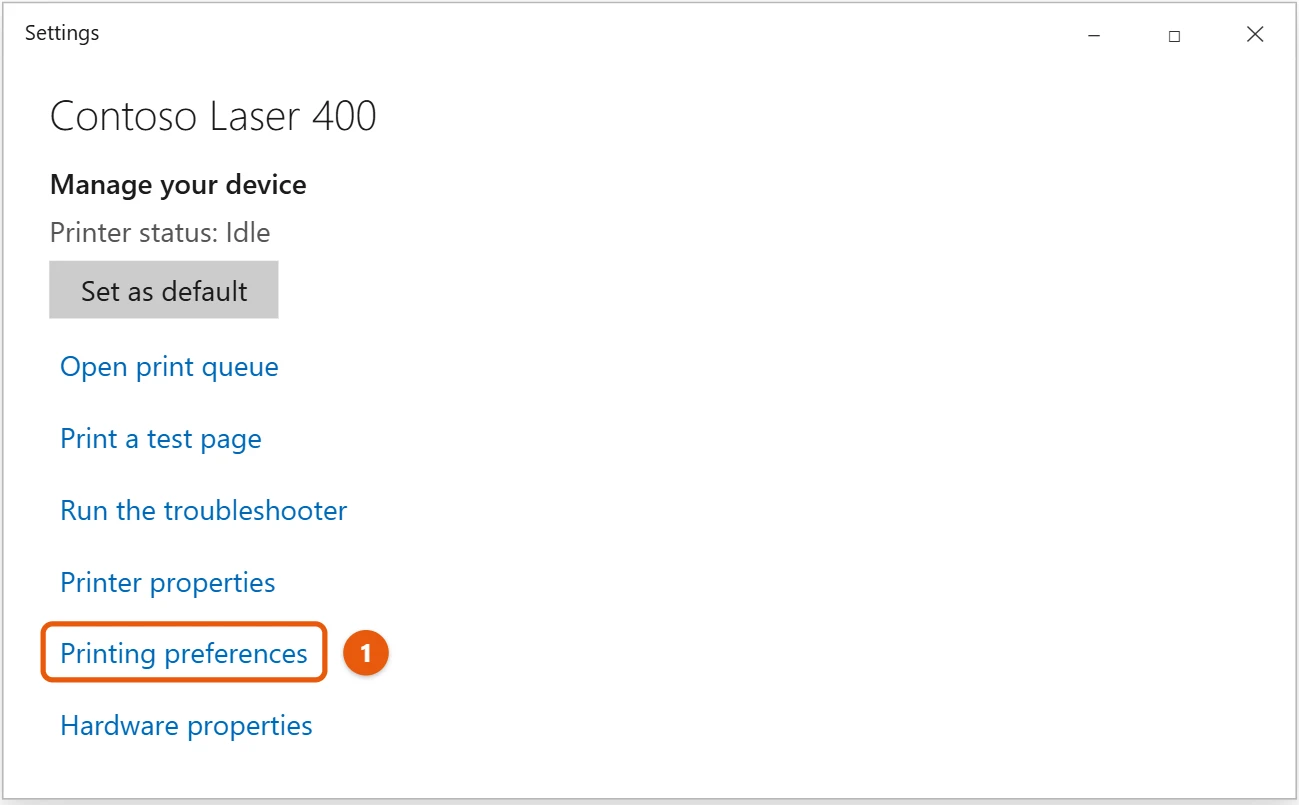
- Change the settings you want, such as Color or Black & White, Paper size, Orientation, or Two-sided printing.
- Select OK.
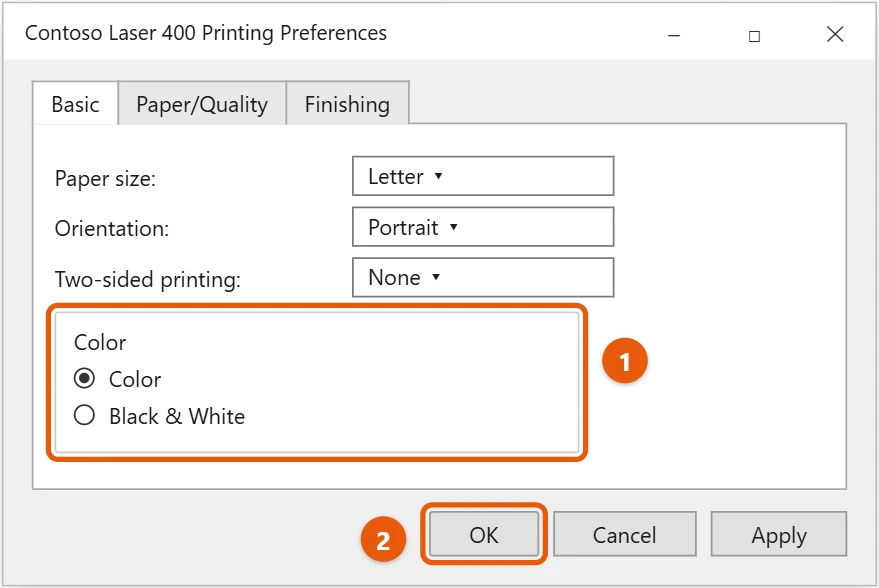
If you don’t see a color option, the printer only prints in black and white, or its full driver isn’t installed. See how to install or update printer drivers in Windows 10.
Change settings for one print job
In the app’s Print window, select Printer properties, Preferences, or More settings. Changes there only apply to that print job.
Rename a printer
- On the printer’s Manage page, select Printer properties.
- On the General tab, type a new name in the top box.
- Select OK.
Printing preferences vs. printer properties
The Manage page has two similar buttons, and they do different things:
- Printing preferences controls how pages come out: color, paper size, orientation, quality, and two-sided printing. Each person on the PC can have their own preferences.
- Printer properties controls the printer itself: its name, the port it uses, sharing, and installed options such as an extra paper tray or a duplex unit. Changes here affect everyone and may need an administrator.
Save ink and paper
- Print in draft mode: in Printing preferences, set Quality or Print Quality to Draft or Economy. The name varies by printer maker.
- Print on both sides: set Two-sided or Duplex to Flip on long edge for normal documents. If your printer can’t do it automatically, many drivers offer manual two-sided printing and tell you when to turn the pages over.
- Print several pages per sheet: look for Pages per sheet or Layout and pick 2 or 4.
Keep two sets of settings for one printer
If you switch often between, say, color photos and black-and-white drafts, add the same printer a second time and give each copy its own preferences.
- On the Printers & scanners page, select Add a printer or scanner, wait, then select The printer that I want isn’t listed.
- Choose Add a local printer or network printer with manual settings and select Next.
- Pick Use an existing port and choose the port your printer already uses.
- Select the same printer model, then Use the driver that is currently installed.
- Give it a clear name, such as Office Printer – Draft, and finish the wizard.
Set the new copy’s Printing preferences the way you want. Both copies print to the same printer, so you just pick the one you need in the Print window.
Print a test page
To check your settings, open the printer’s Manage page and select Print a test page. The page lists the driver and settings Windows is using, which is useful if you need to contact support. If it doesn’t print, select Run the troubleshooter on the same page.
Manage the print queue
On the printer’s Manage page, select Open print queue to see waiting jobs.
- To cancel one job, right-click it and select Cancel.
- To clear everything, select Printer > Cancel All Documents.
- To hold printing, select Printer > Pause Printing. Select it again to resume.
If a job won’t delete, press Windows + R, type services.msc, right-click Print Spooler, and select Restart.
If your changes don’t stick
- The app overrides them. Word, Excel, and browsers remember their own print settings. Check the app’s Print window too.
- Settings reset after restarting. Your organization may set print defaults on a work PC. Ask IT to change the default.
- Options are missing or grayed out. Windows may be using a basic driver. Download the full driver from the printer maker’s website to get every option.
- The printer has its own settings. Many printers have a menu on the printer or a web page you open by typing the printer’s IP address in a browser. Settings there, such as the default tray, can override Windows.
Frequently asked questions
How do I set the default printer?
On the printer’s Manage page, select Set as default. If the button is missing, turn off Let Windows manage my default printer on the Printers & scanners page.
My printer says offline. How do I fix it?
See how to get a printer back online in Windows 10.
How do I share the printer with other PCs?
See how to share a printer in Windows 10.
How do I print in black and white by default?
Open Printing preferences, select Black & White or Grayscale on the Color or Paper/Quality tab, and select OK. Apps will then use black and white unless you change it in their Print window.
Are these steps the same in Windows 11?
Nearly. In Windows 11, go to Settings > Bluetooth & devices > Printers & scanners and select the printer. The same Printing preferences and Printer properties links are there.
Microsoft’s guide is Set a default printer in Windows. More help is on our Windows Help & Guides page.
Related: how to install an HP LaserJet 1018 on Windows 10.
Related: how to open a PRN file in Windows 10.

Matt Jacobs has been working as an IT consultant for small businesses since receiving his Master’s degree in 2003. While he still does some consulting work, his primary focus now is on creating technology support content for SupportYourTech.com.
His work can be found on many websites and focuses on topics such as Microsoft Office, Apple devices, Android devices, Photoshop, and more.