Press Windows logo key + R, type control printers and press Enter. Right-click your printer, select Create shortcut, and select Yes when Windows offers to put it on the desktop. Double-click the new icon to see what’s printing.
Applies to: Windows 11. Checked against Microsoft Q&A and Microsoft Support on September 29, 2026.
Create the printer shortcut
- Press Windows logo key + R to open Run.
- Type control printers and select OK. Devices and Printers opens.
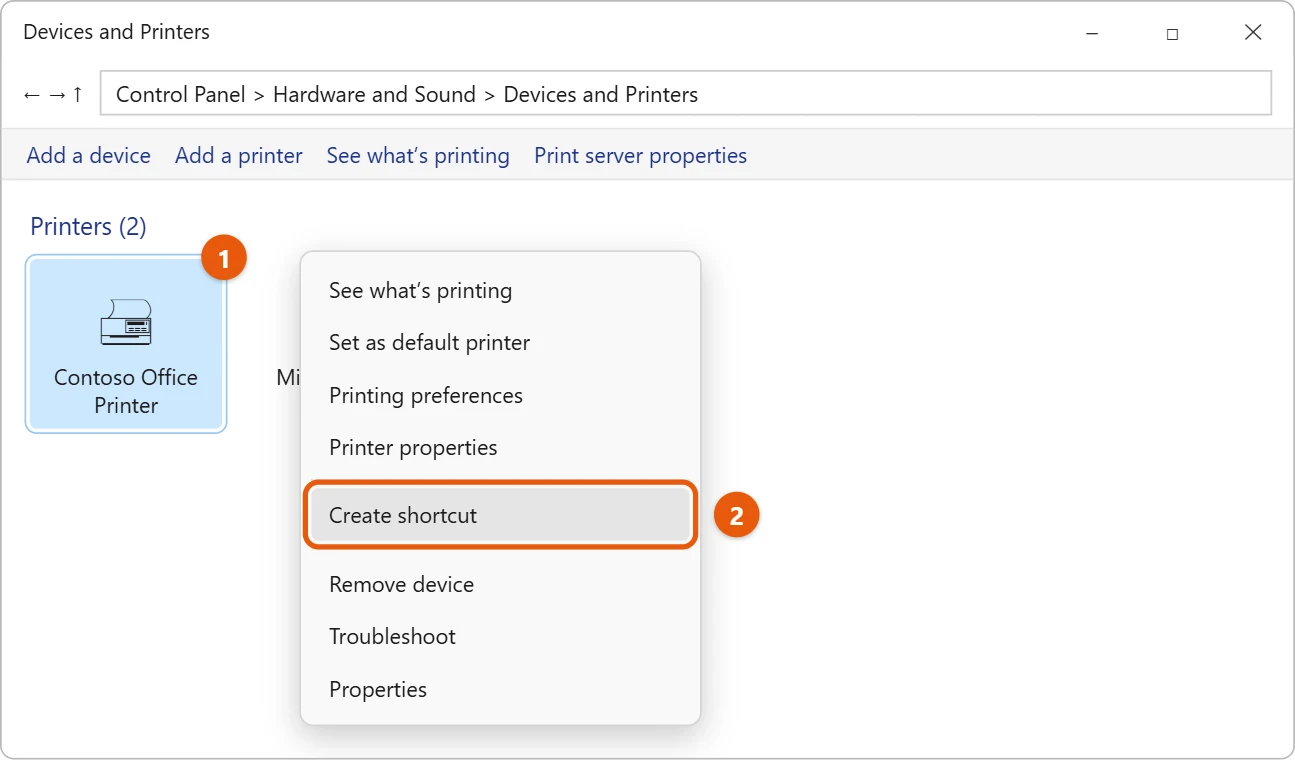
- Right-click your printer under Printers.
- Select Create shortcut.
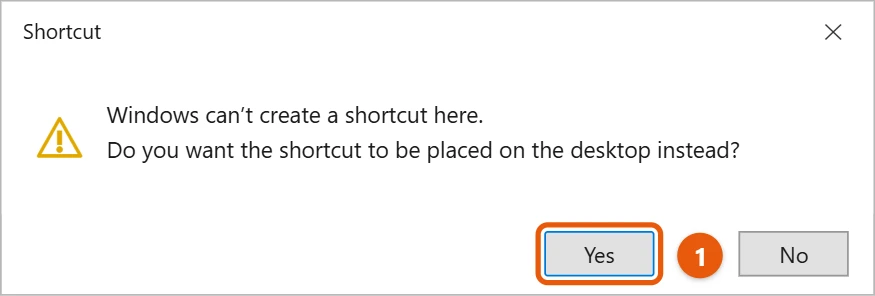
- Windows says it can’t create a shortcut there. Select Yes to put it on the desktop instead.
The printer icon now appears on your desktop.
What the icon does
- Double-click it to open the print queue and see, pause or cancel jobs.
- Drag a document onto it to print it with the default settings (works for many file types).
- Right-click it for Printing preferences and other settings.
If your printer isn’t listed
The printer isn’t installed yet, or Windows lost it. Add it first in Settings > Bluetooth & devices > Printers & scanners, then come back to these steps.
Frequently asked questions
How do I clear a stuck print job?
See how to clear the printer queue in Windows 11.
How do I choose which printer is used by default?
See how to set a default printer in Windows 11.
To add Control Panel too, see how to put a Control Panel icon on the desktop in Windows 11.
Microsoft’s reference is the Microsoft Q&A answer How to put printer icon on desktop?. More help is on our Windows Help & Guides page.

Matt Jacobs has been working as an IT consultant for small businesses since receiving his Master’s degree in 2003. While he still does some consulting work, his primary focus now is on creating technology support content for SupportYourTech.com.
His work can be found on many websites and focuses on topics such as Microsoft Office, Apple devices, Android devices, Photoshop, and more.