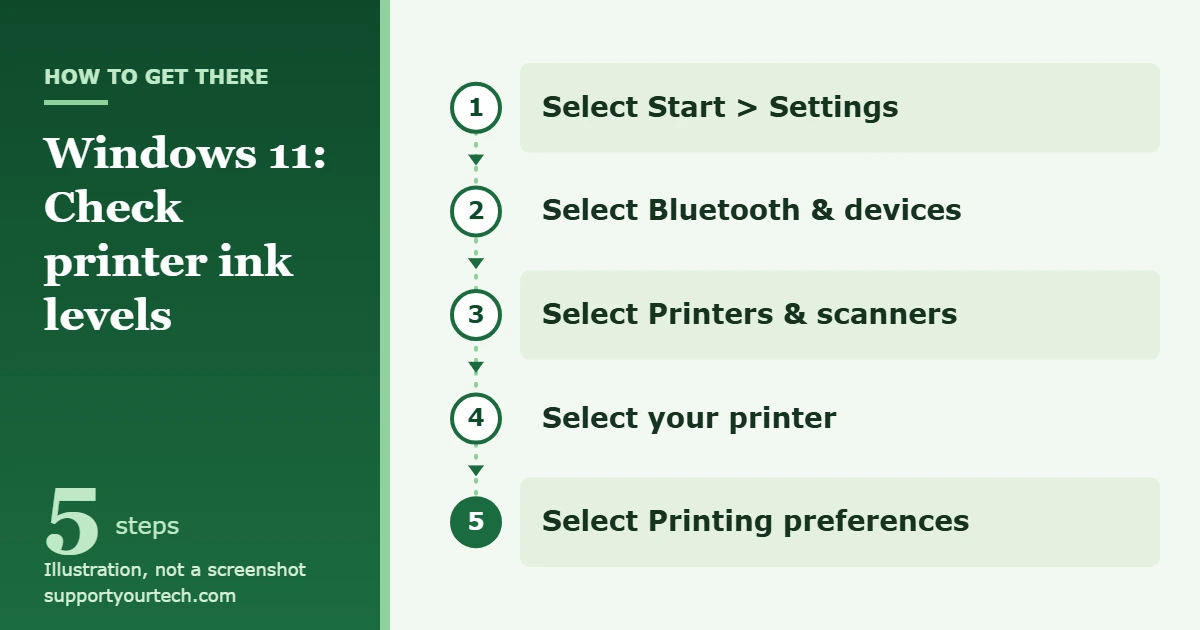
To check printer ink levels in Windows 11, select Start > Settings > Bluetooth & devices > Printers & scanners, select your printer, then select Printing preferences. In the window that opens, look for the printer maker’s maintenance or status tab, which shows estimated ink levels. If nothing appears there, use the maker’s app or the printer’s own screen instead.
Applies to: Windows 11 with HP, Canon, Epson, Brother and other printers that have the maker’s full driver or app installed. Checked against Microsoft Support and the printer makers’ support pages on October 7, 2026.
Why ink levels come from the printer maker
Windows 11 lists your printer and opens its settings, but the ink gauge itself is drawn by the printer maker’s software. The support guides from Canon, Epson and HP all show ink levels inside the maker’s driver window or app, not in a separate Windows page. That is why the exact tab name changes from brand to brand, and why the gauge can be missing when Windows installed only a basic driver.
Microsoft notes that when Windows shows a Find drivers button next to a printer, the printer can still work with reduced functionality until the full driver is installed. An ink display is one of the extras that often depends on that full package.
Every brand also describes the numbers as estimates. Treat a low reading as a reminder to have a spare cartridge or ink bottle ready, not as an exact measurement.
Before you start
- Turn the printer on and make sure it is connected by USB, Wi-Fi or Ethernet. A printer that is off or offline cannot report its ink.
- Check that the printer appears under Printers & scanners. If it does not, add it first (see the troubleshooting section below).
- For a wireless printer, keep the PC and the printer on the same network so the maker’s app can find it.
Check ink levels from Windows 11 Settings
This route works for most printers whose maker’s driver is installed, because it opens the same driver window the maker’s guides describe.
- Select Start, then select Settings.
- Select Bluetooth & devices, then select Printers & scanners. A list of installed printers appears.
- Select your printer. Its own settings page opens with several options.
- Select Printing preferences. The printer maker’s driver window opens.
- Look for the maintenance or status area. On Canon printers, select the Maintenance tab and then View Printer Status. On Epson printers, select the Maintenance tab and then EPSON Status Monitor 3. Other brands use similar wording.
- Read the estimated level for each cartridge or tank. Levels usually appear as a picture or bar for each color. A warning mark next to a color means that ink is running low.
For HP printers, HP describes a slightly different Windows route: select your printer under Printers & scanners, select Open print queue, select the Printer menu, then Properties, and look for an Estimated Ink Levels or Supply Levels tab. HP notes that the labels vary with the printer model and driver version.
Check ink levels with the printer maker’s app
The maker’s app often gives the clearest view, and it is the main method each brand recommends. Install the app from the printer maker’s official website if it is not already on your PC.
HP printers
- Type the name of the HP app in the Windows search box and open it.
- Select your printer. If you have added several printers, scroll to find the right one.
- Read the estimated supply levels shown next to the picture of your printer. HP says it can take a few minutes for the levels to appear.
HP also explains how to read its symbols: a full drop or bar means full, a partly filled one means the ink is getting low, an empty or blinking one means it is very low or empty, and a question mark means the level cannot be detected. See HP’s guide to checking ink or toner levels for model-specific details.
Canon printers
Canon’s ink display is the Canon IJ Status Monitor. Open the printer driver window (from Printing preferences as above, or from Control Panel > Hardware and Sound > Devices and Printers by right-clicking the printer and selecting Printing preferences). Then select the Maintenance tab and View Printer Status. Canon’s online manual for checking ink status shows the steps for one model series; your model’s manual follows the same pattern. An exclamation mark next to an ink icon means that ink is low and you should have a new cartridge ready.
Epson printers
Epson’s Windows 11 steps match the Settings method: select your product under Printers & scanners, open its preferences, select the Maintenance tab, then select EPSON Status Monitor 3. Select Details for more information. Epson notes that you can keep printing while a low ink message is shown, and that a broken, incompatible or badly seated cartridge can make the status inaccurate.
On Epson ink tank printers, Epson’s guide for some models says to double-click the product icon in the Windows taskbar to open the ink level window. Because those readings are estimates, Epson also tells you to look at the tanks themselves, and warns that continuing to print when the ink is below the lower line on a tank could damage the printer.
Brother printers
- Open Brother iPrint&Scan.
- If your machine is not selected, click Select your Machine, choose your model, and click OK.
- Check the status icon. Green means normal stand-by, yellow means a warning, red means an error and grey means the machine is offline. For ink, Brother lists low ink, a cartridge that needs replacing or a cartridge problem as possible errors.
Brother’s Status Monitor is another way to see the machine’s status. Double-click the Status Monitor icon in the task tray, or open Brother Utilities, select your model, click Tools, then click Status Monitor. Brother says the remaining ink amount shown in its software is approximate.
Check ink levels on the printer itself
Most printers with a screen can show ink without a computer. The menu names differ by model, so treat these as examples and check your printer’s manual for the exact path.
- HP: look for an ink drop icon, a cartridge icon or an ink levels option on the control panel. On Smart Tank models, check that the ink in each tank window sits between the maximum and minimum lines. On LaserJet Tank models, check the toner gauge on the front.
- Brother: on some inkjet models, press Ink and then Ink Volume, or go to Settings > Maintenance > Ink Volume.
- Epson ink tank models: look through the front of each tank and compare the ink with the lines printed on it.
HP points out that shaking a cartridge or looking at its nozzles is not a reliable way to judge how much ink is left, so rely on the printer’s own reading.
How to confirm the reading
If the gauge looks wrong, print something and look at the result. Microsoft’s Windows 11 steps for a test page are: select Start > Settings > Bluetooth & devices > Printers & scanners, select your printer, select Printer properties, then on the General tab select Print Test Page. Faded, streaked or missing colors on the page point to low ink or a clogged print head.
Checking ink levels does not change any setting, so there is nothing to undo. Close the status window when you are done.
Troubleshooting: ink levels don’t appear
There is no maintenance or ink tab
Windows may be using a basic driver. Download the full driver and software package from the printer maker’s support website, or check Windows Update for a newer driver. If a Find drivers button appears next to the printer under Printers & scanners, the full driver is not installed yet. You can also update the driver from Device Manager: expand Printers, right-click your printer and select Update driver. Our guide on installing an HP printer on Windows 11 walks through a full setup.
The printer is not in the list
Under Printers & scanners, select Add device (or Refresh) and wait for Windows to find the printer. If it still does not appear, select Add manually. Our step-by-step guide shows how to add a printer in Windows 11.
The status says offline or shows a question mark
Turn the printer off, unplug it, wait 30 seconds, plug it back in and turn it on. Then check that it is connected and on the same network as your PC. Microsoft’s printer connection troubleshooting guide also offers an automated printer troubleshooter in the Get Help app. If old jobs are stuck, clear the printer queue in Windows 11 before checking again.
The reading seems wrong or does not change
Check that each cartridge is installed correctly, then check again. Epson notes that a broken, incompatible or badly installed cartridge can give an inaccurate status. If prints are faded even though the gauge looks fine, run the Clean printhead, Align printhead or Maintenance tools from the printer software or control panel, as Microsoft suggests in its guide to fixing poor print quality in Windows.
Work or school computers
On a managed PC, you may not be allowed to install the printer maker’s app or driver. Shared office printers are also often managed from another computer. If you cannot see ink levels, check the printer’s own screen or ask your IT department.
Frequently asked questions
Can Windows 11 show ink levels without extra software?
Only if the printer’s driver adds an ink display. If Windows installed a basic driver, you may not see any ink information until you install the maker’s full driver or app. The printer’s own screen works without any software.
How accurate are the ink levels?
They are estimates. Brother, Canon, Epson and HP all describe the readings as approximate, so a cartridge marked low may still print for a while. Replace it when the printer asks you to or when the print quality drops.
Can I keep printing when ink is low?
Often yes. Epson, for example, says you can keep printing while a low ink message is displayed. On ink tank printers, though, Epson warns that printing with ink below the lower line could damage the printer, so refill first.
Does this work for toner in laser printers?
Generally, yes. HP covers ink and toner together in its guide: the HP app shows estimated supply levels for the selected printer, and HP LaserJet Tank models also have a toner gauge on the front. For other laser printers, check the maker’s app or the printer’s screen.
Which printer should I check if I have more than one?
Select the printer by name in Printers & scanners. If you mostly use one, set it as the default printer in Windows 11 so print jobs go to it automatically.
Once you know which color is low, order the matching cartridge or ink bottle for your exact printer model, and print a test page after you replace it to confirm the colors look right.

Matt Jacobs has been working as an IT consultant for small businesses since receiving his Master’s degree in 2003. While he still does some consulting work, his primary focus now is on creating technology support content for SupportYourTech.com.
His work can be found on many websites and focuses on topics such as Microsoft Office, Apple devices, Android devices, Photoshop, and more.