To install an HP printer on Windows 11, connect the printer by USB or to the same Wi-Fi network as your PC, then go to Settings > Bluetooth & devices > Printers & scanners > Add device and select Add device next to your HP printer. Windows downloads a basic driver automatically. For scanning, ink levels and printer settings, also install the free HP Smart app from the Microsoft Store.
Applies to: Windows 11 Home and Pro, HP DeskJet, ENVY, OfficeJet, Smart Tank and LaserJet printers. Last reviewed October 8, 2026.
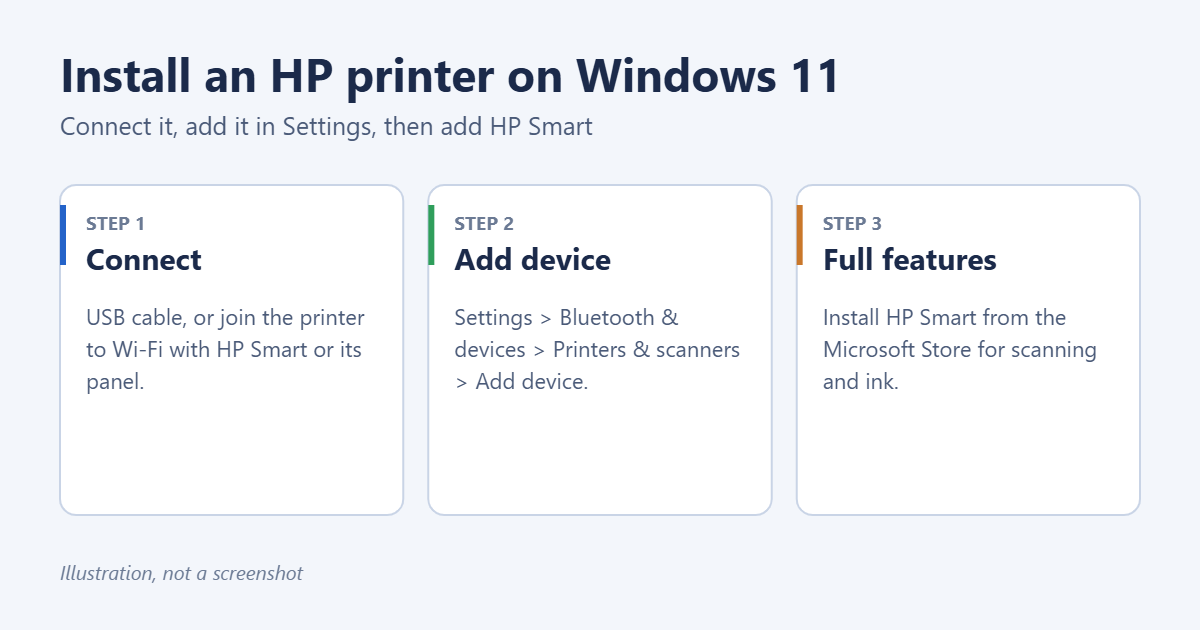
Step 1: Connect the printer
USB
Turn on the printer and plug the USB cable into the PC. Windows usually detects it within a minute and installs it by itself. Check Step 2 to confirm.
Wi-Fi (new printer or new router)
- Install HP Smart from the Microsoft Store and open it.
- Select Add Printer or the + icon. HP Smart looks for printers in setup mode nearby.
- If the printer isn’t found, put it in Wi-Fi setup mode. On most HP inkjets, press and hold the Wireless button until the light blinks, or restore network settings from the control panel. Check your model’s manual for the exact buttons.
- Follow the prompts to connect the printer to your Wi-Fi network.
If your printer has a touchscreen, you can also open Wireless Setup Wizard on it, choose your network and enter the Wi-Fi password.
Step 2: Add the printer in Windows Settings
- Open Settings (Windows + I) > Bluetooth & devices > Printers & scanners.
- Select Add device at the top and wait for Windows to search.
- Select Add device next to your HP printer.
- When it shows Ready, select the printer and choose Print test page.
For more on this screen, see how to add a printer in Windows 11. To make it the one Windows uses first, see how to set a default printer.
Step 3: Install HP Smart or the full HP driver
The driver Windows installs handles printing. For more, choose one:
- HP Smart (most home printers): adds scanning, ink levels, printer settings and mobile printing. Get it from the Microsoft Store.
- Full feature software (older and office models): go to HP’s driver download page, enter your printer model, choose Windows 11, and download the driver package.
Set up scanning on an HP all-in-one
- Open HP Smart and select your printer.
- Select Scan, choose Scanner (flatbed or document feeder), and pick the file type and resolution. 300 dpi is fine for documents.
- Select Scan, then Save or Share.
Without HP Smart, you can scan with the built-in Windows Scan app from the Microsoft Store, which uses the driver Windows already installed.
A Wi-Fi printer doesn’t need sharing: add it on each PC with the same steps. For a USB printer, open its page in Printers & scanners, select Printer properties > Sharing and tick Share this printer. The PC it’s plugged into must be on for others to print.
If the printer isn’t found
- On the Printers & scanners page, select Add manually next to “The printer that I want isn’t listed”.
- Choose Add a printer using an IP address or hostname and select Next.
- Type the printer’s IP address. You can find it by printing a Network Configuration Page from the printer’s menu, or on its touchscreen under the Wireless settings.
- Follow the prompts. Pick your HP model from the list if Windows asks for a driver.
Troubleshooting
“Driver is unavailable”
Remove the printer in Printers & scanners, restart the PC, and add it again. If that fails, install the full driver from HP’s site. See how to remove a printer in Windows 11.
The printer shows Offline
Make sure the printer and PC are on the same Wi-Fi network, not a guest network. Restart the printer and router. Wi-Fi printers often drop off after a router change.
Jobs are stuck in the queue
Cancel them and restart the Print Spooler. See how to clear the printer queue in Windows 11.
Still not working?
HP’s free HP Print and Scan Doctor tool for Windows checks the connection, driver and spooler and fixes common problems. Download it from HP’s support site.
Frequently asked questions
Do I need HP Smart to print?
No. Windows can print without it. HP Smart adds scanning, ink levels and some settings. It asks you to sign in with an HP account for some features.
Can I install an HP printer without a CD?
Yes. Windows 11 and HP’s website have all the drivers; the CD’s drivers are usually older than the ones online.
How do I check ink after installing?
Open HP Smart and look at the printer tile, or see how to check printer ink levels in Windows 11.
Related: how to set up Secure Print on Windows 11.

Matt Jacobs has been working as an IT consultant for small businesses since receiving his Master’s degree in 2003. While he still does some consulting work, his primary focus now is on creating technology support content for SupportYourTech.com.
His work can be found on many websites and focuses on topics such as Microsoft Office, Apple devices, Android devices, Photoshop, and more.