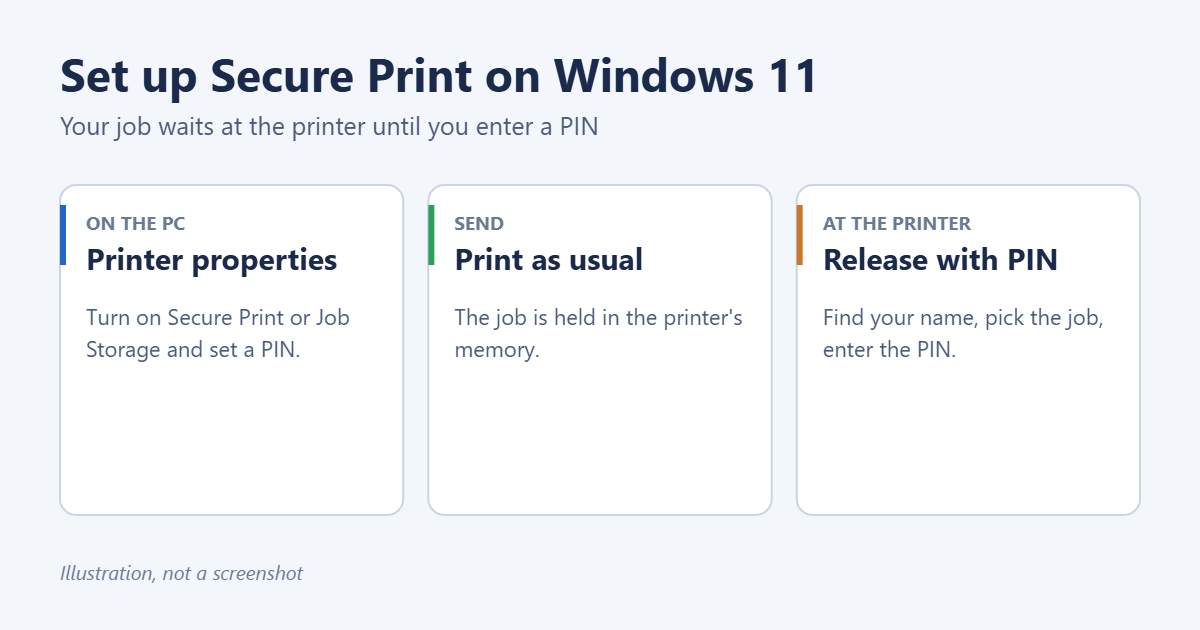
Secure Print (also called PIN printing, Private Print, Locked Print or Job Storage) holds your document in the printer’s memory until you walk up and enter a PIN. To use it on Windows 11, open the printer’s Printing preferences, find the Secure Print or Job Storage option, turn it on, and set a PIN. Then print as normal and release the job at the printer’s control panel. Windows 11 doesn’t have its own Secure Print switch: the option comes from your printer’s driver, so it only appears if your printer supports it and the manufacturer’s driver is installed.
Applies to: Windows 11 Home and Pro with business printers from HP, Brother, Canon, Xerox, Ricoh, Kyocera, Konica Minolta and others. Last reviewed October 8, 2026.
Before you start
- Check the printer supports it. Look for Secure Print, PIN Print, Private Print or Job Storage in the printer’s manual or menu. Most home inkjets don’t have it; office lasers and copiers usually do.
- Install the manufacturer’s driver. The basic driver Windows installs often hides these options. Download the full driver from the manufacturer’s support site. See how to add a printer in Windows 11.
- At work, your organization may use a print-release system with badges or a sign-in at the printer instead. Ask IT before changing settings.
Open the printer’s settings
- For one document: press Ctrl+P, choose the printer, and select Printer Properties or Preferences. In the Windows 11 print dialog, select More settings, then the link to the printer’s own settings if it shows one.
- For every document: go to Settings > Bluetooth & devices > Printers & scanners, select the printer, then Printing preferences.
HP printers: Job Storage
- In Printing preferences, open the Job Storage tab.
- Set Job Storage Mode to Personal Job.
- Under Make Job Private/Secure, choose PIN to print and enter a 4-digit PIN.
- Select OK and print.
- At the printer, choose Retrieve from Device Memory (or Print from Job Storage), select the folder with your user name, select the job, enter the PIN and print.
Brother printers: Secure Print
- In Printing preferences, open the Advanced tab and select Settings next to Secure Print.
- Tick Secure Print and enter a 4-digit password. Add a user name and job name if you like.
- Select OK twice and print.
- At the printer, choose Secure Print on the control panel, select your user name, enter the password, choose the job and the number of copies, and press Start.
Brother clears secure jobs once printed or when the printer is switched off.
Other brands
- Canon: look for Secured Print in the Basic Settings or Output Method list, then release it from the printer’s Print or Secured Print menu.
- Xerox: set Job Type to Secure Print in Printing Preferences and enter a passcode.
- Ricoh, Kyocera, Konica Minolta: look for Job Type, Locked Print, Private Print or Secure Print.
Labels vary between models, so check your printer’s manual if you don’t see them.
Not the same as Windows protected print mode
Windows 11 version 24H2 added a setting called Windows protected print mode in Settings > Bluetooth & devices > Printers & scanners. It’s a security feature that makes Windows use only its built-in Mopria-compatible print driver instead of manufacturer drivers. It doesn’t hold jobs or ask for a PIN. In fact, turning it on can remove the manufacturer options that Secure Print depends on, so leave it off if you need Job Storage or PIN printing, unless your IT team says otherwise.
Troubleshooting
There’s no Secure Print or Job Storage option
The basic Windows driver is installed, or the printer doesn’t support it. Install the manufacturer’s full driver; for HP, see how to install an HP printer on Windows 11. Some HP models also need Job Storage turned on under the Device Settings tab in Printer properties.
My job isn’t at the printer
Check the Windows print queue for errors; see how to clear the printer queue in Windows 11. Make sure you sent it to the right printer; see how to set a default printer. Held jobs may also be deleted after a set time or when the printer restarts.
I forgot the PIN
Send the document again with a new PIN. An administrator can delete stuck held jobs from the printer’s web page.
Frequently asked questions
Is Secure Print really secure?
It stops people picking up your pages from the tray. It doesn’t encrypt the document on the network unless your printer and organization set that up separately.
Can I use Secure Print at home?
Only if your printer has it, which is rare for home models. Printing when you’re standing at the printer is the home equivalent.

Matt Jacobs has been working as an IT consultant for small businesses since receiving his Master’s degree in 2003. While he still does some consulting work, his primary focus now is on creating technology support content for SupportYourTech.com.
His work can be found on many websites and focuses on topics such as Microsoft Office, Apple devices, Android devices, Photoshop, and more.