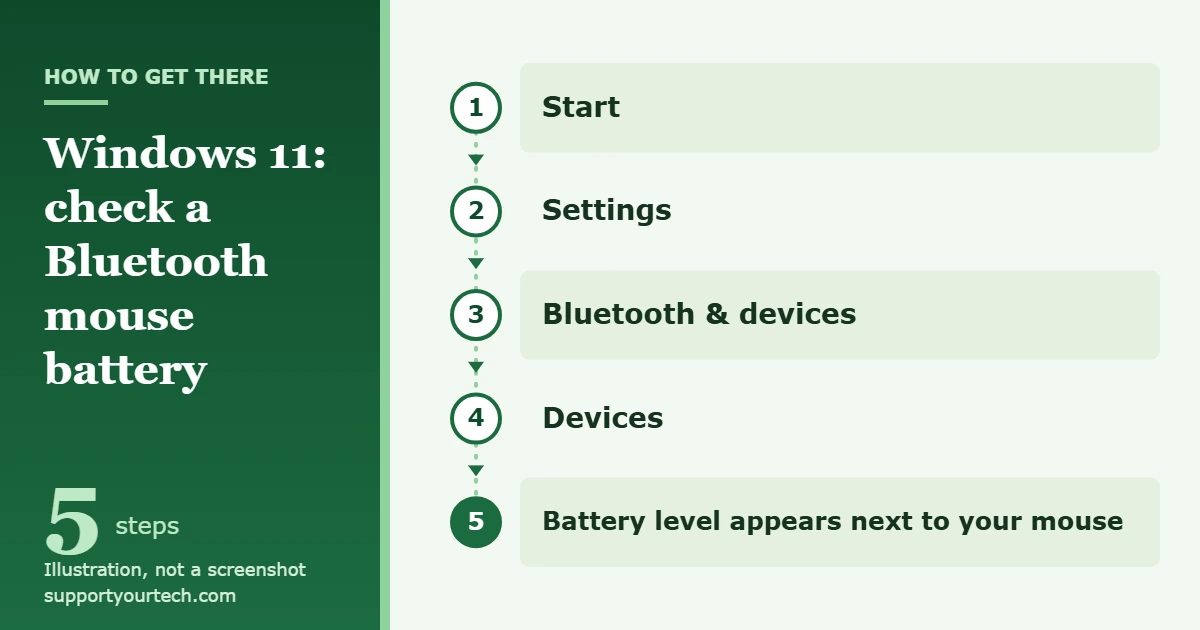
To check a wireless mouse battery in Windows 11, select Start > Settings > Bluetooth & devices > Devices. If the mouse is connected over Bluetooth and reports its charge to Windows, the battery level appears next to the mouse. If no level is shown, which is common for a mouse that uses its own USB receiver, use the mouse maker’s app or the battery light on the mouse instead.
Applies to: Windows 11, with Bluetooth mice and mice that use a USB receiver. Checked against Microsoft Support on October 6, 2026.
Before you start
“Wireless mouse” covers two different kinds of connection, and the kind you have decides where the battery reading is found.
| How the mouse connects | Where to look for the battery level |
|---|---|
| Bluetooth (paired in Windows, nothing plugged in) | Windows 11 Settings, on the Devices page |
| USB receiver (a small plug, often called a dongle, in a USB port) | The mouse maker’s app, or the light on the mouse |
| Both (a mouse with a switch for Bluetooth or receiver) | Either, depending on which connection is in use right now |
Two more things have to be true for Windows to show a number:
- The mouse is turned on and connected at the moment you look.
- The mouse is built to report its battery level. Windows can only show what the mouse and its driver send. Some mice, especially older or very basic ones, never send it.
Check the mouse battery in Settings
This is the route Microsoft documents for its own Bluetooth mice in Windows 11, and it’s the same page for other brands of Bluetooth mouse.
- Move the mouse or click a button so it’s awake and connected.
- Select Start, then select Settings. The Settings window opens.
- Select Bluetooth & devices. You see your connected devices and the Bluetooth switch.
- Select Devices. The full list of paired devices opens.
- Find your mouse in the list. The battery level appears next to the mouse.
If the mouse is listed but there’s no battery level beside it, the mouse isn’t sending that information over the current connection. Go to the receiver and troubleshooting sections below.
Get to the same page with Search
Microsoft’s instructions for the Microsoft Bluetooth Mouse and the Surface Mouse use a shorter route that skips the menus.
- Select Search on the taskbar.
- Type Bluetooth.
- Open the Bluetooth settings result. Microsoft’s mouse instructions name it Bluetooth & other devices settings.
- Look next to your mouse for the battery level.
Both routes show the same information. Use whichever you find quicker.
Check a mouse that uses a USB receiver
A mouse that talks to its own USB receiver isn’t paired through Windows Bluetooth, so don’t expect a battery level for it on the Devices page. The maker’s own app is the place to look.
Logitech mice
Logitech’s current app for its everyday mice is Logi Options+. Logitech’s instructions are short:
- Open Logi Options+.
- Look at the home screen. It shows a list of your devices.
- Read the battery level under the picture of your mouse.
Depending on the mouse, Logitech shows either a percentage or a set of pips. According to Logitech, one pip means 0 to 10%, two pips mean 11 to 80%, and three pips mean over 81%. Two pips covers a wide range, so treat one pip as the signal to charge or buy batteries.
Logitech’s older app, Logitech Options, has reached end of support, and Logitech directs owners to Logi Options+ instead.
Microsoft mice
For its Bluetooth mice, Microsoft points you to Windows Settings for the battery level, as shown above. Microsoft also offers the Mouse and Keyboard Center app for Windows 11 and Windows 10, which is for personalizing Microsoft mice and keyboards. Its download page doesn’t promise a battery reading, so don’t install it for that reason alone.
Other brands
Gaming and office mice from other makers usually come with a companion app too. Find the exact model name on the underside of the mouse, go to the maker’s official support site, and download the app offered for that model. Get it only from the maker’s own site or the Microsoft Store. Battery tools from unknown download sites aren’t needed and can carry unwanted software.
Read the battery light on the mouse
Many wireless mice have a small light that tells you about the battery without any software. What the light means is different for each model, so check the manual for yours. These examples from vendor documentation show what to look for:
- Logitech MX Master: three green lights mean fully charged, two green mean the level is good, one green means low, and one red means it should be recharged.
- Logitech G602: the light on top of the mouse flashes when the battery is low.
- Microsoft mice: press and hold the pairing button for 5 to 7 seconds, then let go. If the light blinks, the mouse has power. If the light doesn’t come on, Microsoft says to check or replace the batteries.
The Microsoft check has a side effect: holding the pairing button puts the mouse into pairing mode. If the mouse doesn’t reconnect afterward, pair it again using the steps in the troubleshooting section.
If no battery level appears
Work through these in order. The first few take seconds.
- Check which connection the mouse is using. If there’s a USB receiver plugged in, the mouse is probably using it. On a mouse that supports both, switch it to Bluetooth and pair it if you want the reading in Settings.
- Make sure Bluetooth is on. Go to Start > Settings > Bluetooth & devices and check that Bluetooth is switched On. You can also select the Network, Sound, or Battery icon next to the time and date and look at the Bluetooth tile. Our guide on how to turn on Bluetooth in Windows 11 covers a missing switch.
- Turn off Airplane mode. Microsoft’s Bluetooth troubleshooting starts by making sure the Airplane mode quick setting is off.
- Wake the mouse. Click a button, then look at the Devices page again.
- Install Windows updates. Go to Start > Settings > Windows Update and check for updates.
- Run the Bluetooth troubleshooter. Go to Settings > System > Troubleshoot > Other troubleshooters and select Run next to Bluetooth.
- Update the Bluetooth driver. In Device Manager, right-click the Bluetooth adapter and select Update driver > Search automatically for updated driver software. See how to update the Bluetooth driver on Windows 11 for the full steps, or how to update a mouse driver in Windows 11 if the mouse itself is misbehaving.
Remove the mouse and pair it again
If the battery level used to show and has disappeared, pairing the mouse again gives Windows a fresh connection. Have a touchpad or a second mouse ready first, because the wireless mouse stops working until it’s paired again. If you have neither, you can still right-click with the keyboard in Windows 11.
- Go to Start > Settings > Bluetooth & devices > Devices.
- Next to the mouse, select More options, then select Remove device > Yes. The mouse leaves the list.
- Turn the mouse on and put it in pairing mode. On Microsoft mice, that means holding the pair button on the bottom until the light starts to flash.
- If a notification appears saying a device was found, select Connect.
- If no notification appears, go to Start > Settings > Bluetooth & devices > Add device > Bluetooth, select your mouse, and select Done.
- Open the Devices page again and look for the battery level.
Microsoft’s Fix Bluetooth problems in Windows page has the complete list of checks.
When a missing reading is normal
If the mouse works well and none of the steps above bring up a battery level, the mouse most likely doesn’t report one. That isn’t a fault in Windows or in the mouse. Rely on the light on the mouse, or simply keep a spare battery nearby.
On a work or school PC, you may not be allowed to install a maker’s app or change drivers. Ask your IT support to install it rather than looking for a workaround.
Signs the battery is running low
You can often tell without a reading. Jerky or intermittent pointer movement, delayed clicks, repeated disconnects, or a warning light on the mouse all suggest it needs charging or fresh batteries.
The same symptoms can come from interference, so rule out the simple causes Microsoft lists before blaming the battery or a driver:
- Open the battery compartment and make sure the batteries are positioned correctly. If that doesn’t help, replace them with new ones.
- Turn off other Bluetooth devices connected to the PC. Microsoft notes that too many connected at once can interfere with the mouse.
- Move the mouse or its receiver away from USB 3.0 devices. Microsoft warns that unshielded USB devices can sometimes interfere with Bluetooth connections.
Change the batteries and make them last
Battery type depends on the model. As examples, the Microsoft Bluetooth Mouse uses one AA battery, while the Microsoft Bluetooth Ergonomic Mouse and the Surface Mouse each use two AAA batteries. On those mice, you flip the mouse over, open the battery door, and swap the batteries. For any other mouse, the battery door or the manual tells you the size, and rechargeable mice charge by cable instead.
To stretch the time between changes, Microsoft’s advice is to turn the mouse off with the switch or button on the bottom when you’re not using it. That matters most when the mouse travels in a bag, where buttons get pressed and keep it awake.
Frequently asked questions
Why doesn’t my mouse show a battery level in Windows 11?
Either it’s connected through a USB receiver rather than Bluetooth, or it’s a model that doesn’t report its battery level to Windows. Check the connection type first, then try the maker’s app.
Can I see the battery level of a mouse with a USB dongle?
Usually not in Windows Settings. Use the maker’s app, such as Logi Options+ for supported Logitech mice, or read the battery light on the mouse.
Where is the mouse battery level in Windows 10?
Select Search, type Bluetooth, and open Bluetooth & other devices settings. Microsoft’s instructions say the battery level appears next to the mouse there.
Is the battery level in Settings exact?
Treat it as a guide. Windows shows what the mouse reports, and some makers’ apps only show a rough level, such as Logitech’s three pips. Charge or replace the battery when the level is low rather than waiting for a precise number.
Do I need extra software to check a Bluetooth mouse battery?
No, as long as the mouse reports its battery level. The Devices page in Settings is built into Windows 11.
What should I do if the mouse stops working completely?
Replace or recharge the battery first. Then check that the mouse is switched on and pair it again. Microsoft’s guide for using a Microsoft Bluetooth mouse shows the pairing and battery steps for one of its models.
Next, open Settings > Bluetooth & devices > Devices and see whether your mouse reports a level. If it doesn’t, install the maker’s app once so you know where to look the next time the pointer starts to stutter.

Matt Jacobs has been working as an IT consultant for small businesses since receiving his Master’s degree in 2003. While he still does some consulting work, his primary focus now is on creating technology support content for SupportYourTech.com.
His work can be found on many websites and focuses on topics such as Microsoft Office, Apple devices, Android devices, Photoshop, and more.