To do a clean install of Windows 11, back up your files, create a Windows 11 USB installer with Microsoft’s media creation tool, and start the PC from that USB drive. In Windows 11 Setup, select Install Windows 11, delete the existing partitions on Disk 0, select Disk 0 Unallocated Space, and then select Install. Everything on that disk is erased, so the backup is not optional.
Applies to: Windows 11 Home and Pro on a PC that already has Windows installed, using a USB installer. Checked against Microsoft Support on October 6, 2026.
What a clean install does, and when to choose it
A clean install wipes the drive Windows lives on and puts a brand-new copy of Windows 11 in its place. Microsoft describes it as an advanced option and lists exactly what it removes: personal files, apps, customizations from the device manufacturer, and any changes made in Settings. Nothing from the old installation is carried over.
That is the point of it. Microsoft’s recovery guidance recommends reinstalling from installation media when a PC will not start and Startup Repair has not helped, or when you suspect a malware infection. It is also a common choice before selling a PC or after replacing the internal drive.
It is not always the right tool. Windows 11 has gentler options that do not need a USB drive, and one of them may solve your problem with far less work.
| Your situation | Better fit | What happens to your files |
|---|---|---|
| Windows runs, but it is slow or misbehaving | Reset PC with Keep my files | Personal files stay; apps and settings are removed |
| Windows runs and you want everything gone | Reset PC with Remove everything | Files, apps, and settings are removed |
| Windows runs and you want to repair it and keep your apps | Open setup.exe on the USB installer from inside Windows | You choose what to keep |
| Windows will not start, you suspect malware, or you want the drive wiped completely | Clean install from the USB installer (this guide) | Everything on the Windows disk is erased |
The two lighter options are explained near the end of this article. If the PC has never had an operating system on it, follow our guide on installing Windows 11 on a new PC instead.
Before you start: seven things to check
Most clean installs that go wrong fail because of something that was skipped here, not because of Setup itself. Work through the list while the PC still runs.
1. Back up your files
Copy your documents, photos, and anything else you cannot replace to an external drive or to cloud storage. Microsoft’s own tool is Windows Backup: select Start, type backup, and select Windows Backup from the results. Expand Folders, choose which of the Desktop, Documents, Pictures, Videos, and Music folders to include, and select Back up. It stores them in OneDrive, and a free Microsoft account comes with 5 GB of space, so large photo or video collections usually need an external drive as well.
Check the backup before you continue. Open a few files from the external drive or from OneDrive on another device to confirm they are really there.
2. Make sure Windows can activate again
A clean install does not use up your license, but Windows has to be activated again afterwards. Microsoft says this usually happens automatically once the PC is online. There are two kinds of license:
- A digital license activates Windows without a product key. PCs that were upgraded for free from Windows 10 have one.
- A product key is a 25-character code in the form XXXXX-XXXXX-XXXXX-XXXXX-XXXXX. A boxed copy has it on a label or card inside the box, and a digital purchase has it in the confirmation email.
To see where you stand, select Start > Settings > System > Activation. The best result is Windows is activated with a digital license linked to your Microsoft account. If it only says Windows is activated with a digital license, select Add an account on the same page, enter your Microsoft account and password, and select Sign in. Microsoft states that your account must be linked to the digital license before Windows can be reactivated after a reinstall.
Microsoft’s warning on this point is blunt: if you do not have a product key and your license is not linked to your Microsoft account, do not go ahead with the clean install until you have linked it.
3. Note which edition you have
Right-click the Start menu and select Settings > System > About, then write down the edition shown, for example Windows 11 Home or Windows 11 Pro. Setup may ask you to pick an edition, and Microsoft’s instruction is to select the one that matches your digital license. A Home license does not activate Pro.
4. Save your BitLocker recovery key
Many Windows 11 PCs encrypt their drive automatically through a feature called Device Encryption, which turns on when you sign in with a Microsoft account. The recovery key is a 48-digit number that Windows may ask for at startup after a security or hardware change. If it was backed up to your Microsoft account, you can view it at aka.ms/myrecoverykey from any device. Write it down or print it. Microsoft’s Find your BitLocker recovery key page lists the other places a key can be stored.
5. Confirm the PC meets the Windows 11 requirements
If the PC already runs Windows 11, it meets them. If it runs Windows 10, check before you erase anything. Use Search on the taskbar to find PC Health Check, open it, and select Check now. The app tells you whether the device is eligible and why not if it is not.
| Part | Minimum for Windows 11 |
|---|---|
| Processor | 1 GHz or faster with 2 or more cores, on a compatible 64-bit processor |
| Memory (RAM) | 4 GB |
| Storage | 64 GB or larger drive |
| System firmware | UEFI, Secure Boot capable |
| TPM | Trusted Platform Module (TPM) version 2.0 |
| Graphics | Compatible with DirectX 12 or later, with a WDDM 2.0 driver |
Do not turn off Secure Boot or the TPM to prepare for the install. Both are part of what Windows 11 requires, and a normal installation works with them on. This guide does not cover ways around the requirements.
6. Create the USB installer
You need a blank USB flash drive with at least 8 GB of space; the tool deletes whatever is on it. On Microsoft’s Download Windows 11 page, select Download Now under Create Windows 11 Installation Media, run MediaCreationTool.exe, select Accept, and choose USB flash drive when asked which media to use. Our separate guide on downloading Windows 11 to a USB drive walks through every screen. Use only Microsoft’s own download, not a copy of Windows from another website.
7. Prepare the PC itself
- Unplug external drives and other USB storage, apart from the installer. Setup lists every disk it can see, and fewer disks means less chance of erasing the wrong one.
- Plug a laptop into power. The install restarts the PC several times and should not be interrupted by an empty battery.
- Have your Wi-Fi password and Microsoft account password ready. Microsoft states that Windows 11 Home, and Windows 11 Pro for personal use, need an internet connection and a Microsoft account during initial setup. Once the desktop appears, follow our checklist for setting up a new Windows 11 laptop to finish updates, sign-in, encryption and backup.
- Make a list of your apps and find any license keys or installers for them. Apps are not restored from a file backup.
- If the PC has no built-in network driver in Windows (rare, but it happens on some desktops), download the network driver from the manufacturer’s support site to a second USB drive first.
How to clean install Windows 11 from a USB drive
Warning: the steps below permanently delete everything on the disk that holds Windows. Do not continue until your backup is finished and checked.
Part 1: Start the PC from the USB installer
- Shut the PC down and plug the USB installer into a USB port on the PC itself rather than a hub.
- Turn the PC on and immediately press the key that opens its boot device menu. Microsoft lists Esc, F10, and F12 as common examples, and F2 or Delete are used on some PCs. The startup screen often names the key. If it goes by too fast, check the manufacturer’s support site.
- In the boot device menu, select the USB drive. If it appears twice, pick the entry marked UEFI, for example UEFI: USB Drive. The two entries start the same drive in different firmware modes, and Windows 11 needs UEFI.
- Wait for Windows 11 Setup to load. The first window is Select language settings.
A one-time boot menu is better than permanently changing the boot order, because the PC goes back to its internal drive by itself on the next restart. If your PC only offers the boot order in its firmware settings, you can reach those from Windows: open Settings > System > Recovery, select Restart now under Advanced startup, and then choose Troubleshoot > Advanced options > UEFI Firmware Settings > Restart. Our guide on booting from USB in Windows 11 covers this stage in more depth.
Part 2: Go through Windows 11 Setup
- In the Select language settings window, choose your language and regional format, then select Next.
- In the Select keyboard settings window, choose your keyboard layout, then select Next.
- In the Select setup option window, select Install Windows 11. Tick I agree everything will be deleted including files, apps, and settings, then select Next.
- If the Product key window appears, either type your 25-character key or, if the PC was already activated with a digital license, select I don’t have a product key. On many PCs this window never appears, because Setup finds a key stored in the device’s firmware and applies it automatically.
- If the Select Image window appears, select the edition you wrote down earlier, then select Next.
- In the Applicable notices and license terms window, select Accept.
- In the Select location to install Windows 11 window, find Disk 0. Select one of its partitions so it is highlighted, then select Delete Partition. Repeat for every partition on Disk 0 until one item is left, called Disk 0 Unallocated Space.
- Make sure Disk 0 Unallocated Space is selected and highlighted, then select Next. Setup creates the partitions Windows needs by itself.
- In the Ready to install window, select Install.
- Wait while Windows is installed. The PC restarts several times. Do not press a key to start from the USB drive again during these restarts, and do not turn the PC off.
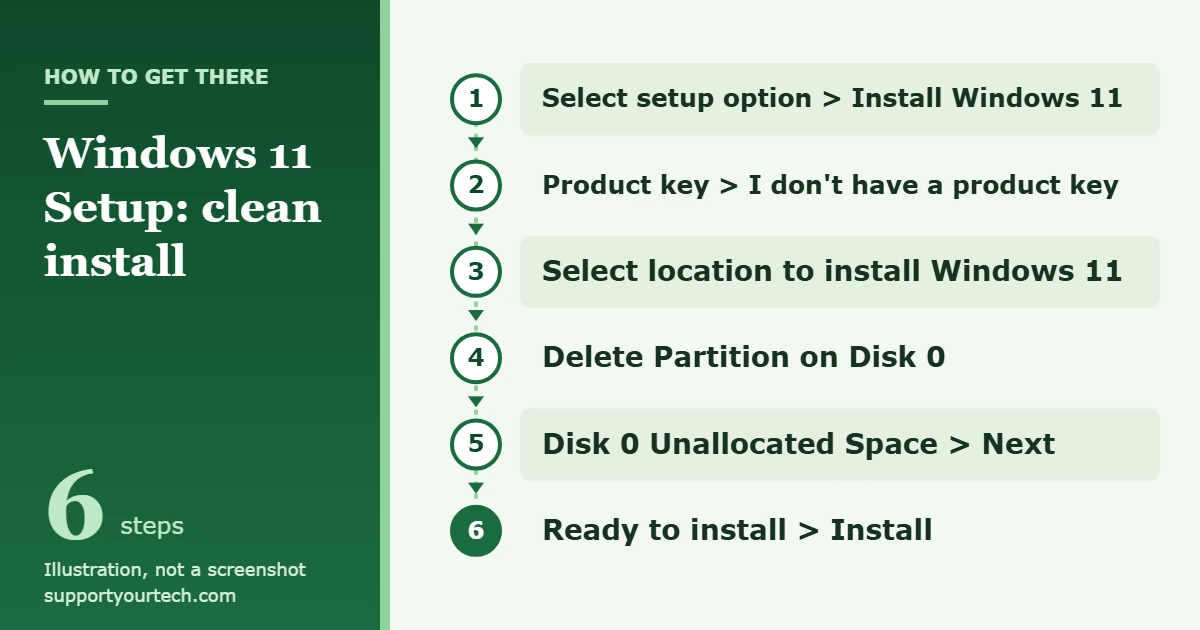
Step 7 is the one that erases your data, and it is the step to slow down for. A partition is a section of a disk; a typical Windows disk has a few small system and recovery partitions plus one large one that holds Windows and your files. If the PC has more than one disk, Setup also lists Disk 1 and so on. Microsoft’s instruction is not to modify or delete the partitions on any disk other than Disk 0. Compare the sizes shown with what you know about your drives, and if you are not sure which disk is which, close Setup, shut down, and disconnect the extra drive before trying again.
Part 3: Finish first-time setup
- When the configuration wizard starts, choose your region and keyboard, then connect to your network.
- Sign in with your Microsoft account. Microsoft says to use the account your license is linked to, so that the digital license or product key saved to it is applied to the new installation.
- Work through the remaining screens. They change between Windows 11 releases, so read each one. If you made a Windows Backup earlier and sign in with the same account, the wizard asks whether you would like to restore it.
- When the desktop appears, remove the USB installer.
If you changed the boot order in the firmware settings to get the USB drive to start, change it back now. Microsoft recommends reverting it so the PC does not try to start from whatever USB drive is plugged in.
After the install: updates, drivers, and activation
A fresh copy of Windows is rarely fully up to date, and it may be missing drivers, which are the small programs that let Windows work with hardware such as the graphics card or Wi-Fi adapter.
- Select Start > Settings > Windows Update and check for updates. If any are offered, select Download & install, restart when asked, and check again until nothing new appears. Microsoft says Windows Update is the best way to get driver updates as well.
- Right-click the Start menu and select Device Manager. If a device looks wrong, right-click it, select Update driver, and choose Search automatically for updated driver software. If that finds nothing, download the driver from the manufacturer’s official site and use Browse my computer for drivers. Microsoft advises against driver downloads from anywhere other than the manufacturer.
- Select Start > Settings > System > Activation and confirm the status says Windows is activated.
- Open Settings > Privacy & security > Device encryption, if your PC shows that page, to see whether the drive is encrypted again. Signing in with a Microsoft account turns Device Encryption on and attaches a new recovery key to that account.
- Reinstall your apps from their official sources and copy your files back from the backup.
How to confirm the clean install worked
Three checks tell you the job is done. The Activation page shows Windows is activated, with or without the digital license wording. Windows Update reports nothing left to install. And File Explorer shows an empty user profile: no old documents, no old apps, and none of the manufacturer’s preinstalled software. If old files are still present, Setup installed to a different disk or the partitions were not deleted, and the install was not a clean one.
A clean install cannot be undone. There is no way to go back to the previous installation, so recovery means restoring your files from the backup you made.
Alternatives that do not erase the whole disk
Reset the PC from Settings
If Windows still starts, a reset reinstalls Windows without a USB drive.
- Open Settings and go to System > Recovery.
- Under Recovery options, select Reset PC.
- Choose Keep my files to reinstall Windows and keep your personal files, or Remove everything to remove files, apps, and settings.
- Choose Cloud download to fetch a fresh copy of Windows from Microsoft, or Local reinstall to reuse the files already on the PC, which is quicker on a slow connection.
- Follow the on-screen instructions.
Microsoft notes that the screen can stay black for a long time during a reset, occasionally more than 15 minutes, and that restarting the PC yourself at that point can make the reset fail. Leave it alone.
Reinstall from the USB drive without booting from it
Starting the PC from the USB drive and opening the installer from inside Windows are two different things. The first is the clean install in this guide. The second is a repair-style reinstall that lets you keep things, and Microsoft’s steps for it are short:
- Sign in to Windows, connect the USB installer, and open File Explorer.
- Select the USB drive and open setup.exe from its top-level folder.
- Select Change what to keep.
- Choose Keep personal files and apps, Keep personal files only, or Keep nothing.
- Select Install. The PC restarts several times.
Do not mix the two methods. If you want a true clean install, start from the USB drive as described above.
Troubleshooting a clean install
The PC starts Windows instead of the USB drive
The boot key was pressed too late or is a different key on your model. Restart and press it repeatedly as soon as the PC powers on. Microsoft lists Esc, Delete, F1, F2, F10, F11, and F12 as the common keys for firmware menus, and volume up or volume down on tablets. If the USB drive is missing from the menu, move it to a different USB port and check the manufacturer’s instructions for starting from external media. If it still does not appear, rebuild the installer with the media creation tool, preferably on another flash drive.
“Windows cannot be installed to this disk. The selected disk is not of the GPT partition style”
The PC started in UEFI mode, but the disk uses the older MBR layout. GPT and MBR are two ways of organizing a disk, and UEFI needs GPT. Microsoft’s documented fix fits a clean install exactly: delete every partition on the disk you are installing to, select the unallocated space, and select Next. Setup then reformats the drive as GPT and continues.
Setup says the PC does not meet the Windows 11 requirements
Run PC Health Check on the old installation, if it still starts, to see which requirement failed. Often the hardware is present but the firmware is set to Legacy BIOS (also called CSM) mode instead of UEFI, or the TPM is switched off. Our guides on entering the BIOS (UEFI) and turning on Secure Boot show where those settings are. If the processor itself is not supported, Microsoft’s guidance is not to install Windows 11 on that device.
No drives are listed, or you cannot tell which disk is Disk 0
If the list is empty, Setup cannot see the internal drive. Shut down, check in the firmware settings that the drive is detected, and follow the PC or motherboard manufacturer’s instructions; some storage controllers need a driver from the manufacturer. If the list is long and confusing, shut down and unplug every drive except the one Windows should go on. That removes the risk.
Setup starts over after the first restart
The PC is starting from the USB drive again. Do not go through Setup a second time. Remove the USB installer and restart, and if you put USB first in the boot order, move the internal drive back to the top.
Windows is not activated afterwards
Connect to the internet and sign in with the Microsoft account your license is linked to. If you have a product key, go to Settings > System > Activation, select Change product key, and enter it. Check that the installed edition matches the license. Microsoft also warns that Windows might no longer be activated after a significant hardware change such as a replaced motherboard. Its Activate Windows page covers that case.
The PC asks for a BitLocker recovery key
Enter the 48-digit key you saved before the install, or look it up at aka.ms/myrecoverykey on another device. A key from a work or school account is held by that organization.
The PC belongs to your employer or school
Do not clean install a managed PC yourself. Organizations use their own licenses, encryption keys, and setup process, and a personal reinstall can lock you out of work resources. Ask the IT help desk.
Frequently asked questions
Does a clean install of Windows 11 delete everything?
It deletes everything on the disk you install to: personal files, apps, manufacturer customizations, and settings. Other disks are left alone unless you delete their partitions in Setup.
Do I need a product key to clean install Windows 11?
Not if the PC already has a digital license. Select I don’t have a product key if Setup asks, choose the matching edition, and Windows activates online afterwards. You need a key if the PC was never activated or you are installing a different edition.
Do I need a Microsoft account?
Microsoft states that Windows 11 Home, and Windows 11 Pro for personal use, require internet connectivity and a Microsoft account during initial device setup. Signing in is also how a linked digital license gets applied. If you would rather use a local account, see whether you can install Windows 11 without a Microsoft account.
How long does a clean install take?
Microsoft does not publish a figure, because it depends on the speed of the PC, the internal drive, and the USB drive. Plan for the install itself, then extra time for Windows Update, drivers, and reinstalling your apps, which usually takes longer than Setup does.
Is a clean install better than Reset PC?
For most problems on a PC that still starts, Reset PC is easier and does much the same job. The clean install is the stronger choice when Windows will not start, when a reset fails, when you suspect malware, or when you want the manufacturer’s preinstalled software gone.
Will a clean install make my PC faster?
It removes every app, startup program, and leftover setting, so a PC that was slow because of software often feels quicker. It cannot fix slow or failing hardware, and Microsoft suggests checking for low disk space first, since that alone can cause poor performance.
Can I clean install Windows 11 on a PC that runs Windows 10?
Yes, if the PC meets the Windows 11 requirements. Check with PC Health Check first, and link the Windows license to your Microsoft account before you start.
Can the USB installer repair Windows instead of replacing it?
Yes. Microsoft notes that the Windows setup screen on installation media includes a Repair my PC choice that opens the Windows Recovery Environment, where tools such as Startup Repair are available. Try that before erasing a PC that will not start.
Once Windows Update is clear and the Activation page shows Windows is activated, restore your files and reinstall your apps. Keep the USB installer and your recovery key somewhere safe, and see Microsoft’s Reinstall Windows with the installation media page if any Setup window looks different from the steps here.
Related: How to do a Fresh Start in Windows 11.
Related: how to skip Wi-Fi setup on Windows 11.

Matt Jacobs has been working as an IT consultant for small businesses since receiving his Master’s degree in 2003. While he still does some consulting work, his primary focus now is on creating technology support content for SupportYourTech.com.
His work can be found on many websites and focuses on topics such as Microsoft Office, Apple devices, Android devices, Photoshop, and more.