To install Windows 11 on a new PC, use another computer to make a Windows 11 USB installer with Microsoft’s media creation tool, start the new PC from that USB drive, and then follow Windows 11 Setup: choose Install Windows 11, pick your edition, select the empty drive, and select Install. After a few automatic restarts, you sign in, run Windows Update, and activate Windows.
Applies to: Windows 11 Home and Pro on a new or newly built PC with an empty drive. Checked against Microsoft Support on October 6, 2026.
What you need before you start
A new PC that came with Windows already installed does not need any of this. Turn it on and follow the on-screen setup. This guide is for a PC that has no operating system, such as one you built yourself or one sold without Windows.
- A second, working Windows PC with an internet connection. You use it to download Windows and create the installer.
- A blank USB flash drive with at least 8 GB of space. Everything on the drive is deleted when the installer is created, so copy off anything you want to keep.
- A Windows 11 license. This is either a 25-character product key (formatted XXXXX-XXXXX-XXXXX-XXXXX-XXXXX) or a digital license linked to your Microsoft account. A retail copy has the key on a label or card inside the box. A digital purchase has it in the confirmation email.
- An internet connection and a Microsoft account for the new PC. Microsoft lists both as requirements for finishing first-time setup on Windows 11 Home and Pro.
- The manual for your motherboard or PC. The keys and menu names used before Windows starts are set by the hardware maker, not by Microsoft, so they differ from one PC to the next.
Check that the new PC can run Windows 11
Windows 11 has fixed minimum requirements. Compare them with the parts in your PC before you spend time on the installer.
| Part | Minimum for Windows 11 |
|---|---|
| Processor | 1 GHz or faster with 2 or more cores, on a compatible 64-bit processor or system on a chip |
| Memory (RAM) | 4 GB |
| Storage | 64 GB or larger drive |
| System firmware | UEFI, Secure Boot capable |
| TPM | Trusted Platform Module (TPM) version 2.0 |
| Graphics | Compatible with DirectX 12 or later, with a WDDM 2.0 driver |
| Display | 720p, larger than 9 inches diagonally, 8 bits per color channel |
Three of these terms confuse most first-time builders:
- UEFI is the modern replacement for the BIOS, the built-in settings screen your PC shows before any operating system loads. Many people still call it “the BIOS.”
- Secure Boot is a UEFI security feature that only lets trusted, digitally signed software run while the PC starts. Windows 11 needs a PC that is Secure Boot capable, and Microsoft recommends turning it on.
- TPM 2.0 is a security component that Windows uses for features such as Windows Hello and BitLocker. It is often present but switched off. In the firmware settings it may be labeled Security Device, TPM State, Intel PTT, or something similar, depending on the manufacturer.
If you need to change either setting, our guides to entering the BIOS (UEFI) on a Windows 11 PC and turning on Secure Boot explain where to look. Microsoft does not recommend installing Windows 11 on a PC that does not meet the minimum requirements, and this guide does not cover ways around them.
Step 1: Create the Windows 11 USB installer
Do this part on the working PC.
- Plug the blank USB flash drive into the working PC.
- Open Microsoft’s Download Windows 11 page in a web browser.
- Under Create Windows 11 Installation Media, select Download Now. A file named MediaCreationTool.exe is saved to the PC.
- Run MediaCreationTool.exe. You need to be signed in as an administrator, and you are asked to accept the license terms.
- Confirm the language and edition. The tool creates 64-bit media, which is the only kind Windows 11 uses.
- When asked which media to use, choose USB flash drive and pick your drive from the list. Check the drive carefully, because it is erased.
- Wait while the tool downloads Windows 11 and writes it to the drive. When it finishes, remove the USB drive.
The tool can also save an ISO file, which is a single file containing the whole installer. That option is meant for burning a DVD or setting up a virtual machine. For a new desktop or laptop, the USB flash drive is the simpler choice. If you only want to look at the files inside one, you can mount the ISO file in Windows 11 instead.
Step 2: Start the new PC from the USB drive
- With the new PC turned off, plug in the USB installer. Connect the keyboard, mouse, and monitor as well.
- Turn the PC on and immediately press the key that opens the boot device menu. Microsoft lists Esc, F10, and F12 as common examples, and F2 or Delete are used on some PCs. There is often a startup screen that names the key. If it goes by too fast, check the manufacturer’s manual or website.
- In the boot device menu, select the USB drive. If the same drive appears twice, choose the entry marked UEFI, for example UEFI: USB Drive. Windows 11 requires UEFI firmware, and Microsoft recommends installing in UEFI mode.
- Wait for Windows 11 Setup to load. The first screen you see is Select language settings.
If the PC opens its firmware settings instead of a boot menu, look for the boot section and choose the USB drive there. Microsoft notes that you may need the device manufacturer’s instructions if the PC does not start from the flash drive. For more detail on this stage, see our guide on how to boot from USB in Windows 11.
Step 3: Install Windows 11 with Setup
Warning: this is a clean install. It deletes everything on the drive you choose. That is fine for a new, empty drive. If the PC has a second drive that holds files you care about, make sure you know which disk is which before you continue, and never delete partitions on a disk you are not sure about.
- In the Select language settings window, choose your language and regional format, then select Next.
- In the Select keyboard settings window, choose your keyboard layout, then select Next.
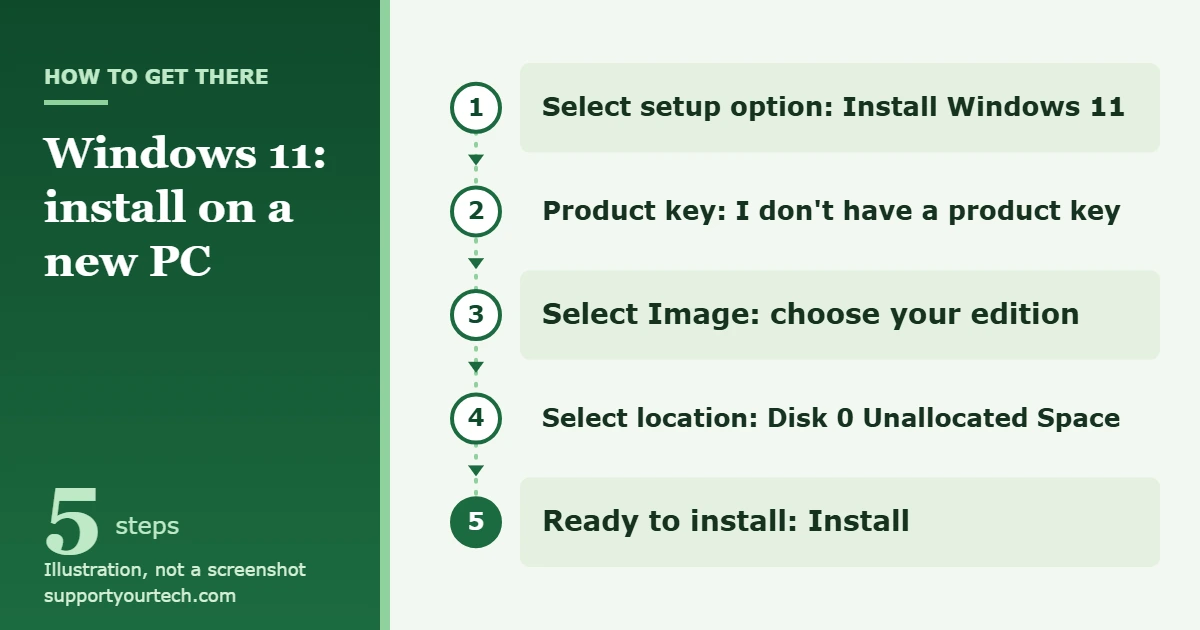
- In the Select setup option window, select Install Windows 11. Tick I agree everything will be deleted including files, apps, and settings, then select Next.
- If the Product key window appears, type your 25-character key. If your license is a digital license tied to your Microsoft account, or you plan to enter the key later, select I don’t have a product key.
- If the Select Image window appears, choose the edition that matches your license, such as Windows 11 Home or Windows 11 Pro, then select Next. Microsoft’s guidance is to select the edition that matches your license.
- In the Applicable notices and license terms window, select Accept.
- In the Select location to install Windows 11 window, select the new drive. On a PC with one empty drive it appears as Disk 0 Unallocated Space. Make sure it is highlighted, then select Next. Setup creates the partitions it needs.
- In the Ready to install window, select Install.
- Wait. The PC restarts several times while Windows is installed. Do not turn it off during this stage.
If the drive is not empty, for example a used drive moved from another computer, the same window lists its existing partitions. Microsoft’s instructions are to select each partition on the disk one at a time and choose Delete Partition until only unallocated space is left, then select that space and continue. This permanently removes the files on that disk.
Step 4: Finish first-time setup
When the files are installed, Windows starts its configuration wizard. The exact screens change between Windows 11 releases, so read each one rather than relying on a fixed list.
- Step through the wizard and choose the settings you want. You can change them later in Settings.
- Connect the PC to the internet when the wizard asks.
- Sign in with your Microsoft account. Microsoft advises signing in with the account that holds your Windows license so that the digital license or product key saved to it is applied to the new installation.
- When the desktop appears, remove the USB installer.
If you changed the boot order in the firmware settings to start from USB, Microsoft recommends changing it back afterwards so the PC starts from its internal drive.
Step 5: Update Windows and install drivers
A driver is the software that lets Windows talk to a piece of hardware, such as the graphics card or the Wi-Fi adapter. Microsoft says the best way to get driver updates is automatically through Windows Update, so start there.
- Select Start > Settings > Windows Update.
- Check for updates. If updates are available, select Download & install.
- Restart when asked, then check again. Repeat until nothing new is offered.
To see whether any hardware is still missing a driver, right-click the Start menu and select Device Manager. Expand a category, right-click a device, and select Update driver, then choose Search automatically for updated driver software. If Windows finds nothing, download the driver from the hardware maker’s official website and use Browse my computer for drivers instead. Microsoft advises contacting the device manufacturer rather than using third-party driver download sites.
How to confirm Windows 11 is installed and activated
- Select Start > Settings > System > Activation.
- Read the line next to Activation status. A working license shows Windows is activated, Windows is activated with a digital license, or Windows is activated with a digital license linked to your Microsoft account.
- If it shows Windows is not activated, select Change product key on the same page and enter your 25-character key.
To check which edition was installed, open Settings > System > About and look at Edition under Windows specifications. It has to match the edition your license is for. Microsoft’s Activate Windows page explains each activation message in more detail.
Troubleshooting a Windows 11 install on a new PC
The PC does not start from the USB drive
Restart and press the boot menu key again as soon as the PC powers on. The key varies by maker. Microsoft lists Esc, Delete, F1, F2, F10, F11, and F12 as the common ones for opening firmware menus. If the USB drive is not listed at all, try a different USB port, and check the manufacturer’s instructions for enabling USB boot. If it still fails, create the installer again with the media creation tool, ideally on a different flash drive.
Setup says the PC does not meet the Windows 11 requirements
On a new PC this is usually a setting rather than a missing part. Open the firmware settings and check two things: that the TPM option is turned on (look for Security Device, TPM State, or Intel PTT), and that the boot mode is UEFI rather than Legacy or CSM. Microsoft links to instructions from Asus, Dell, HP, Lenovo, and Surface on its Enable TPM 2.0 on your PC page. If the processor itself is not on Microsoft’s compatible list, no setting will fix that.
“Windows cannot be installed to this disk. The selected disk is not of the GPT partition style”
This message means the PC started in UEFI mode, but the drive was previously set up in the older MBR layout. GPT and MBR are two ways of organizing a disk, and UEFI needs GPT. It normally happens with a reused drive. The fix Microsoft documents is to delete every partition on that disk in the location window, select the unallocated space, and select Next. Setup then prepares the drive in GPT format. This erases the disk, so copy anything you need from it using another computer first.
No drives appear in the location window
Turn the PC off and check that the drive is seated properly and, for a SATA drive, that both the data and power cables are connected. Then open the firmware settings and confirm the drive is detected there. If the firmware sees the drive but Setup does not, the storage controller may need a driver or a different firmware setting. That depends on the motherboard, so follow the motherboard or PC manufacturer’s documentation for installing Windows.
Windows is not activated after setup
Connect to the internet and sign in with the Microsoft account your license is linked to. Activation usually happens automatically once the PC is online. If you have a product key, enter it under Settings > System > Activation > Change product key. Check that the installed edition matches the key. A digital license is associated with the hardware it was activated on, so a license that came with a different computer may not activate on a new one.
The PC keeps returning to Setup after a restart
The PC is starting from the USB drive again instead of the internal drive. Remove the USB installer and restart. If you changed the boot order in the firmware, set the internal drive back to first place.
The installer is for a work or school PC
If the PC belongs to an employer or school, do not install a personal copy of Windows on it. Organizations normally use their own licenses and setup process, so ask the IT department.
Frequently asked questions
Can I install Windows 11 without a product key?
Setup lets you continue by selecting I don’t have a product key. That is the right choice when your license is a digital license linked to your Microsoft account, or when you will type the key after installation. You still need a valid license to activate Windows. Microsoft lists a Windows 11 license as a requirement for using the installation media.
Where do I find my Windows 11 product key?
It depends on how you bought Windows. A boxed retail copy has the key on a label or card inside the box. A digital copy from an authorized retailer has it in the confirmation email. A purchase from the Microsoft Store shows it in the confirmation email or your Microsoft account order history.
Should I choose Windows 11 Home or Pro?
Choose the edition you have a license for. The product key or digital license only activates the matching edition, so Microsoft says to select the edition that matches your license in the Select Image window.
Do I need the internet to install Windows 11?
You need it on the working PC to download the installer. Copying Windows to the new drive happens from the USB drive, but Microsoft states that Windows 11 Home and Pro need internet connectivity and a Microsoft account to complete first-time setup, and you need it afterwards for updates and activation.
Will installing Windows 11 erase my drives?
Setup erases the disk you select in the Select location to install Windows 11 window. Other disks are left alone unless you delete their partitions yourself. On a PC with several drives, identify the right disk by its size before you continue.
Can I use a DVD instead of a USB drive?
Yes. The media creation tool can save an ISO file to burn to a blank DVD with 8 GB of capacity. You need a DVD burner to make the disc and a DVD drive in the new PC to use it, so a USB flash drive is usually easier.
Can I reuse the USB installer?
The installation media is not used up by an install, and Microsoft describes it as a tool for both new installations and reinstalling Windows. Each PC you install on still needs its own valid Windows 11 license.
Once Windows Update shows nothing left to install and the Activation page shows that Windows is activated, the new PC is ready for your apps and files. Keep the USB installer somewhere safe, because it also works as a repair and reinstall tool. If you ever need to wipe the PC and start over, see how to do a clean install of Windows 11.
Related: how to skip Wi-Fi setup on Windows 11.

Matt Jacobs has been working as an IT consultant for small businesses since receiving his Master’s degree in 2003. While he still does some consulting work, his primary focus now is on creating technology support content for SupportYourTech.com.
His work can be found on many websites and focuses on topics such as Microsoft Office, Apple devices, Android devices, Photoshop, and more.