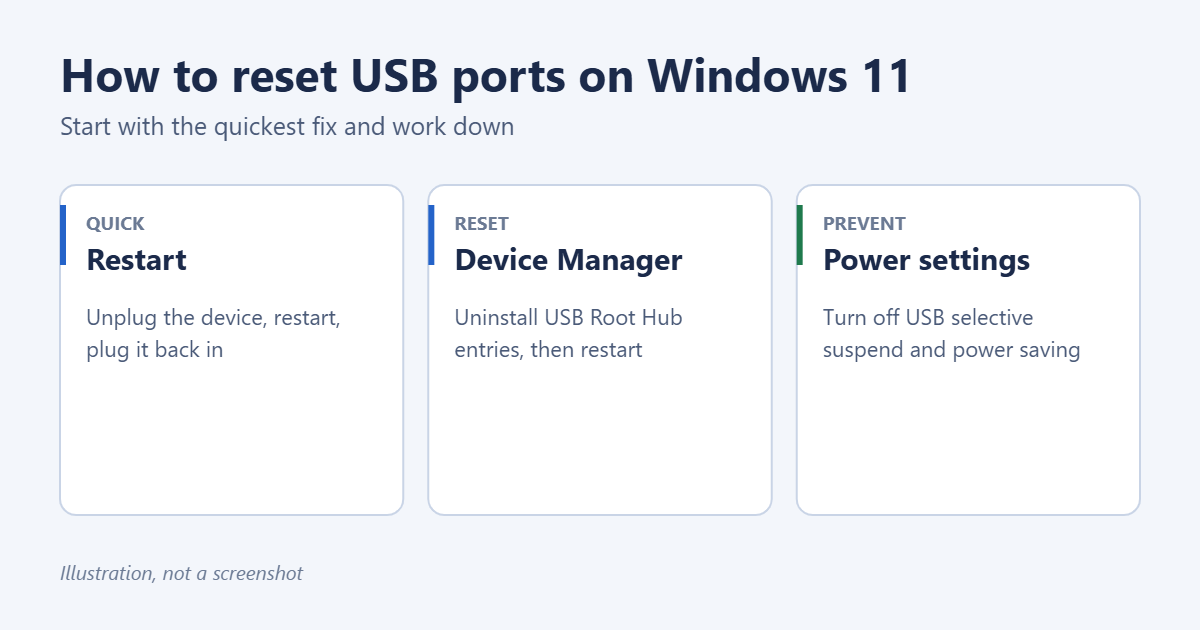
To reset USB ports on Windows 11, open Device Manager, expand Universal Serial Bus controllers, right-click each USB Root Hub and USB Host Controller entry, select Uninstall device, and restart your PC. Windows reinstalls the USB drivers automatically, which resets every port. Try a simple restart first, and if ports stop working again later, turn off USB selective suspend so Windows doesn’t cut power to them.
Applies to: Windows 11 Home and Pro on desktops and laptops, including USB-A and USB-C ports. Most steps also work in Windows 10. Last reviewed October 7, 2026.
Before you start: rule out the device
Many “dead port” problems are really a faulty cable, hub or device. A quick check saves time:
- Try the device in another port, and try a different device in the port that isn’t working.
- Swap the cable. Charge-only USB cables don’t carry data, and worn cables fail intermittently.
- Plug in directly. Remove any USB hub, dock or extension cable and connect the device straight to the PC.
- Look inside the port. Lint or debris can block the contacts. Turn the PC off and blow it out gently with compressed air.
If one device fails in every port, the device or cable is the problem. If every device fails in one port, keep reading.
Method 1: Restart your PC
A restart reloads the USB drivers and resets the controller. Select Start > Power > Restart. Use Restart rather than Shut down, because Windows 11’s Fast Startup can keep some driver states between shutdowns.
Method 2: Drain the power
If a restart doesn’t help, a full power cycle clears USB controllers that are stuck:
- Shut down the PC.
- Unplug the power cable. On a laptop, also disconnect the charger and every USB device.
- Hold the power button for 15 to 30 seconds.
- Plug the power back in, turn the PC on, and reconnect your devices one at a time.
Method 3: Reset USB controllers in Device Manager
This is the closest thing to a “reset button” for USB ports in Windows.
- Right-click Start and select Device Manager.
- Expand Universal Serial Bus controllers.
- Right-click the first entry named USB Root Hub, USB Root Hub (USB 3.0) or USB Host Controller, and select Uninstall device. Confirm with Uninstall.
- Repeat for the other root hub and host controller entries. If your USB mouse or keyboard stops working partway through, use the touchpad or built-in keyboard, or skip to the next step.
- Restart the PC. Windows reinstalls the controllers and root hubs automatically.
If you can’t restart easily, select Action > Scan for hardware changes in Device Manager to reinstall them without restarting.
Reset a single device instead
To reset only the device that’s misbehaving, find it in Device Manager (often under Universal Serial Bus controllers, Disk drives or Human Interface Devices), right-click it, select Disable device, wait a few seconds, then right-click it again and select Enable device.
Method 4: Turn off USB power saving
Windows can turn off USB ports to save power, especially on laptops. If ports stop working after sleep or after sitting idle, turn this off.
Turn off USB selective suspend
- Open Control Panel, select Hardware and Sound > Power Options.
- Select Change plan settings next to your current plan, then Change advanced power settings.
- Expand USB settings > USB selective suspend setting.
- Set it to Disabled. On a laptop, set both On battery and Plugged in.
- Select OK.
Some newer laptops that use Modern Standby don’t show this option. Use the next steps instead.
Stop Windows turning off the root hubs
- In Device Manager, double-click a USB Root Hub entry.
- Select the Power Management tab.
- Clear Allow the computer to turn off this device to save power and select OK.
- Repeat for each root hub.
Method 5: Update USB and chipset drivers
- Open Settings > Windows Update and select Check for updates.
- Select Advanced options > Optional updates > Driver updates and install anything for USB, chipset or Thunderbolt.
- For the newest chipset drivers, check your PC maker’s support site, or Intel’s or AMD’s site for a custom PC.
See how to update USB drivers in Windows 11 for detailed steps.
Method 6: Check USB settings in Windows and the BIOS
- Windows settings: open Settings > Bluetooth & devices > USB. Turn on Connection notifications so Windows tells you about USB problems, such as a slow charger or a device that needs more power.
- BIOS/UEFI: some PCs let you turn USB ports off in the firmware. If ports have never worked since a BIOS update or reset, open the BIOS and make sure USB controllers and Legacy USB support are enabled.
USB-C ports
USB-C ports carry data, charging and often video. If a USB-C device charges but doesn’t work, or only works slowly, Windows may show a message such as “Display connection might be limited” or “Slow USB charger connected”. These usually point to the cable or device supporting fewer features than the port. Microsoft’s guide to fixing USB-C problems in Windows explains each message. Try a cable labeled for data and video, or a Thunderbolt cable if your PC supports it.
Desktop front-panel ports
On a desktop PC, the USB ports on the front of the case connect to the motherboard by an internal cable. If every front port is dead but the rear ports work, that cable may have come loose, especially after the PC was moved or upgraded.
- Use a rear port in the meantime. Rear ports are soldered directly to the motherboard and are usually more reliable.
- If you’re comfortable opening the case, shut down, unplug the PC, and check that the front-panel USB cables are firmly seated in the motherboard headers labeled USB or USB3. Your motherboard manual shows where they are.
- If you’re not comfortable doing that, a repair shop can check it quickly.
Power-hungry devices
Each USB port supplies a limited amount of power. A standard USB 2.0 port provides 0.5 amps, a USB 3.0 port 0.9 amps, and USB-C ports more depending on the PC. Devices that need more, such as portable hard drives without their own power supply, some webcams and phone chargers, may disconnect, click, or not appear at all.
- Plug the device into a rear port or a USB-C port, which often supply more power.
- Use a powered USB hub, which has its own power adapter, for several devices or large drives.
- For external hard drives with a Y-cable, connect both plugs.
Test in Safe Mode
If USB works in Safe Mode but not normally, a program or driver installed on your PC is interfering, such as a security app or an old device utility.
- Open Settings > System > Recovery and select Restart now next to Advanced startup.
- Select Troubleshoot > Advanced options > Startup Settings > Restart, then press 4 for Safe Mode.
- Test your USB device. If it works, restart normally and uninstall recently added apps or device software one at a time.
Troubleshooting
Device Manager shows a yellow warning on a USB entry
Double-click it and read the Device status. A driver error usually clears with the uninstall-and-restart steps above. “Device descriptor request failed” often means a faulty cable or device.
USB ports stop working after sleep
Turn off USB selective suspend and root hub power saving (Method 4). Also update the chipset driver, which controls how ports wake up.
Only USB 3.0 (blue) ports fail
The USB 3.0 controller driver is the likely cause. Uninstall the USB 3.0 eXtensible Host Controller entry in Device Manager, restart, and install the chipset driver from your PC maker.
A port is loose or physically damaged
No software reset will fix a broken port. On a desktop, use a port on the back panel or add a USB expansion card. On a laptop, a repair shop can replace the port or the board it’s on.
The USB drive is detected but can’t be written to
That’s a drive problem, not a port problem. See how to remove write protection from a USB drive.
Frequently asked questions
Is it safe to uninstall USB controllers in Device Manager?
Yes. Windows reinstalls them automatically when you restart. Your USB keyboard and mouse may stop working until the restart, so use a laptop’s built-in keyboard or restart with the power button if needed.
Is there a command to reset USB ports?
Windows doesn’t have a single command for it. Advanced users can restart one device from an admin Terminal with pnputil /restart-device "DEVICE_ID", using the device instance path from the Details tab in Device Manager.
How do I see what’s connected to my USB ports?
See how to see connected USB devices on Windows 11.
Why does my USB device keep disconnecting and reconnecting?
Usually power saving, a loose connection or a device that draws more power than the port supplies. Turn off selective suspend, try a different cable, and use a powered USB hub for hard drives.
Related: How to check USB ports on Windows 11.
Related: how to check if a Thunderbolt port is working on Windows 10.

Matt Jacobs has been working as an IT consultant for small businesses since receiving his Master’s degree in 2003. While he still does some consulting work, his primary focus now is on creating technology support content for SupportYourTech.com.
His work can be found on many websites and focuses on topics such as Microsoft Office, Apple devices, Android devices, Photoshop, and more.