To see connected USB devices in Windows 10, go to Settings > Devices > Bluetooth & other devices. For a complete list, open Device Manager and select View > Devices by connection. It shows every device under the USB port and hub it’s plugged into.
Applies to: Windows 10. Checked on September 24, 2026.
Check Settings
Press Windows + I and select Devices > Bluetooth & other devices. Mice, keyboards, drives, and other USB devices are listed under Mouse, keyboard, & pen, Other devices, and Audio.
See USB drives in File Explorer
Press Windows + E and select This PC. Flash drives and external hard drives appear under Devices and drives with their own drive letter.
If a drive doesn’t appear, see how to fix a USB flash drive that isn’t recognized in Windows 10.
Use Device Manager
- Right-click Start and select Device Manager.
- Select View > Devices by connection.
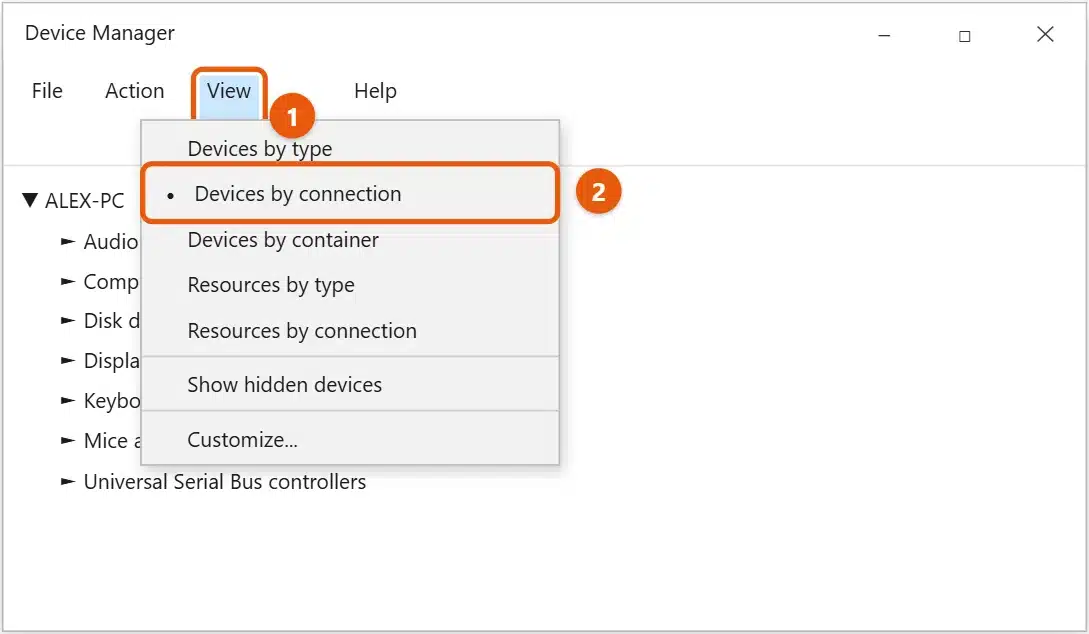
- Expand your PC’s name, then keep expanding down to USB Root Hub. The devices plugged into each port are listed under it.
The default view (Devices by type) also has a Universal Serial Bus controllers section. It lists your USB controllers and hubs, but most devices appear in their own sections, such as Disk drives, Mice and other pointing devices, and Keyboards.
List USB devices with PowerShell
Right-click Start, select Windows PowerShell, and run:
Get-PnpDevice -PresentOnly | Where-Object InstanceId -match '^USB' | Format-Table FriendlyName, Class, Status -AutoSize
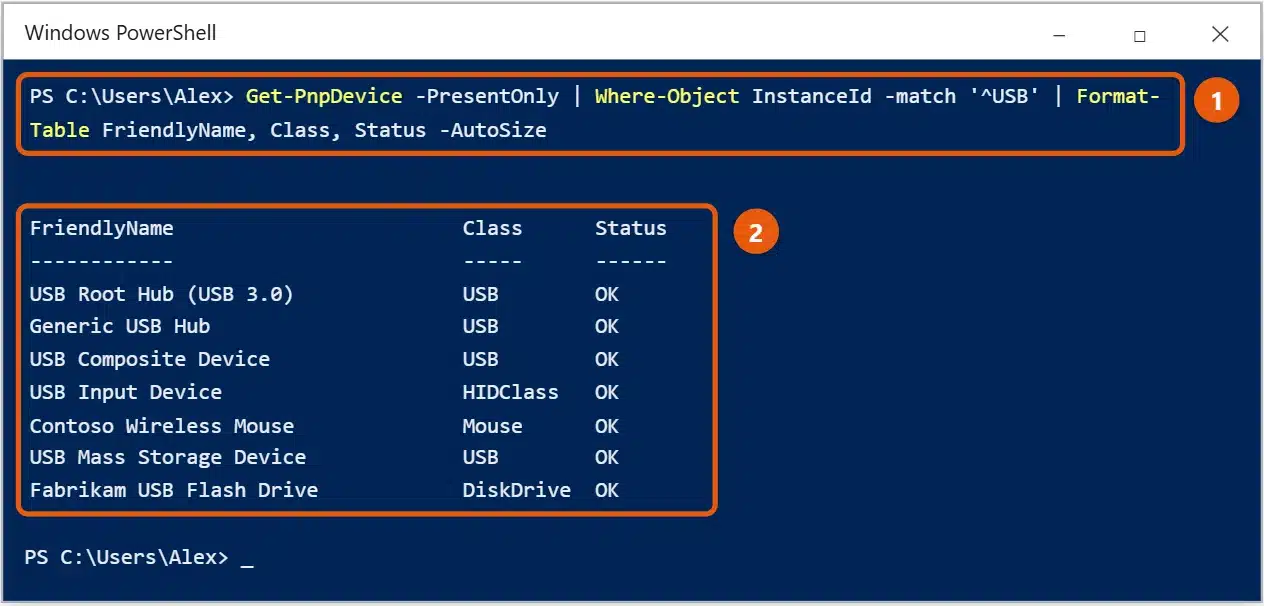
Status shows OK for devices that are working. Error means the device has a driver or hardware problem. To identify a device with a generic name, check its hardware ID.
See USB devices that were connected before
- Device Manager: select View > Show hidden devices. Devices that aren’t connected now appear faded.
- USB drives: in PowerShell, run
Get-ItemProperty 'HKLM:\SYSTEM\CurrentControlSet\Enum\USBSTOR\*\*' | Select-Object FriendlyNameto list USB storage devices that have been plugged in. This only reads the list. Don’t change anything in the registry.
Get the full USB tree
To see the files on a USB drive, see how to open a flash drive or external drive in Windows 10.
Microsoft’s free USBView tool, included with the Debugging Tools for Windows, shows every port, hub, and device with its speed and power use. It’s useful for tracking down which port a device is on.
Safely remove a USB drive
Select the Safely Remove Hardware and Eject Media icon on the taskbar (you may need to select the ^ arrow first), then select the drive to eject.
If a device shows as “Unknown USB Device”
In Device Manager, a device listed as Unknown USB Device (Device Descriptor Request Failed) is plugged in but Windows can’t talk to it. Try these in order:
- Unplug it, wait 10 seconds, and plug it into a different port, preferably one on the back of a desktop PC rather than a hub or front panel.
- Right-click the device in Device Manager, select Uninstall device, unplug it, and restart the PC before plugging it back in.
- Stop Windows from powering down USB ports: open Control Panel > Power Options > Change plan settings > Change advanced power settings, expand USB settings, and set USB selective suspend setting to Disabled.
- Try the device on another PC. If it fails there too, the device or its cable is faulty.
Frequently asked questions
Why doesn’t my USB device show up?
Unplug it and plug it into a different port, directly on the PC rather than through a hub. In Device Manager, select Action > Scan for hardware changes. If that doesn’t help, see how to reset USB ports on Windows 10.
How can I tell which ports are USB 3.0?
USB 3.0 ports are often blue inside or have an SS logo. In Device Manager, a hub named USB Root Hub (USB 3.0) is a USB 3.0 hub. To match ports to numbers, see how to find a USB port number in Windows 10.
Is there a way to do this in Windows 11?
Yes, the same tools work. See how to open a USB drive on Windows 11.
If your USB webcam shows up here but doesn’t work, see how to test your camera on Windows 10.
To copy photos from an iPhone you plug in, see how to transfer photos from iPhone to PC in Windows 10.
Before you unplug a USB drive, see how to safely eject an external hard drive in Windows 10.
To find the COM number of a serial device, see how to check COM ports in Windows 10.
To stop USB drives from working on a PC, see how to disable USB ports in Windows 10.
If a device keeps disconnecting, see how to reinstall USB drivers in Windows 10. To split an external drive into sections, see how to partition a hard drive in Windows 10. More help is on our Windows Help & Guides page.
Related: How to check computer activity history on Windows 10.

Matt Jacobs has been working as an IT consultant for small businesses since receiving his Master’s degree in 2003. While he still does some consulting work, his primary focus now is on creating technology support content for SupportYourTech.com.
His work can be found on many websites and focuses on topics such as Microsoft Office, Apple devices, Android devices, Photoshop, and more.