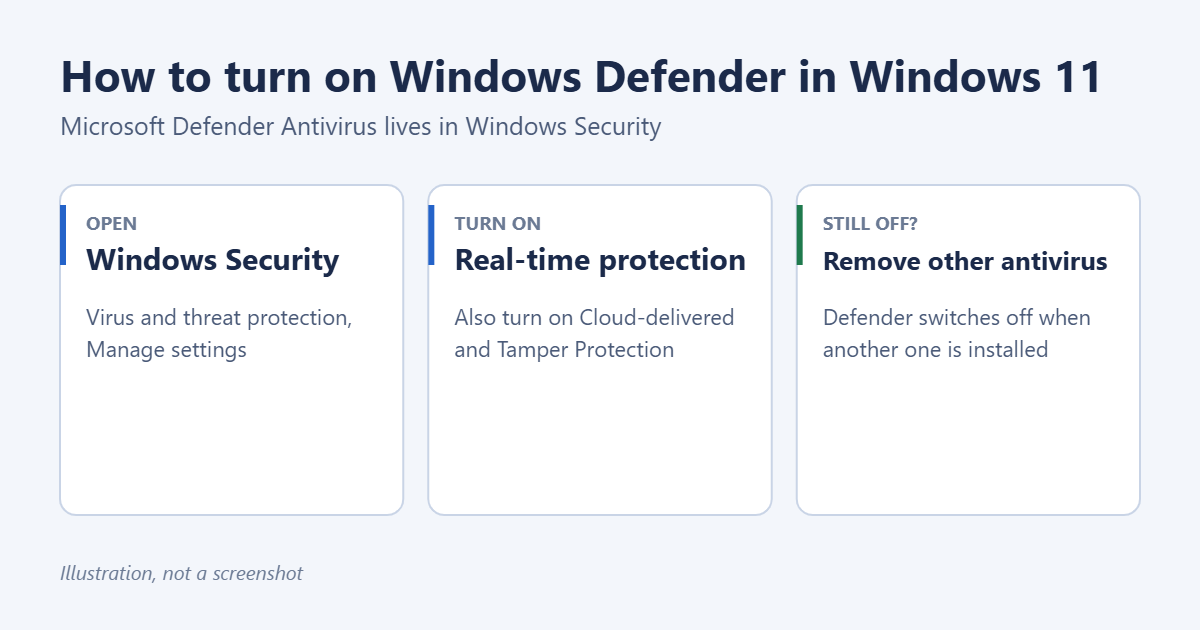
To turn on Windows Defender in Windows 11, open the Windows Security app, select Virus & threat protection, then Manage settings under Virus & threat protection settings, and switch Real-time protection to On. If the switch is missing or grayed out, another antivirus program is probably installed. Windows turns Defender off automatically when it detects one, so uninstall the other program and Defender turns back on by itself.
Applies to: Windows 11 Home and Pro. Windows Defender is now called Microsoft Defender Antivirus and is part of the Windows Security app.
Check whether Defender is already on
- Select Start, type Windows Security, and open it. You can also select the shield icon in the system tray.
- Look at Virus & threat protection on the home page. A green check mark means Defender is on and up to date.
- A yellow or red icon means something needs attention. Select it to see what.
If you see the name of another antivirus app, such as Norton or McAfee, that app is protecting your PC instead, and Defender is in standby.
Turn on real-time protection
- In Windows Security, select Virus & threat protection.
- Under Virus & threat protection settings, select Manage settings.
- Turn on Real-time protection. Select Yes if User Account Control asks.
- While you’re there, also turn on Cloud-delivered protection, Automatic sample submission and Tamper Protection.
Real-time protection scans files as you open and download them. If you turned it off temporarily, Windows turns it back on automatically after a short time. Each setting is explained in staying protected with Windows Security.
If another antivirus is installed
Windows runs only one real-time antivirus at a time. When you install a third-party antivirus, Defender switches to passive mode. To turn Defender back on:
- Open Settings > Apps > Installed apps.
- Find the other antivirus, select the three dots, and choose Uninstall. Some security suites have their own removal tool on the maker’s website if the normal uninstall fails. Removing McAfee from Windows 11 is one example.
- Restart the PC.
- Open Windows Security and check that Real-time protection is on.
Trial antivirus software that came with a new PC often stays installed after the trial ends, leaving the PC unprotected. Removing it is the most common fix for “Defender won’t turn on”.
Keep the other antivirus and use Defender as backup
If you want to keep a third-party antivirus, you can still let Defender scan occasionally. Under Virus & threat protection, expand Microsoft Defender Antivirus options and turn on Periodic scanning.
Turn on the Defender firewall
The firewall is separate from the antivirus. In Windows Security, select Firewall & network protection. Each network type (Domain, Private and Public) should say Firewall is on. If one is off, select it and turn on Microsoft Defender Firewall.
If a policy turned Defender off
If Windows Security says This setting is managed by your administrator on a PC you own, a Group Policy or registry setting may have disabled Defender, often left behind by a tweaking tool.
Windows 11 Pro: check Group Policy
- Press Windows logo key + R, type gpedit.msc, and press Enter.
- Go to Computer Configuration > Administrative Templates > Windows Components > Microsoft Defender Antivirus.
- Double-click Turn off Microsoft Defender Antivirus, select Not Configured, and select OK.
- Open the Real-time Protection folder and set Turn off real-time protection to Not Configured as well.
- Restart the PC.
Check with PowerShell
- Right-click Start and select Terminal (Admin).
- Run
Get-MpComputerStatusand look at AntivirusEnabled and RealTimeProtectionEnabled. Both should say True. - If real-time protection is off, run
Set-MpPreference -DisableRealtimeMonitoring $false.
On a work or school PC, the organization controls these settings. Contact your IT department instead.
Update Defender and run a scan
- In Windows Security, select Virus & threat protection.
- Under Virus & threat protection updates, select Protection updates > Check for updates.
- Go back and select Quick scan. For a deeper check, select Scan options > Full scan > Scan now.
Troubleshooting
Windows Security won’t open or shows a blank page
Reset the app. Open Terminal (Admin) and run Get-AppxPackage Microsoft.SecHealthUI | Reset-AppxPackage, then restart. Also install all pending updates in Windows Update.
Real-time protection keeps turning off
Check for another antivirus, a policy as described above, or malware that’s disabling it. Run a Microsoft Defender Offline scan from Scan options, which restarts the PC and scans before Windows loads.
Tamper Protection is grayed out
Your organization manages it, or the device is enrolled in a management service. On a personal PC, sign out of any work accounts under Settings > Accounts > Access work or school.
Smart App Control is off and won’t turn on
Smart App Control can only be turned on during a fresh Windows setup. Once it’s off, the only way to turn it back on is to reset or reinstall Windows. Real-time protection still protects you without it.
Frequently asked questions
Is Windows Defender good enough on its own?
For most home users, yes. Microsoft Defender Antivirus is built in, updates automatically through Windows Update, and scores well in independent tests.
Is Windows Defender free?
Yes. It’s included with Windows 11. The separate Microsoft Defender app included with Microsoft 365 Personal and Family adds protection for phones and other devices.
How do I turn Defender off temporarily?
Turn off Real-time protection in Manage settings. It turns back on automatically. The full steps are in turning off real-time protection in Windows 11. Turn it back on as soon as you’re done.
Not sure which antivirus is running? Check what antivirus you have on Windows 11. If you keep Norton, you can also stop Norton from blocking a program.

Matt Jacobs has been working as an IT consultant for small businesses since receiving his Master’s degree in 2003. While he still does some consulting work, his primary focus now is on creating technology support content for SupportYourTech.com.
His work can be found on many websites and focuses on topics such as Microsoft Office, Apple devices, Android devices, Photoshop, and more.