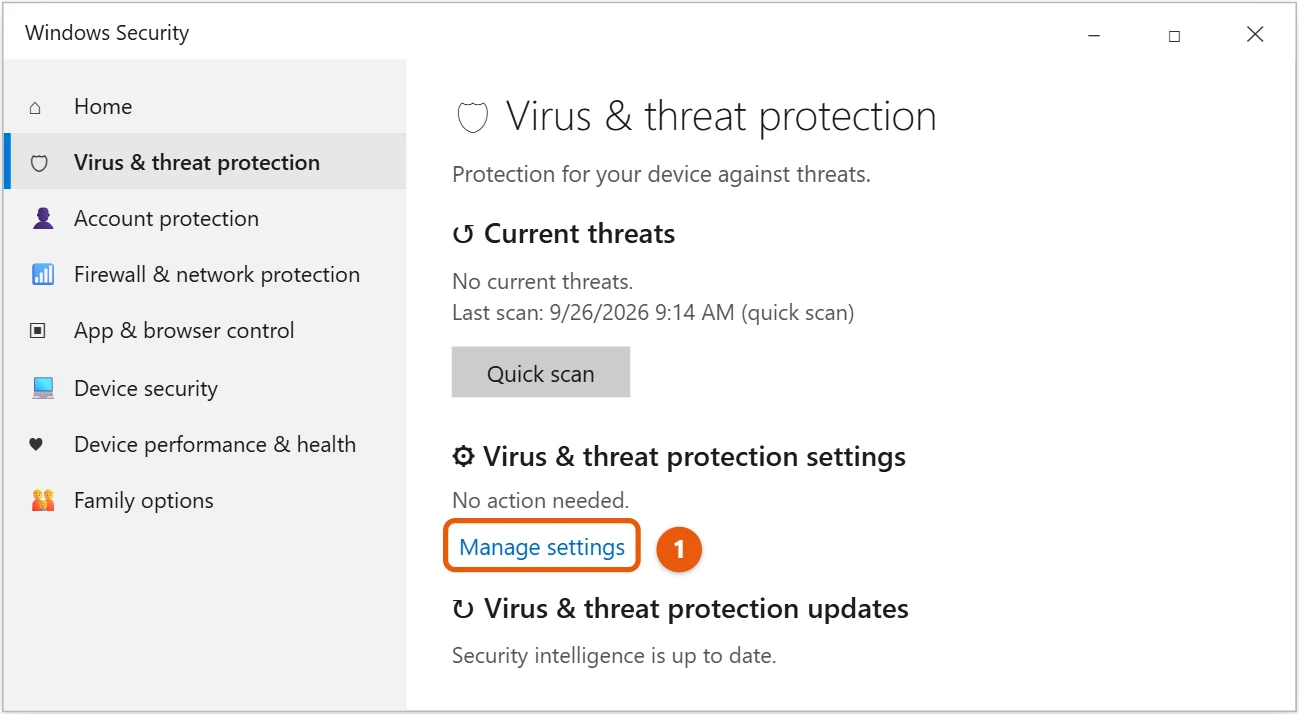
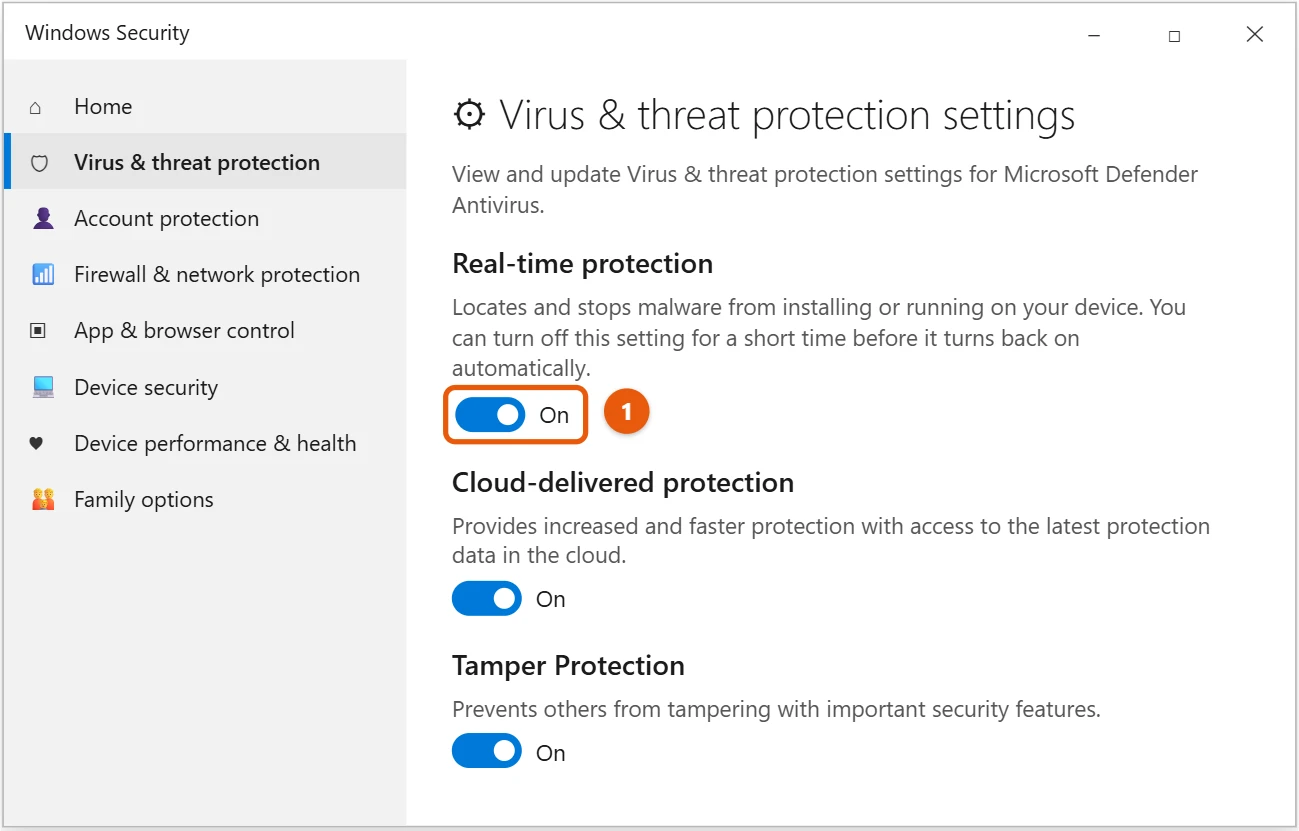
To turn Windows Defender on or off in Windows 10, open Windows Security and select Virus & threat protection > Manage settings. Then switch Real-time protection on or off. If you turn it off, it turns back on by itself after a short while.
Applies to: Windows 10. Keep in mind that Windows 10 support ended on October 14, 2025. Security updates now come only through the Extended Security Updates program, which stops on October 12, 2027.
Windows Defender is now called Microsoft Defender Antivirus. It’s built into Windows 10 and protects the PC unless another antivirus app is installed. Here’s how to install antivirus in Windows 10 if you go that route.
Turn real-time protection on or off
- Select Start > Settings > Update & Security > Windows Security > Open Windows Security. Or type Windows Security in the search box.
- Select Virus & threat protection. Under Virus & threat protection settings, select Manage settings.
- Switch Real-time protection to On or Off. Select Yes if Windows asks for permission.
Scheduled scans still run while real-time protection is off.
Why it turns itself back on
Turning off real-time protection in Windows Security is meant to be temporary. Windows switches it back on automatically after a while, or at the next restart. That’s by design, so a PC isn’t left unprotected by mistake. To turn it off for good, you’d need to install another antivirus, which makes Defender step aside on its own. If you uninstall that app later, Defender turns back on.
A safer option: exclude one file or folder
If Defender keeps blocking or slowing down something you trust, such as a game folder or a development project, exclude just that item instead of turning protection off:
- Open Windows Security and select Virus & threat protection.
- Under Virus & threat protection settings, select Manage settings.
- Scroll to Exclusions and select Add or remove exclusions.
- Select Add an exclusion, choose File, Folder, File type, or Process, and pick the item.
Only exclude things you’re sure are safe. Defender won’t scan them at all.
Run a scan
With Defender on, select Virus & threat protection and choose Quick scan. For a deeper check, select Scan options and pick Full scan, which can take an hour or more. If you suspect malware that hides while Windows is running, choose Microsoft Defender Offline scan. The PC restarts and scans before Windows loads.
To check one file or folder, right-click it in File Explorer and select Scan with Microsoft Defender. Before a full scan, select Virus & threat protection updates > Check for updates so Defender has the latest definitions.
The icons in Windows Security show where things stand: a green check means you’re protected, yellow means there’s a recommendation, and red means something needs attention now, such as real-time protection being off.
If you can’t turn it on
- Another antivirus is installed. Uninstall it, or turn it off in its own settings, then check Windows Security again.
- Some settings are grayed out. Your organization may manage them, which Windows Security says under the setting.
- Windows Security won’t open. Run Windows Update, then restart the PC.
Frequently asked questions
Is Windows Defender enough protection?
For most home users, yes. Keep it on, keep Windows updated, and run a scan if something seems wrong, as described in checking for malware on Windows 10.
Is the firewall the same thing?
No. The firewall controls network connections and has its own settings, covered in turning off the firewall in Windows 10.
How do I turn off Tamper Protection?
It’s on the same Manage settings page. Tamper Protection stops apps from changing your security settings, so leave it on unless a trusted tool tells you to turn it off.
Can Defender still scan if I use another antivirus?
Yes. In Virus & threat protection, expand Microsoft Defender Antivirus options and turn on Periodic scanning. Defender then runs occasional scans as a second opinion without getting in the way of your main antivirus.
Removing another antivirus so Microsoft Defender can take over? Start with uninstalling McAfee on Windows 10. Keeping Defender off for longer is covered in disabling Defender in Windows 10.
The official steps are on Turn off Defender antivirus protection in Windows Security.

Matt Jacobs has been working as an IT consultant for small businesses since receiving his Master’s degree in 2003. While he still does some consulting work, his primary focus now is on creating technology support content for SupportYourTech.com.
His work can be found on many websites and focuses on topics such as Microsoft Office, Apple devices, Android devices, Photoshop, and more.