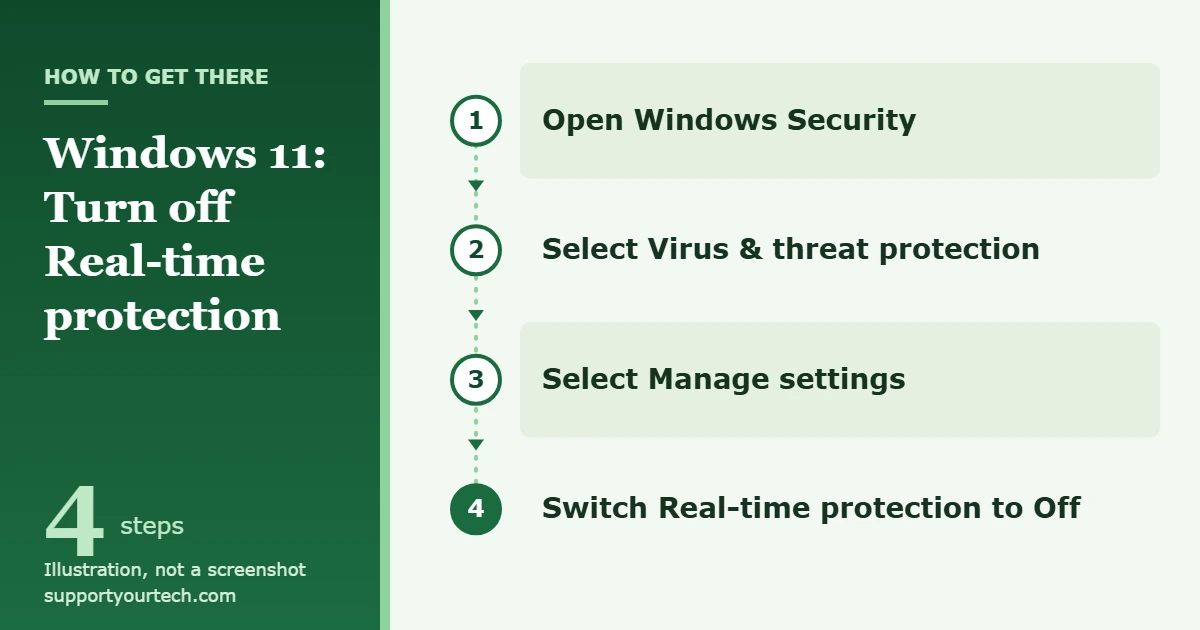
To disable Windows Defender in Windows 11, open Windows Security, select Virus & threat protection, choose Manage settings under Virus & threat protection settings, and switch Real-time protection to Off. This is a temporary pause: Windows turns real-time protection back on by itself after a short while. The only lasting way Microsoft supports on a home PC is to install another antivirus program, which makes Microsoft Defender Antivirus step aside automatically.
Applies to: Windows 11 (Microsoft Defender Antivirus, managed through the Windows Security app). Checked against Microsoft Support and Microsoft Learn on October 6, 2026.
What “Windows Defender” means in Windows 11
The names can be confusing, so it helps to sort them out before you change anything.
- Microsoft Defender Antivirus is the built-in antivirus engine. Most people still call it Windows Defender. This is the part that scans files as you open or download them.
- Windows Security is the app where you see and change protection settings. It has several sections, including Virus & threat protection, Firewall & network protection and App & browser control.
- Real-time protection is the setting that watches files and programs while you use the PC. Turning this off is what most guides mean by “disabling Defender.”
- Tamper Protection is a safeguard that stops apps from changing important antivirus settings, such as real-time protection and cloud-delivered protection, behind your back.
Turning off real-time protection does not switch off the firewall, the reputation checks in App & browser control, or the other sections of Windows Security. Each of those has its own switch, covered later in this article.
Before you turn it off
- You need an administrator account. Microsoft states that you must have admin permissions on the device to change security settings such as Tamper Protection. If Windows asks for permission while you follow the steps, approve the request.
- Know what stops. While real-time protection is off, files you open or download are not scanned for threats. Scheduled scans keep running, but a file you download or install will not be checked until the next scheduled scan. To check a file yourself in the meantime, run a malware scan in Windows 11.
- Consider an exclusion instead. If one trusted file, folder or program is being blocked or slowed down, Microsoft says adding an exclusion is safer than turning off the entire antivirus. The steps are in the exclusions section below.
- Check where the file came from. If you are pausing protection to install a program that Defender flags, make sure you downloaded it from the developer’s own site. A warning on an installer from an unknown source is often correct.
- Plan to turn it back on. Windows will do this on its own after a short while, but you should not rely on the timer. Switch protection back on as soon as your task is finished.
Turn off real-time protection in Windows Security
This is the method Microsoft documents for temporarily turning off Defender antivirus protection. It needs no extra tools and reverses itself.
- Open Windows Security. Select Start and type Windows Security, then select the app in the search results. The Windows Security window opens with a list of protection areas.
- Select Virus & threat protection. This page shows current threats, scan options, and the antivirus settings.
- Select Manage settings. You will find this link under the Virus & threat protection settings heading. A page of switches opens, starting with Real-time protection.
- Switch Real-time protection to Off. If Windows asks you to confirm or to allow the change, approve it. The switch now reads Off, and files you open or download are no longer scanned as you use them.
- Do the task you turned it off for, then come back to the same page and switch Real-time protection to On.
There are two other ways to reach the same app. You can select the shield icon in the notification area of the taskbar, or open Settings and go to Privacy & security > Windows Security. All three routes lead to the same Virus & threat protection page.
How long does it stay off?
Not for long. Microsoft’s wording is that real-time protection “will turn back on automatically after a short while” to resume protecting the device. Microsoft does not publish an exact number of minutes, so treat any specific figure you read elsewhere as a guess. If you need more time, you can switch it off again, but for anything that takes longer than a quick install, an exclusion or a replacement antivirus is the better tool.
If the Real-time protection switch will not turn off
Microsoft’s instructions include this note: if Tamper Protection is turned on, you will need to turn Tamper Protection off before you can turn real-time protection off. Tamper Protection is designed so that an administrator can still change settings inside the Windows Security app while other apps cannot, so on many home PCs the switch works without this extra step. If yours does not, do the following.
- Select Start, type Security, and select Windows Security in the results.
- Select Virus & threat protection, then open Virus & threat protection settings by selecting Manage settings.
- Set Tamper Protection to Off and approve the change if Windows asks.
- Switch Real-time protection to Off.
- When you are finished, set both Real-time protection and Tamper Protection back to On.
Do not leave Tamper Protection off. It exists to stop malicious apps from switching off your antivirus settings, and it has no effect on how other antivirus apps work or register with Windows Security, so there is rarely a reason to keep it disabled.
Replace Defender with another antivirus program
If you want Microsoft Defender Antivirus off for good because you prefer a different product, you do not need to disable anything by hand. According to Microsoft, when you install a compatible non-Microsoft antivirus program, Microsoft Defender Antivirus automatically turns itself off. On a Windows 11 PC that is not managed by an organization, Microsoft describes this as “disabled mode,” and it happens automatically.
A few details are worth knowing:
- Windows Security keeps running. The app and its taskbar icon stay, and it now reports the status of the other antivirus product alongside the firewall and other features.
- Smart App Control changes the result slightly. Microsoft notes that if Smart App Control is enabled on Windows 11, Defender may go into passive mode rather than staying fully disabled.
- Defender comes back if the other product stops protecting you. If the non-Microsoft antivirus expires, is uninstalled, or otherwise stops providing real-time protection, Microsoft Defender Antivirus can be re-enabled automatically so the PC is not left without antivirus.
Check which antivirus is in charge
- Open Windows Security and select Virus & threat protection.
- Under Who’s protecting me?, choose Manage Providers.
- Read the security providers page. It lists the name of the antivirus solution that is currently active.
Optional: let Defender run occasional scans alongside it
Windows offers a feature called limited periodic scanning for PCs that use another antivirus product. In Windows Security > Virus & threat protection, select Microsoft Defender Antivirus options below the name of the other antivirus product, and turn the periodic scanning switch on. Microsoft describes this as a limited second opinion that uses only a small part of Defender; it does not replace your main antivirus.
Add an exclusion instead of turning protection off
An exclusion tells Microsoft Defender Antivirus to skip one item during real-time scanning while everything else stays protected. Use it for a trusted game folder, a development folder, or a program that Defender keeps slowing down. Microsoft’s caution applies here: only exclude files you are confident are safe, because Defender will no longer check them.
- Open Windows Security and select Virus & threat protection.
- Under Virus & threat protection settings, select Manage settings.
- Scroll to Exclusions and select Add or remove exclusions.
- Select Add an exclusion, then choose File, Folder, File type or Process. A folder exclusion also covers every subfolder inside it.
- Pick the item to add it to the exclusions list.
To undo it later, return to Add or remove exclusions, select the entry, and select Remove. Exclusions apply to real-time scanning; Microsoft notes that scheduled scans may still look at those files. For a process exclusion, Microsoft recommends using the full path and file name so malware cannot hide behind the same file name in a different folder.
If your real problem is high CPU or disk use from the Defender background process, our guide on Antimalware Service Executable in Windows 11 walks through fixes that keep protection on.
Turn off real-time protection with Group Policy
Microsoft documents a policy setting for real-time protection that is meant for administrators. It uses the Local Group Policy Editor, which is not present on every Windows 11 PC; if searching for it returns nothing, the editor is not available on that PC and you should use one of the methods above. Microsoft’s own warning for this setting is that disabling real-time protection drastically reduces protection and is not recommended.
- In the taskbar search box, type gpedit. Under Best match, select Edit group policy to open the Local Group Policy Editor.
- In the left pane, go to Computer Configuration > Administrative Templates > Windows Components > Microsoft Defender Antivirus > Real-time Protection.
- In the details pane on the right, double-click Turn off real-time protection.
- Set the option to Enabled, then select OK. “Enabled” here means the policy that turns protection off is active.
- Close the Local Group Policy Editor.
To reverse the change, open the same policy again and change it so that it is no longer set to Enabled, then select OK.
There is an important catch. Real-time protection is one of the settings Tamper Protection guards. Microsoft states that when Tamper Protection is on, Group Policy changes to tamper-protected settings are ignored, and that such a change “might appear to succeed” while actually being blocked. Microsoft also states that you cannot turn Tamper Protection off with Group Policy. In practice this means the policy only takes effect on a PC where Tamper Protection has been switched off in Windows Security first, which removes a layer of defense you probably want.
Turn off real-time protection with PowerShell
The Defender module for PowerShell includes a cmdlet named Set-MpPreference with a parameter for real-time protection. It does the same job as the switch in Windows Security and is mostly useful for scripted setups. You need a PowerShell window opened with administrator rights.
- Select Start, type PowerShell, and open Windows PowerShell as an administrator.
- To turn real-time protection off, type Set-MpPreference -DisableRealtimeMonitoring $true and press Enter.
- To turn it back on, type Set-MpPreference -DisableRealtimeMonitoring $false and press Enter.
Microsoft’s documentation for this parameter says that a value of $false, or no value at all, means real-time protection is used, and it recommends keeping real-time protection enabled. The Tamper Protection rule applies here as well: if Tamper Protection is on, the command may run without an error while the setting stays unchanged. Always confirm the result with the check in the next section.
How to confirm whether Defender is on or off
There are three places to look, from simplest to most detailed.
- Windows Security. Go to Virus & threat protection > Manage settings and read the Real-time protection switch. If another antivirus is installed, use Manage Providers under Who’s protecting me? to see which product is active.
- Task Manager. The Microsoft Defender Antivirus service appears as Antimalware Service Executable on the Processes tab, as MsMpEng.exe on the Details tab, and as Microsoft Defender Antivirus on the Services tab. Seeing this process does not mean real-time protection is on; the service also handles scheduled scans.
- PowerShell. Open Windows PowerShell and type Get-MpComputerStatus. In the results, RealTimeProtectionEnabled shows True or False, and the AMRunningMode row shows how Defender is running.
| AMRunningMode value | What Microsoft says it means |
|---|---|
| Normal | Microsoft Defender Antivirus is running in active mode as the main antivirus. |
| Passive mode | Defender is running but is not the primary antivirus product on the device. |
| SxS Passive Mode | Defender is running alongside another antivirus product. |
| EDR Block Mode | Defender is running with endpoint detection and response in block mode, a business feature. |
Turn Defender back on
Reverse whichever method you used:
- Windows Security switch: go to Virus & threat protection > Manage settings and set Real-time protection to On. Set Tamper Protection to On as well if you turned it off.
- Group Policy: open Turn off real-time protection again and change it so it is no longer Enabled.
- PowerShell: run Set-MpPreference -DisableRealtimeMonitoring $false.
- Another antivirus: uninstall the other product. Microsoft advises making sure Microsoft Defender Antivirus is re-enabled afterward, so open Windows Security and check the Virus & threat protection page.
After protection is back on, it is sensible to check anything that arrived while it was off. On the Virus & threat protection page, select Quick scan, or open Scan options and choose Full scan to check every file and program on the device. If you are worried that something harmful ran while protection was off, the Microsoft Defender Antivirus (offline scan) option restarts the PC and scans before Windows loads, so save your work first. You can also select Protection updates > Check for updates to get the latest security intelligence before scanning.
If the switch will not turn on or the page looks different from what is described here, see our walkthrough on how to turn on Windows Defender in Windows 11.
Other protections that have their own switches
Turning off real-time protection leaves the rest of Windows Security running. If a different feature is the one blocking you, change that feature instead of the antivirus.
| Feature | Where it is in Windows Security | What it does |
|---|---|---|
| Cloud-delivered protection | Virus & threat protection > Manage settings | Lets Defender get constantly updated improvements from Microsoft while you are online. |
| Automatic sample submission | Virus & threat protection > Manage settings | Sends suspicious files to Microsoft to be checked for threats. |
| Controlled folder access | Virus & threat protection > Manage ransomware protection | Stops untrusted apps from changing files in protected folders. A message that says App is blocked usually comes from here, not from real-time protection. |
| Microsoft Defender Firewall | Firewall & network protection, then Domain network, Private network or Public network | Filters network connections. Microsoft warns that turning it off could make the device more vulnerable to unauthorized access. |
| Smart App Control and Reputation-based protection | App & browser control | Block untrusted or malicious apps, sites and downloads. |
Be especially careful with Smart App Control. Microsoft states that once you manually switch it on or off, you cannot return to its evaluation mode unless you reinstall or reset Windows.
Methods to avoid
Many older guides list “permanent” ways to disable Defender. Microsoft’s current documentation explains why these are a poor idea on Windows 11.
- The DisableAntiSpyware registry value. Microsoft calls this a legacy setting that is no longer necessary, says it is not intended for consumer devices, and says the setting is protected by Tamper Protection. Its stated reason is simple: Defender already turns itself off when it detects another antivirus program. Not sure which product is active? See how to check what antivirus you have on Windows 11.
- The “Turn off Microsoft Defender Antivirus” policy. Microsoft’s Group Policy reference for Defender lists this setting as “Not used” and points people who want another antivirus to the automatic hand-off described above.
- Stopping or editing Defender services. Microsoft says not to disable, stop or modify the services used by Microsoft Defender Antivirus and the Windows Security app, including WinDefend, MsMpEng, SecurityHealthService and wscsvc. It also warns that manually editing the Defender service registry keys is unsupported and can leave a PC needing to be reinstalled.
- Disabling the Windows Security Center service. This does not disable Microsoft Defender Antivirus or the firewall. What it can do is make Windows Security show stale information and stop Defender from turning itself on when another antivirus is removed or out of date.
- “Defender remover” scripts and similar downloads. These make unsupported changes to protected parts of Windows, and a download that asks you to switch off your antivirus first can carry malware itself. Nothing in Microsoft’s documentation supports uninstalling Defender from Windows 11.
Troubleshooting
The Real-time protection switch is greyed out or will not move
First check whether another antivirus program is installed. When one is active, it manages real-time scanning and Defender’s own switch is not the one in control; use Manage Providers to see which product is in charge. If Defender is the active antivirus, turn Tamper Protection off as described earlier and try again. Also confirm you are signed in with an administrator account.
A message says your organization manages the setting
On a work or school PC, your IT team controls antivirus settings through policy. Microsoft’s instructions for turning Tamper Protection on or off apply only to home users and devices that are not managed by a security team, so you will not be able to change these settings yourself. Ask your IT help desk for an exclusion or an exception instead. If this is a personal PC that has never been connected to a work or school account, a leftover policy from an old tweak or tool may be responsible; reversing that change, such as the Group Policy setting above, can clear it.
Real-time protection keeps turning itself back on
That is the intended behavior. Microsoft designed the switch as a temporary pause that ends automatically after a short while. For a file or program you trust, add an exclusion. For a long-term change, install the antivirus you prefer and let Windows hand over protection.
The Group Policy or PowerShell change did nothing
Tamper Protection is on. Changes to tamper-protected settings made through Group Policy, the registry or PowerShell are ignored or blocked, sometimes without any error. Run Get-MpComputerStatus and read RealTimeProtectionEnabled to see the real state.
I cannot find Edit group policy
If searching for gpedit finds nothing, the Local Group Policy Editor is not available on that PC. Use the Windows Security switch, an exclusion, or a replacement antivirus instead. Do not download a Group Policy “enabler” from an unofficial site.
A program is still blocked after I turned real-time protection off
Another feature is doing the blocking. Look at the message: App is blocked points to Controlled folder access, where you can select the message and choose Add an allowed app. Blocks on downloads and unrecognized apps come from the settings in App & browser control, and connection problems come from Firewall & network protection, where allowing a specific app through the firewall is safer than turning the firewall off.
I uninstalled my other antivirus and nothing seems to be protecting the PC
Open Windows Security > Virus & threat protection and check the status. Defender is designed to re-enable itself when the other product is removed or stops providing real-time protection. If it has not, restart the PC and check the page again, and make sure the other product’s uninstall actually finished.
Frequently asked questions
Is it safe to disable Windows Defender?
It is reasonably safe for a few minutes while you install or test something you trust, as long as you turn it back on. It is not safe as a long-term setting unless another antivirus is active, because nothing scans the files you open or download in the meantime.
Can I permanently disable Windows Defender in Windows 11?
Not with a simple switch. The supported way to stop using it is to install another compatible antivirus program, at which point Microsoft Defender Antivirus turns itself off automatically. The old registry and policy tricks are either ignored, blocked by Tamper Protection, or described by Microsoft as not intended for consumer devices.
Can I uninstall Windows Defender?
No. Microsoft Defender Antivirus is part of Windows 11, and Microsoft’s documentation offers no uninstall option for it on a home PC. Installing another antivirus puts it into a disabled state, which is the closest supported equivalent.
Will turning off Defender make my PC faster?
Usually not in a way you will notice, and any gain ends when protection switches itself back on. If Defender is slowing down one specific task, an exclusion for that folder or process targets the problem without giving up protection everywhere else.
Does a VPN protect me while my antivirus is off?
No. A VPN changes how your internet traffic is routed. It does not scan the files you download or open, so it is not a substitute for real-time protection.
How do I know if my antivirus is turned off?
Open Windows Security, select Virus & threat protection > Manage settings, and look at the Real-time protection switch. For a second check, run Get-MpComputerStatus in PowerShell and read the RealTimeProtectionEnabled line.
Does turning off real-time protection turn off the firewall?
No. The firewall is managed separately under Firewall & network protection and stays on.
Do scheduled scans still run when real-time protection is off?
Yes. Microsoft states that scheduled scans continue to run. The gap is that newly downloaded or installed files are not checked until the next scheduled scan.
Do I have to turn off Tamper Protection first?
Microsoft’s instructions say you do if the Real-time protection switch will not turn off. For Group Policy and PowerShell changes it is always required, because Tamper Protection blocks changes that come from outside the Windows Security app.
Does the same method work in Windows 10?
The Windows Security steps are the same: Virus & threat protection, Manage settings, Real-time protection. Microsoft’s support page for the Virus & threat protection settings lists both Windows 11 and Windows 10.
For most people the right next step is the smallest one: pause Real-time protection for the task at hand, or add an exclusion for the one item causing trouble, and then confirm the switch is back on. Microsoft’s own instructions are on its page about turning off Defender antivirus protection in Windows Security, and the settings on that screen are explained in Virus and threat protection in the Windows Security app.
Related: how to disable Defender in Windows 10.
Related: allow downloads on Windows 11.

Matt Jacobs has been working as an IT consultant for small businesses since receiving his Master’s degree in 2003. While he still does some consulting work, his primary focus now is on creating technology support content for SupportYourTech.com.
His work can be found on many websites and focuses on topics such as Microsoft Office, Apple devices, Android devices, Photoshop, and more.