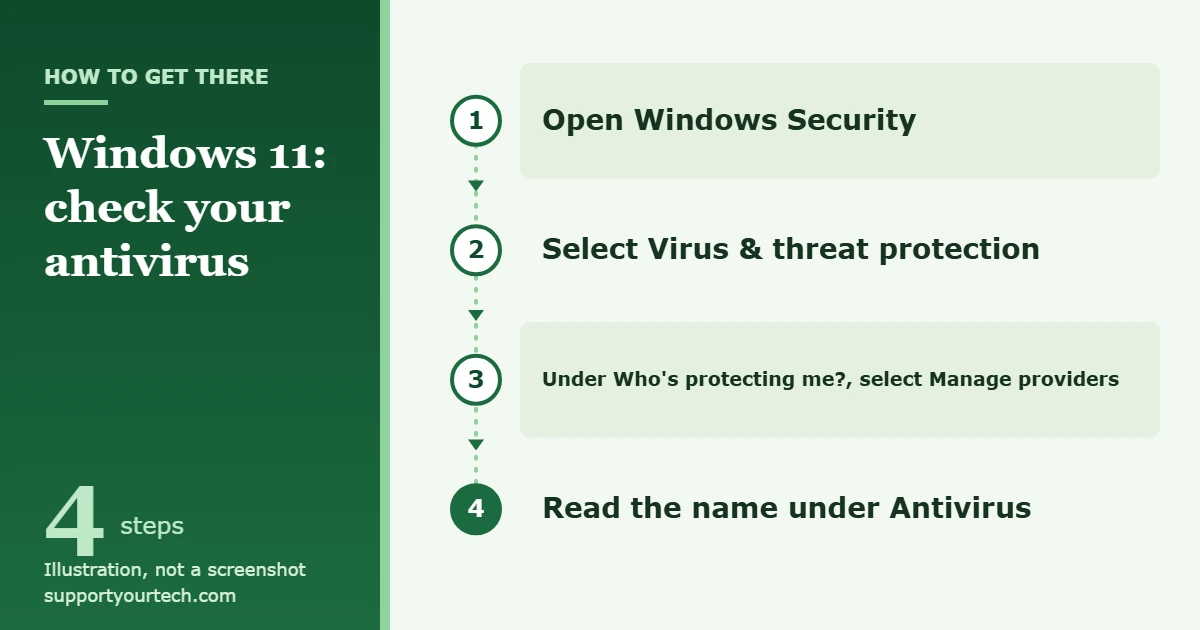
To see which antivirus is protecting a Windows 11 PC, open Windows Security, select Virus & threat protection, then select Manage providers under Who’s protecting me?. The Security providers page names the product under Antivirus and shows whether it is turned on.
Applies to: Windows 11.
What you need to know first
Three names come up in this task, and they are easy to mix up:
- Windows Security is the app that reports on your protection. It is a dashboard, not the antivirus itself.
- Microsoft Defender Antivirus is the antivirus that is built into Windows 11. Many people still call it Windows Defender.
- A security provider is any product that reports its status to Windows Security. That includes a non-Microsoft antivirus you installed yourself or one that came with the PC.
Looking at this information does not change anything on the PC. If Microsoft Defender Antivirus is the only name listed, that is your antivirus and you do not need to install anything else to have one.
Check your antivirus in Windows Security
- Select Start and type Windows Security, then open the app from the results. The Windows Security home page opens with a list of protection areas.
- Select Virus & threat protection. On a PC that uses Microsoft Defender Antivirus, this page shows scan buttons and protection settings. On a PC with another antivirus, it shows that product’s name instead.
- Find the Who’s protecting me? section and select Manage providers. The Security providers page opens.
- Read the entry under Antivirus. It names each antivirus registered with Windows and its state, for example Microsoft Defender Antivirus is turned on.
How Defender behaves alongside other products is explained in Microsoft Defender Antivirus compatibility with other security products.
Other ways to open Windows Security
If searching from Start does not work for you, there are two more routes to the same app:
- Open Settings > Privacy & security > Windows Security.
- Select the Windows Security icon in the notification area on the taskbar.
Either route lands in the same app, so continue from step 2 above.
How to read what you see
Only Microsoft Defender Antivirus is listed
The built-in antivirus is doing the work. If it shows as turned on, the PC is protected and there is nothing to fix.
Another antivirus is listed and turned on
That product is your active antivirus. Windows 11 turns Microsoft Defender Antivirus off automatically when a non-Microsoft antivirus is installed and kept up to date, so the two do not run real-time protection against each other. On some PCs, for example when Smart App Control is on, Defender stays in passive mode instead of being fully disabled. Both results are normal. Windows 10 handles the switch the same way, as shown in the guide to setting up antivirus on a Windows 10 PC.
Another antivirus is listed but expired or not working
Defender Antivirus turns itself back on when the other product is out of date, expired or not working. If the provider list shows an expired trial, either renew it in that product’s own app or uninstall it and let Microsoft Defender Antivirus take over.
Find antivirus software in your installed apps
The provider list shows what is registered with Windows. The installed apps list shows what is actually on the drive, which helps you find leftover trial software.
- Select Start > Settings > Apps > Installed apps.
- Scroll the list and look for security products you recognize from the provider list, or ones you do not remember installing.
- To remove one you no longer want, select More next to it, then Uninstall. Before you do, make sure another antivirus, such as Microsoft Defender Antivirus, will be active afterward.
Older desktop programs also appear in Control Panel under Programs > Programs and Features.
Check Microsoft Defender Antivirus with Task Manager or PowerShell
These two checks only tell you about Microsoft Defender Antivirus. They are useful when you want a second confirmation that it is running.
Task Manager
- Open Task Manager.
- Select the Details tab.
- Look for MsMpEng.exe in the list. If it is there, Microsoft Defender Antivirus is running.
PowerShell
- Open a PowerShell window.
- Type Get-MpComputerStatus | select AMRunningMode and press Enter.
- Read the result. Normal, Passive and EDR Block Mode all mean Defender’s antivirus protection is enabled. Normal means it is the active antivirus, and Passive means another product is in charge.
Running Get-MpComputerStatus on its own prints a longer report. The AntivirusEnabled and RealTimeProtectionEnabled lines show True or False, and AMProductVersion and AntivirusSignatureVersion show the installed versions.
Confirm your antivirus is working and up to date
Knowing the name is half the job. The other half is making sure it is switched on and current.
- If you use Microsoft Defender Antivirus: in Windows Security, select Virus & threat protection, then Manage settings under Virus & threat protection settings, and check that Real-time protection is On. Back on the Virus & threat protection page, open the protection updates section to see the installed security intelligence version and its date, and select Check for updates to download a newer one if it exists.
- If you use another antivirus: open that product’s own app to check its subscription, updates and last scan. Windows Security only reports whether it is on.
To test the built-in protection, run a malware scan in Windows 11.
Troubleshooting
You can’t find Manage providers
Make sure you are on the Virus & threat protection page and scroll down to Who’s protecting me?. If Windows Security will not open at all, restart the PC and install pending Windows updates, then try again.
Settings are greyed out
On a work or school PC, settings set by the organization through tools such as Group Policy or Microsoft Intune take priority over Windows Security, and the Virus & threat protection settings then appear greyed out. You can still read the provider list, but changes have to come from your IT administrator.
The list looks wrong or out of date
Windows Security gets its information from the Windows Security Center service. If that service is disabled, the app may show stale or inaccurate details about installed antivirus and firewall products. If the list still names a product you removed, restart the PC first. If it keeps appearing, check that product maker’s support site for its removal instructions.
Real-time protection keeps turning off or is missing
When a non-Microsoft antivirus is active, Microsoft Defender Antivirus turns itself off automatically. That is expected. If you want Defender back, you can turn on Windows Defender in Windows 11.
Frequently asked questions
Does Windows 11 come with antivirus?
Yes. Microsoft Defender Antivirus is built into Windows 11 and is managed through the Windows Security app. It protects the PC unless another antivirus has taken over.
Can I have two antivirus programs at once?
Two can be installed, but Windows is designed so that only one provides real-time protection. When a non-Microsoft antivirus is installed and up to date, Microsoft Defender Antivirus disables itself automatically. Installing a second full antivirus on top of the first does not double your protection.
What is Microsoft Defender Antivirus options on the Virus & threat protection page?
When another antivirus is active, Microsoft Defender Antivirus options appears below that product’s name. Turning on the switch there enables limited periodic scanning, an occasional extra check by Defender. This mode uses only a small part of Defender and cannot detect most malware, so it is a second opinion and not a replacement for your main antivirus.
What happens if I uninstall my other antivirus?
Microsoft Defender Antivirus turns on automatically when no other antivirus is installed. After uninstalling, restart the PC and repeat the steps above to confirm that the provider list shows Microsoft Defender Antivirus is turned on.
Once you know which antivirus is active, open it and confirm that it has updated recently. That one check tells you whether the protection you found is actually doing its job.
If the check turned up Norton or McAfee, you may also want to stop Norton from blocking a program or stop McAfee pop-ups on Windows 11.

Matt Jacobs has been working as an IT consultant for small businesses since receiving his Master’s degree in 2003. While he still does some consulting work, his primary focus now is on creating technology support content for SupportYourTech.com.
His work can be found on many websites and focuses on topics such as Microsoft Office, Apple devices, Android devices, Photoshop, and more.