To scan for malware in Windows 10, select Start > Settings > Update & Security > Windows Security > Virus & threat protection, and then select Quick scan. For a deeper check, select Scan options, choose Full scan or Microsoft Defender Offline scan, and select Scan now.
Applies to: Windows 10. Checked against Microsoft Support on September 25, 2026.
Run a quick scan
- Select Start > Settings > Update & Security > Windows Security.
- Select Virus & threat protection.
- Under Current threats, select Quick scan.
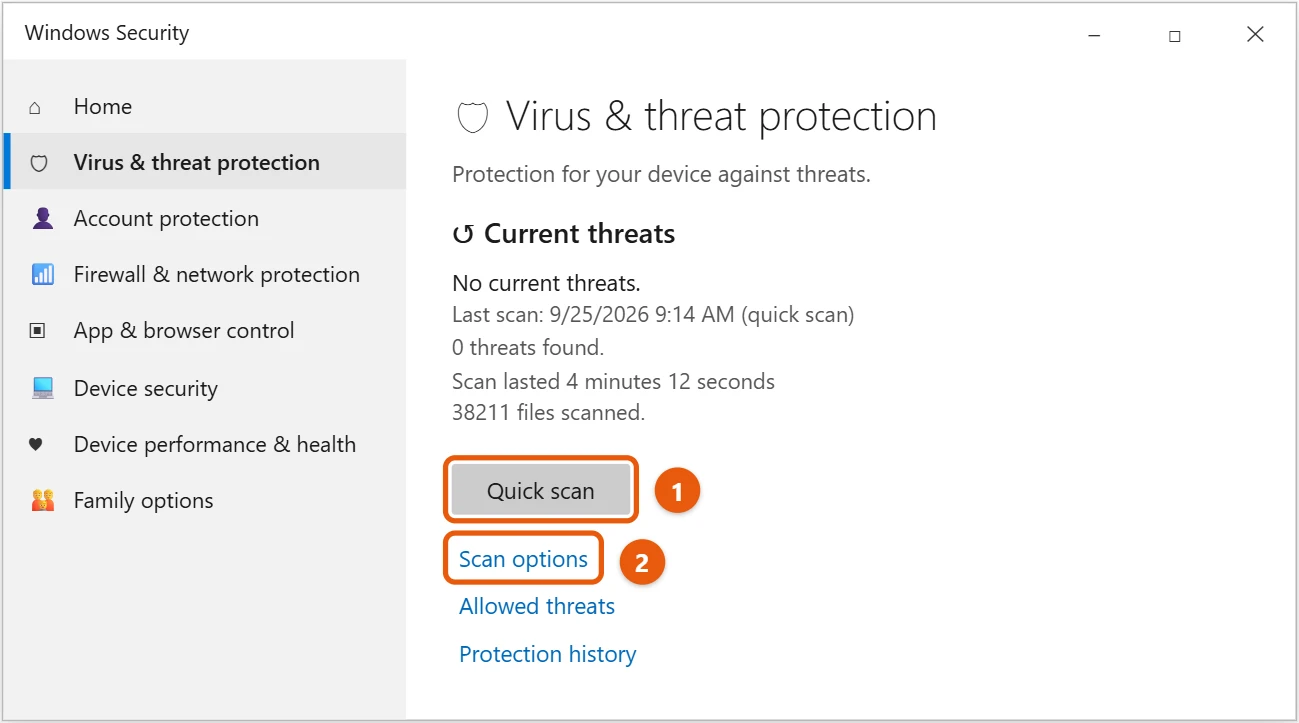
A quick scan checks the places where threats are most often found. Windows Security also scans your PC automatically in the background.
Run a full or offline scan
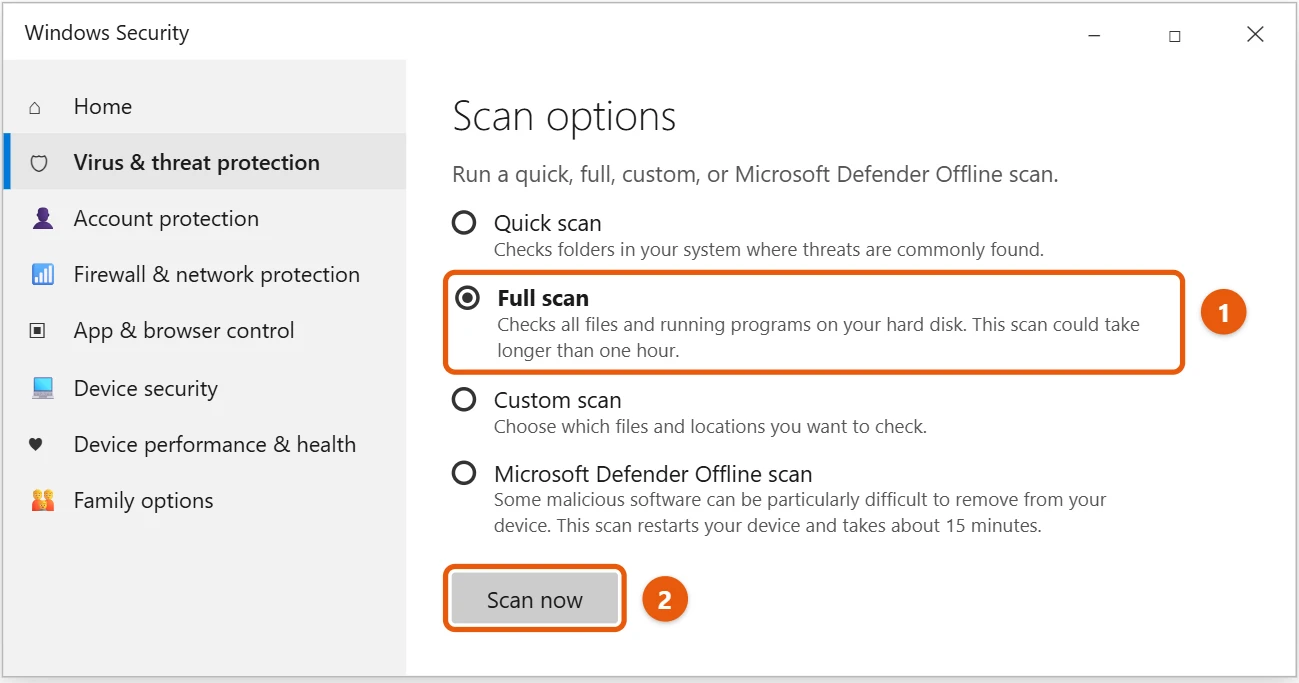
- On the Virus & threat protection page, select Scan options.
- Choose Full scan, Custom scan, or Microsoft Defender Offline scan.
- Select Scan now.
What each scan does:
- Full scan checks every file and running program. It can take more than an hour.
- Custom scan checks only the files and folders you pick.
- Microsoft Defender Offline scan restarts your PC and scans before Windows loads, which helps with malware that hides while Windows runs. Save your work first. It takes about 15 minutes.
To see the results of an offline scan, open Windows Security and select Protection history.
Remove what the scan finds
When Windows Security finds a threat, it quarantines or removes it for you. If it asks what to do:
- Select Protection history on the Virus & threat protection page.
- Select the threat, and then select Actions.
- Choose Remove or Quarantine.
Run a full scan again afterward to make sure your PC is clean.
Signs your PC may have malware
- Pop-ups or new browser toolbars you didn’t add
- Your browser’s home page or search engine changes on its own
- The PC is suddenly much slower, or the fan runs when you’re not doing anything
- Files you can’t open, or ransom messages asking for payment
- Windows Security is turned off and won’t turn back on
If the malware won’t go away
- Run a Microsoft Defender Offline scan.
- Install the latest updates. See how to update Windows 10.
- Uninstall programs you don’t recognize in Settings > Apps.
- Reset your browser settings.
- As a last resort, back up your files and see how to reset Windows 10.
Frequently asked questions
Do I need another antivirus program?
No. Windows Security (Microsoft Defender Antivirus) is built in and turned on by default. If you install another antivirus, Windows Security turns its real-time protection off for you.
Can I schedule a scan?
Windows Security runs scans automatically. For a set time, open Task Scheduler and use the Microsoft > Windows > Windows Defender tasks.
To check that the firewall is on, see how to turn the firewall off or on in Windows 10.
If pop-up ads keep appearing, see how to stop pop-ups on Windows 10.
To check that real-time protection is on, see how to turn Windows Defender on or off in Windows 10.
If the problem is pop-up ads or a changed home page, see how to remove adware from Windows 10.
If SmartScreen blocks an app you trust, see how to turn off SmartScreen in Windows 10.
On Windows 11, see how to run a malware scan in Windows 11.
Microsoft’s guide is Virus and threat protection in the Windows Security app. More help is on our Windows Help & Guides page.
Related: turn off SmartScreen on Windows 11.

Matt Jacobs has been working as an IT consultant for small businesses since receiving his Master’s degree in 2003. While he still does some consulting work, his primary focus now is on creating technology support content for SupportYourTech.com.
His work can be found on many websites and focuses on topics such as Microsoft Office, Apple devices, Android devices, Photoshop, and more.