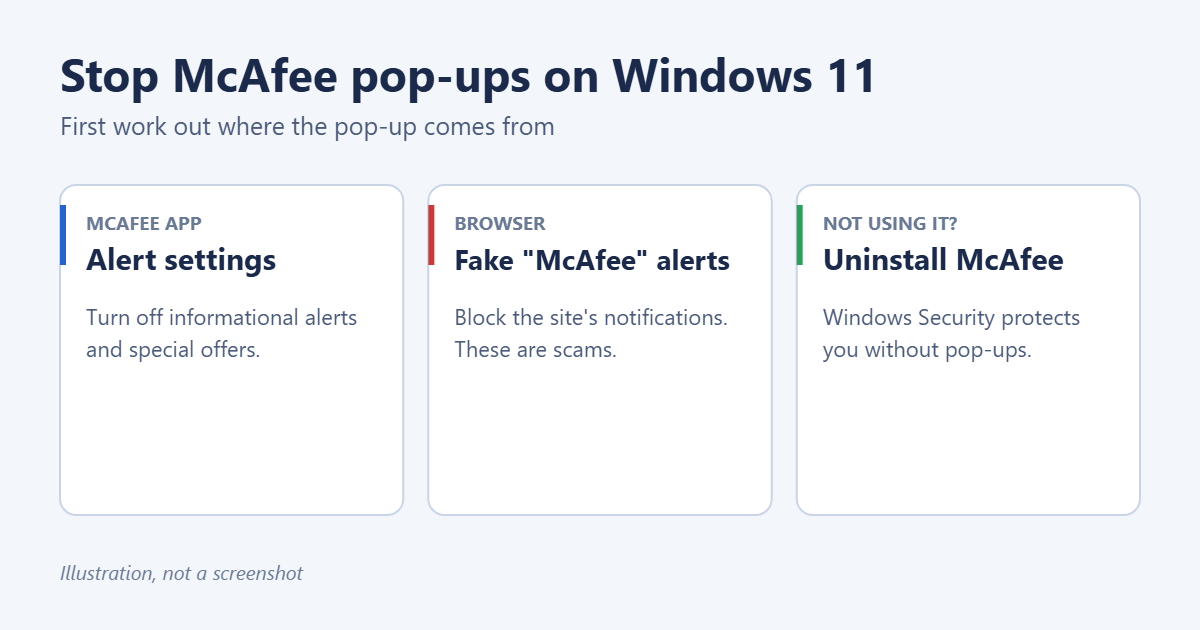
To stop McAfee pop-ups on Windows 11, first check where they come from. If they’re from the McAfee app, open it, go to its settings, and turn off informational alerts and special offers. If they appear in the corner of your screen with a web address and say your “subscription expired” or “PC is infected”, they’re browser notifications from a scam site, not McAfee; block that site’s notifications in Chrome or Edge. If you don’t use McAfee at all, uninstalling it stops every pop-up, and Windows Security keeps protecting your PC.
Applies to: Windows 11 Home and Pro with McAfee+ or McAfee Total Protection (often preinstalled on HP, Dell, Lenovo and Acer laptops). Menu names change between McAfee versions.
Step 1: Work out what kind of pop-up it is
- From the McAfee app: a McAfee-branded window or a Windows notification labeled “McAfee” with no website address. These are real.
- From a website: a notification that shows a browser name (Chrome or Edge) and a web address underneath, often with alarming text and a “Renew now” button. These are fake, even if they show the McAfee logo. Don’t click them.
- From McAfee WebAdvisor: warnings inside your browser about risky sites, from a browser extension.
Step 2: Turn down alerts in the McAfee app
- Open McAfee from the Start menu.
- Select your profile icon or the gear icon, then Settings or General settings and alerts.
- Open Alerts or Informational alerts and turn off the ones you don’t want, such as tips and status updates.
- Look for Special offers or Promotional notifications and turn them off.
Leave Protection alerts on; those warn you when McAfee blocks a real threat.
Step 3: Silence McAfee in Windows notifications
- Open Settings > System > Notifications.
- Find McAfee in the list of apps and turn it off.
This hides McAfee’s toast notifications without uninstalling it.
Step 4: Block fake McAfee pop-ups in your browser
Chrome
- Open Chrome > menu > Settings > Privacy and security > Site settings > Notifications.
- Under Allowed to send notifications, remove or block any site you don’t recognize.
Edge
- Open Edge > menu > Settings > Cookies and site permissions > Notifications.
- Under Allow, remove any unfamiliar sites.
These sites got permission when someone clicked Allow on a “Click Allow to continue” prompt. Never allow notifications from sites you don’t trust. If you did click a fake alert and entered card details, contact your bank.
Step 5: Remove WebAdvisor if you don’t want it
Uninstall McAfee WebAdvisor from Settings > Apps > Installed apps, and remove its extension from your browser. The details are in removing McAfee WebAdvisor from Windows 11.
Step 6: Uninstall McAfee completely
If McAfee came with your laptop and you never paid for it:
- Go to Settings > Apps > Installed apps.
- Select the … next to each McAfee item and choose Uninstall.
- Restart the PC.
If it won’t uninstall cleanly, McAfee’s own Consumer Product Removal tool (MCPR) removes the leftovers. Full steps are in how to remove McAfee from Windows 11.
After removing it, Windows Security (Microsoft Defender) turns back on automatically. You can confirm it by checking what antivirus you have, or by following turning on Windows Defender in Windows 11.
If fake alerts keep coming back
When scam notifications return after you’ve blocked them, something else may be pushing them, such as a browser extension or unwanted program.
- Check extensions: in Chrome go to chrome://extensions, in Edge to edge://extensions, and remove anything you didn’t install on purpose.
- Check installed apps: in Settings > Apps > Installed apps, sort by install date and remove unfamiliar programs installed around the time the pop-ups started.
- Reset the browser: Chrome has Settings > Reset settings; Edge has Settings > Reset settings. This turns off extensions and clears site permissions but keeps bookmarks and saved passwords.
- Run a full scan: open Windows Security > Virus & threat protection > Scan options and run a Microsoft Defender Offline scan. The PC restarts and scans before Windows loads.
Why McAfee shows so many pop-ups
Many laptops ship with a McAfee trial. During and after the trial, the app shows reminders to subscribe, and some versions add tips, scan summaries and offers for extra products like VPN or identity protection. If you pay for McAfee, turning off informational alerts and offers (Step 2) usually cuts the noise to real threat warnings only. If you didn’t choose McAfee, removing it is the cleaner fix.
Frequently asked questions
Is it safe to remove McAfee?
Yes, as long as Windows Security is on. Don’t run two antivirus programs at once.
Why do I get McAfee pop-ups when I don’t have McAfee?
Those are fake browser notifications. Block them as in Step 4.
Will the pop-ups stop if I let the trial expire?
No. Expired trials tend to show more renewal reminders. Uninstall it instead.

Matt Jacobs has been working as an IT consultant for small businesses since receiving his Master’s degree in 2003. While he still does some consulting work, his primary focus now is on creating technology support content for SupportYourTech.com.
His work can be found on many websites and focuses on topics such as Microsoft Office, Apple devices, Android devices, Photoshop, and more.