To scan from a printer to a Windows 10 computer, put the document face down on the scanner glass and open the Windows Scan app. Choose your scanner, set File type to PDF or JPEG, and select Scan. The file is saved in the Scans folder inside your Pictures folder.
This works with most all-in-one printers, whether they’re connected by USB or Wi-Fi, as long as Windows has the printer installed.
Applies to: Windows 10 with an all-in-one printer or scanner. Checked against Microsoft Support on September 24, 2026.
Before you scan
- Turn the printer on and connect it to the PC by USB, or to the same Wi-Fi network as the PC.
- Check that Windows sees it: go to Settings > Devices > Printers & scanners. If it isn’t listed, select Add a printer or scanner, wait for it to appear, and select Add device.
- Get the Windows Scan app if you don’t have it. It’s free in the Microsoft Store. Search for
Windows Scan.
Scan with the Windows Scan app
- Place the document face down on the scanner glass, lined up with the arrow or corner mark, or face up in the document feeder if your printer has one.
- Select Start, type
Scan, and open Windows Scan. - Under Scanner, choose your printer.
- Under Source, choose Flatbed for the glass or Feeder for the document feeder.
- Under File type, choose PDF for documents or JPEG for photos.
- Select Preview to check the page, then select Scan.
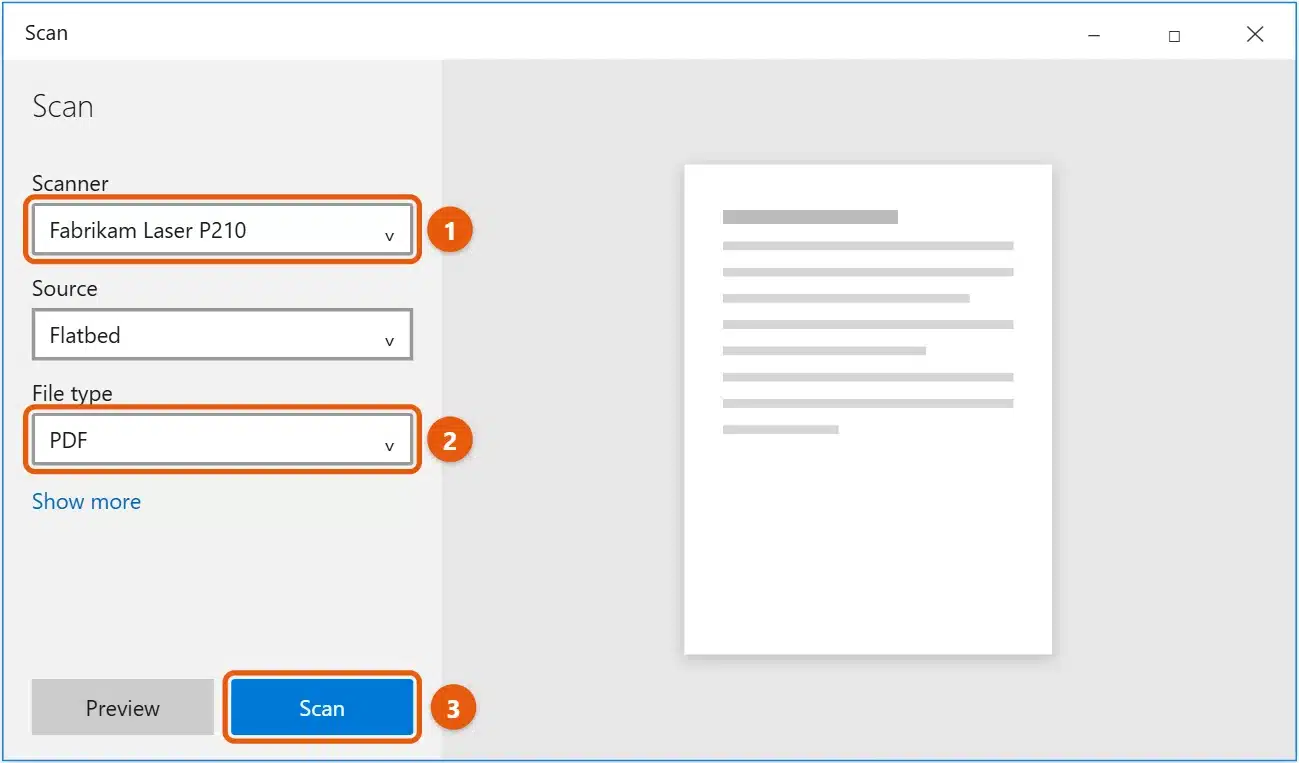
When it finishes, select View to open the file. Scans are saved in Pictures > Scans unless you change Save file to under Show more.
Choose the right settings
Select Show more in Windows Scan for extra options:
- Color mode: Color for photos and colored pages, Grayscale for most documents, or Black and white for plain text. Black and white makes the smallest files.
- Resolution (DPI): 200 to 300 DPI is fine for documents. Use 600 DPI for photos you want to print or enlarge.
- Save file to: choose a different folder, such as Documents.
Scan several pages into one PDF
The Windows Scan app puts every page it scans from the Feeder into one file. From the flatbed, each scan is saved separately. To combine flatbed scans into one PDF, use your printer maker’s app, which usually has an Add page option.
Scan with Windows Fax and Scan
This older tool is built into Windows 10 and works with most scanners.
- Select Start, type
Windows Fax and Scan, and open it. - Select New Scan, choose your scanner, and select OK.
- Pick the settings you want, then select Scan.
- The scan appears in the list. Right-click it and select Save as to choose where it goes and whether to save it as a JPEG, PNG, or TIFF.
Use your printer maker’s app
Brands such as HP, Canon, Epson, and Brother offer their own scanning apps, such as HP Smart. These often add features like multi-page PDFs, text recognition, and scanning to email. Download the app from the printer maker’s support website for your exact model, or from the Microsoft Store.
You can often also start a scan from the printer itself. Look for a Scan button or a Scan to computer option on the printer’s screen. Your PC needs the maker’s software installed for this to work.
If the scanner isn’t found
- Turn the printer off and on, then restart the PC.
- Check the connection: for a USB printer, try another cable or USB port. For a Wi-Fi printer, make sure the printer and PC are on the same network.
- Reinstall the printer: in Printers & scanners, select the printer, choose Remove device, and then add it again.
- Get the full driver: some printers need the maker’s full software package, not just the basic driver, before scanning works. Download it from the maker’s support site. For an HP multifunction example, see how to download the HP LaserJet M1136 MFP driver.
- Check that it can scan: printer-only models don’t have a scanner. Check your model’s specifications.
Frequently asked questions
Where do my scans go?
The Windows Scan app saves them in Pictures > Scans by default. Windows Fax and Scan keeps them in Documents > Scanned Documents.
Can I scan to PDF without the printer’s app?
Yes. Choose PDF under File type in the Windows Scan app.
Can I scan with my phone instead?
Yes. The OneDrive app and many phone camera apps can scan documents to PDF, which is handy if the printer’s scanner isn’t working.
To turn a Word document into a PDF, see how to convert Word to PDF in Windows 10.
On Windows 11, see how to scan from a printer to a computer on Windows 11. Microsoft’s guide is Install and use a scanner in Windows. More help is on our Devices & Drivers Help & Guides page.
Related: fax from Windows 10.
Related: print multiple Word documents at once.

Matt Jacobs has been working as an IT consultant for small businesses since receiving his Master’s degree in 2003. While he still does some consulting work, his primary focus now is on creating technology support content for SupportYourTech.com.
His work can be found on many websites and focuses on topics such as Microsoft Office, Apple devices, Android devices, Photoshop, and more.