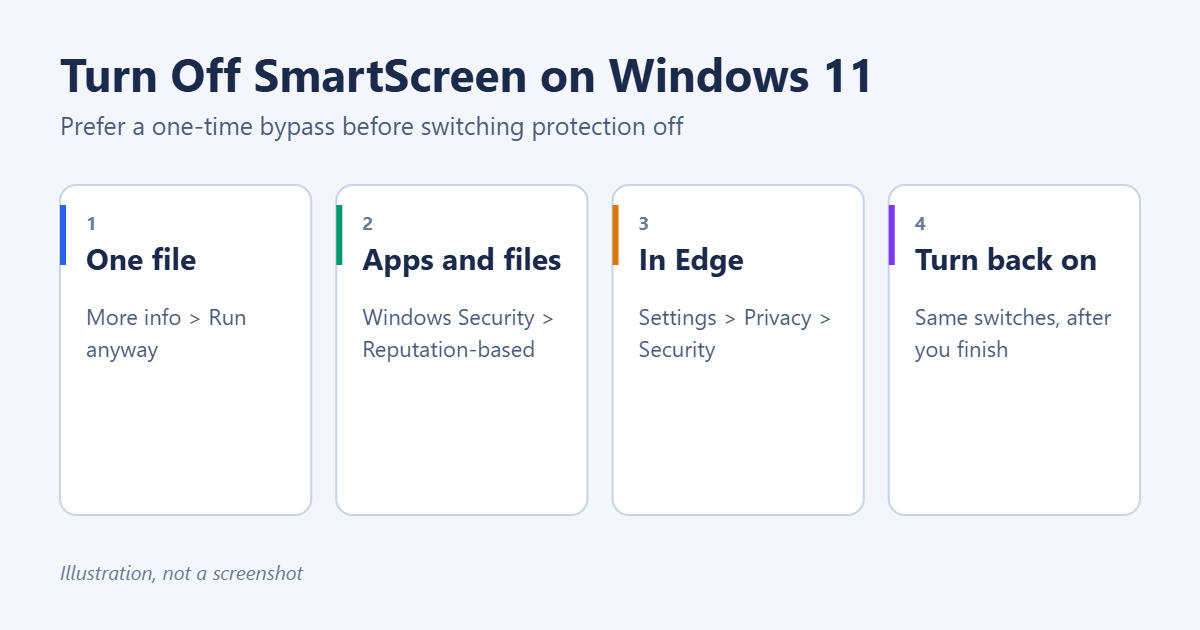
To turn off Microsoft Defender SmartScreen on Windows 11, open Windows Security > App & browser control > Reputation-based protection settings, and switch off Check apps and files. Do the same for SmartScreen for Microsoft Edge and the other switches on that page if you need to. But if SmartScreen is only blocking one program you trust, you don’t need to turn it off at all: click More info > Run anyway on the warning instead. That keeps your PC protected from everything else. Here’s how to do both safely.
What SmartScreen does
SmartScreen checks downloaded apps, files and websites against Microsoft’s list of known malicious and unrecognized software. When something is unknown or flagged, it shows a blue Windows protected your PC warning, or blocks the download in Edge. It’s one of the main defenses against malware and phishing, so turning it off permanently isn’t recommended.
Option 1: Allow one program (recommended)
- When the Windows protected your PC screen appears, click More info.
- Check that the Publisher is who you expect.
- Click Run anyway.
Only do this for software from a source you trust, such as the developer’s official website. You can also right-click a downloaded file, choose Properties, and tick Unblock on the General tab. See how to trust a file in Windows 11.
Option 2: Turn off SmartScreen for apps and files
- Click Start, type Windows Security and open it.
- Click App & browser control.
- Under Reputation-based protection, click Reputation-based protection settings.
- Turn off Check apps and files. Click Yes on the permission prompt.
The same page has other SmartScreen switches you can turn off individually:
- SmartScreen for Microsoft Edge: website and download checks in Edge.
- Phishing protection: warnings when you type a password into a suspicious site or app.
- Potentially unwanted app blocking: blocks adware and bundled junk.
- SmartScreen for Microsoft Store apps: checks web content that Store apps load.
Option 3: Turn off SmartScreen in Microsoft Edge
- In Edge, go to Settings > Privacy, search, and services.
- Scroll to Security.
- Turn off Microsoft Defender SmartScreen.
If Edge only blocks one download, click the … next to the download, choose Keep, then Show more > Keep anyway. See how to allow downloads on Windows 11.
Smart App Control is different
Windows 11 also has Smart App Control, under App & browser control. It blocks untrusted apps more strictly than SmartScreen. If an app is still blocked after you turn SmartScreen off, check whether Smart App Control is on. Be aware that turning it off may not be easily reversible on some versions of Windows 11.
Turn SmartScreen back on
When you’ve finished, go back to Windows Security > App & browser control > Reputation-based protection settings and turn the switches back on. Windows Security also shows a yellow warning while they’re off, with a Turn on button.
Why can’t I turn it off?
If the switches are greyed out with a message such as This setting is managed by your administrator, your organization controls it through policy. Ask your IT team. Don’t try to work around it on a work PC.
Stay safe with SmartScreen off
- Download software only from official websites and the Microsoft Store.
- Keep Microsoft Defender Antivirus on. It’s separate from SmartScreen.
- Scan anything you’re unsure about. Right-click it and choose Scan with Microsoft Defender. See how to scan for and remove malware.
On Windows 10, the steps are slightly different. See how to turn off SmartScreen in Windows 10.
Frequently asked questions
Is it safe to turn off SmartScreen?
Briefly, for a program you trust, the risk is low. Leaving it off permanently removes an important layer of protection against malware and phishing sites, especially for less experienced users.
Does turning off SmartScreen turn off antivirus?
No. Microsoft Defender Antivirus keeps running. SmartScreen only checks reputation, meaning whether a file or site is known and trusted.
Why does SmartScreen block safe apps?
New or rarely downloaded programs don’t have a reputation yet, even when they’re safe. Small developers’ apps are often flagged for this reason. The warning means “unrecognized”, not necessarily “dangerous”.
Summary
- For one trusted program, click More info > Run anyway.
- To turn it off, go to Windows Security > App & browser control > Reputation-based protection settings.
- Turn off Check apps and files, and Edge’s SmartScreen if needed.
- Turn the switches back on when you’re done.
Related: reset Microsoft Edge settings.

Matt Jacobs has been working as an IT consultant for small businesses since receiving his Master’s degree in 2003. While he still does some consulting work, his primary focus now is on creating technology support content for SupportYourTech.com.
His work can be found on many websites and focuses on topics such as Microsoft Office, Apple devices, Android devices, Photoshop, and more.