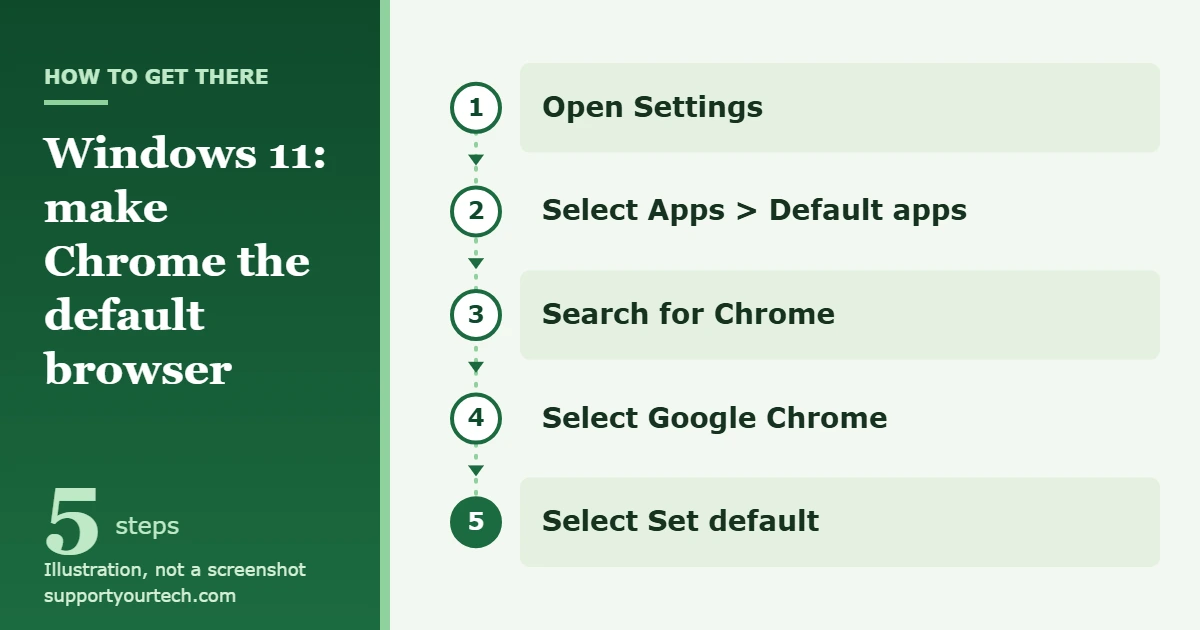
To make Google Chrome the default browser in Windows 11, open Settings, select Apps > Default apps, select Google Chrome, and then select Set default next to Make Google Chrome your default browser. Web links you open from other apps will then open in Chrome.
Applies to: Google Chrome on Windows 11. Checked against Google Chrome Help and Microsoft Support on October 6, 2026.
Before you start
- Chrome has to be installed. Windows only lists browsers that are on the PC. If Chrome is missing, follow our guide to installing Google Chrome on Windows 11 first.
- Check for S mode. Microsoft states that in Windows 11 in S mode, Microsoft Edge is always the default web browser. The steps below will not change that. See the troubleshooting section for your options.
- Work and school PCs may be locked. An organization can assign the default browser by policy. If that applies to you, ask your IT help desk.
Set Chrome as the default browser in Windows 11
These are the steps Google documents for Windows 11. The whole change takes about a minute.
- Select Start, then select Settings. You can also press the Windows key + I to open Settings directly.
- Select Apps, then select Default apps. A page opens with a search box and a list of installed apps.
- Under Set defaults for applications, type Chrome in the search box. The list narrows to matching apps.
- Select Google Chrome. Chrome’s own page opens, showing the file types and link types it can handle.
- At the top, next to Make Google Chrome your default browser, select Set default.
- Review the list under Set default file types or link types. The main web entries, such as HTTP, HTTPS, .htm and .html, should now show Google Chrome.
Google also suggests adding a Chrome shortcut to your taskbar so the browser is easy to open later.
Set Chrome for one file type or link type
The Set default button handles the common web types in one go. Use this second method when a single type still opens in another browser, or when you want Chrome for only some types.
- Open Settings and select Apps > Default apps.
- In the search bar under Set a default for a file type or link type, type the file extension or protocol you want to change, such as .html or HTTPS.
- Select the result. Windows shows the app that currently opens that type.
- Choose Google Chrome from the apps offered, then confirm your choice.
You can reach the same entries from Chrome’s page in Default apps: the list under Set default file types or link types shows each type and the app assigned to it. PDF files are a separate file type (.pdf), so making Chrome your browser does not have to change which app opens PDFs.
Confirm that it worked
- Return to Settings > Apps > Default apps > Google Chrome and check that the web link types and file types list Google Chrome.
- Select a web link in another app, such as a link in a document or an email. It should open in a Chrome tab.
Switch back to Microsoft Edge or another browser
The change is easy to reverse. Microsoft’s steps for Edge mirror the ones above:
- Open Settings and select Apps > Default apps.
- Under Set defaults for applications, select Microsoft Edge.
- Next to Make Microsoft Edge your default browser, select Set default.
For Firefox or any other browser, select that browser in step 2 instead. Our guide to changing the default browser in Windows 11 covers the general process.
Default browser and default search engine are different settings
The default browser decides which app opens web links. It does not decide which search engine Chrome uses in its address bar. To change that, open Chrome, select More at the top right, select Settings > Search engine, and then select Change under Search engine.
Troubleshooting
Google Chrome is not in the Default apps list
Chrome is either not installed or the install did not finish. Download the installer from Google, select Run if you are asked whether to run the file, and select Yes if Windows asks to allow changes to your device. Then close Settings, open it again, and look in Default apps. Google lists Windows 10 and later as supported.
If Chrome is installed but out of date, update it: in Chrome, select More > Help > About Google Chrome, wait for the check to finish, and select Relaunch if it is offered.
Your PC is in S mode
Windows 11 in S mode only runs apps from the Microsoft Store, and Microsoft states that Edge is always the default browser in that mode. The only route to a Chrome default is leaving S mode, which starts at Settings > System > Activation.
Warning: Microsoft says switching out of S mode is free but one-way. You cannot turn S mode back on afterward. Read our guide to switching out of S mode in Windows 11 before you decide.
Set default is greyed out, or the default changes back after you sign in
This points to a work or school policy. Administrators can use a Windows Group Policy setting named Set a default associations configuration file to assign file and link types to a browser. Google’s admin documentation notes that this policy is applied at each login, so a change you make yourself is reset the next time you sign in. Only your administrator can change it.
Links in Outlook or Teams still open in Edge
Outlook and Teams have their own link setting, which Microsoft documents separately from the Windows default browser. Pick your preferred browser from the dropdown menu in one of these places:
- New Outlook for Windows: Settings > General > Files and links, under Open hyperlinks from Outlook in.
- Classic Outlook for Windows: File > Options > Advanced > File and browser preferences, under Open hyperlinks from Outlook in.
- Teams: Settings > Files and links > Link open preferences.
Microsoft notes that the choice is shared, so changing it in Outlook also changes it in Teams, and the other way around.
Windows Search and Widgets still open Edge
That is by design. Microsoft lists Widgets and searching the web in Windows Search among the features that depend on Microsoft Edge, so they do not follow your default browser. Microsoft has announced different behavior for PCs in the European Economic Area, where some Windows apps open web content in the default browser.
One file type still opens in another browser
Use the second method above to change that single type. Search for the extension or protocol in Default apps and choose Google Chrome.
Frequently asked questions
Do I have to uninstall Microsoft Edge to use Chrome as my default?
No. Both browsers can stay installed. The default setting only controls which one opens links, and some Windows features rely on Edge being present. To stop Edge from running in the background instead, see how to turn off Microsoft Edge in Windows 11.
Does making Chrome the default move my bookmarks and passwords?
No. The setting only changes which app opens web links and web file types. Nothing is copied from Edge or any other browser, and nothing in your old browser is deleted.
Will Chrome also open my PDF files?
Not necessarily. PDFs use the .pdf file type, which has its own default. Check the .pdf row on Chrome’s page in Default apps, or search for .pdf there, and pick the app you want.
Why was I asked to choose a browser when setting up my PC?
Google notes that in some countries you may be asked to choose your default browser. Whatever you picked then, you can change it at any time with the steps in this article.
Are the steps the same in Windows 10?
No. In Windows 10 you open Default apps, select your current browser under Web browser, and choose Google Chrome in the Choose an app window. See our guide to changing the default browser in Windows 10.
Where are the official instructions?
Google publishes them in Make Chrome your default browser, and Microsoft covers the Windows side in Change your default browser in Windows.
Once Chrome is the default, open a link from another app to confirm it lands in Chrome, then set your preferred search engine in Chrome’s settings if you have not already.
Related: how to download Google Chrome on Windows 11.
Related: how to set default apps in Windows 11.

Matt Jacobs has been working as an IT consultant for small businesses since receiving his Master’s degree in 2003. While he still does some consulting work, his primary focus now is on creating technology support content for SupportYourTech.com.
His work can be found on many websites and focuses on topics such as Microsoft Office, Apple devices, Android devices, Photoshop, and more.