To change the default browser in Windows 10, go to Settings > Apps > Default apps. Under Web browser, select the browser that’s there now, then choose the one you want, such as Google Chrome or Firefox. Web links and web files then open in that browser.
Install the browser first. It has to be on your PC to appear in the list.
Applies to: Windows 10. Checked against Microsoft Support on September 24, 2026.
Set your default browser in Settings
- Select Start > Settings, or press Windows + I.
- Select Apps, then Default apps in the left pane.
- Scroll to Web browser and select the browser listed there. If nothing is set, select Choose a default.
- In the Choose an app list, select the browser you want.
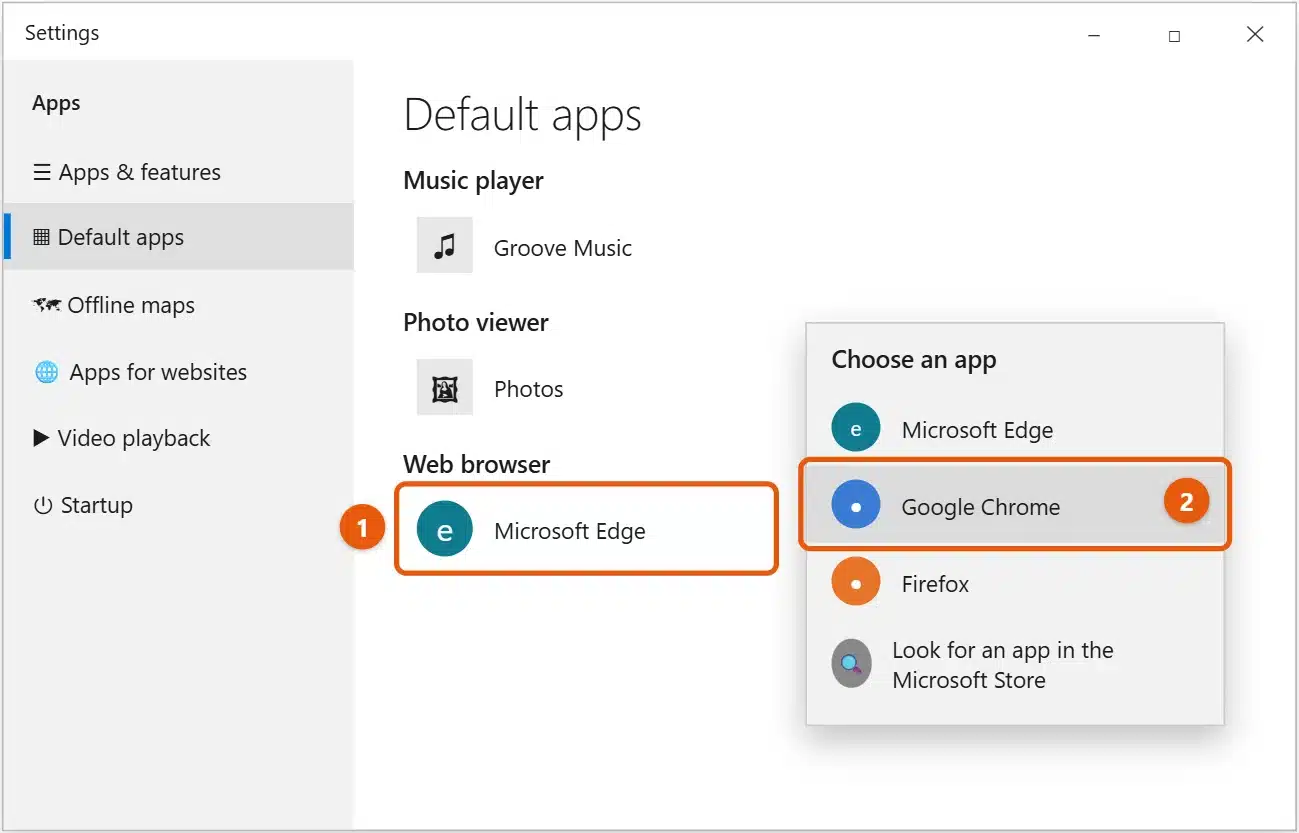
If Windows asks whether you want to keep Microsoft Edge, select Switch anyway. The change saves straight away.
Set it from the browser instead
Most browsers can send you to the right place for you:
- Google Chrome: select the three-dot menu > Settings > Default browser > Make default.
- Firefox: select the menu > Settings, and under General select Make Default.
- Microsoft Edge: select the three-dot menu > Settings > Default browser > Make default.
On Windows 10, these buttons usually open the Default apps page. Finish with the steps above.
If some links still open in the wrong browser
The Web browser setting covers most links, but some file and link types can keep their old browser.
- On the Default apps page, scroll down and select Choose default apps by file type.
- Find
.htmand.html, select the app next to each, and choose your browser. - Go back and select Choose default apps by protocol.
- Find HTTP and HTTPS and set them to your browser.
Some Windows features, such as web results in Start menu search and the news feed on the taskbar, always open in Microsoft Edge. That’s how Windows is designed, and changing your default browser doesn’t affect them.
If your browser keeps resetting
- Update Windows and your browser. Older versions sometimes lose the setting after an update.
- Reset and set it again: on the Default apps page, select Reset under Reset to the Microsoft recommended defaults, then set your browser again. This also resets your other default apps, such as Photos and music.
- Work or school PC: your organization may set the default browser. Ask your IT support team.
Frequently asked questions
Why isn’t my browser in the list?
It isn’t installed, or it didn’t finish installing. Download it from the browser maker’s own site, install it, and try again.
Can I uninstall Microsoft Edge?
No. Edge is part of Windows 10, and some features rely on it. Setting a different default browser is the supported way to stop using it.
Is Windows 10 still safe for web browsing?
Windows 10 no longer gets free security updates, so keeping your browser up to date matters more. Check its maker’s site for how long it will support Windows 10, and see how to enroll in Windows 10 Extended Security Updates if you plan to stay on Windows 10.
To change other defaults, such as your PDF reader or photo viewer, see how to set default apps in Windows 10.
To give a favorite website its own taskbar button, see how to pin a website to the taskbar in Windows 10.
If an old site only works in Internet Explorer, you can open it in Edge instead. See how to use Internet Explorer mode in Windows 10.
Want Chrome specifically? See how to set Chrome as the default browser in Windows 10. On Windows 11, see how to change the default browser in Windows 11. Microsoft’s guide is Change default apps in Windows. More help is on our Windows Help & Guides page.
To change which search engine Edge uses, see how to change the default search engine in Windows 10.
For browsing that isn’t saved on your PC, see whether you can see incognito history on Windows 10.
If you’re switching away from Chrome for good, see how to uninstall Chrome on Windows 10.
If a site doesn’t work because of an ad blocker, see how to turn off an ad blocker on Windows 10.
Related: How to remove Wave Browser from Windows.

Matt Jacobs has been working as an IT consultant for small businesses since receiving his Master’s degree in 2003. While he still does some consulting work, his primary focus now is on creating technology support content for SupportYourTech.com.
His work can be found on many websites and focuses on topics such as Microsoft Office, Apple devices, Android devices, Photoshop, and more.