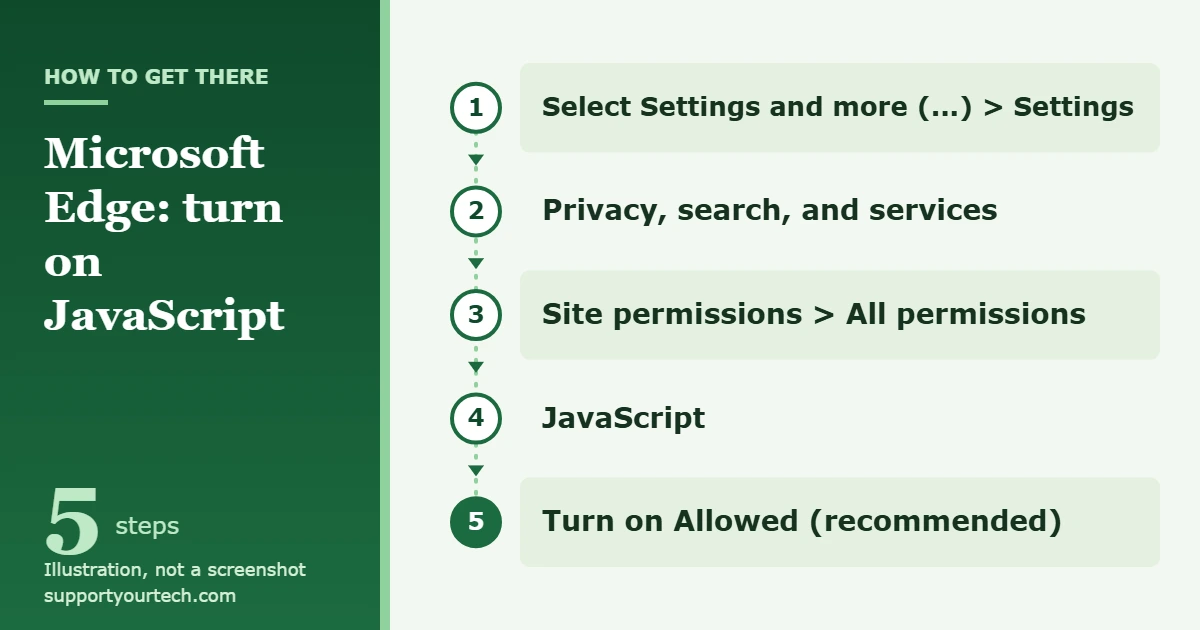
JavaScript is not a Windows 11 setting. It is switched on or off inside each web browser. In Microsoft Edge, open Settings, go to Privacy, search, and services > Site permissions > All permissions > JavaScript, and make sure Allowed (recommended) is turned on.
Applies to: Windows 11 with Microsoft Edge, Google Chrome, or Mozilla Firefox. Checked against Microsoft Support, Google Help, and Mozilla Support on October 7, 2026.
Before you start
JavaScript is the scripting language that websites use for interactive features such as forms, menus, video players, and shopping carts. Browsers normally allow it, so you only need these steps if a site tells you JavaScript is turned off or if someone changed the setting earlier.
- There is nothing to download. JavaScript is built into the browser, and a site that asks you to install a “JavaScript update” file is not telling the truth.
- The setting is separate in each browser. Turning it on in Edge does not change Chrome or Firefox, so follow the section for the browser where the site is failing.
- Java is a different product. Installing Java does not turn on JavaScript.
Turn on JavaScript in Microsoft Edge
- Open Microsoft Edge and select the Settings and more button (the three dots in the top-right corner), or press Alt+F. A menu opens.
- Select Settings.
- Select Privacy, search, and services in the list of settings categories.
- Select Site permissions, then All permissions. A list of everything websites can be allowed to do appears.
- Select JavaScript.
- Make sure Allowed (recommended) is turned on. The change is saved as soon as you flip the switch.
- Go back to the tab with the website and press F5 to reload it. The page should now load its interactive parts.
Edge moves settings between categories from time to time. If your version does not show these exact category names, look for the site permissions list in Settings and open JavaScript from there. Microsoft lists the current path on its Enable JavaScript support page.
Turn on JavaScript in Google Chrome
- Open Chrome and select More (the three dots in the top-right corner), then Settings.
- Select Privacy and security.
- Select Site settings.
- Under Content, select JavaScript.
- Select Sites can use JavaScript. Chrome saves the choice automatically.
- Close the Settings tab and reload the website.
Google documents the same steps in Allow JavaScript in your browser.
Allow JavaScript for one site in Chrome
Chrome can keep a separate permission for a single website. If JavaScript is allowed in general but one site still complains, check that site’s own setting.
- Open the website in Chrome.
- Select the icon to the left of the web address.
- Select Site settings. A page with the permissions for that one site opens.
- Find JavaScript and change it so the site is allowed, or select Reset permissions if that button is shown to put the site back on Chrome’s defaults.
- Reload the website.
Check JavaScript in Mozilla Firefox
Firefox turns JavaScript on by default and has no switch for it in the normal Settings page. The only built-in control is in the Configuration Editor, which Mozilla describes as a tool for experienced users because changes there can affect the browser’s stability, security, and performance. Change only the one preference below.
- Type about:config in the Firefox address bar and press Enter. A warning page appears.
- Select Accept the Risk and Continue.
- Type javascript.enabled in the search box at the top of the page.
- Look at the value. true means JavaScript is on, which is the default.
- If the value is false, select the Toggle or Reset button on that row to change it back to true.
- Close the tab and reload the website.
If the value is already true and a site still says JavaScript is off, Mozilla’s JavaScript settings article points to extensions as the usual cause. See the troubleshooting section below.
Confirm it worked, or turn JavaScript off again
Reload the page that showed the JavaScript message. In Edge, F5 or Ctrl+R reloads the page, and Ctrl+Shift+R reloads it while ignoring cached content, which helps when the old error keeps appearing. If the warning is gone and buttons, menus, or sign-in forms respond, JavaScript is running. You do not need to restart Windows.
To undo the change, go back to the same screen and reverse the last step: turn off Allowed (recommended) in Edge, choose the blocking option on Chrome’s JavaScript page, or set javascript.enabled back to false in Firefox. Expect many websites to stop working properly while it is off.
Troubleshooting
The switch is locked or the browser says it is managed
On a work or school PC, an administrator can set JavaScript by policy. Microsoft notes that JavaScript in Edge may have been disabled by an administrative setting, and its policy documentation confirms that when the Default JavaScript setting policy is applied, users cannot change it. Administrators can also block JavaScript for a list of specific sites.
In Chrome, open the More menu and look at the bottom for Managed by your organization. You can also type chrome://management in the address bar, and chrome://policy lists the policies that are set. If your browser is managed, ask your IT department to allow the site. Do not try to edit the registry to get around the policy.
JavaScript is allowed, but one website still fails
Work through these checks in order:
- A site-specific block. Browsers can hold a block for a single address even when JavaScript is allowed everywhere else. In Chrome, use the per-site steps above. In Edge, open the JavaScript permission page again and check whether the site appears in a blocked list there.
- An extension. Script blockers, ad blockers, and some privacy extensions stop scripts on their own, regardless of the browser setting. In Chrome, select More > Extensions > Manage extensions and turn extensions off one at a time, reloading the site after each. Do the same from the extensions page in Edge or Firefox. When you find the one responsible, add the site to that extension’s allowed list rather than leaving your protection switched off.
- A stale copy of the page. Reload with Ctrl+Shift+R so the browser fetches the page again.
- The wrong browser. Confirm that you changed the setting in the same browser, and the same browser profile, that you use to open the site.
I can’t find the JavaScript setting
In Edge, the JavaScript entry is inside All permissions, not on the first Settings screen. In Chrome, it is under the Content heading on the Site settings page, so scroll down. Firefox has no entry in its regular settings at all; use the about:config steps.
Frequently asked questions
Does Windows 11 have its own JavaScript setting?
No. There is no JavaScript option in the Windows 11 Settings app. Each browser decides whether websites may run it, which is why the steps differ between Edge, Chrome, and Firefox.
Do I need to install JavaScript?
No. Every modern browser includes it. The same is true on older versions of Windows, as explained in Do You Need to Install JavaScript on Windows 10?
Is JavaScript the same as Java?
No. They are separate technologies with similar names. Oracle explains that Java programs are compiled and run in a virtual machine, while JavaScript is plain text code that runs in the browser. See How is JavaScript different from Java? for the vendor’s summary.
Is JavaScript on by default?
Yes. Microsoft’s Edge policy documentation states that all sites can run JavaScript unless the setting is changed, and Mozilla says Firefox enables it by default. In Chrome, the option that allows it is Sites can use JavaScript.
Why would JavaScript be turned off?
Usually because someone changed the setting by hand, an organization applied a policy, or an extension, such as an ad blocker, is blocking scripts. Some people also switch it off on purpose for privacy and forget about it later.
Do I have to restart the browser or the PC?
No. The setting is saved when you change it. Reloading the affected page is enough.
If the site still does not work after these checks, open it in a different browser on the same PC. If it works there, the problem is an extension or a site-specific block in the first browser, not Windows 11.
Related: How to open a JNLP file in Windows 11.
Related: enable JavaScript on iPhone.

Matt Jacobs has been working as an IT consultant for small businesses since receiving his Master’s degree in 2003. While he still does some consulting work, his primary focus now is on creating technology support content for SupportYourTech.com.
His work can be found on many websites and focuses on topics such as Microsoft Office, Apple devices, Android devices, Photoshop, and more.