Open Settings > System > Activation, find the Switch to Windows 11 Home (or Pro) section, and select Go to the Store. On the Switch out of S mode page in Microsoft Store, select Get. It’s free, but it’s one-way: you can’t turn S mode back on.
Applies to: Windows 11 in S mode. Checked against Microsoft Support on September 28, 2026.
What S mode does
- Windows 11 in S mode only runs apps from Microsoft Store.
- It uses Microsoft Edge for browsing.
- Switching out lets you install apps from anywhere, like any other Windows 11 PC.
Before you switch
- Switching can’t be undone. If you only need one app, check whether it’s in Microsoft Store first.
- There’s no charge to switch.
Switch out of S mode
- Select Start > Settings > System > Activation.
- Find the Switch to Windows 11 Home or Switch to Windows 11 Pro section and select Go to the Store.
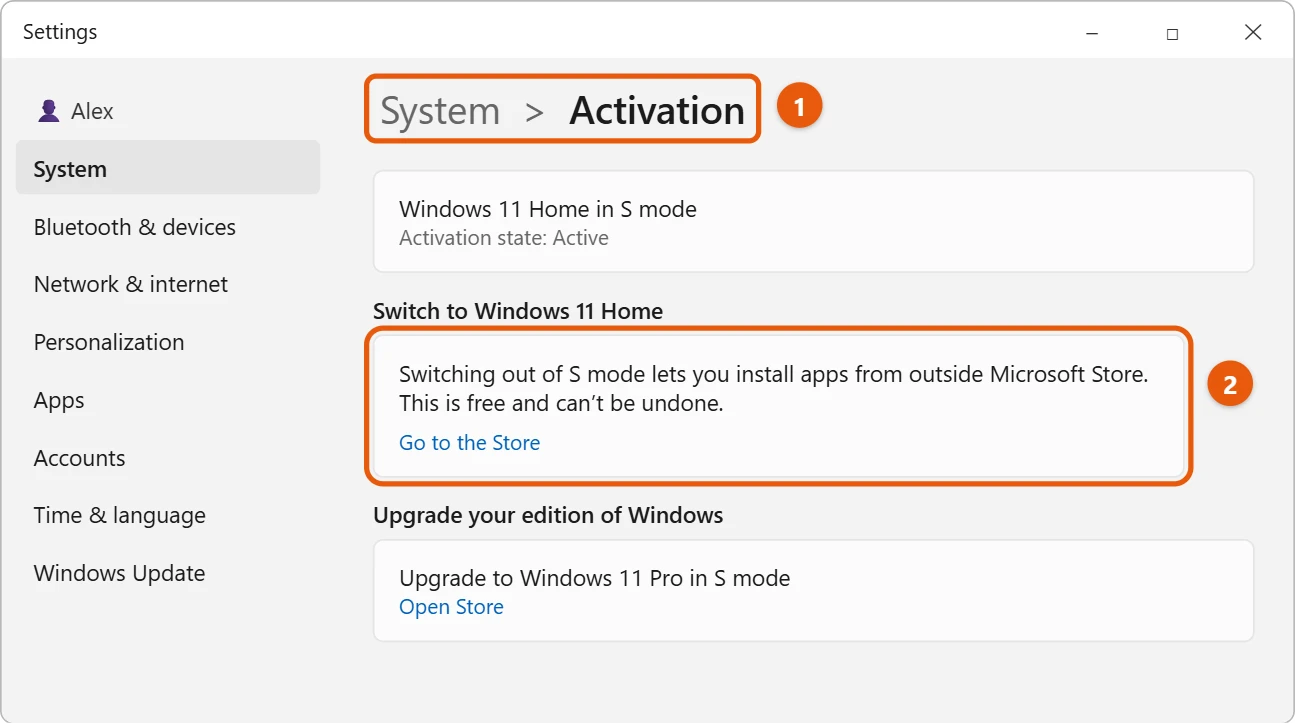
Don’t use the link under Upgrade your edition of Windows. That’s a different process that keeps you in S mode.
- On the Switch out of S mode page in Microsoft Store, select Get.
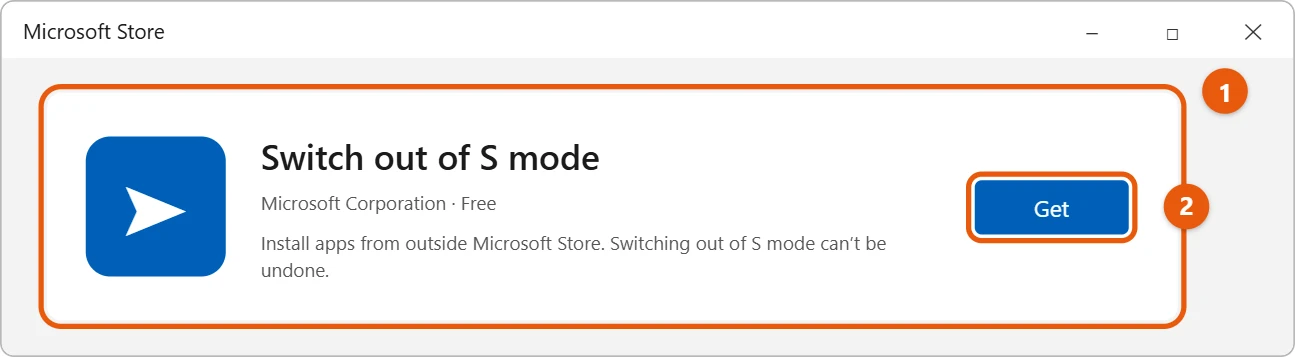
- Confirm. When it’s done, you can install apps from outside Microsoft Store, such as Google Chrome on Windows 11.
After you switch
You can now install apps from other places. Only install apps from sites you trust. To change your browser, see how to change the default browser in Windows 11. To remove apps later, see how to uninstall a program in Windows 11.
Should you keep S mode?
S mode makes sense if you only use the web, email, and apps from the Microsoft Store, and you value extra protection from malware. It’s a common choice for children’s laptops and older relatives. Switch out if you need programs that aren’t in the Store, such as Google Chrome, some printer and scanner software, or many PC games. Because the change is permanent, it’s worth checking first whether the apps you need are in the Store.
If you can’t switch out of S mode
- The Store page doesn’t open. Go to Settings > System > Activation. Under Switch to Windows 11 Home (or Pro), select Go to the Store. That opens the correct page.
- Get does nothing or shows an error. Make sure you’re connected to the internet, and sign in to the Microsoft Store if it asks. Press Windows + R, run
wsreset.exe, and try again. - The page keeps loading. Restart the PC, check Windows Update for pending updates, and try again later. Store outages are usually short.
- It’s a work or school laptop. Your organization may require S mode. Ask IT before trying to switch.
Frequently asked questions
Does switching out of S mode cost money?
No. It’s free.
Can I go back to S mode later?
No. Switching out is permanent, though a PC maker’s recovery image may restore it.
How do I know if my PC is in S mode?
Go to Settings > System > About. Under Windows specifications, the Edition line says Windows 11 Home in S mode if it is.
Will switching out delete my files or apps?
No. Your files, settings, and Store apps stay exactly as they are. The only change is that you can now install apps from anywhere.
Does switching out slow down the PC?
Not by itself. The PC runs the same way. It can only slow down if you install a lot of extra programs afterward, so install just what you need.
Do I need an antivirus after switching out?
Microsoft Defender is built in and stays on, which is enough for most people. Keep Windows updated and download apps only from their makers’ own websites or the Microsoft Store.
How long does switching out take?
Usually less than a minute. You don’t need to restart, and you can install apps from outside the Store straight away. If the confirmation doesn’t appear, restart the PC and check the Edition line in About again.
Microsoft’s reference is Windows 10 and Windows 11 in S mode FAQ. More help is on our Windows Help & Guides page.
Related: install programs on Windows 11.
Related: turn off S mode in Windows 10.

Matt Jacobs has been working as an IT consultant for small businesses since receiving his Master’s degree in 2003. While he still does some consulting work, his primary focus now is on creating technology support content for SupportYourTech.com.
His work can be found on many websites and focuses on topics such as Microsoft Office, Apple devices, Android devices, Photoshop, and more.