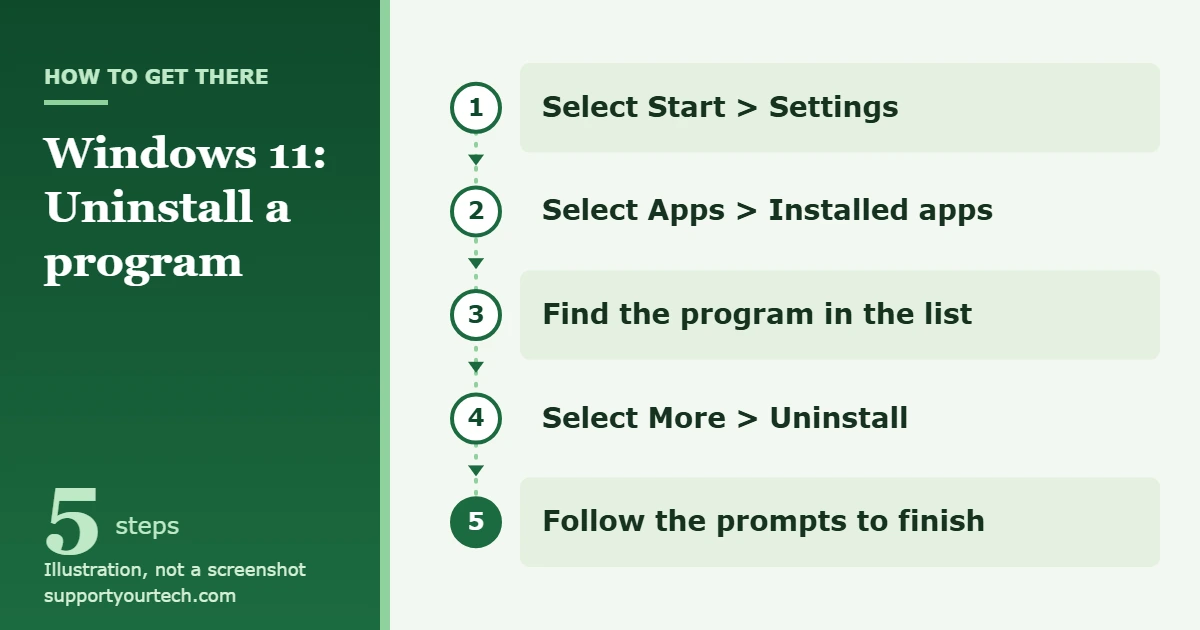
To uninstall a program in Windows 11, select Start > Settings > Apps > Installed apps, find the program, select More (the three dots) next to it, and then select Uninstall. If the program isn’t listed there or won’t uninstall, open Control Panel > Programs > Programs and Features and remove it from that list instead.
Applies to: Windows 11 (Home and Pro). Checked against Microsoft Support on October 7, 2026.
Before you start
- Close the program. Save your work and quit the program first. An uninstaller can stop or fail if the program is still running, including in the background.
- Save anything you need from it. Uninstalling removes the program itself. Some uninstallers also ask whether to delete the program’s settings or data, so export or back up anything important (saved projects, custom settings, license details) before you begin.
- Expect a permission prompt. Many desktop programs ask Windows for permission before they uninstall. On a shared or work PC you may need an administrator account to approve it.
- Know what kind of app it is. Windows 11 runs two main kinds of software: apps from the Microsoft Store and traditional desktop programs you downloaded and installed yourself. Both appear in Settings, but older desktop programs are sometimes easier to remove from Control Panel.
Uninstall a program from Settings
Settings is the best place to start because the Installed apps list shows Microsoft Store apps and desktop programs together.
- Select Start, then select Settings. You can also press the Windows key + I. The Settings window opens.
- Select Apps in the left-hand menu, then select Installed apps. A list of everything installed on the PC appears.
- Scroll to the program you want to remove. Check the name and publisher carefully so you don’t remove a similarly named tool, such as a driver utility.
- Select More (the three dots to the right of the program’s name), then select Uninstall.
- Confirm the uninstall if Windows asks. Desktop programs often open their own uninstaller window; follow its prompts until it says the removal is finished.
- Restart the PC if the uninstaller asks you to. Some programs finish removing files only after a restart.
If Uninstall is grayed out or missing for an app, the app may be part of Windows. Microsoft notes that some apps and programs are built into Windows and can’t be uninstalled. If it’s a desktop program, try the Control Panel method below.
The Start menu is the quickest route when you can see the app’s icon.
- Select Start, then select All apps. On the newer Start menu, scroll down to the All section instead. You can also type the app’s name to search for it.
- Right-click the app (or press and hold it on a touch screen).
- Select Uninstall, then confirm and follow any prompts. If the program’s uninstaller doesn’t start from here, use Settings or the Control Panel method below.
Uninstall from Control Panel (older desktop programs)
Control Panel’s Programs and Features page lists traditional desktop programs. Microsoft points to it for apps that can’t be uninstalled in Settings.
- Search for Control Panel in the search box on the taskbar, then select it in the results.
- Select Programs > Programs and Features. A list of desktop programs opens.
- Right-click the program (or press and hold it), then select Uninstall or Uninstall/Change.
- Follow the directions on the screen. Some programs, such as office suites, open a setup window that offers several choices. Pick the option to remove the program, not the one to change or repair it.
Uninstall with winget (command line)
Windows Package Manager, called winget, is a command-line tool that comes with Windows 11 as part of the App Installer component. It’s handy if you are comfortable typing commands or want to remove several programs one after another without clicking through Settings.
- Search for Command Prompt from the taskbar and open it. You don’t need to run it as administrator; if a program needs extra permission, Windows will ask.
- Type winget list and press Enter. Microsoft documents that this lists apps installed through winget as well as apps installed by other means, with each app’s name and ID.
- Note the exact ID of the program you want to remove. To shorten the list, add part of the name, for example winget list zoom.
- Type winget uninstall –id ProgramID –exact, replacing ProgramID with the ID from the list, and press Enter. The –id option limits the uninstall to that ID, and –exact makes winget match the ID exactly instead of any name that merely contains your text.
- Watch the progress. By default winget shows the uninstaller’s progress; some programs also open their own window that you need to click through.
If your search matches more than one program, winget doesn’t guess. It shows the matching results and asks you to narrow the command down, which protects you from removing the wrong thing. For every option, see Microsoft’s winget uninstall command reference.
Which method should you use?
| Situation | Best method |
|---|---|
| Any app or program, first attempt | Settings > Apps > Installed apps |
| You can see the app in Start and want the fastest route | Start menu right-click > Uninstall |
| An older desktop program won’t uninstall in Settings | Control Panel > Programs and Features |
| You want to remove several programs or script the cleanup | winget in Command Prompt |
| The program misbehaves but you still want it | Repair it instead (see troubleshooting) |
Check that it’s gone, and how to get it back
Open Settings > Apps > Installed apps again, or look in All apps on the Start menu. The program should no longer be listed. If you used winget, run winget list with the program’s name; no match means it’s gone.
Uninstalling isn’t permanent. To reinstall a Microsoft Store app, open Microsoft Store while signed in to your Microsoft account, select Library, find the app, and select Install. Desktop programs are reinstalled from the developer’s website or original installer; keep any license key handy. Our guide on how to install programs on Windows 11 covers the safe way to do that.
If you were uninstalling to free up space, also check Start > Settings > System > Storage > Cleanup recommendations. Its Unused apps category points out apps you haven’t used recently, and you can select Clean up for each section.
If a program won’t uninstall
Uninstall is grayed out or missing
Built-in Windows apps can’t always be removed, and Windows deliberately protects the ones it needs. For a desktop program, look for it under Programs and Features in Control Panel, where it may still offer Uninstall. If it was installed for all users by another account, sign in with an administrator account and try again.
The uninstall fails, freezes, or shows an error
- Make sure the program is fully closed. Look for its icon near the clock at the right end of the taskbar, and close it in Task Manager (Ctrl + Shift + Esc) if needed.
- Restart the PC with Start > Power > Restart, then try the uninstall again before opening anything else.
- If Windows recommends a troubleshooting step after the failed removal, follow it. Microsoft collects more fixes on its page about problems that block programs from being installed or removed.
- If the regular methods still fail, Microsoft’s guide to starting your PC in safe mode explains how to restart in a limited startup mode (choose Troubleshoot > Advanced options > Startup Settings > Restart, then press 4 or F4). Try uninstalling from Settings or Control Panel there, then restart normally.
For stubborn software, see our guides on how to force uninstall a program on Windows 11 and on programs that can’t be uninstalled easily. Avoid simply deleting the program’s folder: that skips the uninstaller, can leave the program listed as installed, and may break a later reinstall.
The program works badly but you want to keep it
Repair it first. In Settings > Apps > Installed apps, select the app, choose Advanced options, then Repair; if that doesn’t help, try Reset. Not every desktop program offers these options. For those, use Uninstall/Change in Programs and Features and look for a repair choice in the program’s setup window.
You can’t uninstall on a work or school PC
Organizations often manage which apps can be installed or removed, and a standard account may not have the rights to uninstall. If an app is required by your organization, it may come back or the option may be blocked. Ask your IT administrator rather than trying to work around it.
An unwanted program keeps coming back
Software that reinstalls itself or that you don’t remember installing can be a sign of unwanted software. Open Windows Security, select Virus & threat protection, and run Quick scan. If you use another antivirus product, run a scan with it instead.
Frequently asked questions
Where is Add or Remove Programs in Windows 11?
Its job is now done by Settings > Apps > Installed apps. The classic list still exists as Programs and Features in Control Panel, under Programs.
Does uninstalling a program delete my files?
Documents, photos, and other files you saved in your own folders aren’t part of the program, so they normally stay. The program’s own settings and data may be removed, and some uninstallers ask whether to keep them, so read each prompt before you continue.
Can I uninstall several programs at once?
Settings and Control Panel remove one program at a time. With winget you can run one winget uninstall command after another in the same Command Prompt window, which is faster for a big cleanup.
Is it safe to remove programs that came with my PC?
Extras installed by the PC maker, such as trial software, are usually safe to remove if you don’t use them. Look up anything you don’t recognize first, and leave drivers and hardware utilities alone unless you know what they do. Windows blocks removal of apps it needs.
How do I uninstall a program in Windows 10?
The menus are different in Windows 10. Follow our guide on how to uninstall programs on Windows 10. To remove games specifically on Windows 11, see how to uninstall a Microsoft Store game in Windows 11.
Start with Settings > Apps > Installed apps for any program you no longer need, and keep Microsoft’s uninstall or remove apps and programs page handy for future reference.
Related: how to uninstall Roblox on Windows 11.
Related: how to recover uninstalled programs on Windows 11.
Related: uninstall PC App Store on Windows 11.

Matt Jacobs has been working as an IT consultant for small businesses since receiving his Master’s degree in 2003. While he still does some consulting work, his primary focus now is on creating technology support content for SupportYourTech.com.
His work can be found on many websites and focuses on topics such as Microsoft Office, Apple devices, Android devices, Photoshop, and more.