How to Remove Things from Desktop Without Deleting in Windows 11

Navigating your desktop on Windows 11 can sometimes feel like trying to find your car keys in a messy room. You don’t have to delete anything to keep it tidy, though! By following a few simple steps, you can declutter your desktop without losing any files. Let’s dive into how you can do this.

Step-by-Step Tutorial on How to Remove Things from Desktop Without Deleting Windows 11

In this tutorial, we’ll walk you through the steps to clean up your desktop by moving items to other locations on your computer instead of deleting them.

Step 1: Right-Click the Desktop Item

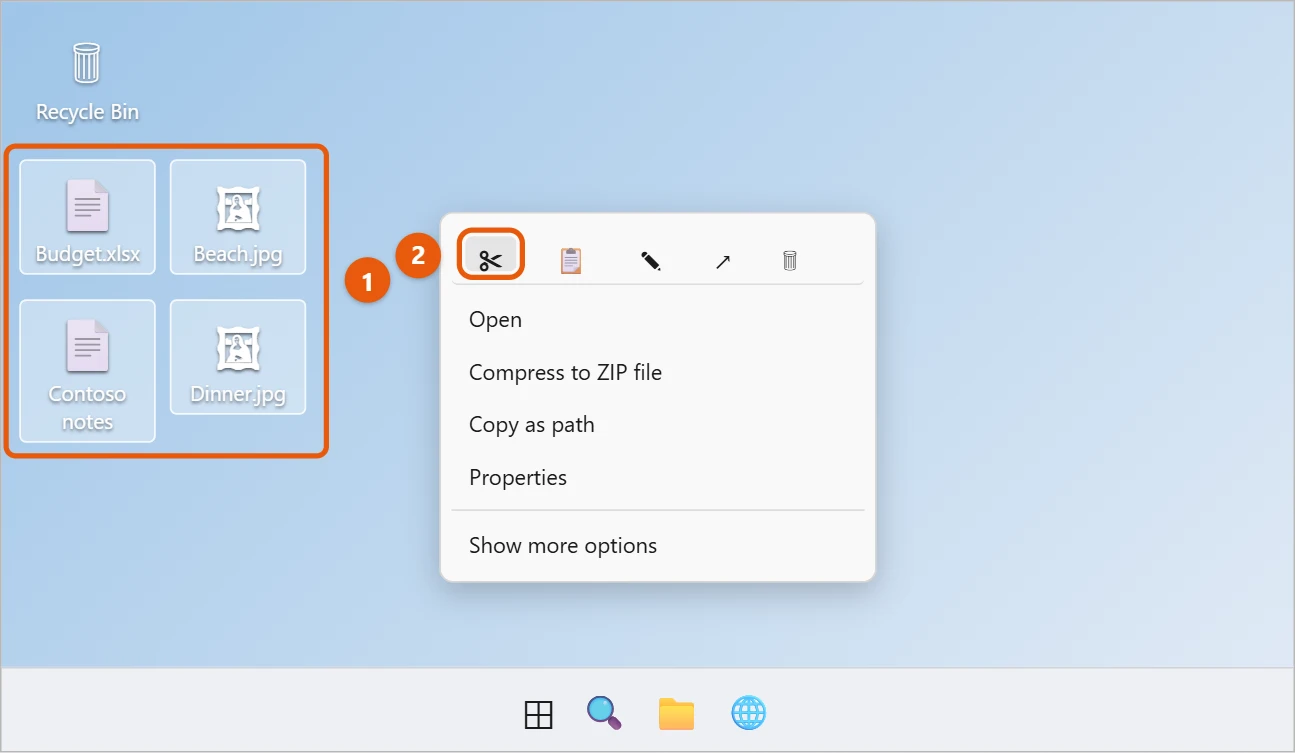
Right-click on the file or folder you want to remove from your desktop.

Once you right-click, a menu will appear with various options. This first step is essential as it opens the door to all the actions you can perform with your file or folder, including moving it.

Step 2: Select "Cut"

Click "Cut" from the context menu.

When you select "Cut," you’re telling Windows that you want to move this item to a different location. It’s like putting the item in a temporary holding area, ready to be placed somewhere else.

Step 3: Open File Explorer

Open File Explorer by clicking on the folder icon in the taskbar or by pressing the Windows key + E.

File Explorer is your gateway to all the files and folders on your computer. You can navigate through different drives and directories from here.

Step 4: Navigate to Desired Folder

Browse to the folder where you want to move the desktop item.

Take your time to find the perfect spot to relocate your file or folder. It could be an existing folder or one you create specifically for organizing your desktop items.

Step 5: Right-Click and Select "Paste"

Right-click in the new location and select "Paste" from the context menu.

By pasting the item in the new location, you’re completing the moving process. It will now be stored in your chosen folder instead of cluttering your desktop.

After following these steps, the files or folders you moved will no longer be on your desktop. Instead, they’ll be safely stored in their new location, helping you maintain a cleaner workspace.

Tips for How to Remove Things from Desktop Without Deleting Windows 11

  • Create a "Desktop Cleanup" Folder: Make a specific folder where you can quickly move desktop items. Then, periodically organize this folder.
  • Use Shortcuts: Instead of moving files, create shortcuts on the desktop. This way, the actual files are stored elsewhere, but you can still access them quickly.
  • Utilize Virtual Desktops: Windows 11 allows you to create virtual desktops. Use different desktops for different tasks to avoid clutter.
  • Regular Maintenance: Schedule a regular time to clean up your desktop, such as once a week or month.
  • Folder Hierarchy: Develop a consistent folder hierarchy in your File Explorer to make it easy to find moved items later.

Frequently Asked Questions About How to Remove Things from Desktop Without Deleting Windows 11

How do I know where to move my files?

Choose a location that makes sense for the type of file. For example, documents can go in the "Documents" folder, and pictures in the "Pictures" folder.

What if I accidentally delete a file?

Check the Recycle Bin. Deleted files are usually moved there first, so you can restore them if needed.

Can I undo the move if I change my mind?

Yes, you can move the file back to the desktop by repeating the same steps.

Is there a faster way to move multiple files?

Yes, you can select multiple files at once by holding down the Ctrl key while clicking on each file, then cutting and pasting them all at once.

Can I automate the process?

You can use tools like Task Scheduler and scripts to automate moving files, but this requires more advanced knowledge.

Summary

  1. Right-click the desktop item.
  2. Select "Cut."
  3. Open File Explorer.
  4. Navigate to the desired folder.
  5. Right-click and select "Paste."

Conclusion

Keeping your desktop organized doesn’t have to be a daunting task. By moving items instead of deleting them, you can maintain a clutter-free workspace while keeping your files safe and easily accessible. Windows 11 offers user-friendly features to assist in this process, making it easy for anyone to follow.

If you find yourself frequently dealing with desktop clutter, consider setting up a system to regularly manage and organize your files. This could involve creating dedicated folders or using virtual desktops to separate different types of tasks.

For more tips and tricks on maintaining a clean and efficient computer workspace, explore related articles or join online forums where users share their best practices. Happy organizing!

Get Our Free Newsletter

How-to guides and tech deals

You may opt out at any time.
Read our Privacy Policy