Right-click the shortcut on the desktop and select the Delete icon (the trash can) at the top of the menu. Or select it and press Delete. Removing a shortcut doesn’t uninstall the app.
Applies to: Windows 11. Checked against Microsoft Support on September 29, 2026.
Delete a shortcut
- Right-click the shortcut on the desktop.
- Select the Delete icon at the top of the menu.
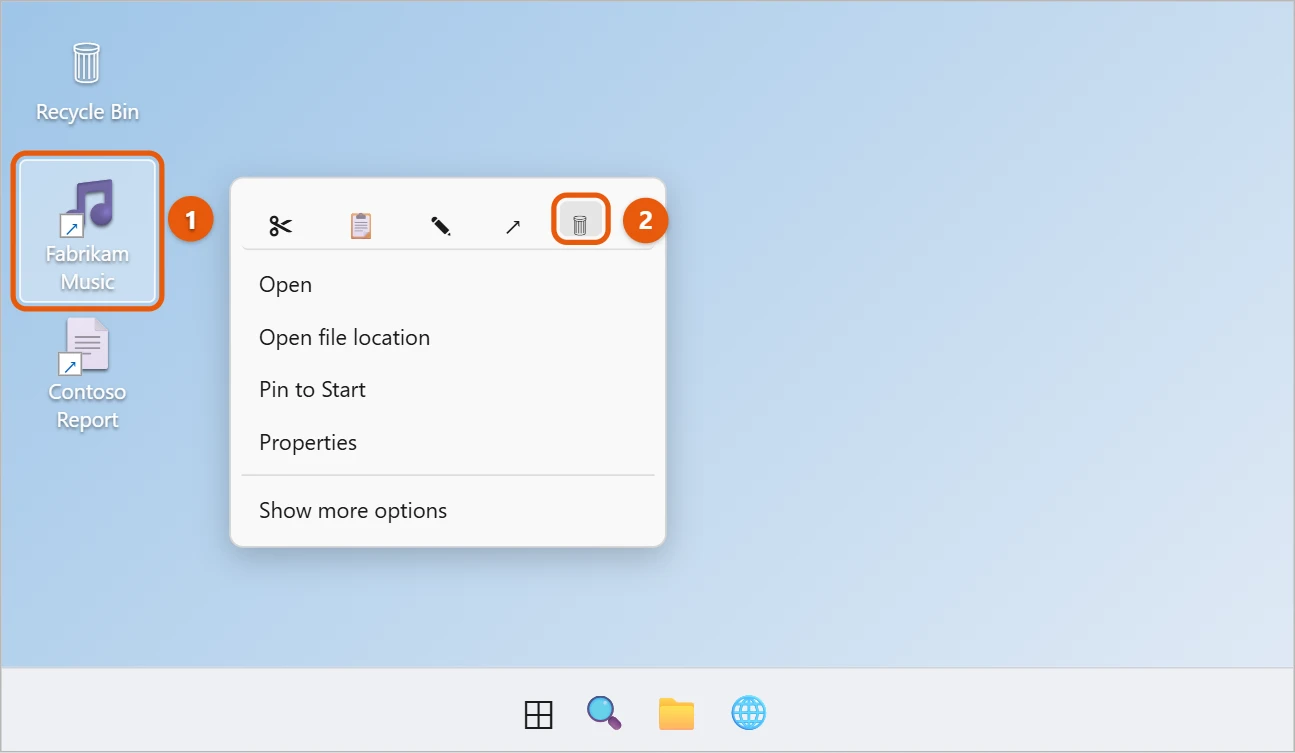
Shortcuts have a small arrow on their icon. The shortcut goes to the Recycle Bin, and the app or file it points to stays where it is.
To remove several at once, hold Ctrl and select each one, then press Delete.
Hide all desktop icons without deleting
- Right-click an empty part of the desktop and select View.
- Select Show desktop icons to clear the check mark.

Do the same again to show them.
Tidy the desktop instead
If you’d rather keep the shortcuts but get rid of the clutter, right-click the desktop, select New > Folder, and drag the shortcuts you rarely use into it. To line up the rest, right-click the desktop, select View, and turn on Auto arrange icons. You can also pin the apps you use most to the taskbar or Start menu and delete their desktop shortcuts.
If a shortcut keeps coming back
- It’s on the shared Public desktop. Some apps put their shortcut in C:\Users\Public\Desktop, which shows on every account. Deleting it asks for administrator permission and removes it for everyone on the PC.
- An app update re-creates it. Browsers and some games add their shortcut again after updating. Look in the app’s settings for an option to stop creating desktop shortcuts, or delete it again after each update.
- OneDrive syncs your desktop. If OneDrive backup is on for Desktop, a shortcut deleted on one PC is also removed from your other PCs, and one added on another PC appears on this one.
If you can’t delete a shortcut
A shortcut that says Item not found or won’t go away is usually a display glitch. Press F5 on the desktop to refresh it. If it’s still there, restart File Explorer: press Ctrl + Shift + Esc, right-click Windows Explorer, and select Restart. As a last resort, open Command Prompt and run del "%USERPROFILE%\Desktop\Name.lnk", replacing Name with the shortcut’s name.
If Delete is grayed out or access is denied
- The item is read-only. Right-click it, select Properties, clear Read-only, and select OK. Then delete it.
- You need permission. Shortcuts on the Public desktop, or ones an IT department placed there, need an administrator account to remove. On a work PC, ask IT.
- A program has it open. Close the app the shortcut points to, or restart the PC, and try again.
- Windows files are damaged. If several items won’t delete, open Command Prompt as an administrator and run
sfc /scannow, then restart.
Remove every shortcut with PowerShell
To delete all shortcuts on your desktop in one go without touching real files, open PowerShell and run:
Get-ChildItem "$([Environment]::GetFolderPath('Desktop'))\*.lnk" | Remove-Item
This finds your desktop even if OneDrive backs it up, and only removes files ending in .lnk, which is what shortcuts are. Some apps also add .url internet shortcuts. To remove those, run the command again with *.url for those. Everything goes straight to deletion, not the Recycle Bin, so make sure you want them gone.
Watch for shortcuts you didn’t add
If shortcuts to websites or apps you don’t recognize keep appearing, adware may be adding them. Right-click one and select Properties to see its Target. If it points to an unfamiliar website or program, uninstall anything you didn’t install on purpose in Settings > Apps > Installed apps, then run a full scan in Windows Security.
Hide all desktop icons with Group Policy
On Windows 11 Pro, you can hide and lock the desktop completely, which is useful on shared or kiosk PCs. Open the Local Group Policy Editor, go to User Configuration > Administrative Templates > Desktop, and set Hide and disable all items on the desktop to Enabled. Sign out and back in. Files stay on the desktop folder; they just don’t show.
Frequently asked questions
Can I get a deleted shortcut back?
Yes. Open the Recycle Bin, right-click the shortcut, and select Restore. Or make a new one: see how to create a desktop shortcut.
How do I remove Recycle Bin or This PC from the desktop?
These are set in Settings > Personalization > Themes > Desktop icon settings. See how to change desktop icons in Windows 11.
How can I tell a shortcut from the real file?
A shortcut has a small curved arrow on the corner of its icon. To be sure, right-click it and select Properties. A shortcut has a Shortcut tab with a Target box showing where the real file or app is.
Does deleting a shortcut free up space?
Barely. A shortcut is only a few kilobytes. To free real space, uninstall the app in Settings > Apps > Installed apps, or delete large files you no longer need.
Can I delete every shortcut at once?
Yes. Click an empty part of the desktop, press Ctrl + A to select everything, then hold Ctrl and click any real files or folders to deselect them. Press Delete. Check the Recycle Bin before emptying it in case you removed something you wanted.
On a laptop, see how to right-click on a laptop in Windows 11.
To move files off the desktop without deleting them, see how to clear your desktop without deleting files.
To keep an icon but hide it from view, see how to hide specific desktop icons in Windows 11.
To also unpin apps from Start and the taskbar, see how to hide apps on Windows 11.
To add app shortcuts back to the desktop, see how to move apps from the taskbar to the desktop in Windows 11.
Microsoft’s reference is Customize the desktop icons in Windows. More help is on our Windows Help & Guides page.

Matt Jacobs has been working as an IT consultant for small businesses since receiving his Master’s degree in 2003. While he still does some consulting work, his primary focus now is on creating technology support content for SupportYourTech.com.
His work can be found on many websites and focuses on topics such as Microsoft Office, Apple devices, Android devices, Photoshop, and more.