To empty the trash on Windows 10, right-click the Recycle Bin icon on your desktop, select Empty Recycle Bin, then select Yes. Everything in it is deleted for good and the disk space is freed. Windows calls the trash the Recycle Bin. If you only want to delete some items, open the Recycle Bin, select them and press Delete.
Applies to: Windows 10 Home and Pro. Last reviewed October 8, 2026. Emptying the Recycle Bin can’t be undone from within Windows, so check what’s in it first.
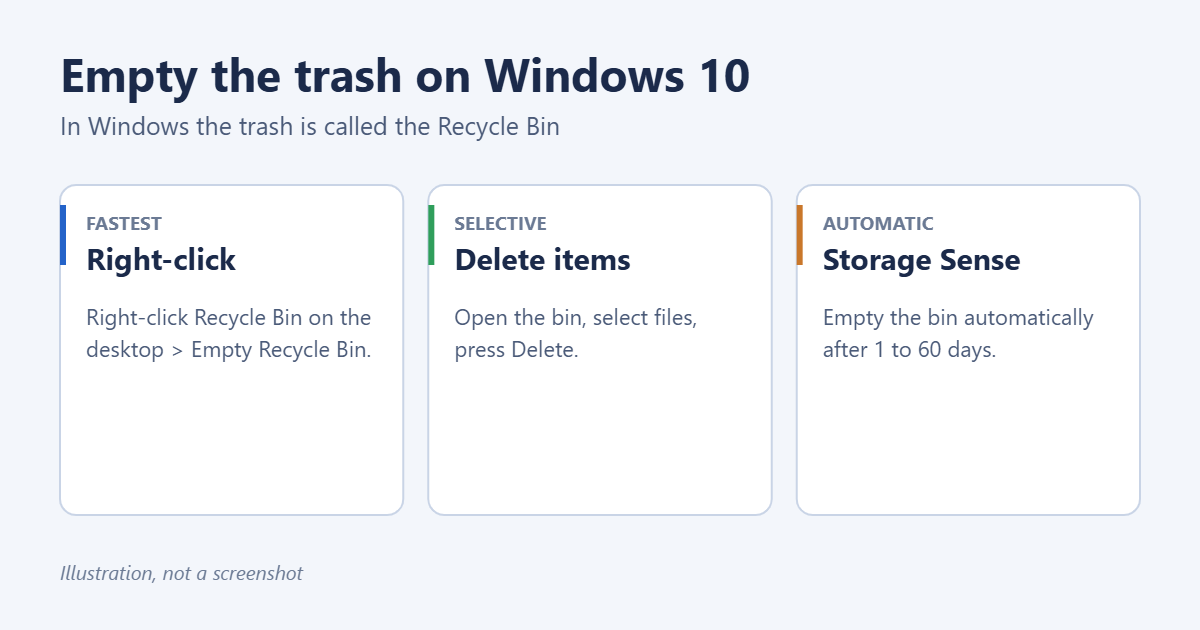
Method 1: From the desktop
- Right-click the Recycle Bin icon on the desktop.
- Select Empty Recycle Bin.
- Select Yes to confirm.
If the option is greyed out, the Recycle Bin is already empty.
Method 2: From inside the Recycle Bin
- Double-click Recycle Bin to open it. If it’s not on the desktop, type Recycle Bin in the File Explorer address bar. See how to access the Recycle Bin in Windows 10 for more ways.
- To empty everything, select Manage > Empty Recycle Bin on the ribbon.
- To delete only some items, select them (hold Ctrl to pick several), then press Delete and confirm.
- To keep an item, right-click it and select Restore. It goes back to its original folder.
Sort by Date Deleted or Size to find what you want quickly. The Size column shows which files take the most space.
Method 3: Empty it automatically with Storage Sense
- Open Settings > System > Storage.
- Turn on Storage Sense and select Configure Storage Sense or run it now.
- Under Temporary Files, set Delete files in my recycle bin if they have been there for over to 1, 14, 30 or 60 days.
- Select Clean now to run it straight away.
Storage Sense can also remove temporary files. See how to delete temporary files in Windows 10.
Method 4: PowerShell
Right-click Start, select Windows PowerShell and run:
Clear-RecycleBin -ForceThis empties the Recycle Bin on every drive without asking. To empty only drive D, use Clear-RecycleBin -DriveLetter D -Force.
Delete files without sending them to the trash
Select a file and press Shift+Delete. Windows asks for confirmation and deletes it permanently, skipping the Recycle Bin. Use this carefully.
You can also make the Recycle Bin smaller or larger: right-click it, select Properties, choose a drive and set Custom size. When the bin is full, Windows deletes the oldest items first.
Troubleshooting
The Recycle Bin icon is missing
Go to Settings > Personalization > Themes > Desktop icon settings, tick Recycle Bin and select OK.
Disk space didn’t go up after emptying
Other files are using the space. Run Disk Cleanup or see how to free up space in Windows 10 safely.
“The Recycle Bin on C:\ is corrupted”
Open Command Prompt as administrator and run rd /s /q C:\$Recycle.bin, then restart. Windows creates a new, empty Recycle Bin. Anything still in the old one is deleted.
Files deleted from a USB drive aren’t in the Recycle Bin
That’s normal. Files deleted from USB drives, memory cards and network folders are removed immediately.
Frequently asked questions
Can I get files back after emptying the Recycle Bin?
Not from the Recycle Bin. You may be able to restore them from File History, OneDrive’s recycle bin or recovery software. See how to recover permanently deleted files in Windows 10 and how to find recently deleted files.
Does emptying the Recycle Bin speed up my PC?
Only if the drive was nearly full. It frees space but doesn’t make Windows faster otherwise.
Is emptying the trash the same as securely erasing files?
No. The data stays on the disk until it’s overwritten. Before selling a PC, reset it with the option to clean the drive.

Matt Jacobs has been working as an IT consultant for small businesses since receiving his Master’s degree in 2003. While he still does some consulting work, his primary focus now is on creating technology support content for SupportYourTech.com.
His work can be found on many websites and focuses on topics such as Microsoft Office, Apple devices, Android devices, Photoshop, and more.