To hide the Recycle Bin in Windows 11, go to Settings > Personalization > Themes > Desktop icon settings. Uncheck Recycle Bin and select OK. The icon disappears from the desktop, but the Recycle Bin still works.
Applies to: Windows 11. Checked on September 24, 2026.
Hide the Recycle Bin icon
- Right-click the desktop and select Personalize, or go to Settings > Personalization.
- Select Themes.
- Under Related settings, select Desktop icon settings.
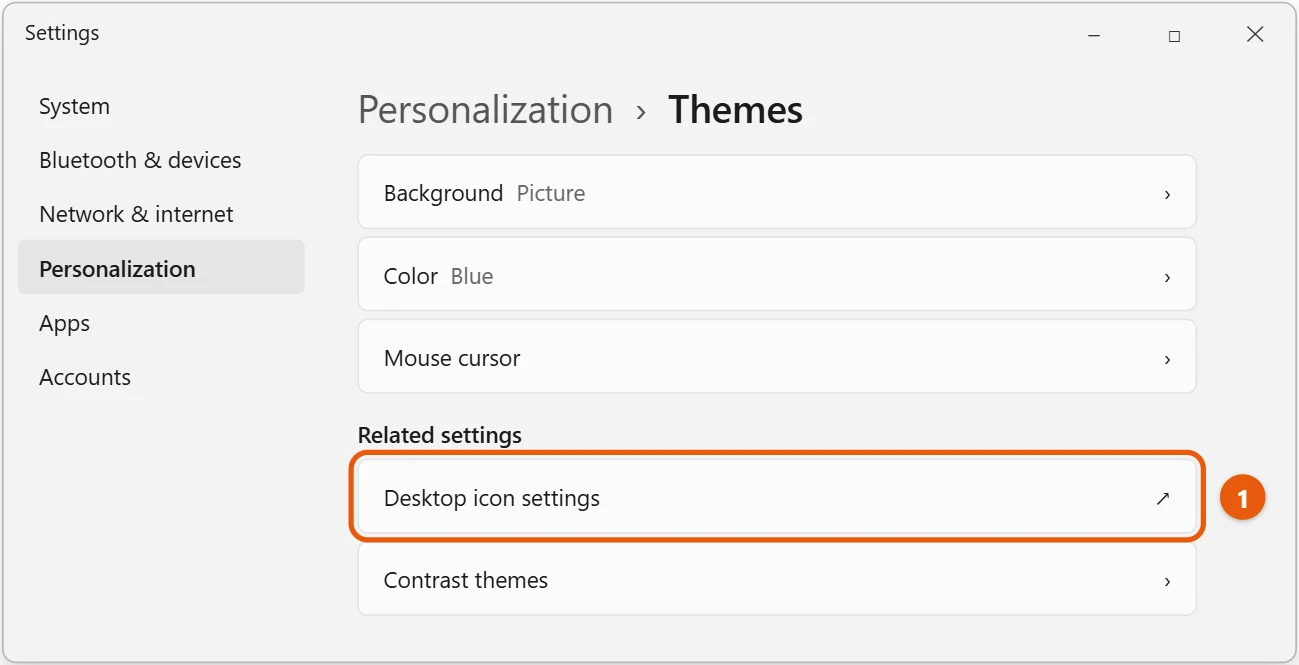
- Uncheck Recycle Bin, then select OK.

Deleted files still go to the Recycle Bin. Only the desktop shortcut is hidden.
- File Explorer: type
Recycle Binin the address bar and press Enter. - Run box: press Windows + R, type
shell:RecycleBinFolder, and press Enter. - Start menu: search for Recycle Bin and select it.
Tip: before you hide the icon, right-click it and select Pin to Start or Pin to Quick access so the bin stays one click away. See where the Recycle Bin is in Windows 11.
Hide all desktop icons instead
Right-click the desktop and select View, then uncheck Show desktop icons. This hides every icon, including the Recycle Bin. Repeat the steps to show them again.
Bring the Recycle Bin icon back
Open Desktop icon settings again, check Recycle Bin, and select OK.
If you can’t change the setting, your work or school may manage it. Ask your IT team.
Change the Recycle Bin icon instead
If you’d rather keep the bin but give it a different look, open Desktop icon settings, select Recycle Bin (full) or Recycle Bin (empty), and select Change Icon. Pick an icon and select OK. Select Restore Default to undo it.
Stop the delete confirmation
To stop Windows from asking “Are you sure you want to move this file to the Recycle Bin?”, right-click the Recycle Bin, select Properties, and uncheck Display delete confirmation dialog. If the icon is hidden, open the bin with shell:RecycleBinFolder, right-click an empty area, and select Properties.
If hiding the icon doesn’t work
- The Recycle Bin box is grayed out. Your work or school may manage desktop icons. Ask your IT team.
- The icon comes back after a restart. A theme can bring back desktop icons. In Desktop icon settings, clear Allow themes to change desktop icons, uncheck Recycle Bin again, and select OK.
- The icon is still there after you select OK. Right-click the desktop and select Refresh, or press F5.
- You want it in File Explorer instead. In File Explorer, right-click an empty part of the left pane and select Show all folders. Recycle Bin then appears in the navigation pane.
Frequently asked questions
Does hiding the Recycle Bin delete it?
No. It hides the icon only. You can still restore deleted files.
Can I delete files permanently without the Recycle Bin?
Yes. Press Shift + Delete to skip the bin, but those files can’t be restored from the bin.
Why did the Recycle Bin disappear on its own?
Either Recycle Bin is unchecked in Desktop icon settings or Show desktop icons is turned off. Check both.
Can I show This PC on the desktop in the same place?
Yes. Desktop icon settings also has Computer. See how to show This PC on the desktop in Windows 11.
Does hiding the icon affect other users?
No. Desktop icons are set separately for each account, so other people keep their Recycle Bin icon.
How long do files stay in the Recycle Bin?
Until you empty it, or until it runs out of space and Windows removes the oldest files. Storage Sense can also empty it on a schedule. Check Settings > System > Storage > Storage Sense to see whether it’s set to do that.
On Windows 10, see how to access the Recycle Bin in Windows 10. More help is on our Windows Help & Guides page.
To change the picture on your desktop, see how to change the wallpaper in Windows 11.
To give the Recycle Bin a different icon instead of hiding it, see how to change desktop icons in Windows 11.
To clear out or recover deleted files, see how to empty the Recycle Bin in Windows 11 and how to restore items from the Recycle Bin in Windows 11.

Matt Jacobs has been working as an IT consultant for small businesses since receiving his Master’s degree in 2003. While he still does some consulting work, his primary focus now is on creating technology support content for SupportYourTech.com.
His work can be found on many websites and focuses on topics such as Microsoft Office, Apple devices, Android devices, Photoshop, and more.